


How to Free up Google Storage and Get More Free Storage: 6 Ways
 211
211
 0
0


Google services are popular. We save files in Google Drive, back up precious photos and videos in Google Photos, and receive and send emails through Gmail. They make our life and work easier.
Google offers free storage space to each user. However, the space can be filled up over time. When Google storage space is insufficient, it will affect normal use. For example, you cannot upload new files to Google Drive, Google Photos, or send and receive messages. Don't worry. This article will show you how to free up Google storage easily and quickly.
 Cisdem Duplicate Finder
Help You Easily Clear Google Storage Space
- Identify all duplicate files: duplicate photos, videos, audio files, etc.
- Detect similar images with AI-powered similarity detection engine
- Find duplicate files in Google Drive, Google Photos, Windows PC, Mac, and more
- Offer 3 modes for viewing duplicates, along with side-by-side image previews
- Automatically select all but one file for removal in each set of duplicates, enabling you to delete all duplicates at once
- Allow you to adjust selections manually or choose from 8 rules (e.g., Select Newest)
- Help you quickly free up Google storage by cleaning up duplicate copies and redundant photo versions
- Easy to use for everyone


Check your Google storage usage
Before you start cleaning up space, it's recommended to check your space usage status by going to Google One. Choose Storage, and you will see storage details for Google Drive, Google Photos, and Gmail.

You can click Clean up space to follow Google's suggestions to perform cleanup by items or service. You can also follow the guides below to free up space by service, including both built-in and third-party cleanup solutions.
1. Free up Google Drive storage
Here are 2 effective ways to free up Google Drive storage.
Clean up duplicate files in Google Drive
Duplicate files are not useful and they can waste space, so you can clean them up to free up space. Google Drive doesn't help users handle duplicate files, but you can use Cisdem Duplicate Finder. With it, you can delete all kinds of duplicate files in Google Drive easily and quickly. It allows you to preview duplicate files before deleting them.
Step 1. Download and install Google Drive app on your computer. Sign in with your account. Follow the prompts to complete the setup. Then you can see the Google Drive in your Windows File Explorer/Mac Finder.
Step 2. Download and install Cisdem Duplicate Finder.
 Free Download Windows 10 or later
  Free Download macOS 10.11 or later
Step 3. Open it. Under Local File Scan, add the My Drive folder in Google Drive. Click Scan Now.
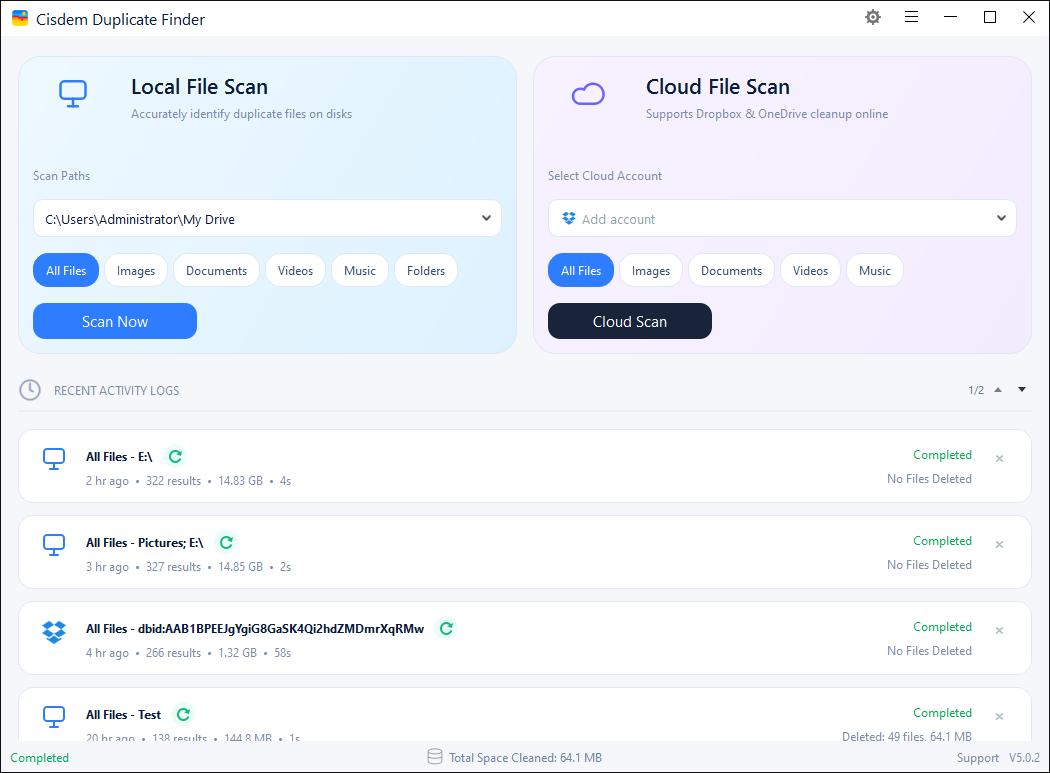
Step 4. Wait for the scan to complete. It will show you all found Google Drive duplicate files in the result window.
This tool automatically selects all but one file for deletion in each set of duplicate files. Also, you can use the selection rules to help you with bulk selection.
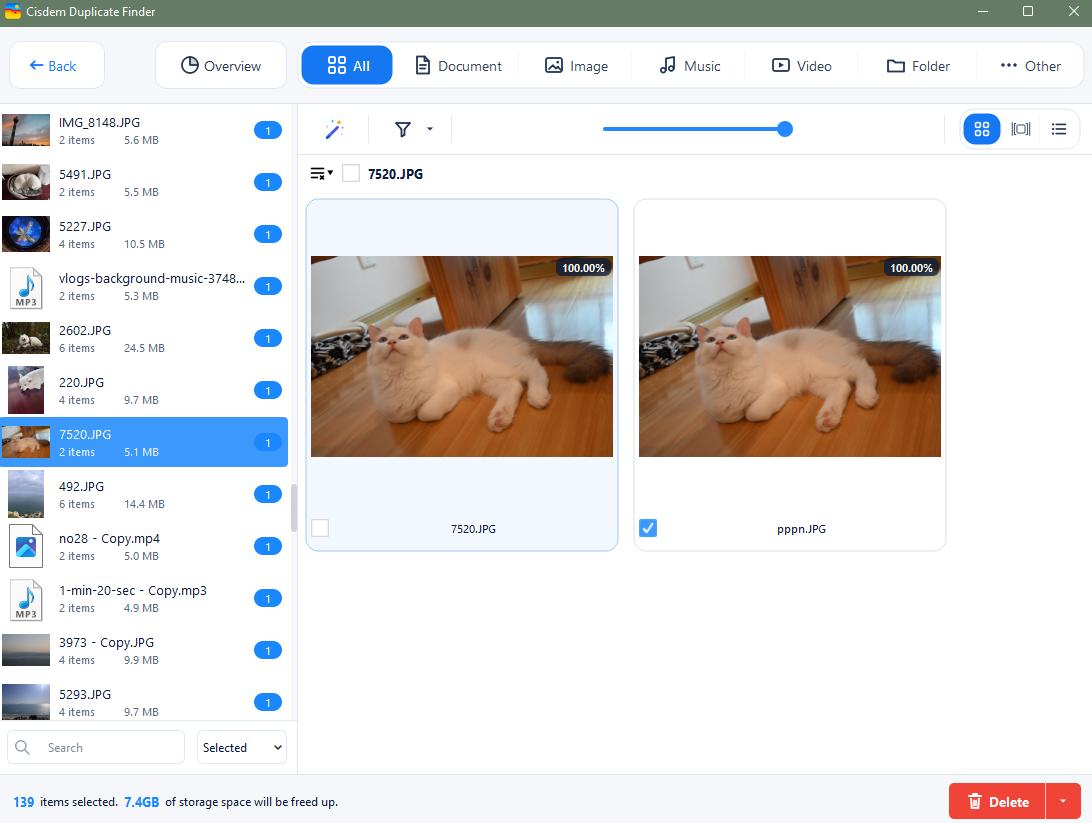
Step 5. Click Delete to free up storage space in Google Drive.
Now the duplicate files in Google Drive are moved to Trash. They will be completely deleted after 30 days.
Delete large files in Google Drive
You can free up a lot of space in Google Drive by deleting some large and unnecessary files. Below are steps:
Step 1. Visit Google One in your browser and sign in with your Google account.
Step 2. Under Clean up suggested items, click Large files.
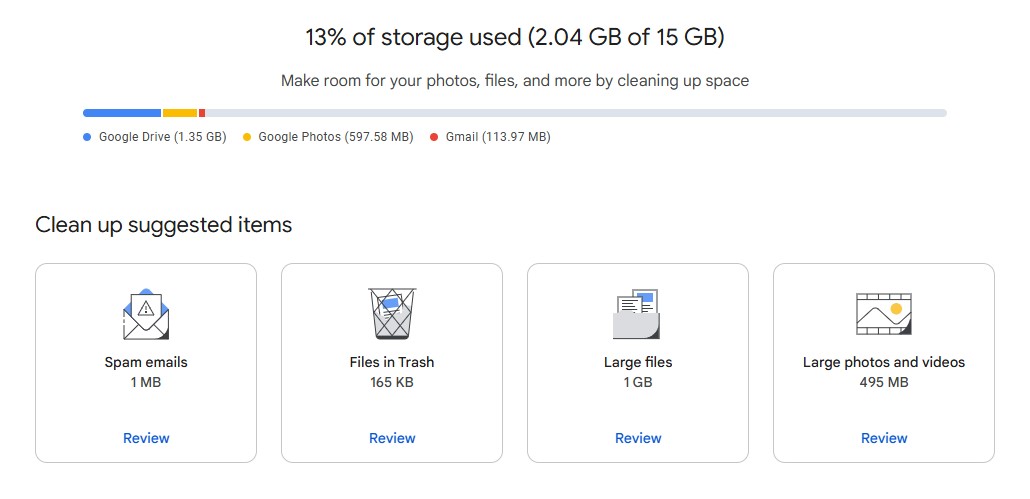
Step 3. Check the large file list.
Step 4. Select the unwanted files. Click on Delete in the upper right corner.
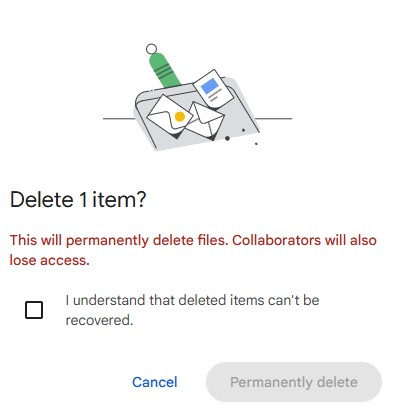
Step 5. Check the box next to “I understand that deleted items can't be recovered”. Click Permanently delete.
2. Free up Google Photos storage
Google Photos is a cloud storage service that helps users back up and manage photos and videos. After using it for a long time, photos and videos can take up much space. Here are 2 easy ways to free up Google Photos storage.
Remove duplicate photos and videos in Google Photos
When importing or syncing photos to Google Photos, many duplicate or near-duplicate photos may be generated. (Near-duplicates are also known as similar photos.) Cisdem Duplicate Finder helps free up Google Storage by removing duplicate photos in Google Drive, it also uses AI-powered similarity detection engine to find and eliminate near-duplicate photos in Google Photos.
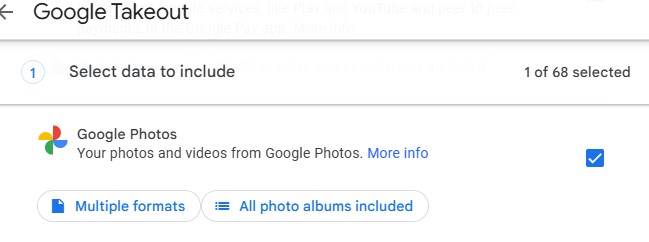
Step 1. Go to https://takeout.google.com/settings/takeout on your browser. Sign in with your Google account.
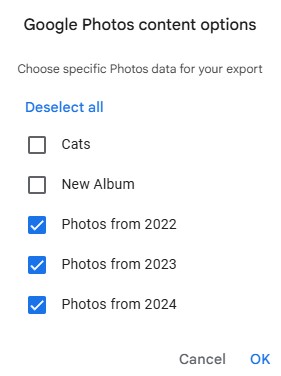
Step 2. Click Deselect all. Then scroll down to find Google Photos. Select it. Click on All photo albums included under it.
Only select the year albums such as Photos from 2024, Photos from 2023. Click OK.
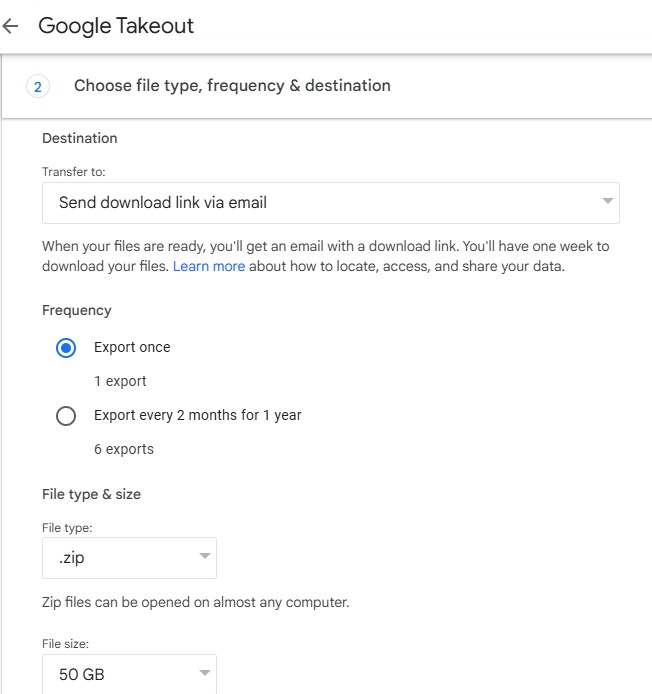
Step 3. Scroll down the window and click Next step. Select Send download link via email under Destination. Then click Create export.
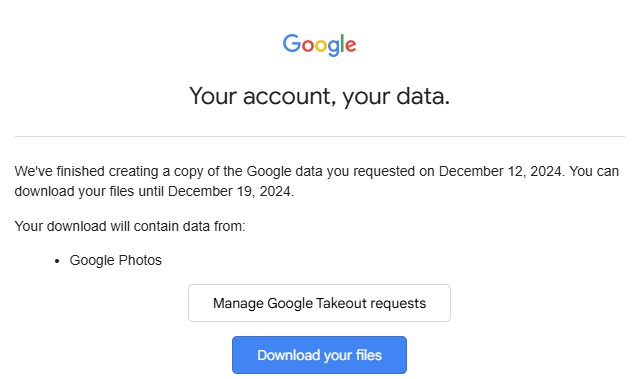
Step 4. Open the email you received. Click Download your files. Then unzip the ZIP file on your computer. Then you’ll find a folder named Takeout on your computer. All your Google photos are in this folder.
Step 5. Install Cisdem Duplicate Finder on your PC or Mac.
Free Download Windows 10 or later Free Download macOS 10.11 or later
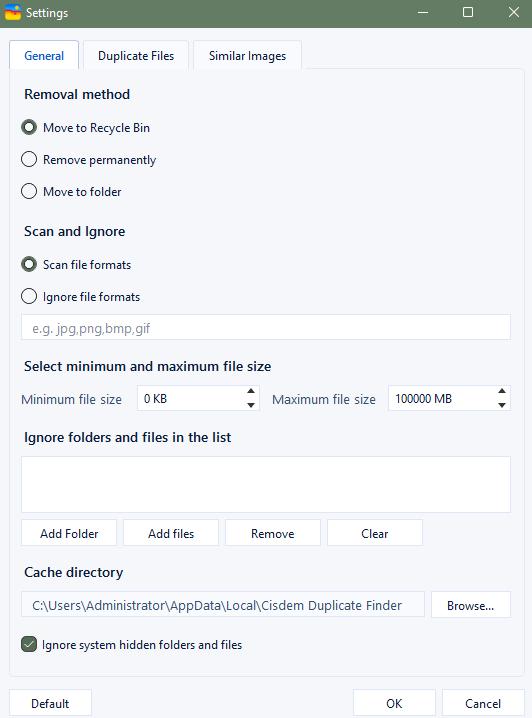
Step 6. Open Cisdem Duplicate Finder. Click Settings in the upper right corner. Click General. Select Move to Folder. Click the gear icon next to it. It allows you to choose where you want to store the deleted duplicate files. Create a new folder and name it Duplicates. Then select this folder.
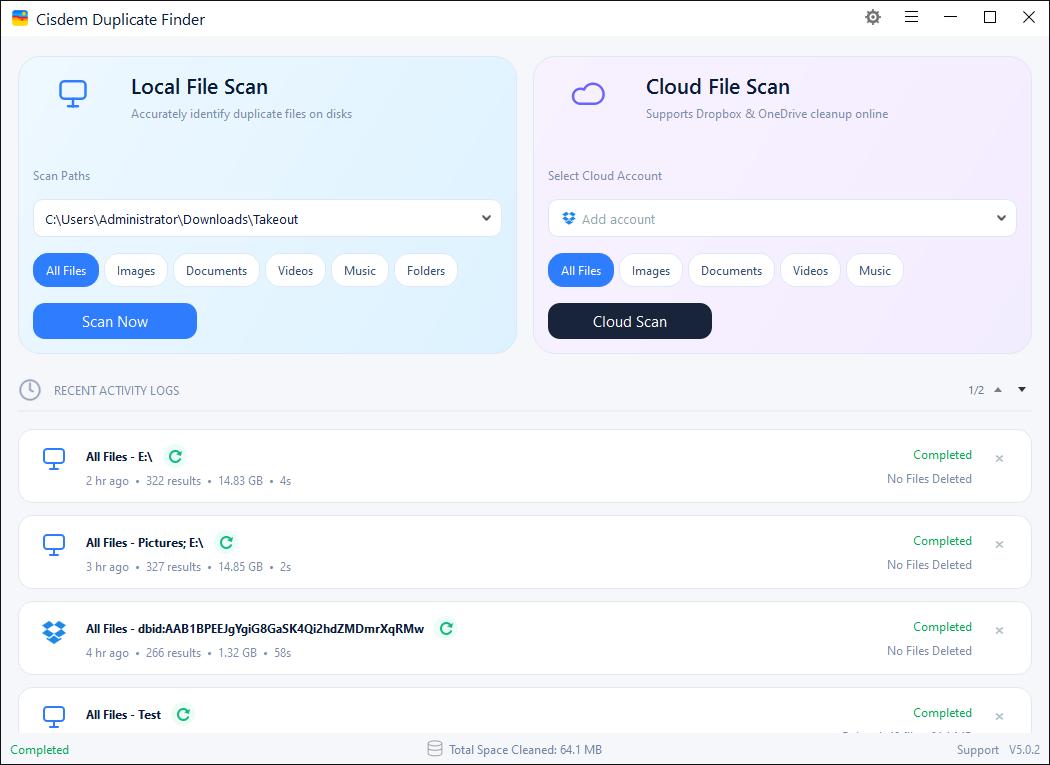
Step 7. Go back to the main window. Under Local File Scan, add the Takeout folder. Click Scan Now.
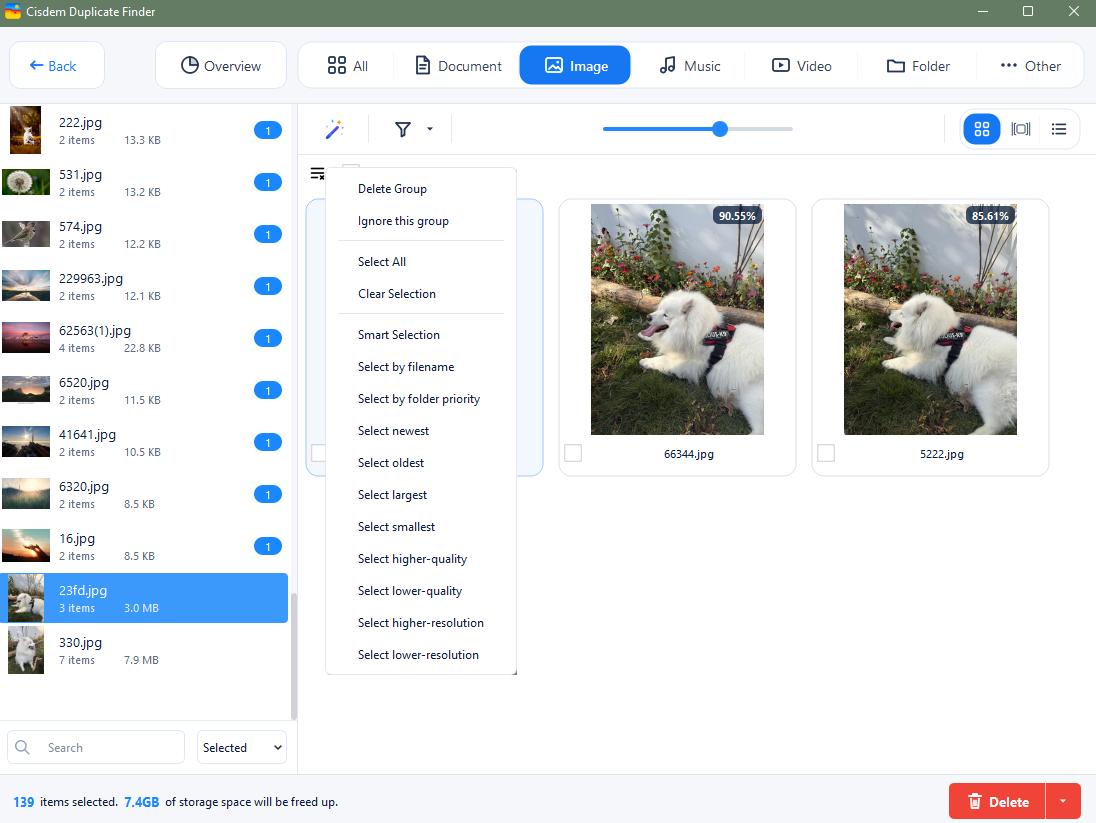
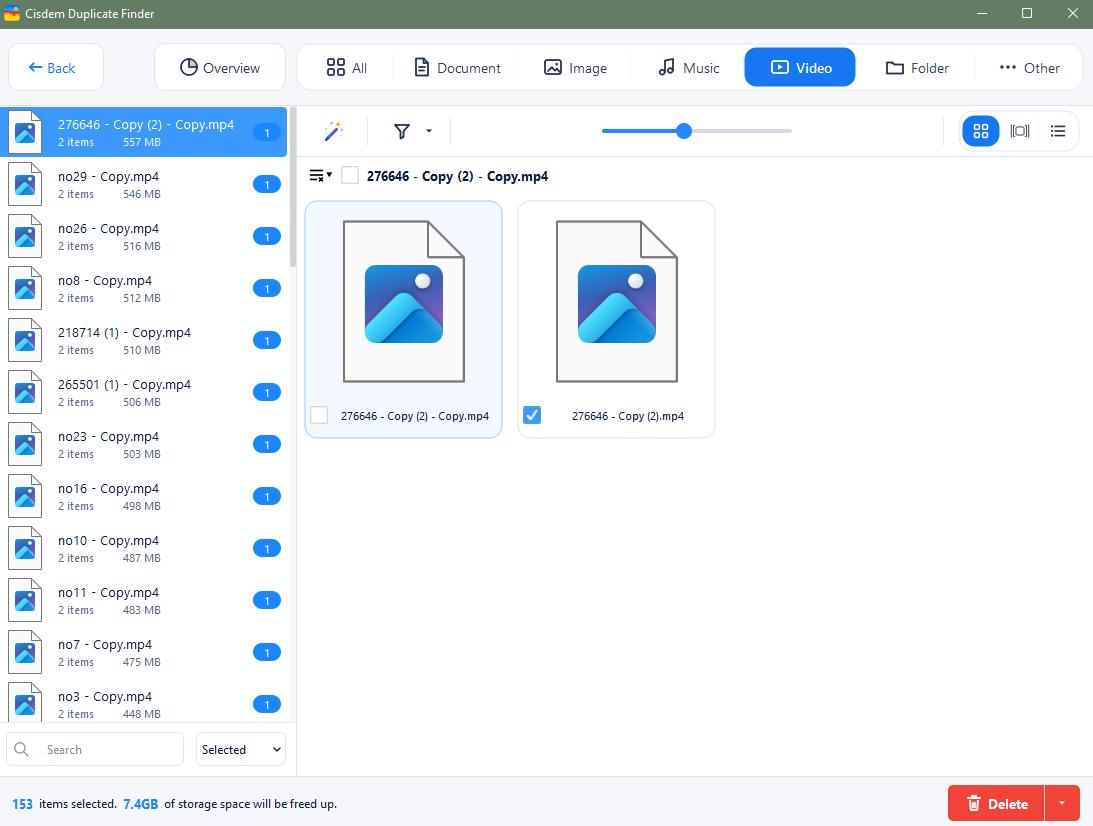
Step 8. View the found exact duplicate photos (regardless of filenames) and near-duplicate photos under the Image tab. View duplicate videos under the Video tab.
Step 9. Check the selected duplicate photos and videos. Click Delete in the bottom right corner.
Step 10. Go to https://photos.google.com/ on your browser. Click Album > Create album. Open the created new album. Drag the Duplicates folder on your computer into the album.
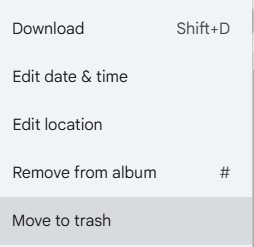
Step 11. Control select all photos and videos in this album. Click the 3-dot icon in the upper right corner. Click Move to Trash to free up Google storage.
Reduce the quality of existing photos and videos
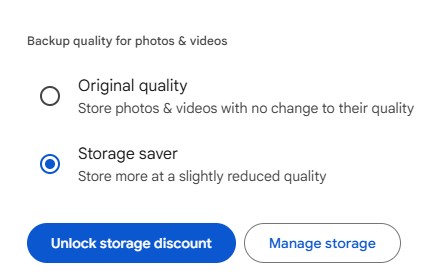
Google Photos provides two storage modes: Original quality and Storage saver mode. Using the Storage saver mode, Google Photos can compress the quality of existing photos and videos in it, thereby freeing up a lot of Google storage space. The specific steps are as follows:
Step 1. Open the Google Photos website: https://photos.google.com. Sign in.
Step 2. Click Settings in the upper right corner.
Step 3. Select the Storage saver mode. Then click on Manage storage under it.
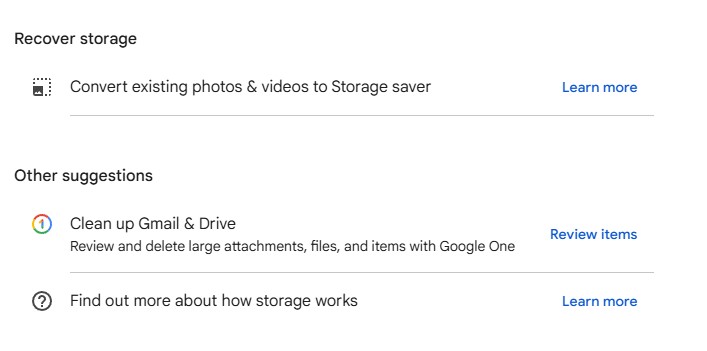
Step 4. Scroll down the Manage storage window. Find the Recover storage option. Click Learn more next to it.
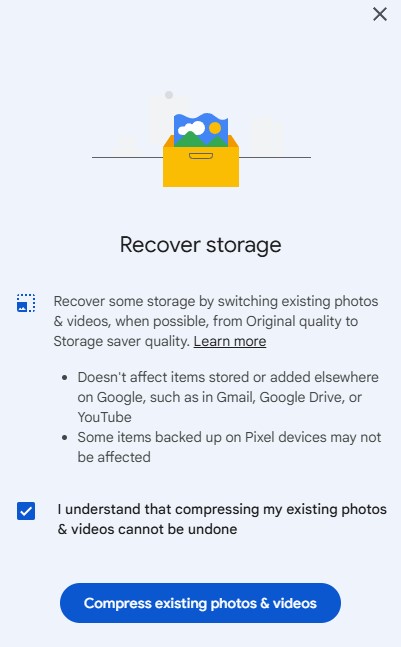
Step 5. On the pop-up window, check the box next to “I understand that compressing my existing photos & videos cannot be undone”. Then click the Compress existing photos & videos button.
After the compression is complete, you will see that the Google storage is freed up.
3. Free up Gmail storage
Over time, your Gmail mailbox may store a lot of old messages and attachments, which can take up a lot of Google storage space.
Delete emails with large attachments in Gmail
Emails with large attachments often take up the most storage space in Gmail. You can quickly find and delete these emails by following the steps below:
Step 1. Open Gmail in a browser and log in to your account.
Step 2. Click on Show search options (the three sliders on the right side of the bar).
Step 3. Check the box next to Has attachment.
Step 4. Search for mails greater than 10 MB, or other sizes according to your needs.
Step 5. Click the Search button.
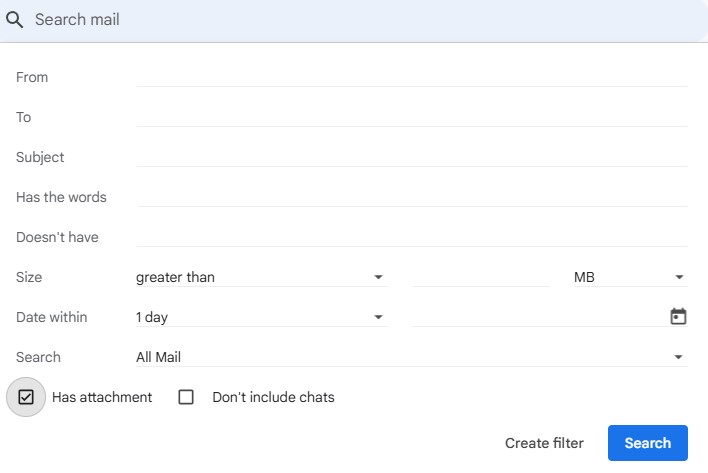
Step 6. Browse the search results and identify the emails you no longer need.
Step 7. Check the unwanted emails and click the Trash icon at the top of the page.
Step 8. Go to the Trash folder. Click Empty Trash now to permanently delete all the emails and free up Google storage.

Bulk delete old emails in Gmail
Finding and cleaning up old emails that you no longer need can also free up some Google storage.
Step 1. Log in to Gmail.
Step 2. Search for old emails by typing in before: YYYY/MM/DD in the search box. For example, before: 2024/11/01.

Step 3. Press Enter.
Step 4. Click the Select all box in the upper left corner.
Step 5. Manually deselect some emails that you may still need.
Step 6. Click the Trash icon to move the old emails to the Trash.
Step 7. Empty the Trash.
FAQs
How much free Google storage space is available?
Google offer 15 GB of free storage to each account.
What's the fastest way to clean up Google storage?
While all solutions (such as removing duplicate files and large files) shared in this articles are quick, the fastest method can be empty Trash in Google Drive and Google Photos.
Note that items in Trash will be automatically erased by Google after 30 days. Therefore, there's no need to do it manually unless you need to reclaim some space immediately.
How do I get more Google storage for free?
There are two ways. You can delete unnecessary files to reclaim free storage. You can also create a new Google account to gain 15 GB of free space, which, however, can make file management less efficient.
Conclusion
When your Google storage is full, there are two ways to get more storage space. One is to upgrade your cloud storage. The other is to free up Google storage. The former costs $1.99 per month to get 100 GB of storage space, while the latter is free and easy to operate. This article introduces 6 ways on how to free up Google Storage easily and quickly. Hope it helps.

With a passion for tech and writing, Sarah joined Cisdem, where she focuses on creating articles about using utility tools to enhance file management and simplify contact management.

Adrian Li is Cisdem’s Chief Engineer and serves as the editorial advisor for Duplicate Finder and ContactsMate. His work and insights have been featured in leading tech publications such as Fossbytes, TUAW, Redmond Pie, SafetyDetectives, and BestForAndroid.