


How to Create DVD on Windows 10/11 for Beginners (Incl. Menu)
 3.2K
3.2K
 1
1


Summary: This article will show you how to create DVD on Windows 10 or Windows 11 quickly and easily with 3 ways.
Creating DVD on Windows is not thorny for people. The crucial is how to make a video DVD, as you can seamlessly burn data discs with a modern Windows PC, but the DVD authoring feature was removed several years ago. Well, whether to create a video or a data DVD from MPEG, MP4, AVI, MOV, MTS, MKV, WMV, etc., read the step-by-step guide for each way below.
 Cisdem DVD Burner
The Best DVD Creator for Windows 10/11
- Create a DVD from MP4, 3GP, MTS, DV, M4V, MOV, AAC, etc. and any other video digital formats
- Provide a selection of DVD menu templates for creating an elegant DVD menu
- Customize a unique DVD menu by adding text, music, image, graphic object, etc.
- Support for various editing functions, such as cutting lengthy videos, adding effects to videos, etc.
- Enhanced DVD navigation with the capacity to insert chapters
- Offer real-time previews to create the perfect DVD at once
- Can choose to burn video source to DVD disc, DVD folder or ISO file
- Create DVDs with fast speed and high quality
- User-friendly interface makes it easy to operate
 Free Download Windows 10 or later
  Free Download macOS 10.15 or late
Create DVD on Windows 10/11 with Menu and Chapters – The Pro and Easy Way
Cisdem DVD Burner excels at making DVDs with crystal clear pictures. It is a professional desktop app capable of burning videos in 150+ different formats to DVD, including popular formats. Thus, multiple videos can be burned to one DVD disc with it. Coming with a straightforward interface, Cisdem DVD Burner can create DVD on Windows 10/11 within just a few clicks.
Besides, this DVD maker for Windows 10/11 offers a variety of exquisite DVD menu templates, helping users create beautiful DVDs. If you are not satisfied with the existing DVD menu, you can make a special DVD menu by changing elements like the background image, button style in the template.
Free Download Windows 10 or later
Steps on how to make DVD on Windows 10/11 with Cisdem:
Step 1: Import videos into Cisdem DVD Burner.
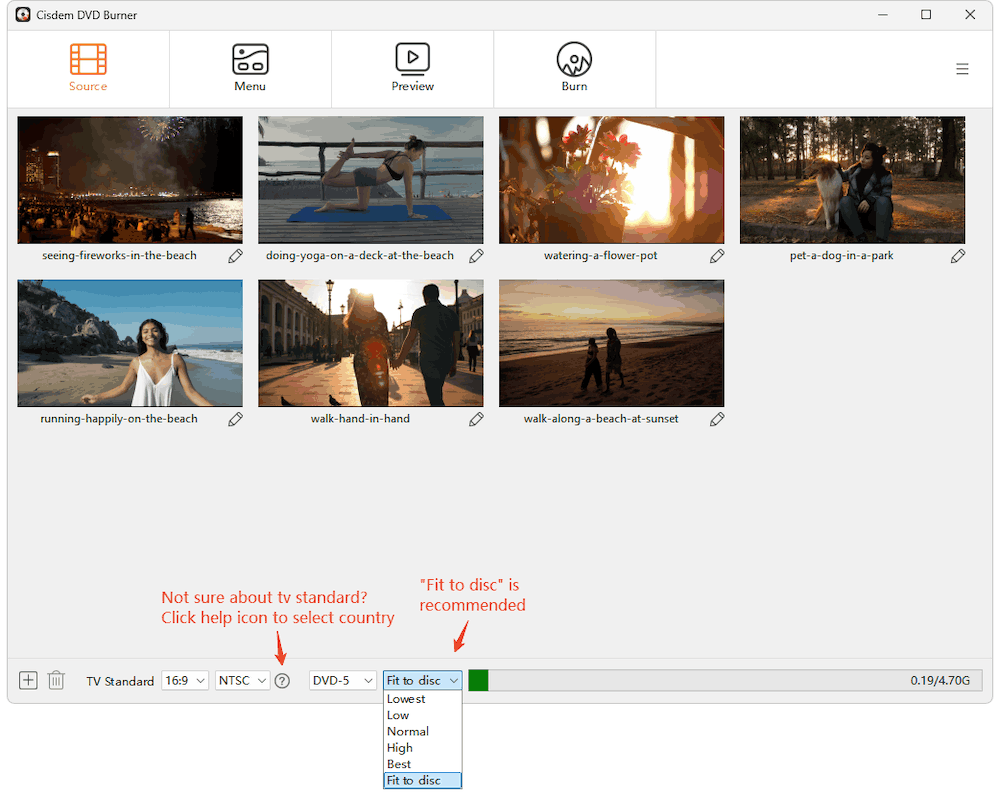
Click the hamburger menu icon > “Add Videos” to upload files you wish to burn. Or just drag and drop them to the program. All files will be displayed in the main interface in a list of video thumbnails after parsing.
Then, choose the TV standard and DVD video quality level at the bottom.
Step 2:Create a DVD menu.
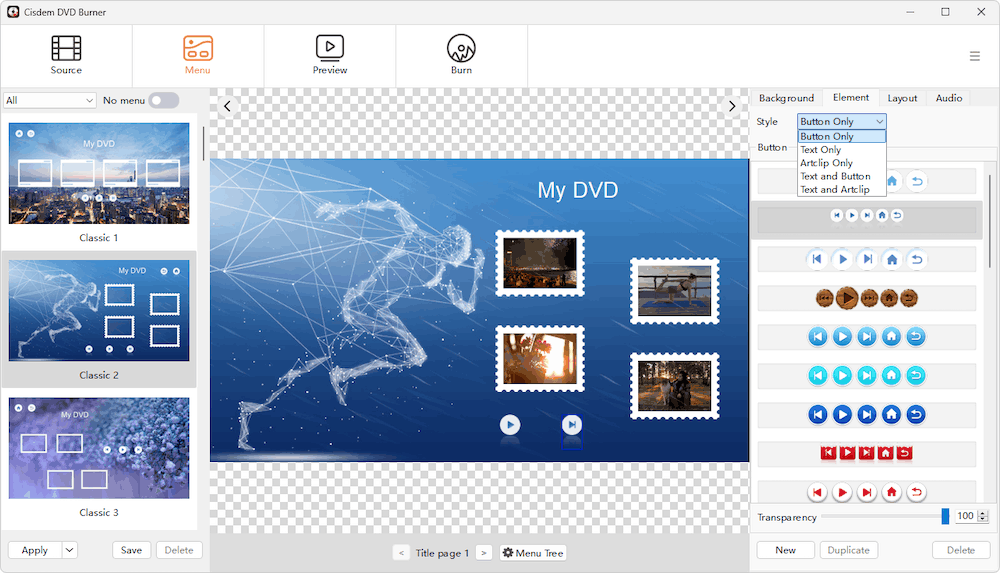
Click the “Menu” button at the top, choose a suitable DVD menu template on the left. Or you can change the background image and other menu elements, or add background music to create a unique menu.
Step 3:Preview the DVD.
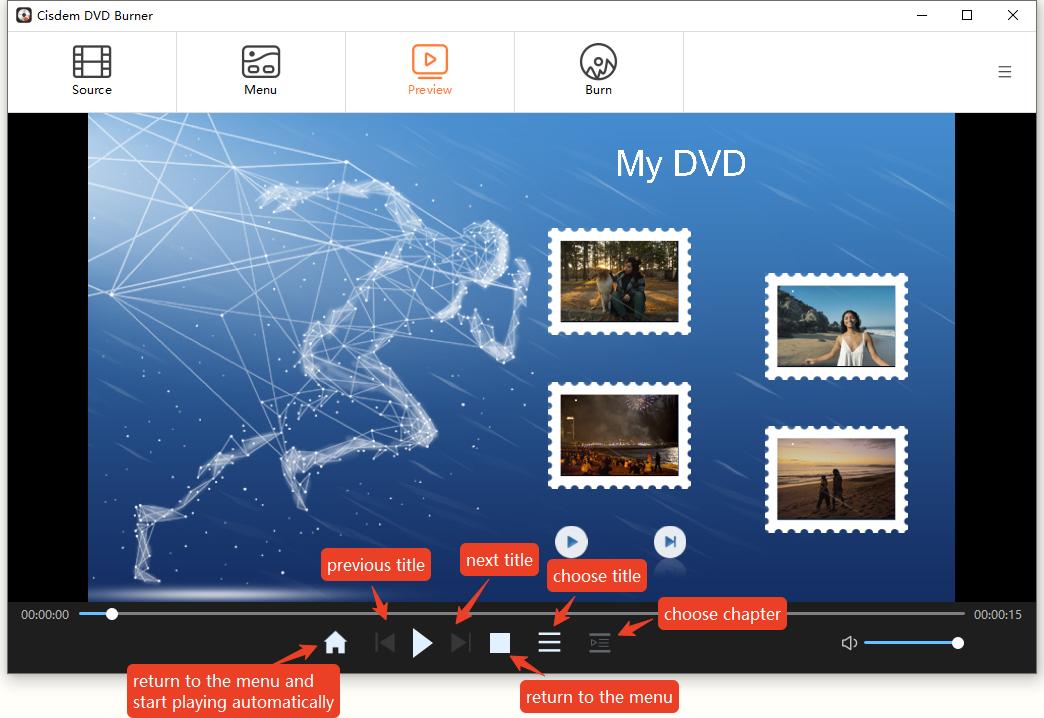
Click the "Preview" button to switch to the new interface and check how your DVD will look like before burning.
Step 4:Create DVD on Windows.
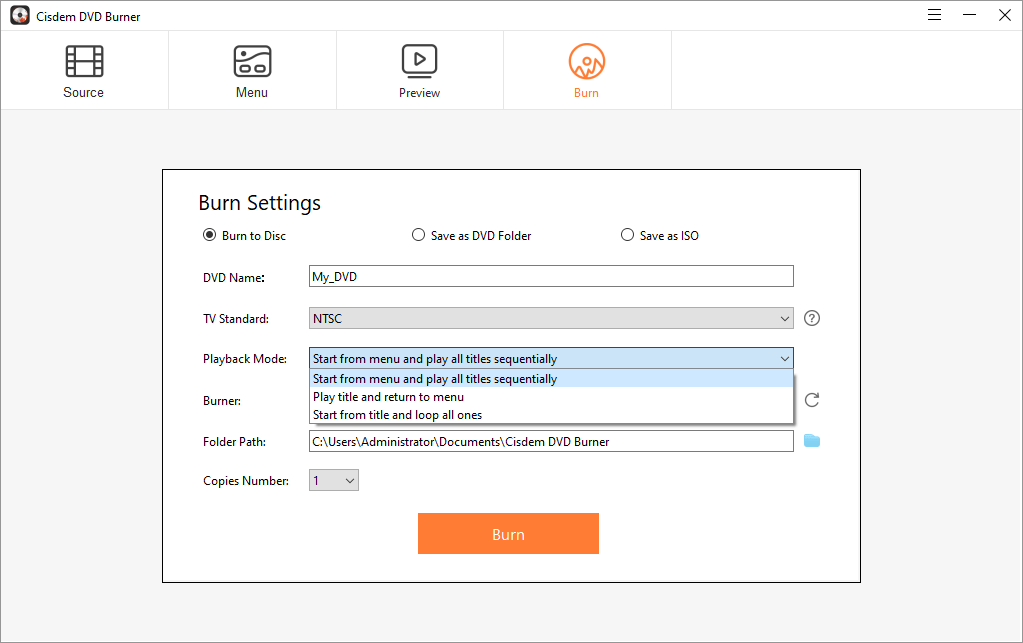
Go to the “Burn” tab and configure or fill the burning settings like output types, name, playabck mode, etc.
Once done, insert a blank DVD onto your computer drive, and click the “Burn” button to launch the burning process on your Windows computer.
Optional: Edit the uploaded videos.
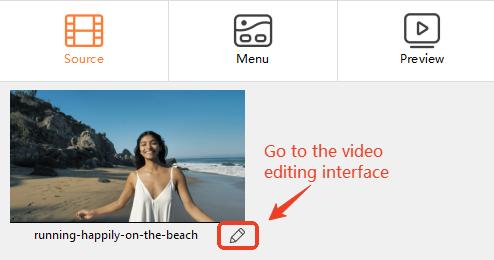
After you have added videos to the main interface, you will notice a pencil icon under each thumbnail, just click it.
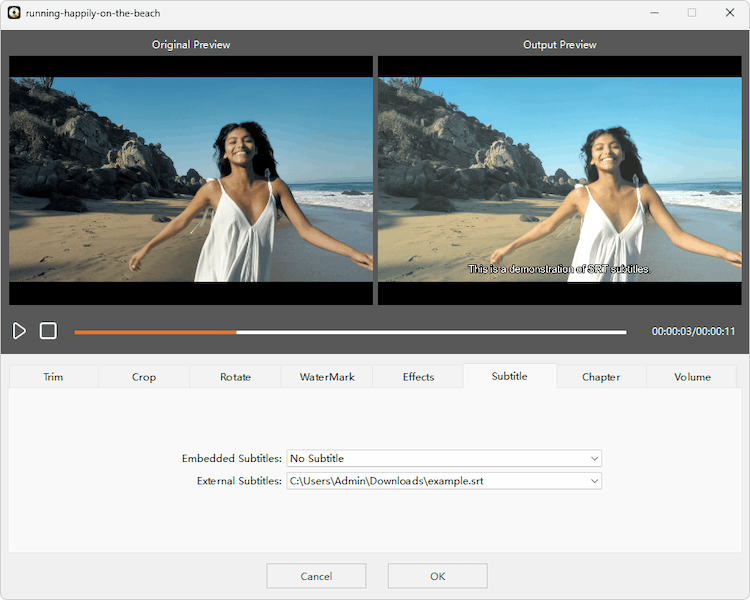
On the new windows, you can trim videos, add watermark, adjust picture effects, add embedded or external subtitles, add chapters, and so on. Click "OK" when you are done to return to the main screen.
Create DVD on Windows 10 or later with Freeware – The Free Way
When it comes to creating DVD on Windows 10, people's first option is to look for a desktop DVD creator for Windows that is both free and effective. An indisputable fact is that most free DVD creators can only satisfy basic burning needs, and the output quality is not as good as pro software. Still, we've picked 3 winners out of thousands of free DVD makers available.
DVDStyler
Supported OS: Windows 11 or lower
DVDStyler is a trustworthy DVD creator for Windows 10, which allows users to burn popular digital formats to DVD for free. It is one of the rare free DVD creators that provide fancy DVD menu templates for users, making people create wonderful DVDs. People can also make a specialized DVD menu by changing the background image and choosing an attractive graphic. But if you want to make multiple DVDs, rendering and encoding can be time-consuming, especially for large video files.
Steps on how to make a DVD on Windows via DVDStyler:
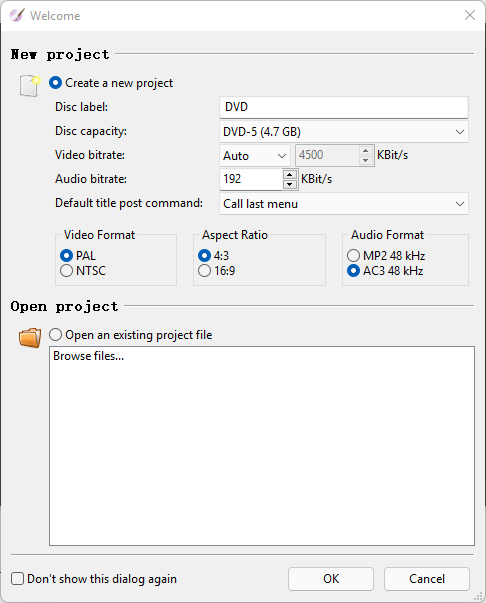
- Launch DVDStyler and a "Welcome" dialog will appear. If you don't see it, go to "File" > "New" to bring up the dialog box.
- Under the “New project” section”, fill in the information like bitrate, format, and aspect ratio for your project. Next, click "OK".
![add new project]()
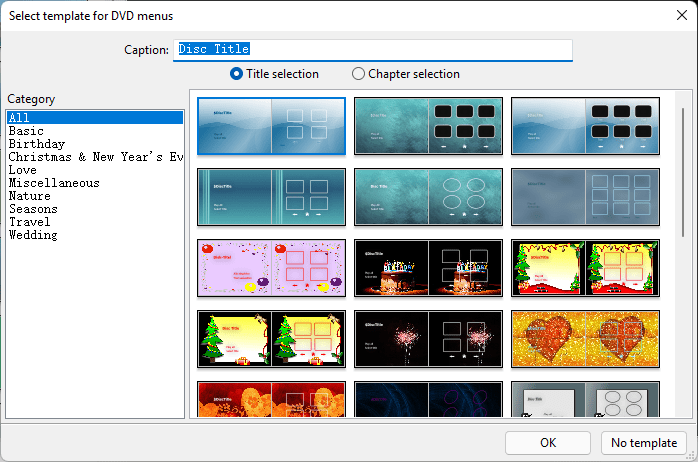
- Select a DVD menu template for your title and chapter from different categories. Then, press “OK”. Or you can skip this step by clicking “No template”.
- From the left side of the interface, click the "File browser" tab and navigate to your desired videos. Drag-n-drop them to the "Titleset Manager" at the bottom.
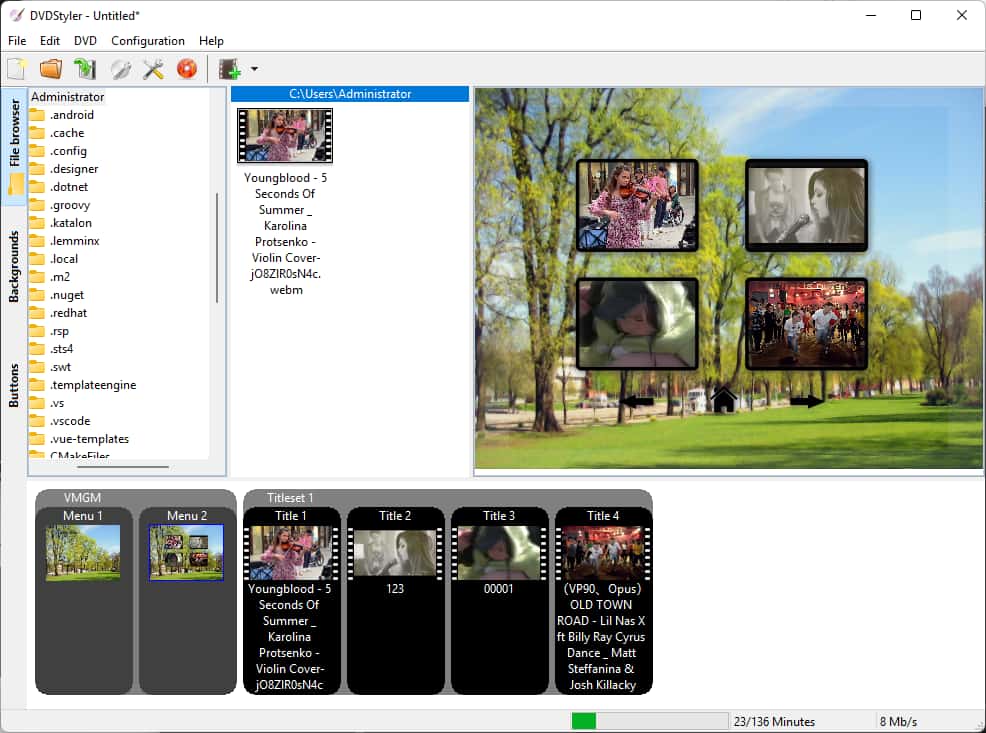
- On the top menu bar, click on the burning disc icon.
- Place a blank disc in the DVD drive. Finally, in the “Burn” dialog, click “Start” to initiate DVD creating process.
Free AVS Disc Creator
Supported OS: Windows 11/10/8/7/Vista/XP
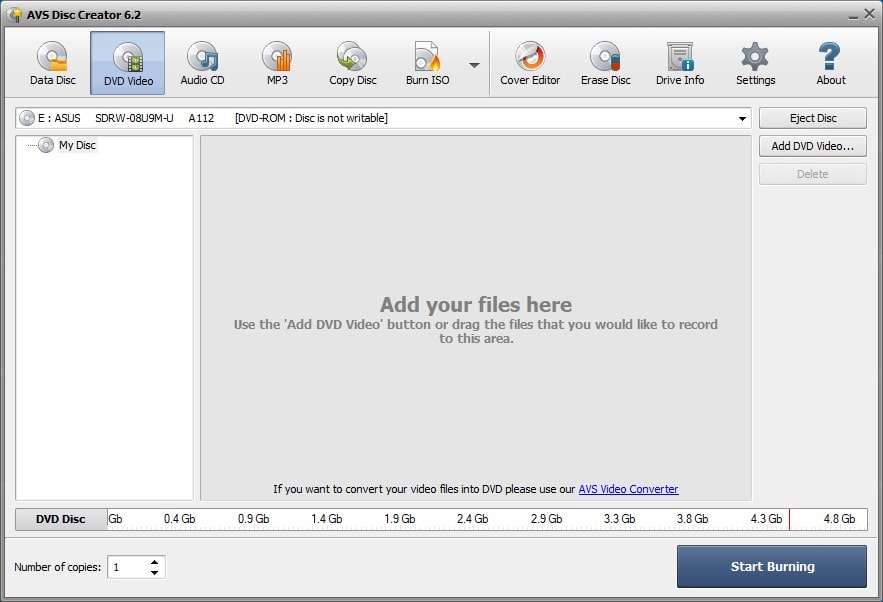
Free AVS Disc Creator is another excellent DVD creator for Windows 10/11. As the name shows, it is able to burn almost all kinds of DVD discs for free. This multipurpose tool can be also used to burn CD discs, create boot discs and make ISO images. When opening the program, you can access to different function sections by clicking the specific function buttons on the top part of the interface. Therefore, people can understand how to use it right away.
Furthermore, you can upgrade AVS to its paid version for more powerful features, such as burning Blu-ray discs, burning DVDs with higher quality or more effects, etc. However, if you don’t want to download additional program, skip this program because it will download together with an unexpected tool without asking.
Steps on how to make a DVD on Windows using Free AVS Disc Creator:
- Run Free AVS Disc Creator. Place an empty DVD disc in the DVD drive first, or the DVD creating function of the software will not be available for trial use.
- Click “Data Disc” or "DVD Video" in the main toolbar. Note: The first tab creates a data DVD, while the second creates a video DVD. In the second tab, you are only able to add the VIDEO_TS folder, not the MP4, MKV, AVI, etc. video files.
![avs disc creator ui]()
- Press "Add Files", choose video sources from various directories, click the "Add" button, and all files you selected be loaded immediately.
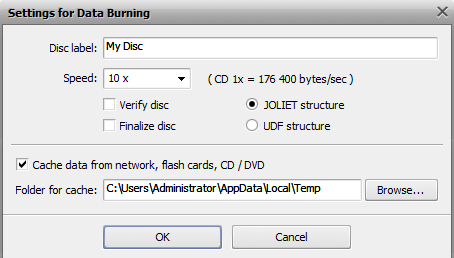
- Press the "Setting" icon in the toolbar to call out the settings window", in which you can configure additional parameters such as the disc label, burning speed, and so on.
- Hit the "Start Burning" button to create a data or video DVD.
True Burner
Supported OS: Windows 11/10/8/7
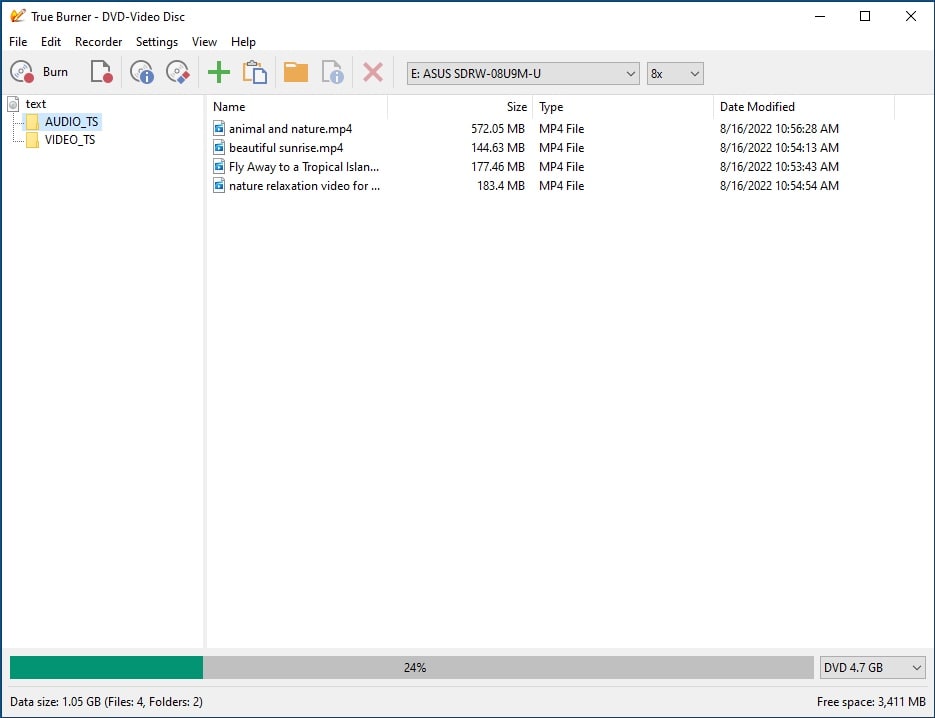
True Burner is an amazing lightweight program that can burn CD, DVD and Blu-ray discs for free, including multisession and bootable ones. It is easy to operate with the simple interface. When you launch the software, it will come up with a small windows for you to choose the type of the disc to burn, including Data disc, Bootable disc, MP3 disc, DVD-video and BDMV.
Before creating DVDs, you are also allowed to select a suitable recording speed. Although it offers limited advanced functions, True Burner is still a great option for those people who want to create DVD without complicated decoration.
Steps on how to create a DVD on Windows with True Burner:
- Insert a new disc to your computer first, or the software won’t be opened.
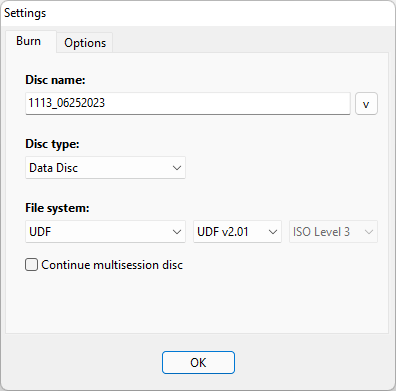
- Launch True Burner. A “Settings” dialog box will pop up. Tweak the information in the “Burn” tab and “Option” tab.
- Click the “Add files” icon, and pick files that you wish to burn. Hit “Add”.
- Click the filled red circle “Burn” icon to make a DVD.
![true burner ui]()
Create DVD on Windows 10 or 11 without Software – The Native Way
Using File Explorer can help you create DVD on Windows 10/11 without installing any software. To be frank, this way doesn’t offer DVD menus and advanced editing functions. If you just want to create a simple DVD on Windows without any embellishment, keep on reading this article for more details.
Steps on how to make DVD on Windows 10/11 without any tool:
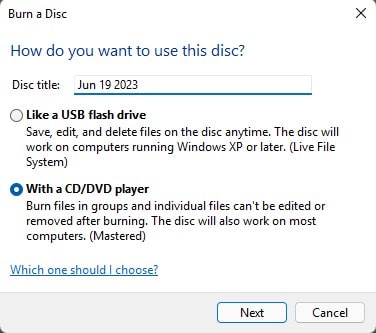
- Insert an empty and writable DVD disc, enter DVD name and tick out “With a CD/DVD player” option on the popped-up “Burn a Disc” window. Tap on “Next” button when selected.
- Then the disc drive will be opened in a File Explorer window. You will see the interface that contains the words of “Files Ready to Be Written to Disc”, which is for uploading files.
- After dragging all files to that windows, click “Drive Tools > Finish burning” in the upper part of the interface. Now, the “Burn to Disc” windows will appear.
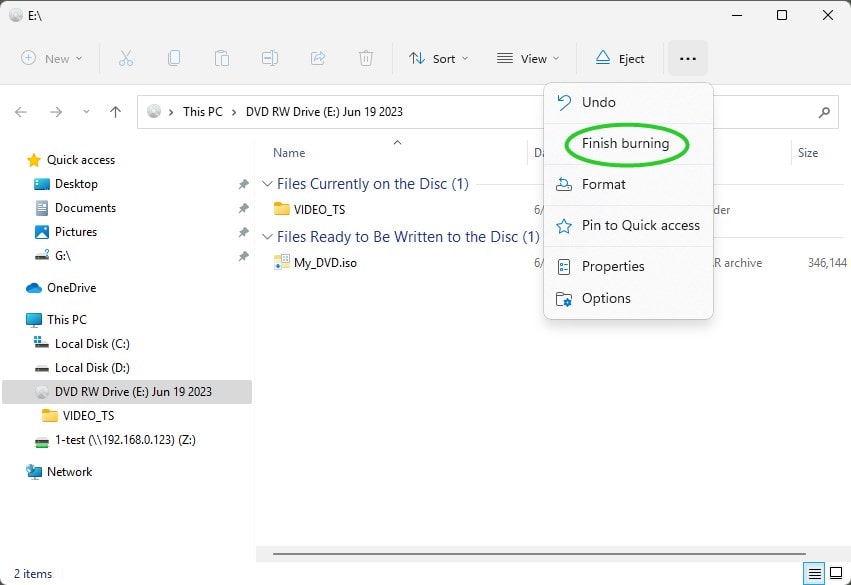
- On there, name the DVD title and set a burning speed in the corresponding boxes. Once done, click another “Next” button again.
- Thus, all files will start to be burned into the DVD disc. Meantime, it shows you the progress bar and estimated duration on the interface. Finally, the disc will eject out of the computer drive automatically when finished.
Can Make DVD on Windows 10+ via Windows DVD Maker?
No. Windows DVD Maker has stopped development since Windows 7. Therefore, it doesn’t work on Windows 10 any more. If you want to burn a playable DVD on Windows 10 and make it compatible with home DVD players, you are supposed to look for a reliable third-party tool in the Microsoft store.
Or you can use Windows Media Player to burn DVD on Windows 10/11. Before burning DVD on Windows, there are 3 points you should keep in mind.
- Windows Media Player can only burn Data DVD.
- It can’t burn all file formats to DVD. Hence, the uploaded files must be compatible with Windows Media Player supported formats, such as MP4, MPG, WMV, AVI, etc.
- Without acceleration technology support, it may takes a long time to burn a movie to DVD.
If you can’t accept, ignore it and go for a powerful third-party tool.
Conclusion
This article provides the most comprehensive methods on how to create DVD on Windows 10/11. From my experience, if you have ample budgets, you’d better get a professional DVD creator for Windows. After all, free programs are inferior to professional ones in many aspects, such as slow recording speed, poor quality, a few input formats supported, no DVD menu templates, no built-in video editor, etc.
Hence, if you don’t have strict requirement on creating DVDs and only need to burn a movie sometimes, you can make DVD via File Explorer, Windows Media Player or free desktop DVD creator for Windows. But if you have a lot of video sources to create and crave for finishing them quickly, a professional DVD desktop software is recommended because it will help you burn many DVDs in an ultra speed while keeping high quality.

Jenny is a technology editor who has been blogging since she was a student. Since joining Cisdem, she focuses on writing articles about video software and how-to guides. She loves exploring new tools and techniques.

JK Tam is the lead developer at Cisdem, bringing over two decades of hands-on experience in cross-platform software development to the editorial team. He is now the lead technical approver for all articles related to Data Recovery and DVD Burner.
Sue J. Valerio
I want to put 6 short films on a DVD. When I place that DVD into my home DVD player, I'm presented with a menu to choose the short movie to watch. In my lack of expertise, I do not know if the above programs will work.