


How to Convert HEIC to PDF on Windows and Mac Efficiently (Free Incl.)
 989
989
 0
0


Generally, when we use a camera or phone to take pictures, the pictures will be stored in JPEG format. But if your Apple is updated to iOS 11 or later, you may find that the pictures will be automatically archived with the extension .heic or .heif. Apple’s default photo storage format--HEIC, significantly reduces the storage space taken up by files without compromising image quality.
However, not all systems support HEIC format. That's why many users have the need to convert HEIC files to PDF files. No matter if you want to do the conversion on Windows, Mac, iPhone, Android, or even without any software, this handy guide comes with workable solutions for you.
 Cisdem PDF Converter OCR
Pick the Best HEIC to PDF Converter in 2025
- Convert multiple HEIC to PDF quickly with original quality.
- Merge selected or all input HEIC files into a well-formatted PDF.
- Turn HEIC to other image formats, like JPG, JPEG, PNG, BMP, TIFF, SVG.
- Support an extensive list of input and output file formats when converting or creating PDF.
- Apply OCR to make scans or image files searchable and editable.
- Come with best quality, fast processing and advanced conversion options.
- Compatible with Windows and Mac.
 Free Download Windows 10 or later
  Free Download macOS 10.14 or later
An Overall Preview of 5 Tools for Converting HEIC to PDF
|
HEIC to PDF Converters |
Device |
Reasons to choose |
Disadvantages |
|---|---|---|---|
|
Cisdem PDF Converter OCR |
Windows and Mac |
Batch conversion; combine output files; fast and high quality; multiple input and output file formats supported; OCR technology |
Need to download |
|
Preview |
Mac |
Built-in and free |
Convert only one HEIC file at a time |
|
freeconvert |
Online |
Batch conversion; combine output files; various file conversions; free |
Takes long time to convert multiple HEIC; limit to 25 conversion minutes per day; delete file after 8 hours |
|
Photos |
iPhone |
Built-in and free |
Convert only one HEIC file at a time |
|
HEIC Converter |
Android |
Batch conversion |
Has annoying adds; input HEIC only |
Optimal Choice: Convert Multiple HEIC to PDF on Windows and Mac with High Quality
Converting HEIC to PDF seems not a tricky task, since some native programs on MacOS and iOS devices as well as online converters working on all devices can do this job in a breeze. However, they come with few flaws. If you’re dying for a bulk conversion process and high-quality conversion results, they will fall short of your expectations.
Rest assured, there is an expertise in PDF file conversions that can satisfy all your needs. It names Cisdem PDF Converter OCR, one of the most popular and well-reviewed products developed by Cisdem. This app is built for both Windows and Mac users. Thanks to the rich features provided by Cisdem, users can convert multiple HEIC to PDF in a snap, while maintaining the original file quality. Moreover, it offers a merge option to combine exported HEIC files into a single PDF.
Other than HEIC to PDF conversion, it supports turning a wide range of other input file formats into PDF, also, transforms PDF back to various file formats.
Here are two tables listing the supported file formats in detail.
| Convert File Supported | |
|---|---|
| Input File Supported | *.pdf(including scanned pdf), *.bmp, *.png, *.gif, *.jpg, *.ico |
| Output File Supported |
*.pdf, *.docx, *.doc, *.pptx, *.xlsx, *.xps, *.txt, *.rtf, *.epub, *.html, *.xod, *.bmp, *.png, *.tiff, *.jpg, *.svg, *jpeg, *.pages, *key, *.numbers |
| Create File Supported | |
|---|---|
| Input File Supported |
*.pdf, *.docx, *.doc, *.dotx, *.dot, *.dotm, *.docm, *.xls, *.xlsx, *.xlt, *.xltx, *.xlsm, *.xltm, *.pptx, *.potx, *.ppt, *.ppsx, *.ppsm, *.potm, *.pptm, *.xps, *.rtf, *.dwg, *.dwf, *.dxf, *.dgn, *.rvt, *.chm, *.txt, *.html, *.ico, *.jpeg, *.png, *.gif, *.bmp, *.tga, *.tiff, *.jpg, *.aai, *.dcm, *.heic, *.pfm, *.psd,*.psb, *.pages, *key, *.numbers |
| Output File Supported | |
Take a Look at How to Convert HEIC to PDF on Windows 11/10/8/7
- Step1: Download the application and start it.
Free download and install Cisdem PDF Converter OCR on your Windows or Mac. Run the program of it.
Free Download Windows 10 or later Free Download macOS 10.14 or later - Step2: Import HEIC files into the program.
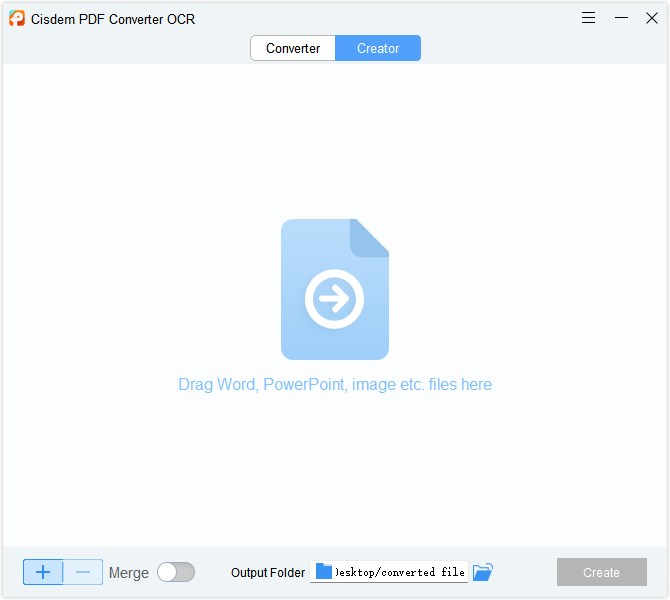
Here are two tabs in the home screen. Select the Creator tab, drag and drop your HEIC files into the interface. Also, you can click on “+” button to choose target files. Batch conversion is allowed.![convert heic to pdf cisdem01]()
- Step3: Convert multiple HEIC to PDF.
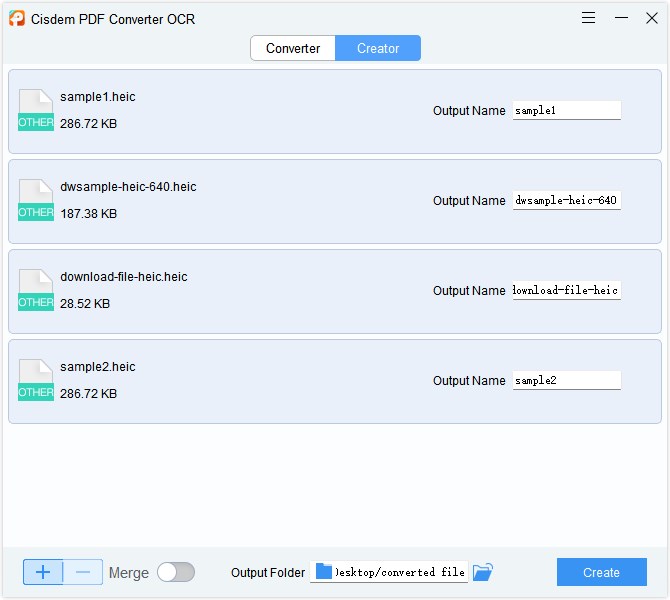
Enter the output name if you like to convert HEIC to PDF individually and choose an output folder. Once done, click Create to export HEIC as PDF files.![convert heic to pdf cisdem02]()
- Step4: Combine HEIC to PDF.
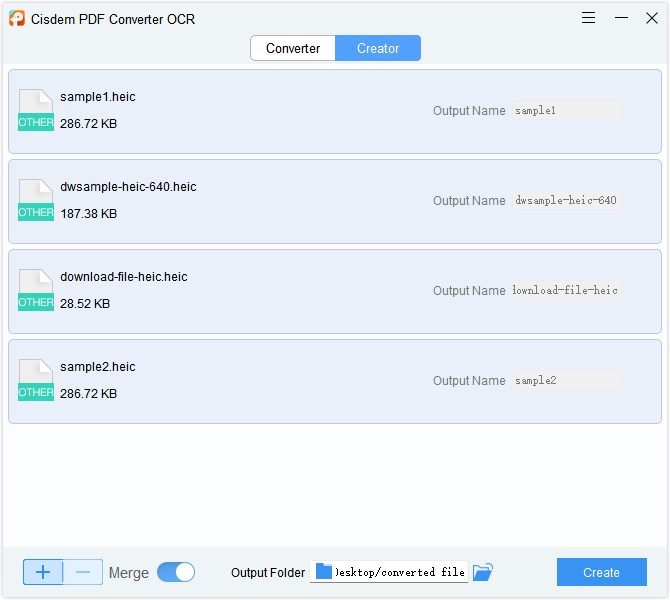
If you want to combine all HEIC files into a single PDF, turn on the Merge switch and click Create. Or, hope to merge certain HEIC files into a PDF, press the Shift or Ctrl key and click on the favored files simultaneously, then go with Create.![convert heic to pdf cisdem03]()
Can I Convert HEIC to JPG or JPEG with Cisdem Software?
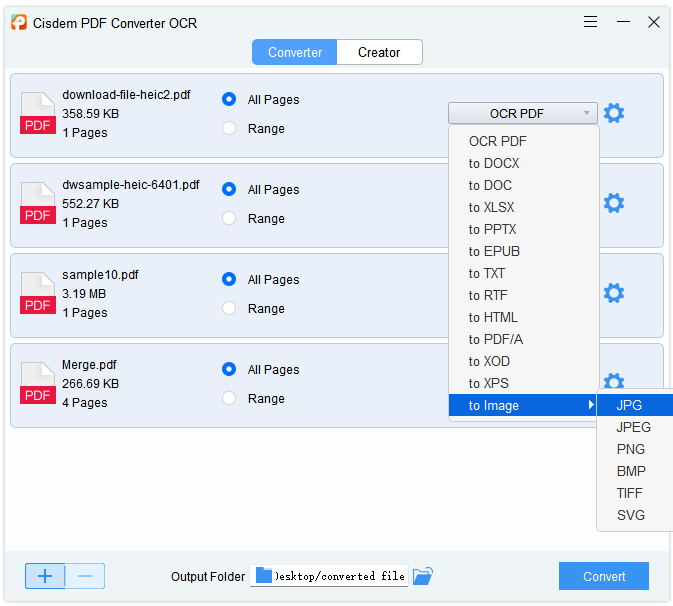
As you expect, Cisdem PDF Converter OCR also help to convert HEIC to other image formats, including JPG, PNG, BMP, TIFF and SVG, but it takes more steps. Follow the above tutorial to save HEIC as PDF, then utilize the Converter feature to transform PDF to images. Now you can go ahead with the detailed guide below to convert HEIC to JPG.
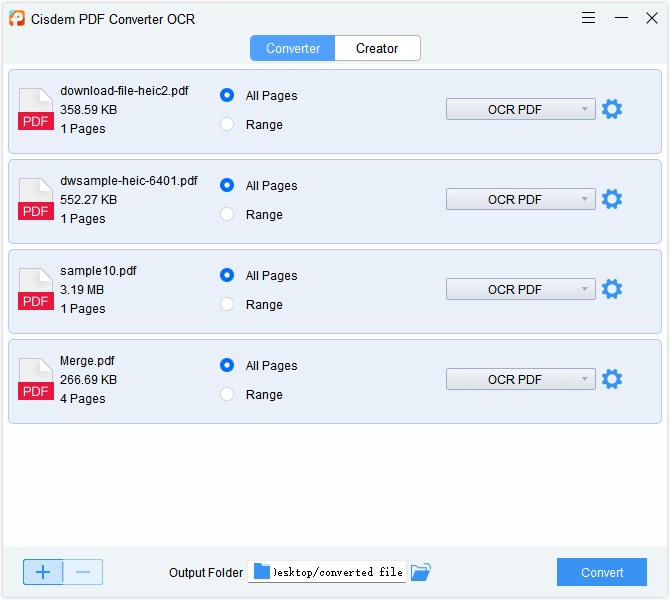
- Hit the Converter tab, drag&drop the output PDF files into the blank area.
![convert heic to pdf cisdem04]()
- Expand the output menu list and choose your desired image format.
![convert heic to pdf cisdem05]()
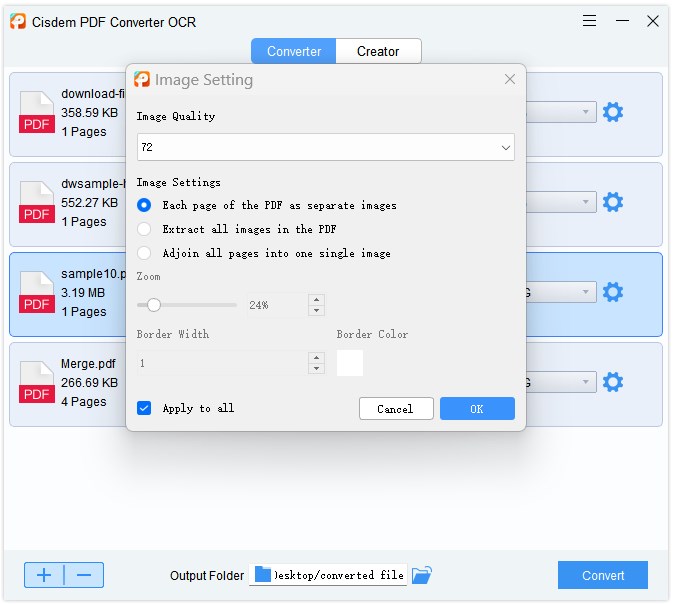
- Click on the Gear icon, adjust the image settings at your discretion in the pop-up window.
![convert heic to pdf cisdem06]()
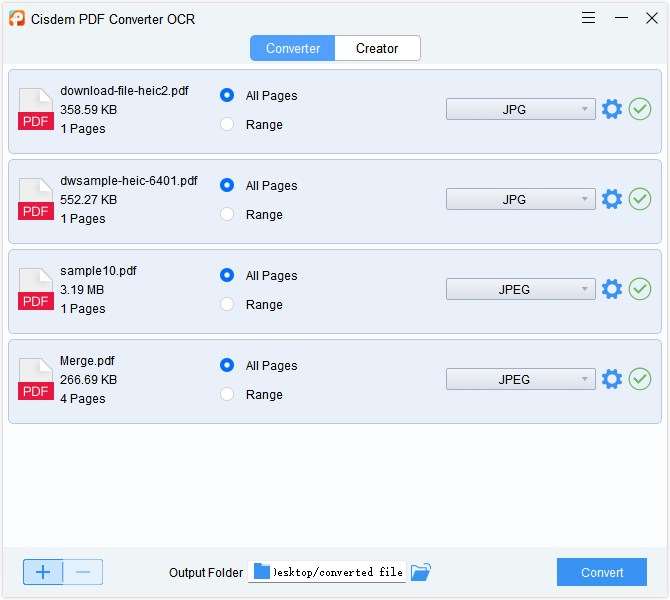
- Choose an output folder and continue with Convert. Green check marks mean success and clicking them will navigate you to the exported images.
![convert heic to pdf cisdem07]()
How to Convert HEIC to PDF on Mac with Built-in Preview
Actually, macOS High Sierra and later operating systems can easily open HEIC file with the built-in Preview app. But if you want to transfer a HEIC file to a friend who use other devices and can’t open it, then Preview can help you with that too. Preview supports converting various image files to PDF, including HEIC, PNG, JPEG, PSD, TIFF, etc. This can be useful if you have troubles with image conversion.
Steps on How to Convert HEIC to PDF on Mac:
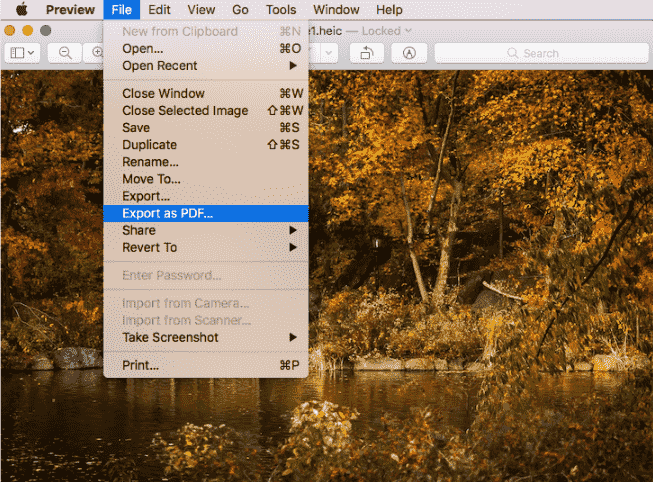
- Right-click a HEIC file and open with Mac Preview app.
- Go to File > Export as PDF...
![heic-to-pdf-preview1]()
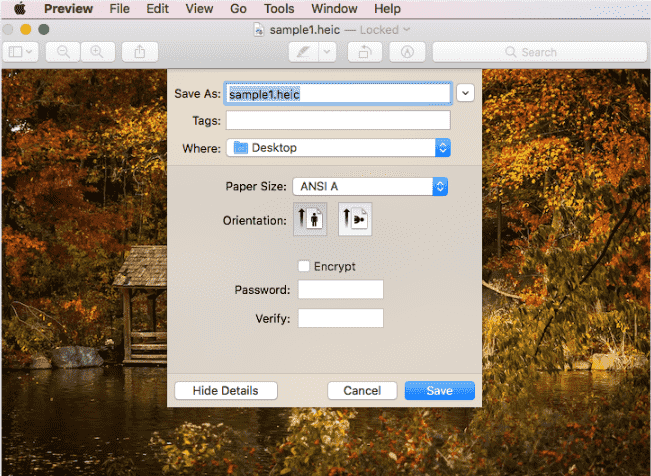
- Besides setting the file name and output folder, Preview also allows you to adjust the paper size, orientation, even encrypt the file.
![heic-to-pdf-preview2]()
- Tap Save to apply all the settings above.
Looking for a Way to Convert HEIC to PDF Free Online?
It’s easy to find numerous online HEIC to PDF converters on Google Search. But before making a decision, a series of questions about the security, features, and limitations of online tools always bother most users. Here we explore a 100% free web-based HEIC to PDF converter with advanced options for you. The only thing you need to be careful of is not to upload private files and information on websites.
Tutorials on How to Convert HEIC to PDF Online for Free:
- Visit freeconvert.com and click Choose Files to upload your HEIC files (max file size is 1GB).
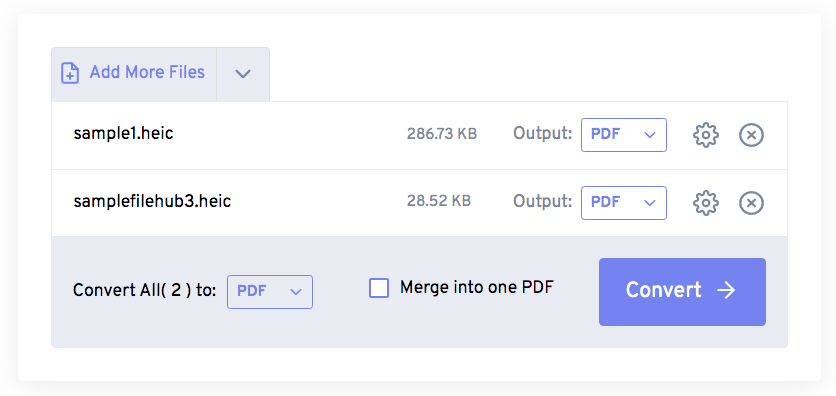
- You can also click the Add More Files button to add more files. Then choose PDF from the drop-down menu of the output formats. In addition, it’s easy to combine these files into one PDF.
![heic-to-pdf-online1]()
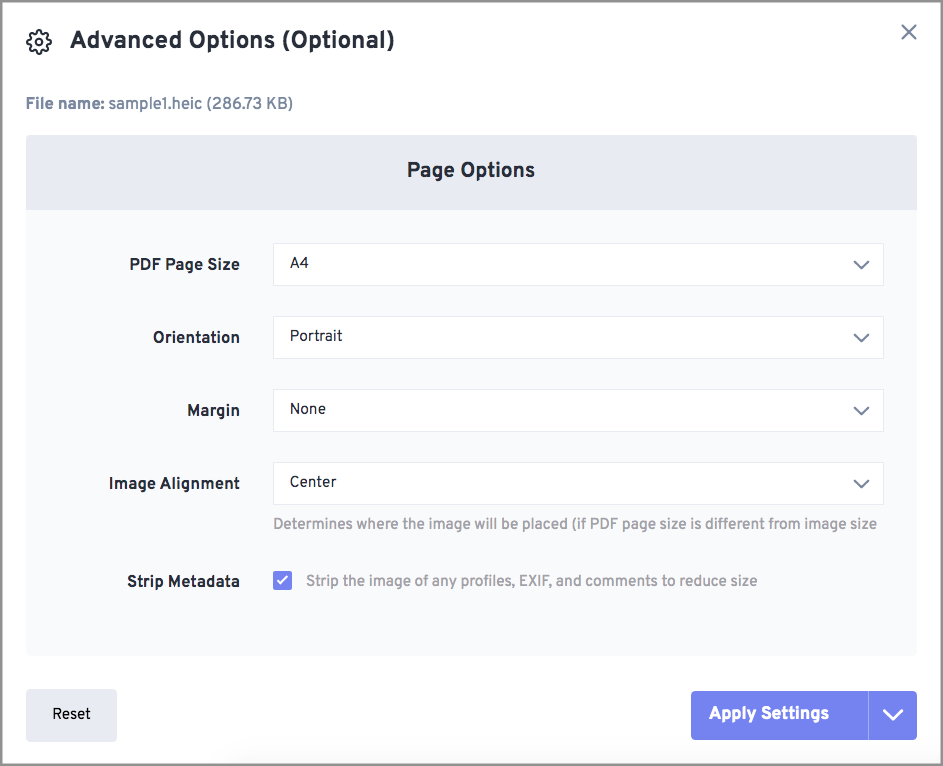
- For more options, click on Advanced Options (Optional) to adjust the page size, orientation, margin, image alignment and more.
![heic-to-pdf-online2]()
- After applying settings, hit on the Convert button to change HEIC to PDF for free.
How to Convert HEIC to PDF on iPhone/Android
Considering that Apple and Android users also have conversion needs, we prepare 2 options right here.
On iPhone:
Apple users can solve this problem more easily than Android users. No need to download and install any PDF converter apps on your iPhone! Luckily, Apple comes with a built-in PDF converter since iOS 10. By using the print function on Apple, you can easily save HEIC as PDF files for free.
How to Convert HEIC to PDF on iPhone
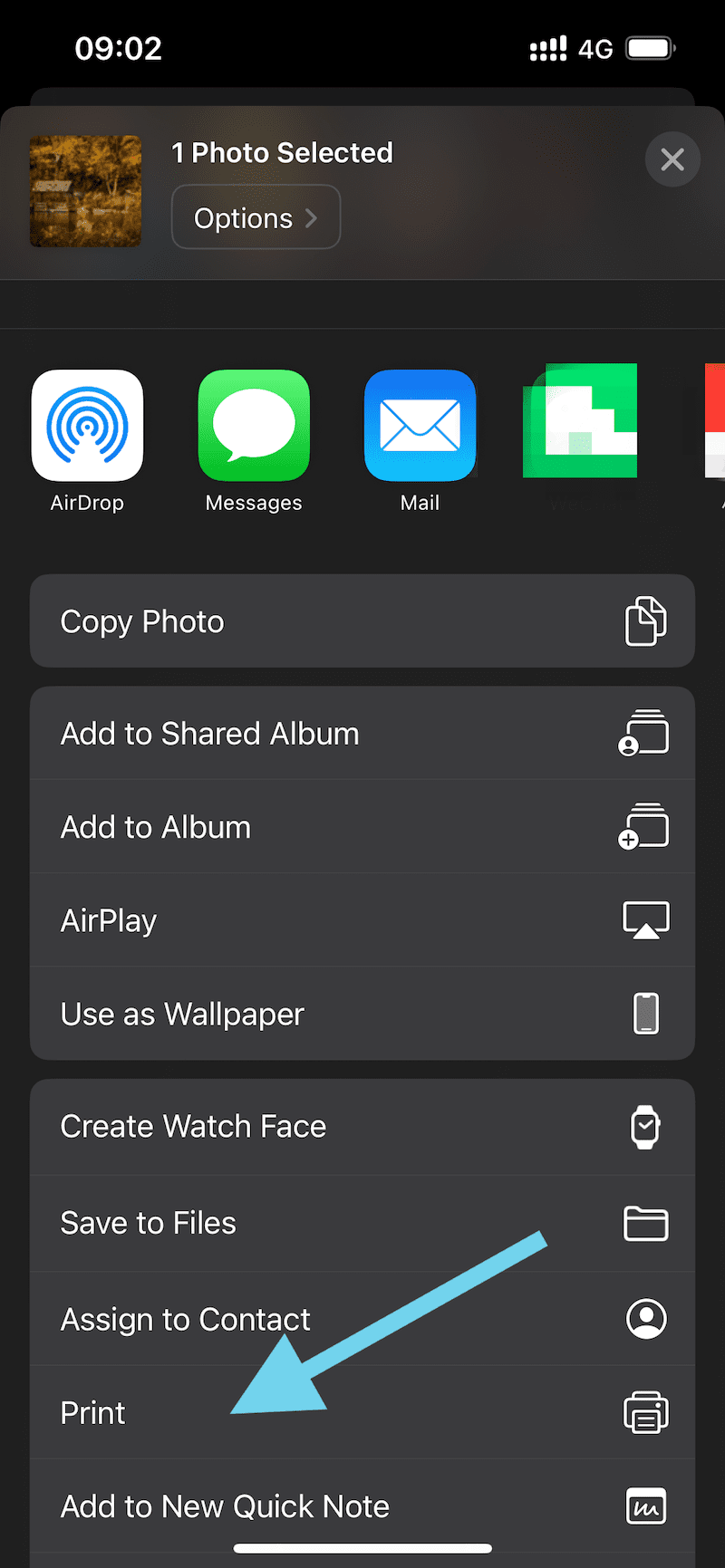
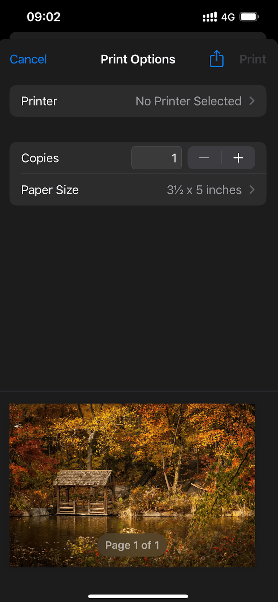
- Open the Photos app on your iPhone, select the HEIC photos that you want to convert and click on the Share button.
- Then choose Print from the Share sheet.
![heic-to-pdf-iphone1]()
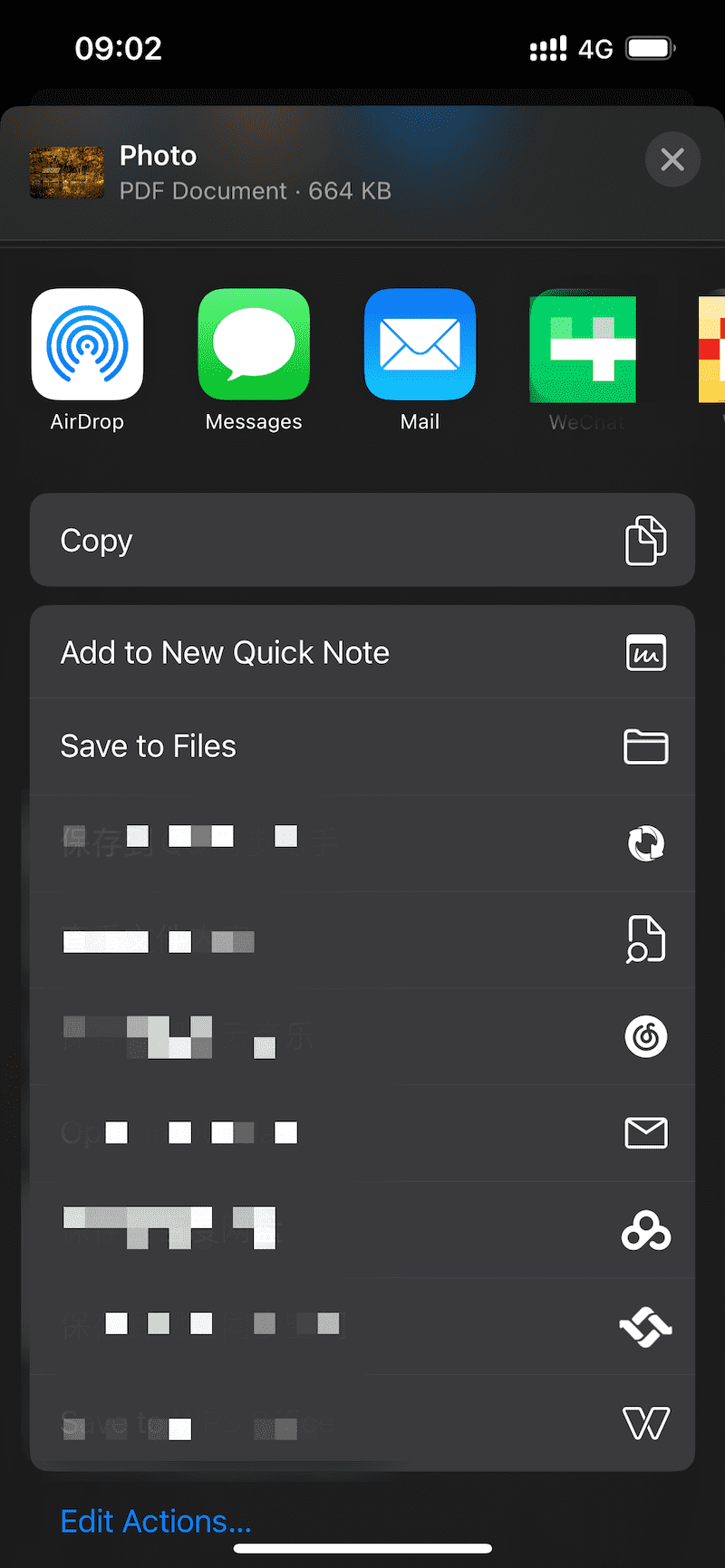
- Tap the Share button on the right corner again.
![heic-to-pdf-iphone2]()
- Finally, you can easily change HEIC to PDF on your iPhone by clicking Save to Files.
![heic-to-pdf-iphone3]()
On Android:
What can Android users do? HEIC is a new image format, but Android doesn’t fully support it. Android supports HEIC from 8.0, so Android phones before 8.0 will not be able to view photos in HEIC format. It’s time to depend on third-party apps such as HEIC Converter, a smart photo converter to convert HEIC files into a variety of image formats (JPG, PNG, WEBP, GIF, BMP and PDF).
How to Convert HEIC to PDF on Android
- Download HEIC Converter from Google Play to your Android.
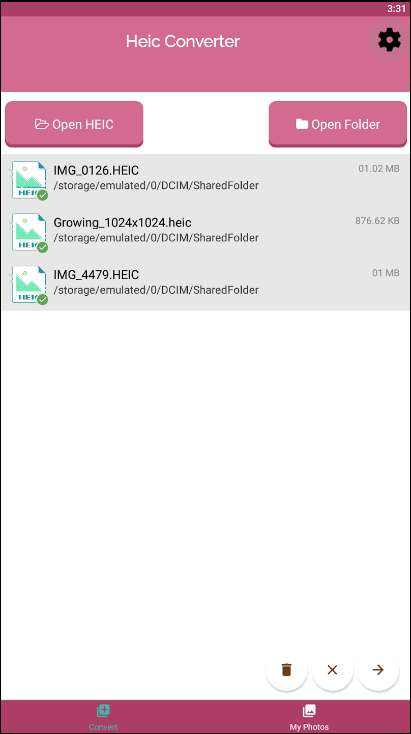
- Run this program and import HEIC from your phone (supports batch conversion). Then click on the “→” icon to the next step.
![heic-to-pdf-android1]()
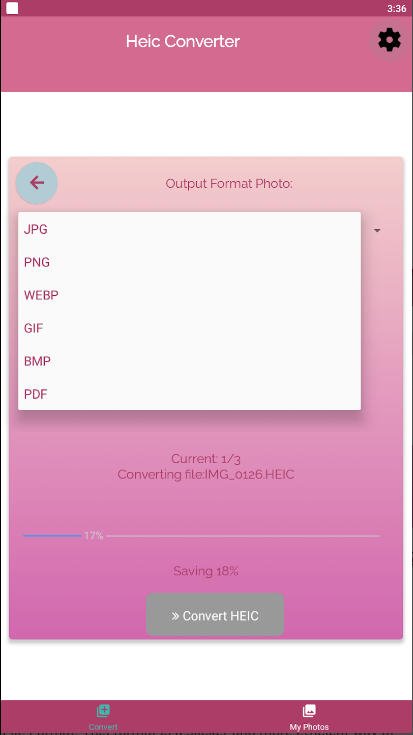
- Then choose the output format as “PDF” and click Convert HEIC to save the PDF files on your Android.
![heic-to-pdf-android2]()
Final Thoughts
In addition to HEIC file, if you need to convert various image formats, MS Office or other formats to PDF, it’s better to choose an all-round PDF converter like Cisdem PDF Converter OCR or freeconvert online. They can provide rich formats, batch modes, advanced options and better service for you. By the way, protect your sensitive information when using the online HEIC to PDF converter.

Carolyn has always been passionate about reading and writing, so she joined Cisdem as an editor as soon as she graduated from university. She focuses on writing how-to articles about PDF editing and conversion.

Liam Liu takes charge of the entire PDF product line at Cisdem and serves as the technical approver for all related editorial content. He has deep expertise in PDF and document management technologies and nearly a decade of development experience.