


Cisdem Focus for Mac User Guide
 765
765
 0
0


Cisdem Focus for Mac is a productivity and distraction-blocking app that helps you stay focused by blocking distracting apps and websites. You can create multiple focus plans and choose how each plan runs, including Quick Start, Pomodoro, Block as Scheduled, and Launch Limit.
This guide explains how to download, activate, and use Cisdem Focus on Mac, including how to block apps and websites, schedule focus sessions, limit app usage, view usage statistics, and configure advanced blocking options.
Download & Install
1. You can download the installation package of Cisdem Focus from the below link.
 Free Download
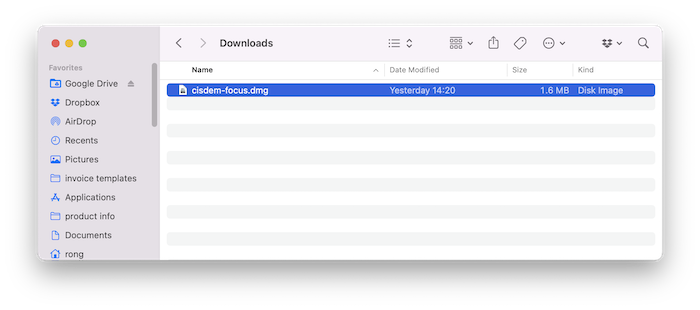
2. Install Cisdem Focus with the downloaded package.
Double-click the dmg file.
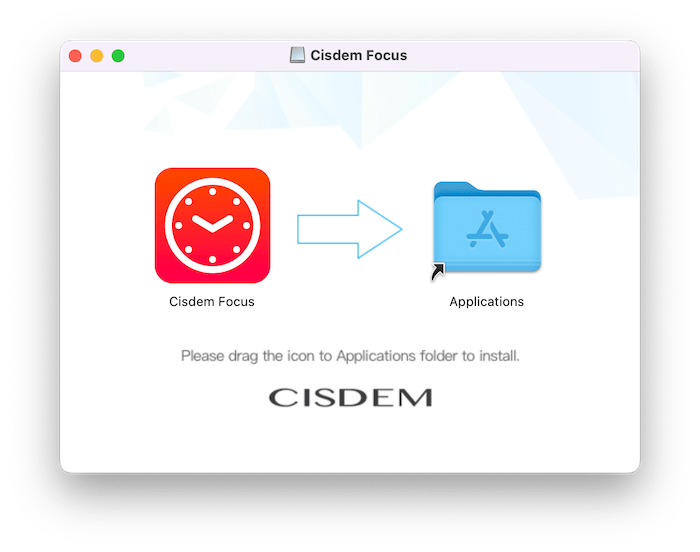
Drag the Cisdem Focus icon to Applications folder.
Activate Cisdem Focus
Cisdem Focus can be used during the trial period. After the trial period ends, activation is required to continue using the app.
You can open the activation window in any of the following ways:
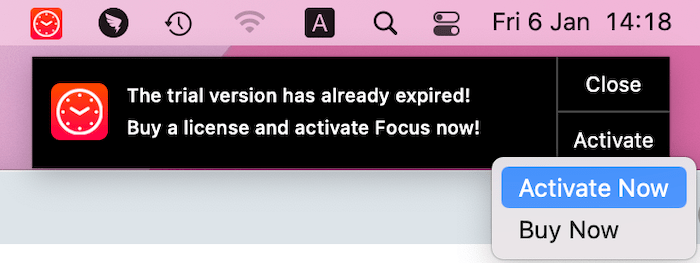
Method 1: Activate from the trial reminder
Open Cisdem Focus and click Activate > Activate Now in the trial reminder.
Method 2: Activate from the menu bar
Click the Cisdem Focus icon in the Mac menu bar and select Activate Cisdem Focus.
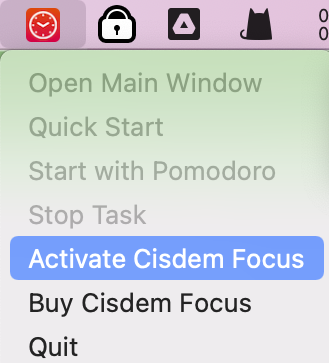
Method 3: Activate from the main window
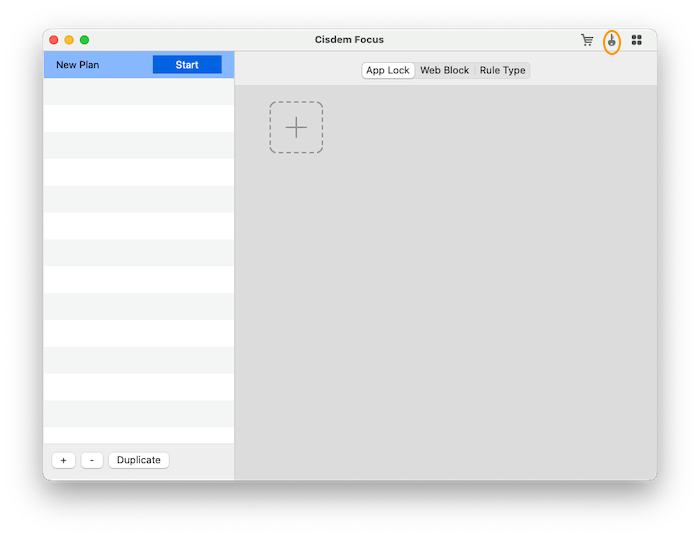
Open the main window of Cisdem Focus and click the key icon in the upper-right corner.
Enter your license code
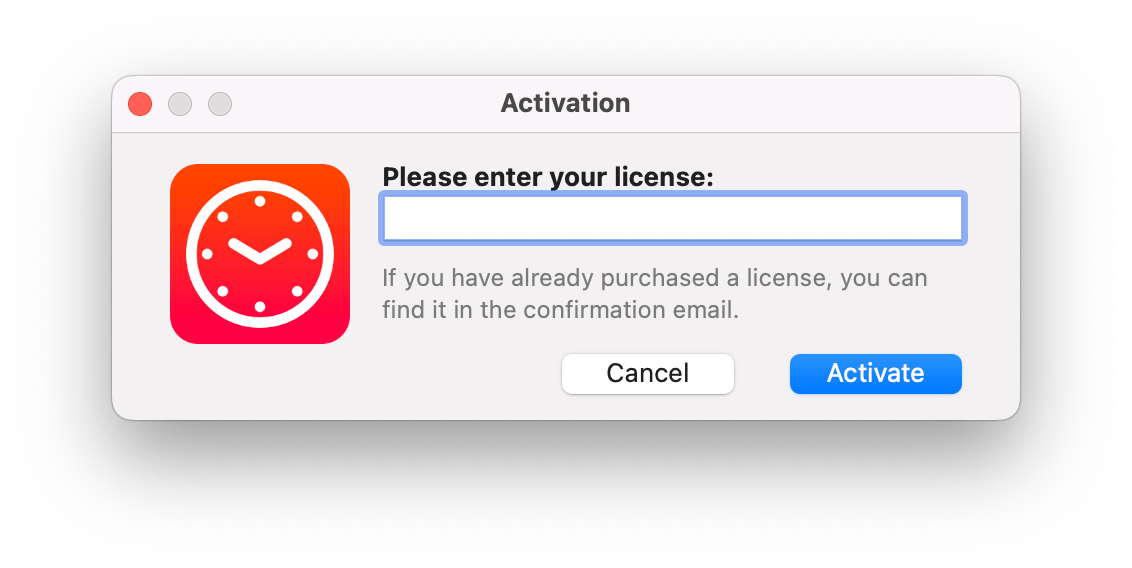
Copy and paste your license code into the activation window, then click Activate.
Create a Focus Plan
A focus plan defines which apps and websites should be blocked and when the blocking should take effect.
When you first launch Cisdem Focus, a default plan named New Plan is available.
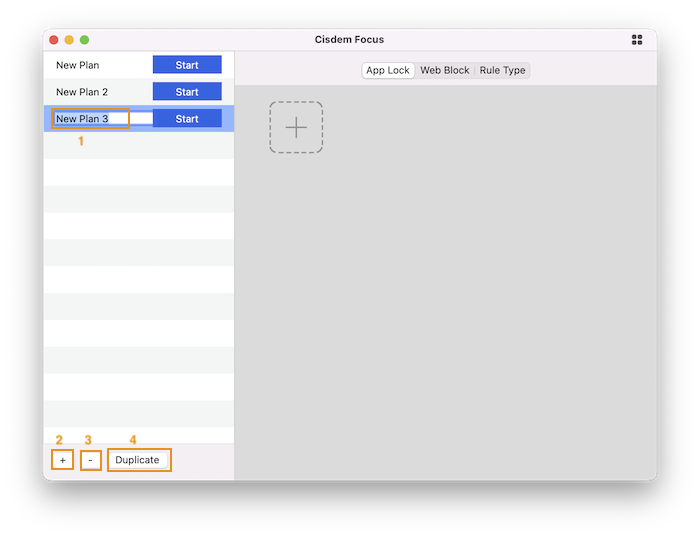
To create or manage focus plans:
- Rename a plan: Double-click the plan name and enter a new name.
- Create a plan: Click the Add button.
- Delete a plan: Select a plan and click the Delete button. To delete multiple plans, hold Command (⌘) while selecting them.
- Duplicate a plan: Select a plan and click the Duplicate button.
You can create separate plans for different activities, such as work, study, reading, or personal time.
Lock Apps on Mac
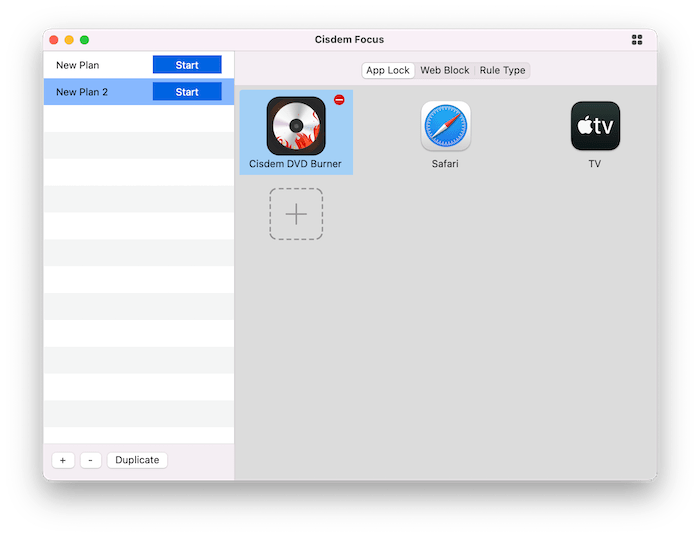
Cisdem Focus can block selected applications while a focus plan is active.
Step 1: Open the App Lock section
Open a focus plan and go to the App Lock section.
Step 2: Add apps
- Click
 .
. - Select one or more applications.
- Click Open.
The selected apps will be added to the block list.
How to remove a blocked app
Select the app you want to remove and either:
-
Press Delete on your keyboard
-
Click
 next to the app.
Block Websites on Mac
Cisdem Focus lets you block specific websites, URLs containing specific keywords, or groups of websites by category.
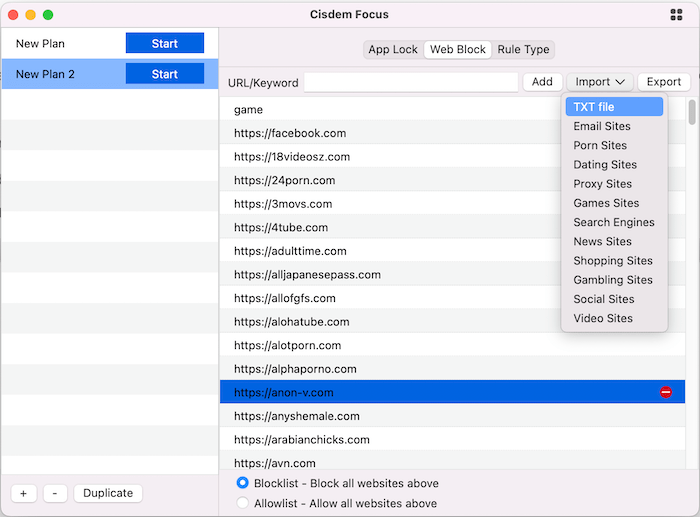
Block a specific website
- Open a focus plan.
- Go to Web Block.
- Select Blocklist.
- Enter the website domain.
- Click
 .
.
For example, you can add facebook.com to block that website.
The default URL protocol is https://. If you need to block a website that specifically uses http://, enter the complete URL, such as http://www.example.com.
Block websites containing a keyword
You can block URLs that contain a specific keyword.
For example, adding the keyword game can block URLs containing “game.”
This is useful when you want to block multiple websites or web pages related to a particular type of content without adding each URL individually.
Block websites by category
Cisdem Focus provides predefined website categories.
- Open Web Block.
- Click
 .
. - Select a category.
- The websites included in that category will be added to the list.
Import a website list
If you have many websites to block, you can prepare the website addresses in a .txt file and import the file into Cisdem Focus.
Use a Website Allowlist on Mac
If you want to allow only specific websites and block other websites, use Allowlist mode.
- Open a focus plan.
- Go to Web Block.
- Select Allowlist.
- Add the websites you need to access.
This mode is useful when you need access to only a limited number of websites while studying or working.
Choose a Focus Rule
Cisdem Focus provides four ways to run a focus plan:
- Quick Start
- Pomodoro
- Block as Scheduled
- Launch Limit
Choose the rule that best matches your focus goal.
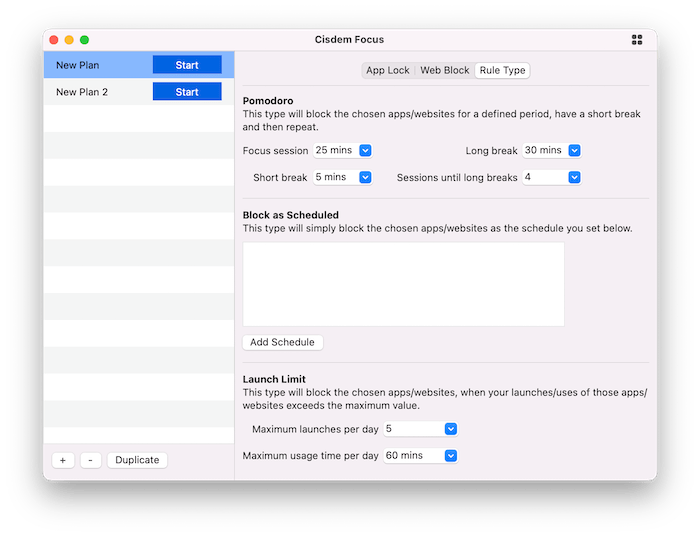
What Is Quick Start?
Quick Start starts a one-time focus session immediately.
You can choose a preset duration or enter a custom duration. During the session, Cisdem Focus blocks the apps and websites included in the selected plan.
Quick Start is useful when you want to start a distraction-free session immediately without creating a recurring schedule.
What Is Pomodoro Mode?
Pomodoro helps you organize work into focused sessions and breaks.
The default Pomodoro cycle is:
- 25 minutes of focused work
- 5-minute break
- Repeat the cycle four times
- 30-minute long break
You can adjust the focus and break durations according to your needs.
How to Schedule App and Website Blocking
Block as Scheduled automatically blocks the apps and websites in a focus plan during the times you specify.
To use scheduled blocking:
- Create or select a focus plan.
- Select Block as Scheduled.
- Set the days and times when blocking should be active.
- Save the schedule.
When the scheduled time begins, Cisdem Focus automatically blocks the selected apps and websites.
How to Limit App or Website Usage
Launch Limit lets you control how frequently or how long selected apps and websites can be used each day.
You can set:
- A maximum number of launches.
- A maximum amount of usage time.
When an app or website reaches the configured limit, Cisdem Focus blocks it for the rest of the day.
Note: Cisdem Focus starts tracking launches and usage time when the app is running on your Mac. Blocking based on the configured limit takes effect when the corresponding focus plan is active.
Start a Focus Plan
You can start a focus plan from either the Mac menu bar or the main Cisdem Focus window.
Start a plan from the menu bar
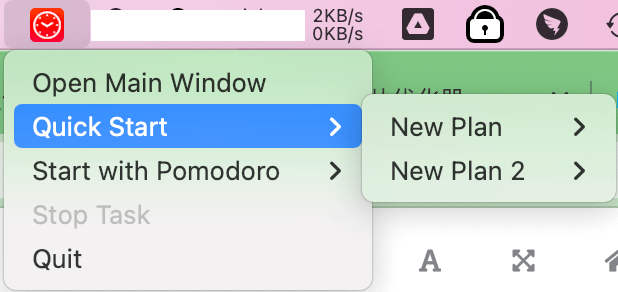
- Click the Cisdem Focus icon in the Mac menu bar.
- Select Quick Start or Start with Pomodoro.
- Select the focus plan you want to run.
Note: Plans using Block as Scheduled or Launch Limit must be started from the main Cisdem Focus window.
Start a plan from the main window
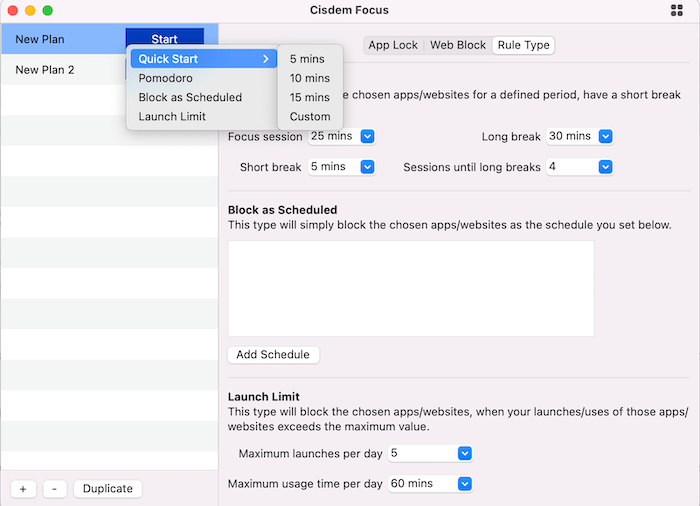
- Open the Cisdem Focus main window.
- Find the focus plan you want to use.
- Click the Start button next to the plan.
- Select one of the available modes: Quick Start, Pomodoro, Block as Scheduled or Launch Limit
Stop a Focus Plan
You can stop an active focus plan from either the menu bar or the main window.
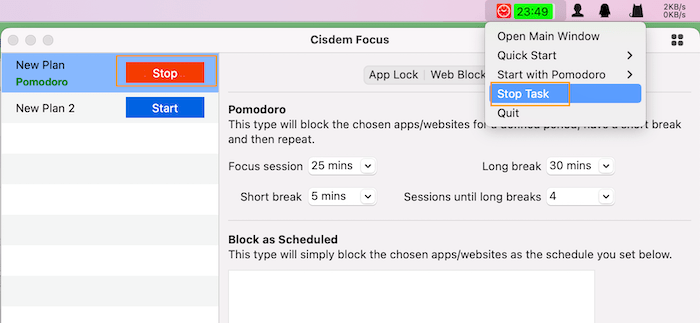
From the menu bar
Click the Cisdem Focus icon and select Stop Task.
From the main window
Open the main window and click  next to the active plan.
If Password Mode or Hardcore Mode is enabled, additional restrictions may apply.
Configure Cisdem Focus Preferences
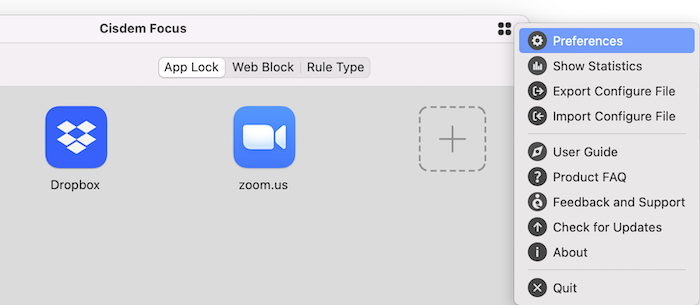
Open the Cisdem Focus main window, click the Settings icon in the upper-right corner, and select Preferences.
General Settings
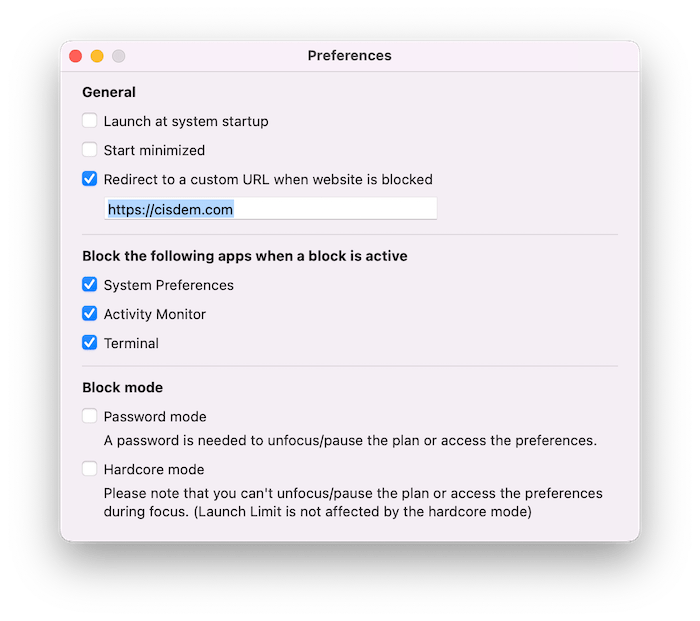
Launch at system startup
Enable this option to automatically launch Cisdem Focus when your Mac starts.
Start minimized
Enable this option to launch Cisdem Focus without opening the main window. The Cisdem Focus icon will remain available in the Mac menu bar.
Redirect blocked websites to a custom URL
By default, Cisdem Focus redirects blocked websites to its blocked-website page.
Enable this option if you want blocked websites to redirect to a different URL, then enter the URL you want to use.
Mac Apps that Cisdem Focus Block by Default
When blocking is active, Cisdem Focus can block selected system utilities to prevent users from bypassing an active focus session.
By default, the following apps can be blocked:
- System Settings/System Preferences
- Activity Monitor
- Terminal
You can change these settings in Preferences.
Password Mode
Password Mode requires a password when you attempt to stop an active focus plan, access certain preferences, or quit Cisdem Focus.
To enable Password Mode:
- Open Preferences.
- Go to Block Mode.
- Enable Password Mode.
- Set a password.
Password Mode is useful when you want an additional barrier against stopping a focus session.
Hardcore Mode
Hardcore Mode provides stricter focus protection.
When Hardcore Mode is active, you cannot open the main Cisdem Focus window, stop the active plan, or quit Cisdem Focus until the blocking session becomes inactive.
Use Hardcore Mode when you want to prevent yourself from easily bypassing a focus session.
View App and Website Usage Statistics
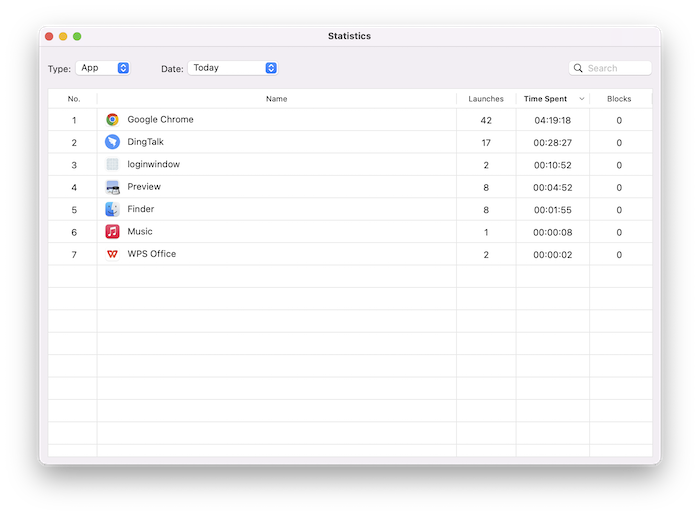
Cisdem Focus provides usage statistics to help you understand how you spend time on apps and websites. Click  > Show Statistics, you can open the statistics.
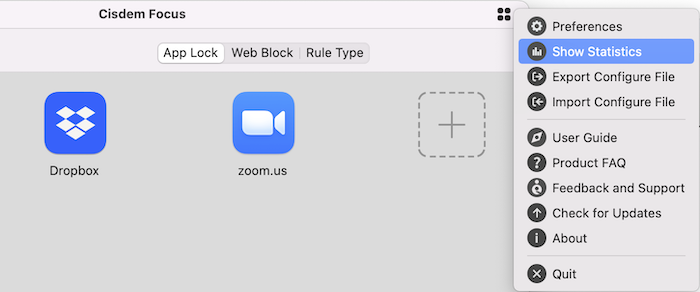
The statistics include:
- Launches: How many times an app or website was launched.
- Time Spent: How much time was spent using it.
- Blocks: How many times it was blocked.
Filter statistics by type
You can choose to view statistics for:
- Apps
- Websites
Filter statistics by date
You can view statistics for:
- Today
- Yesterday
- Last 7 days
- Last 30 days
- Custom date range
Search statistics
Enter an app name or website domain to find a specific item.
Sort statistics
You can sort the results by:
- Name
- Launches
- Time Spent
- Blocks
Export and Import Cisdem Focus Settings
You can export your Cisdem Focus configuration and import it on another Mac. This is useful when moving to a new Mac or configuring multiple Macs with the same settings.
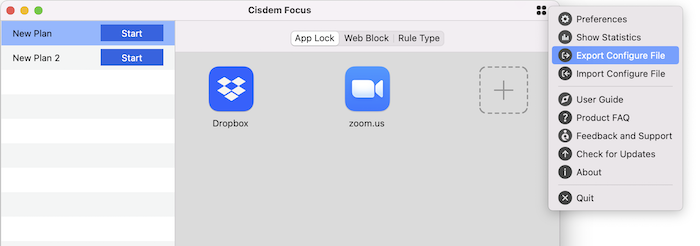
Export your configuration
- Open the Cisdem Focus main window.
- Click .
- Select Export Configure File.
- Save the
.acconfconfiguration file.
Import your configuration
- Install Cisdem Focus on the other Mac.
- Transfer the
.acconffile to that Mac. - Open Cisdem Focus.
- Click .
- Select Import Configure File.
- Select the
.acconffile.
The configuration will be imported into Cisdem Focus.
Update Cisdem Focus
Cisdem recommends using the latest version of Cisdem Focus.
Cisdem Focus automatically checks for available updates when you launch the app.
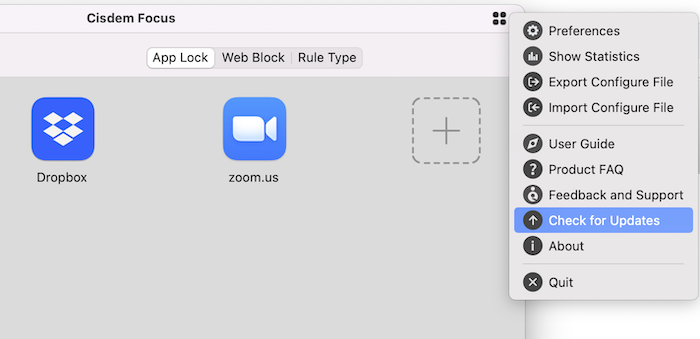
You can also check for updates manually:
- Open the Cisdem Focus main window.
- Click .
- Select Check for Update.
- Follow the on-screen instructions if an update is available.

Traci Gordon has worked as a tester in a software company for 8 years, she believes that the best software should be a tool that can help users accomplish what they need with the simplest steps.

Ethan Long joined Cisdem in 2015 as a developer and now serves as the editorial advisor for Cisdem AppCrypt. He actively tests and uses Cisdem AppCrypt and other screen-time management tools to ensure AppCrypt meets its promises in real-world scenarios.