The Power of This App Locker and
Website Blocker in One

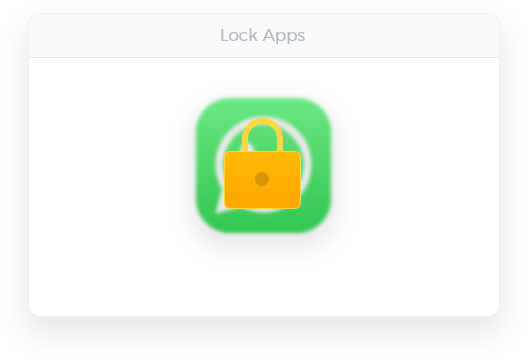
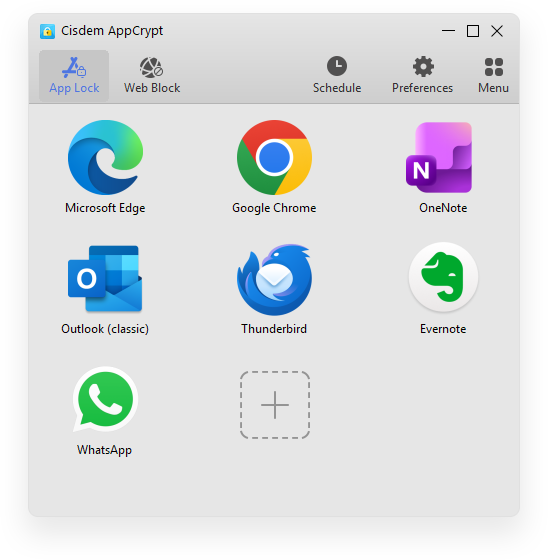
Lock Apps with a Password

  • Lock individual apps with a password, and also offer an Allowlist (Mac only) to lock all apps except allowed ones
  • Automatically re-lock apps after a period of inactivity, when you're away from your computer, or your computer goes to sleep
Learn more

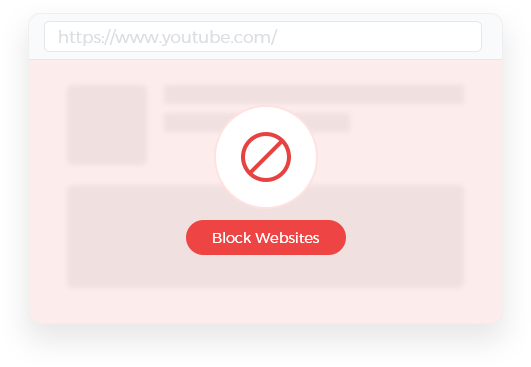
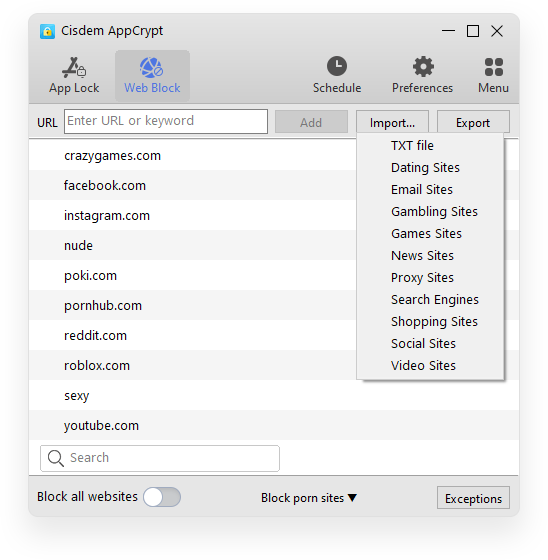
Block Websites, Keywords, and Categories

  • Block specific websites and pages, filter URLs by keyword, restrict website categories like Social or Gambling, import your own website list, or block all porn sites with a click
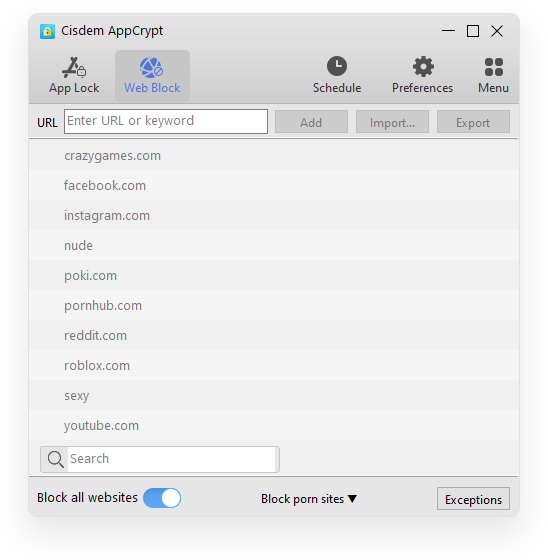
  • Block all websites at once, or block all sites except allowed ones
  • Support Chrome, Safari (Mac only), Edge, Firefox (Windows only), Opera, and Brave
Learn more

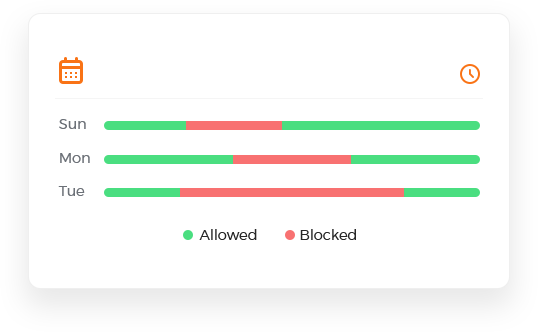
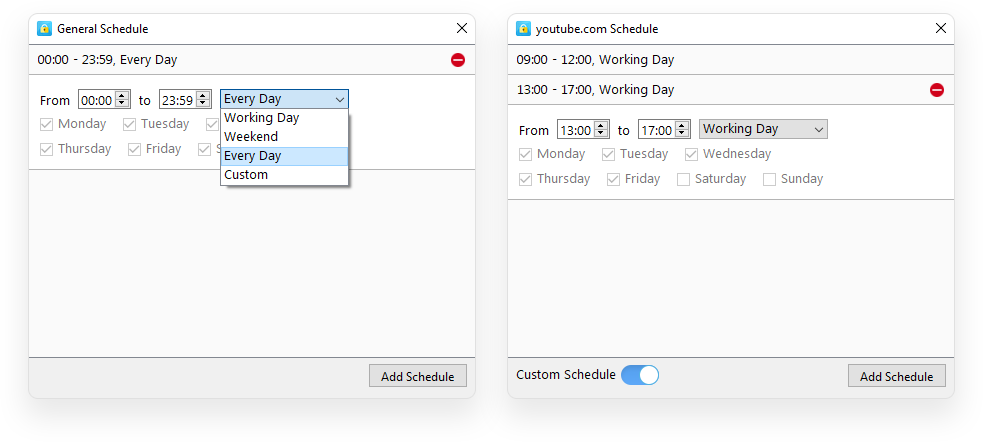
Create General and Custom Schedules

  • Use scheduling to lock apps and block sites 24/7 or at specific times, with general schedules applying to all restricted apps and sites, and custom schedules for individual ones
  • Always restrict certain sites without being affected by schedules
Learn more

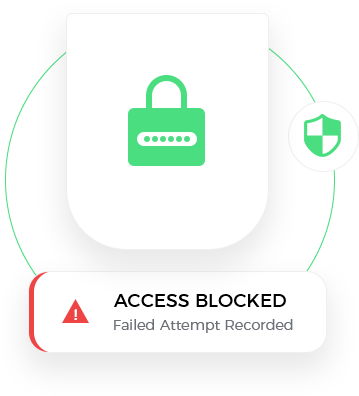
Prevent Bypassing of Restrictions

  • Combine password protection and other measures to make it impossible to bypass restricted apps and websites
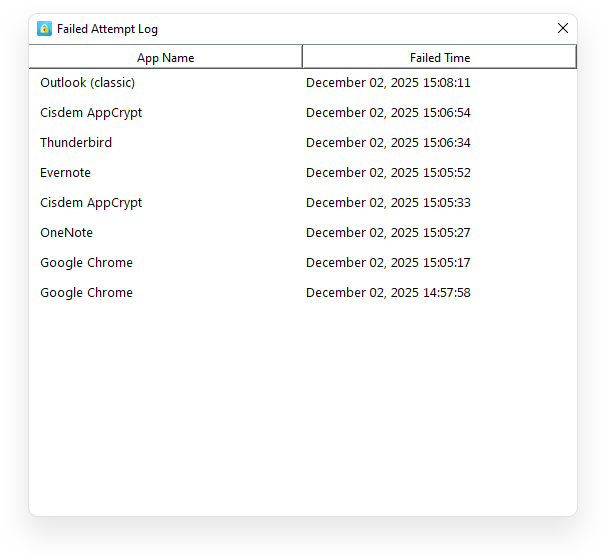
  • Record failed attempts to bypass restrictions, and also offer an option (Mac only) to take a photo of the intruder
Learn more

Cisdem AppCrypt Use Cases

1,000,000+ Users Love Cisdem AppCrypt

Tech gurus, individuals, parents, and more - see what they have to say.

""

Softpedia.com

""

MajorGeeks.com

Read More Tech Reviews

Chris L, US

Great app blocker to help with Vices. Great customer service !

JJack, US

I emailed my request late in day. The team executed it late evening outside of normal business hours. Super helpful to get me back on track by blocking my social media addiction.

JP van Kranenburg, NL

Perfect!! The keyword blocker is a life saver for some people!

Read More Trustpilot Reviews (4.8/5)

Frequently Asked Questions

Yes, you can. There's a free trial that lets you use all the features for 3 days.
Yes, it does. Its App Lock feature prevents access to selected apps, and the Web Block feature restricts access to specified websites.
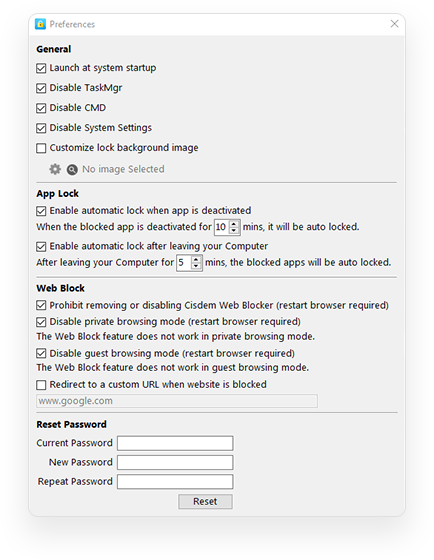
Yes, it does. On a Mac, website blocking applies even in incognito mode. For Windows, go to Preferences and select the Disable Private Browsing Mode checkbox to prevent incognito browsing.
To do this, you'll need to set up two schedules: one from 11:00 PM to 11:59 PM and another from 12:00 AM to 5:00 AM.
Yes. To enable this, choose Preferences in Cisdem AppCrypt's main window and then select the Launch at system startup checkbox.
Read More FAQs

User Guide

Explore detailed instructions and helpful tips.

See User Guide

What's New?

Learn about the latest updates and features.

View Version History

User Interface Showcase

Take a closer look at Cisdem AppCrypt's user-friendly interface in the following screenshots.

Lock individual apps on your computer to prevent access.

Prompt for a password when anyone tries to access a locked app.

Block specific websites and keywords or block sites by category.

Block all websites except those added to the Always Allow list.

Schedule app locking and website blocking based on your needs.

Keep track of failed attempts to bypass restrictions.

Configure general preferences and specific feature settings.