


How to Block TikTok on Android Devices: 4 Easy Methods
 410
410
 0
0


TikTok is a great platform to relax and watch some funny videos. At the same time, it can be distracting or addictive, leading to lower productivity or prolonged screen time.
In this video, I will show you how to block TikTok on Android permanently or at certain times, for yourself or your child.
 Cisdem AppCrypt
The Best Free TikTok Blocker for Android
- Block individual apps with a PIN or pattern
- Block specific websites, and filter URLs by keyword
- Allow you to block apps and sites 24/7 or during scheduled times
- Use a PIN or pattern to prevent changes to restriction settings
- Easy to use
- Hard to bypass
- Help you or your kids restrict TikTok access and reduce addiction
- Completely free to use on Android


Signs that you should block TikTok
If you notice these signs in you or your child, consider blocking TikTok.
- Spend over two hours on TikTok per day.
- Watching TikTok affects your sleep quality.
- Can't stop using TikTok even if you know you need a break.
- Feel anxious without TikTok.
- Negative or harmful videos on TikTok make you upset or disturbed.
- Spend time on TikTok instead of working on important tasks.
How to block TikTok on Android using Digital Wellbeing
Digital Wellbeing is a set of features built-in to Android. It helps increase productivity, implement parental controls, and maintain a balance between life and technology. With its App timer feature, you can make TikTok inaccessible.
Below are the step-by-step instructions.
Step 1. Open the Settings app.
Step 2. Tap Digital Wellbeing and parental controls.
(If you can't find Digital Wellbeing on the device, install it from the Play Store.)
Step 3. Tap App Timer.
Step 4. Select TikTok in a list of installed apps.
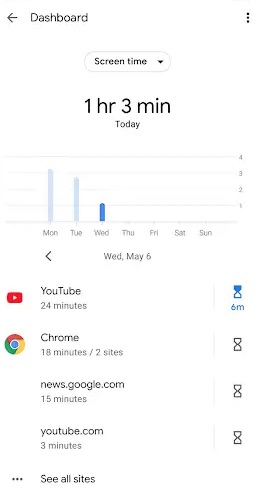
Step 5. Tap Set timer.
Step 6. To block TikTok all the time, set the timer to 00:00. To reduce time spent on TikTok, set the timer based on your specific need, for example, 01:00 (1 hour). Then, tap Done.
Step 7. Tap the three-dot icon and then Settings in the top right corner of the main interface.
Step 8. Turn on Set PIN and set a 4-digit PIN.
From now on, TikTok on this Android device will be blocked whenever the timer is reached. When the app is blocked, its icon will appear grayed out. Due to the PIN set in step 8, your kid won't be able to change your settings. If you are restricting TikTok for yourself, I recommend asking someone else to set the PIN for you, such as a family member or friend.
How to block TikTok app and site on Android using Cisdem AppCrypt
There are two ways to use TikTok on Android: using the app or the website. With Cisdem AppCrypt (an app and website blocker), you can restrict both ways. Due to password protection, restrictions are difficult to bypass. In addition, there's a Schedule feature to provide flexibility.
Step 1. Install Cisdem AppCrypt from the Play Store.

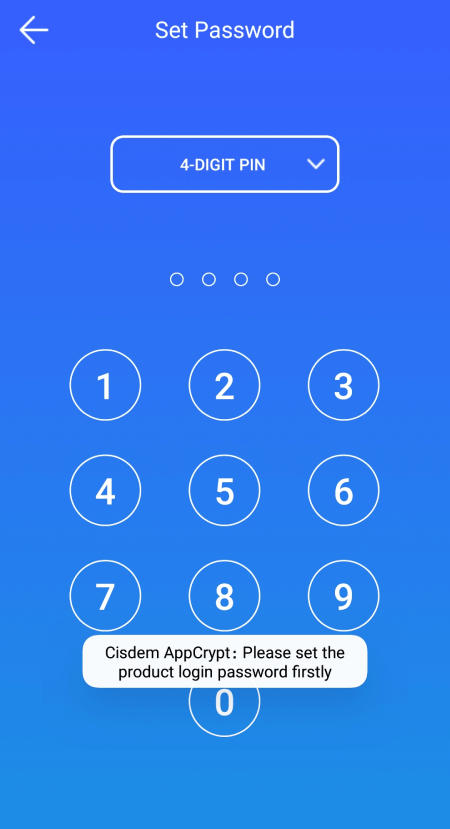
Step 2. Set a PIN or patter when prompted.
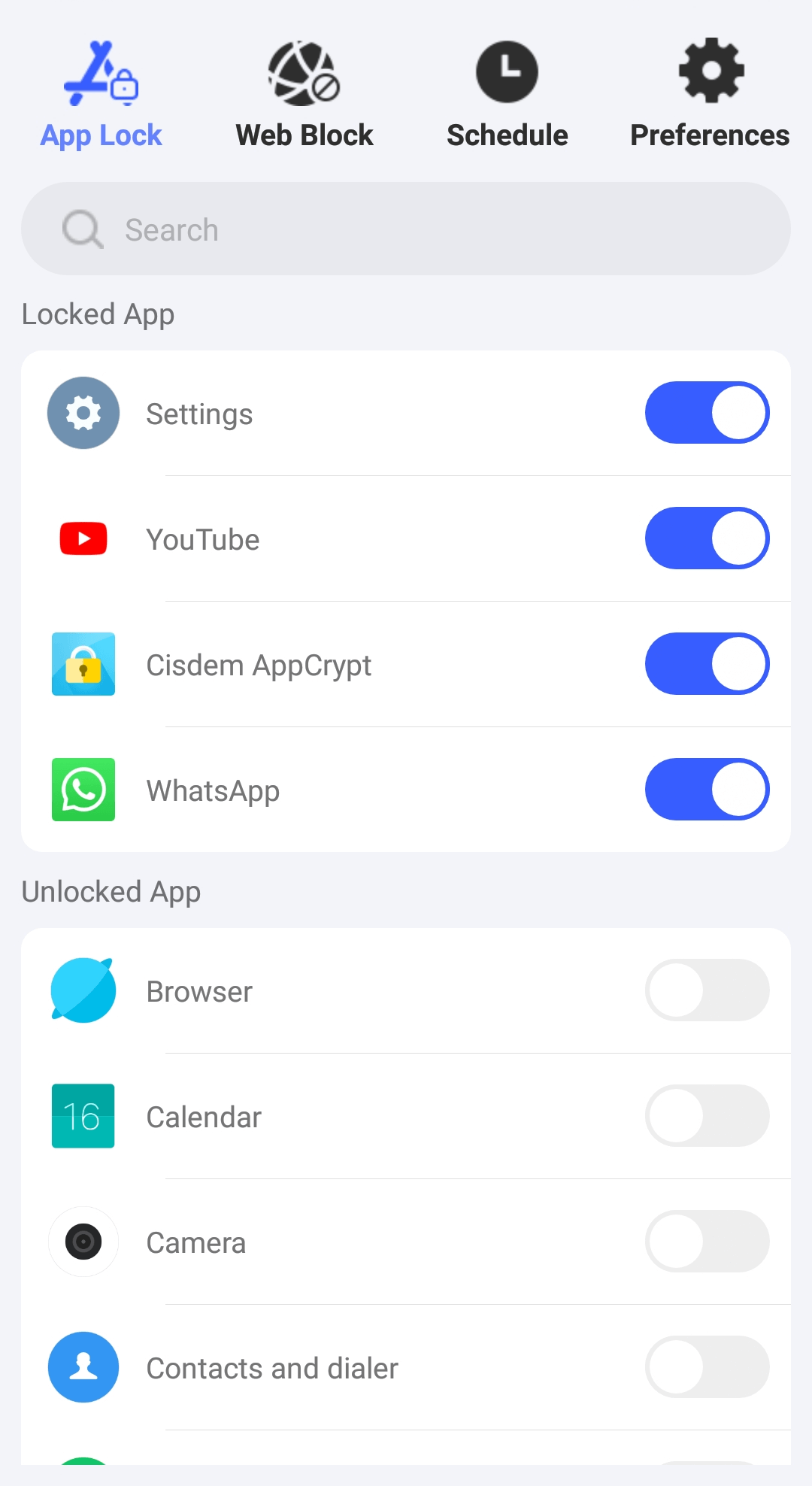
Step 3. In the App Lock tab, locate TikTok manually or using the search box. Then, toggle the switch to the on position, which puts a lock on the TikTok app.
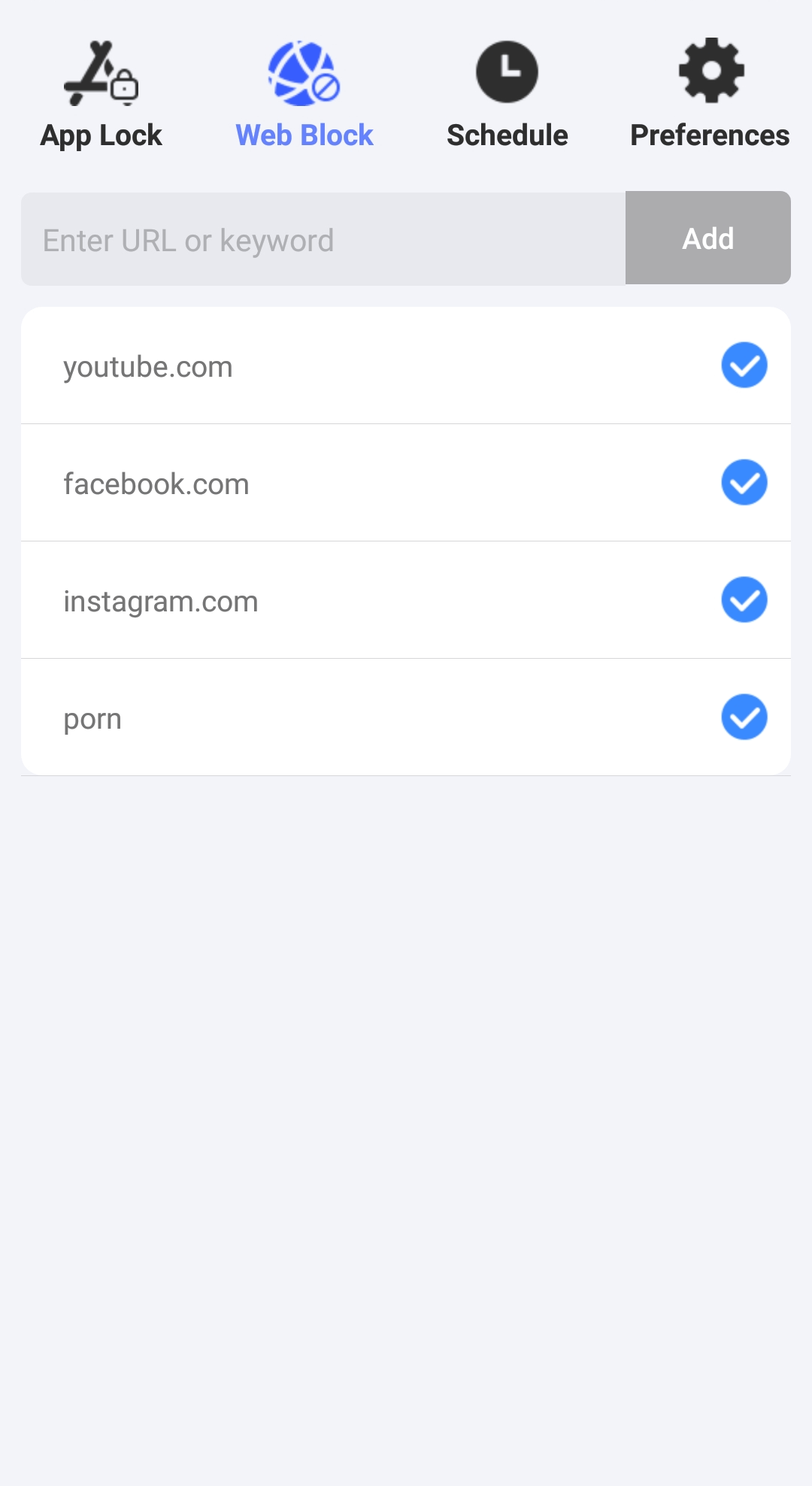
Step 4. In the Web Block tab, enter tiktok.com and tap Add. This site will become inaccessible on all browsers installed on this Android device.
Step 5. Optionally, tap Schedule, turn off the default schedule, and tap Add to select times of the day and days of week when you want to TikTok to be restricted.
If you go with the default schedule, both TikTok app and website will be limited permanently.
How to block TikTok on Android by configuring router settings
If you want to block TikTok on all devices in your home (including your child’s devices and your own), you can try this method.
But first you need to check if your Wi-Fi router supports blocking websites. It is called “Access Control”, “Web Filter”, or something similar. Most routers have this feature built in. Additionally, a few routers can identify traffic from specific applications, allowing you to block apps as needed. Second, make sure the Android device that you want to block TikTok on always connect to the same Wi-Fi network.
Step 1. Open your web browser and type in the IP address of the router.
Step 2. Log in with the username and password.
Step 3. On the router’s Settings page, find the settings for blocking apps. Select TikTok app from the application list and block it.
Step 4. Find the websites blocking section. Add tiktok.com and tiktokcdn.com into the block list.
Step 5. Save your settings.
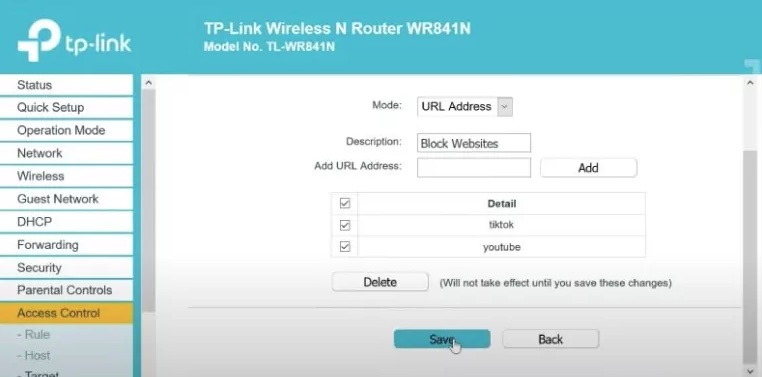
The blocking will affect both TikTok app and website.
How to block TikTok by uninstalling it and preventing reinstallation
There's still another method to prevent you or your kid from using TikTok, which is to uninstall the app and stop it from being installed again. Thanks to the Play Store's built-in parental controls, you can easily implement this method. (The Play Store allows users to filter apps based on content ratings, such as 3+, 7+, 12+, 16+, and 18+. And TikTok is rated as 12+.)
Step 1. Uninstall the TikTok app.
Step 2. Open the Play Store. Click your child’s profile icon in the upper right corner. Click Settings.
Step 3. On the next page, scroll down to find the Family section. Tap it and click Parental Controls from the dropdown menu.
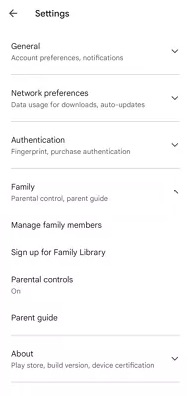
Step 4. Turn on the Parental Controls feature.
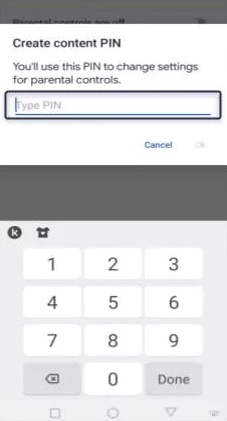
Step 5. Then you will be asked to set a PIN. This PIN can prevent your child from changing your settings. Type the PIN and click OK.
Step 6. Click Apps & Games. Then you'll see a list of content ratings, which range from Rated for 3+ to Rated for 18+. To block TikTok, you can select 3+ or 7+.
Step 7. Click Save.
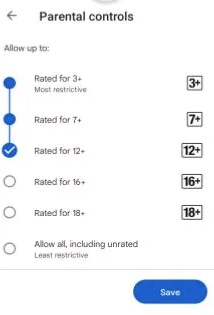
By following the steps above, you can prevent your child from downloading TikTok from the App Store.
Conclusion
Using TikTok can make us addicted to the online world and lose interest in work, study, and other people in real life. It can also cause some health problems. Most Android users use the app to browse TikTok. Some users prefer the website. This article shows you 4 ways on how to block TikTok on Android phones. The first method works for both the web and app versions. It also lets you set screen time limit on TikTok.

Norah Hayes likes to share her tips on how to improve focus and stay motivated at work. She believes it is essential to eliminate all online distractions during work hours.

Ethan Long joined Cisdem in 2015 as a developer and now serves as the editorial advisor for Cisdem AppCrypt. He actively tests and uses Cisdem AppCrypt and other screen-time management tools to ensure AppCrypt meets its promises in real-world scenarios.