


VSO ConvertXtoDVD Review and The Best Alternative
 871
871
 0
0


ConvertXtoDVD is a well-known DVD burning software for converting videos to DVD-ready formats and burn to discs. With its recent update to a 64-bit version, users may be wondering how the new release hold up, and whether it worth the new pricing? In this review, we take a close look at VSO ConvertXtoDVD 7, covering its pros and cons, key features, and best alternative to it.
 Cisdem DVD Burner
Best Alternative to ConvertXtoDVD for Win/Mac
- Burn any video file to DVD, or save to ISO/Video_TS folders
- Stylish DVD menu templates with customizable elements, e.g. backgrounds, buttons, text, frames, and more.
- Video editing: crop, trim, add effects, subtitles, chapters, watermark, and more
- Super-fast conversion speed
- Preview the whole DVD before burning
- Easy to use for beginners
- Compatible with Windows and Mac OS
 Free Download Windows 10 or later
 Free Download macOS 10.15 or later
An Overview
What is ConvertXtoDVD?
ConvertXtoDVD is a video to DVD converter developed by VSO, a software company located in France. It's designed to convert, edit and burn videos to DVD with menus. And it has undergone several major updates since its original release in 2006.
The program is compatible with Windows 11/10/8/7 (32 or 64 bits). You can download it from the official website or via the quick links below.
| ConvertXtoDVD (64-bit) | ConvertXtoDVD (32-bit) | |
|---|---|---|
| Latest Version | 7.5.0.129 | 7.0.0.83 |
| Release Day | May 6. 2025 | June 14, 2023 |
| Download Link | Download here | Download here |
| Package Size | 63.3 MB | 37.8 MB |
Our review is based on the latest 64-bit version ConvertXtoDVD 7, running on Windows 11.
Is ConvertXtoDVD free?
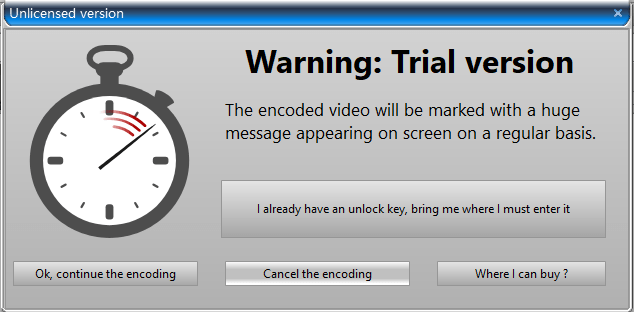
No, but it offers a 7 days trial before you buy. Also, the trial version will add a watermark to the encoded video.
Price: $44.99 for 1-year subscription, allowing 3 simultaneous installations. No lifetime license available at present. Strict refund policy.
ConvertXtoDVD Pros & Cons
Pros:
- Accepts a wide range of media formats, including DVD-type video input, like .iso, .ts, and more
- Provides a dozen of existing DVD menu templates
- Lets you customize a new menu template with control over all items
- Available in 13 languages, not completed yet
Cons:
- Some new formats/codecs are not supported
- Slow conversion speed
- The user interface could be improved, a bit complicated and outdated
- No one-time purchase option, and yearly subscription is costly
- No Mac version
- Wrong aspect ratio for vertical video
The Detailed Review
ConvertXtoDVD Installation
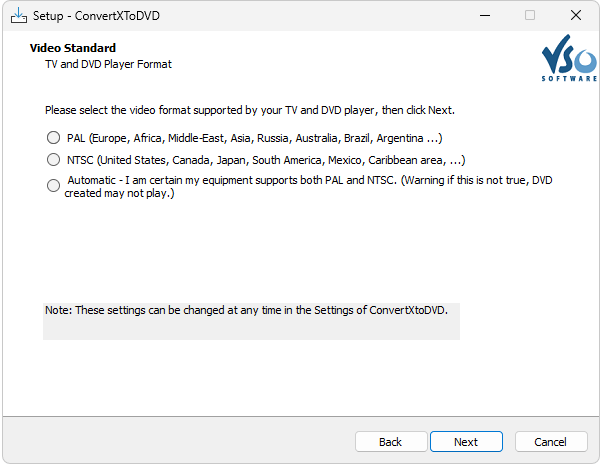
Download and run the ConvertXToDVD setup wizard to install it on your Windows PC. The process is simple, note that you’ll be asked to first select the DVD player standard (PAL or NTSC), then follow the guide to finish the installation.
Main Interface
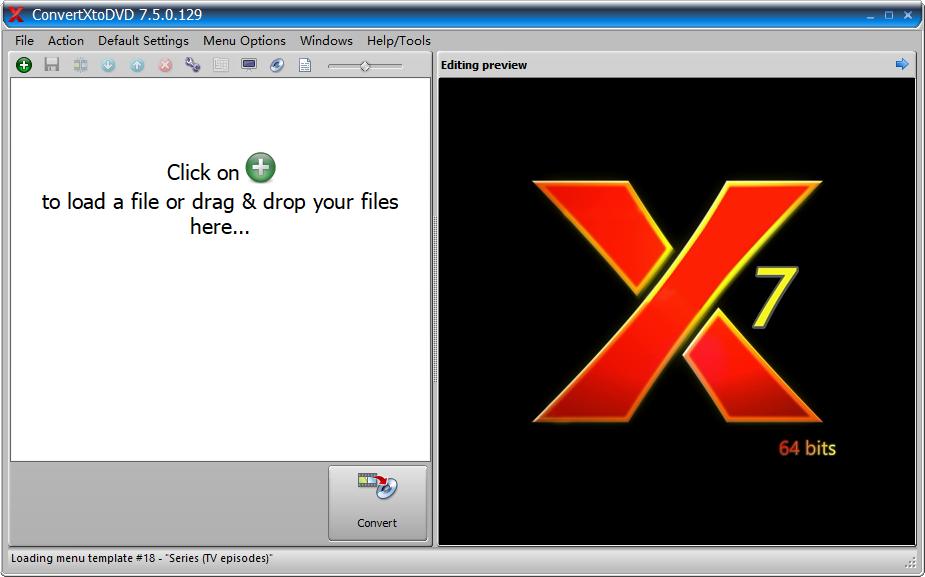
Launch ConvertXtoDVD after installation, you will see the main interface that is divided into two parts, the left section is for adding your video files, and the right section is for video editing and preview. You can access more settings from the top menu options. To burn a DVD, simply drag and drop a video, edit the menu and click “Convert”.
Key Features
1. Add Video Files
Click on the green "+" button to select videos you want to burn, or simply drag and drop them to the interface. Below are supported input formats.
| Video Formats |
DVD files (.ifo, .ts, .vob, .mpeg, .mpg, .m2p, .ps, .m2ts, .mts), .avi, .divx, .xvid, .mkv, .webm, .mov, .mp4, .m4v, .ogg, .ogm, .ram, .rm, .rmvb, .rv, .flv, .swf..asf, .wm, .wmr, .wmv, .3gp, .3g2, .avs, .dat, .evo, .nsv, .dvr-ms, .tod, .mod, .iso, .img, .bin/.cue |
| Video Codecs |
H.263, H.264, MPEG-1, MPEG-2, MPEG-4, DivX and XviD, DV, VC-1, Flash, VP6, VP7, VP8, VP9, RealVideo 2/3/4, TechSmith, Theora, uncompressed, Cinepak, Cooker, WMV V7, WMV8 and WMV9, Fraps. |
| Audio |
DTS, TrueHD, DTS-HD HR, ATMOS, AC3, E-AC-3, MP1, MP2, MP3, AAC, ALAC, FLAC, APE, Ogg Vorbis, Opus, PCM and WAV, WMA 9, WMA Pro and WMA Voice. |
| Subtitles | .srt, .sub, .ass, .ssa, .smi, .ssa, DVD Subtitles, Blu-ray Subtitles, PGS, MOV subtitle |
2. Video Editor
Click on the titleset and move to the video preview/editor window on the right. You’ll see the Preview tab and other 7 editing tools.
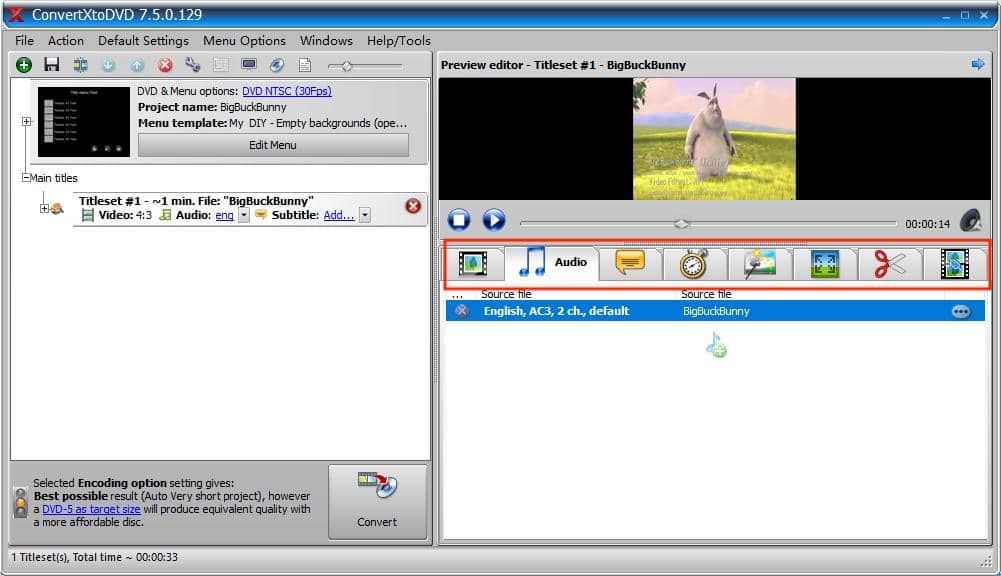
- Audio: Add/remove audio streams, adjust the audio volume.
- Subtitle: Add subtitles, edit the font, color, and identify the language.
- Chapters: Drag the progress bar in the player to add chapter markers.
- Image Settings: Here you can adjust the video saturation, brightness, and contrast, rotate the video and add watermarks.
- Output: Select the video aspect ratio (4:3 or 16:9) and DVD resolution standard.
- Cut: Cut out unnecessary part of the video at will.
- Merge: Add new videos to the end of the current title and merge them into a long video.
Go to the first Preview tab to view your edited video.
3. DVD Menu Editor
Click the “Edit Menu” button and choose whether to create a new theme or use an existing menu theme. Choose “Create new theme” if you want to DIY a template and save it to reuse in the future. Most users usually prefer to “use an existing theme” and modify it.
#1. Select a Structure type that suits your project, then select a Theme template for it.
- Open Style: for general purpose; 12 templates
- Series: best for series, can have a bonus submenu; 3 templates
- Movie: Best for single movies, can have a bonus menu; 3 templates
You can also select “No Menu”, or download old menu templates online and import.
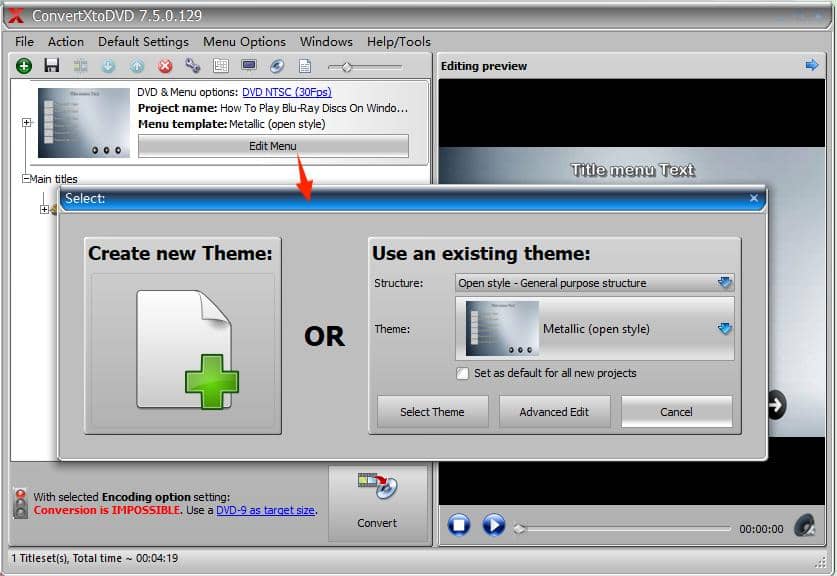
#2. Click Advanced Edit to customize the template.
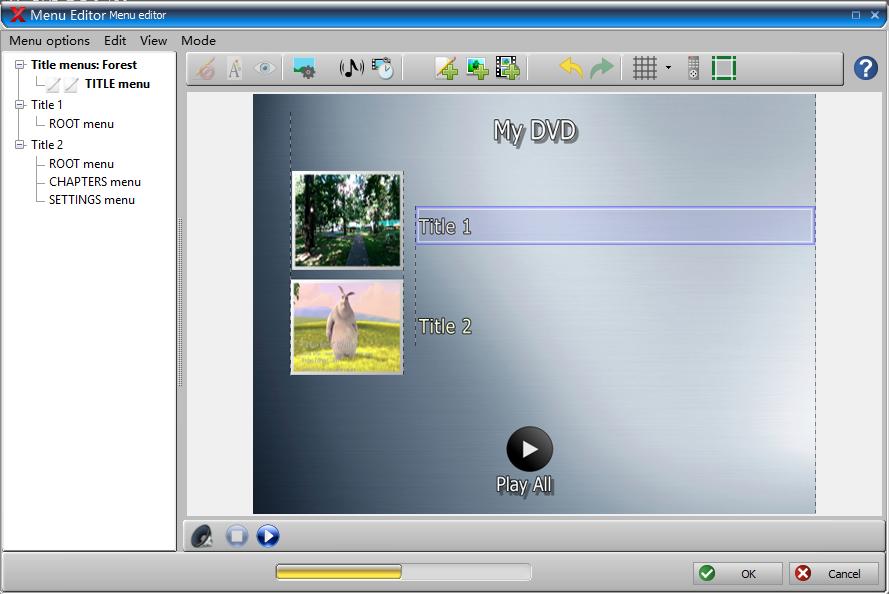
In the Menu Editor window, all the menu pages will be displayed in the treeview on the left, including the main menu, title menu, chapter menu, settings menu, and so on, based on the structure type and your actual video files.
Select the individual page you want to edit, and you can then resize all the items, customize the background video/still image/audio, edit the menu duration, and add extra decorations.
4. Convert and Burn Videos to DVD
When everything is set up, click the “Convert” button to start the conversion process. Once conversion is complete, insert a writable DVD disc and burn your project to disc.
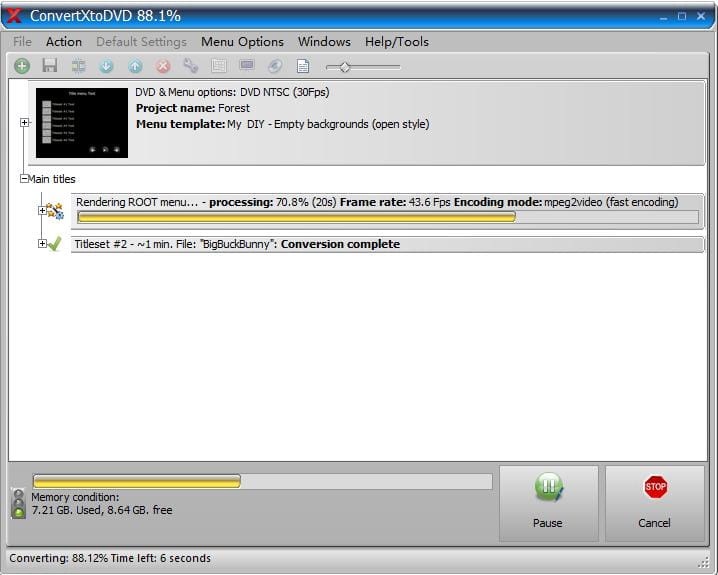
Supported output formats: DVD standard or DVD video folder (Video_TS)
Supported disk types: DVD±R, DVD±R DL, DVD±RW
Speed: Slow
The Best Alternative to ConvertXtoDVD
If ConvertXtoDVD does not meet your requirements, what alternatives are worth considering? After testing dozens of DVD burners, I found that Cisdem DVD Burner is a go-to option for users looking for an easy DVD burning experience. It has a user-friendly interface and includes most features found in ConvertXtoDVD. Also, it’s available for both Windows and Mac OS.
Free Download Windows 10 or later Free Download macOS 10.15 or later
The main interface consists of 4 tabs, corresponding to the 4 steps of DVD burning workflow - Source, Menu, Preview, and Burn.
Source
Add your videos into the Source tab, where the disc remaining space will be displayed at the bottom. Using different disc types and quality level will change how much space you have available. Additionally, you need to set the TV standard at the bottom.
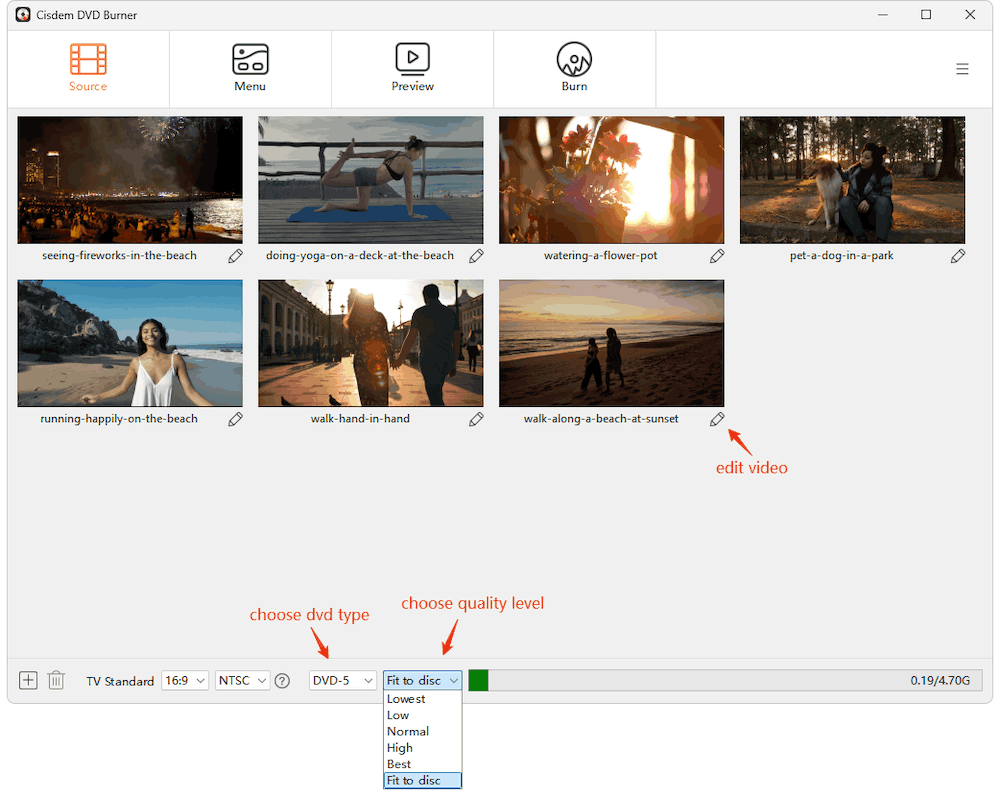
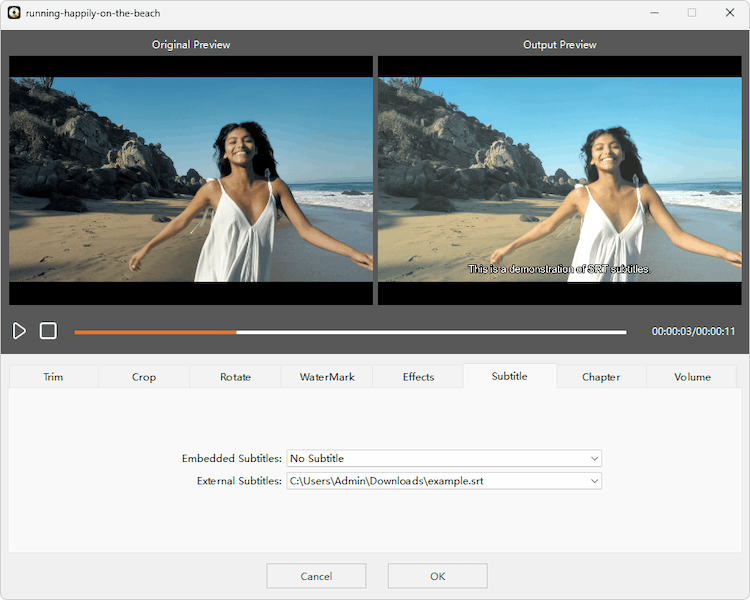
Click the edit button below the title thumbnail to open the editor window, where you can trim, crop, add watermark/subtitles/chappters, etc.
Menu
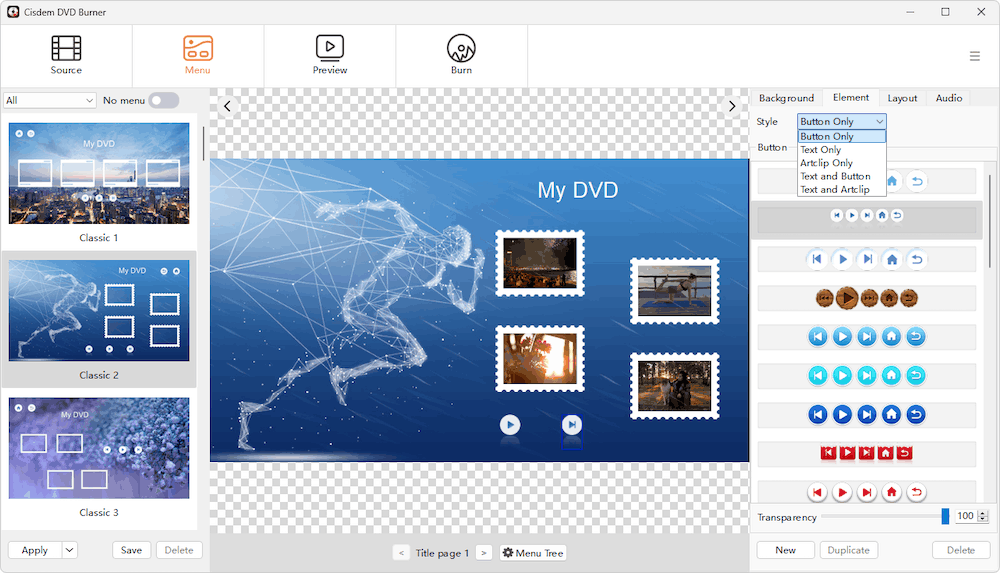
Proceed to the Menu tab, you can select a menu template for various themes such as holiday, travel, wedding, etc., and custom the background image/music, change the title frames, navigation buttons, add texts, and more.
Preview
Head over to "Preview" and watch your DVD like it's playing for real. If anything looks off, just go back and tweak it.
Burn
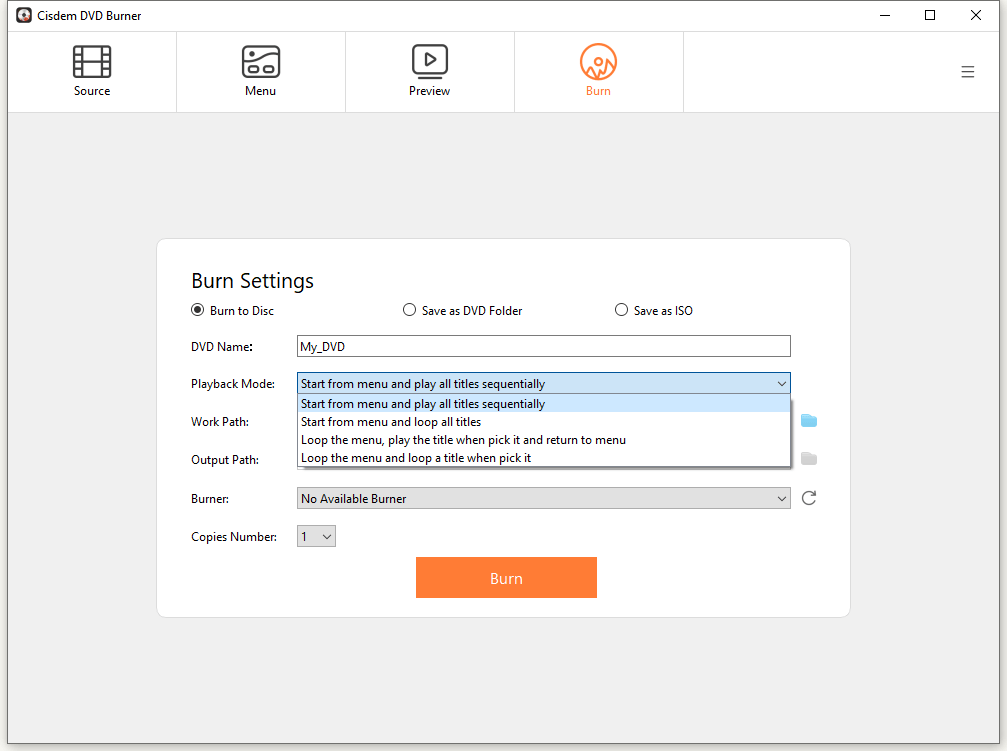
Finally, in the Burn tab, set the output format and defind playback mode and copies number before you start the burning process.
Comparison Table
| ConvertXtoDVD | Cisdem DVD Burner | |
|---|---|---|
| Platform | Windows | Windows and Mac |
| Pricing | $44.99/year | $39.99/year, $59.99/ lifetime licence with free upgrades |
| Input Formats | Most common formats, ISO, DVD folder | Most common formats and ISO |
| DVD Menu Customization | Yes | Yes |
| Menu Templates | Classic | Modern |
| Video Editing | Yes | Yes |
| Speed & Performance | Slow | 10 times faster than ConvertXtoDVD |
Summary
ConvertXtoDVD remains a solid DVD authoring program, especially for users who prefer manual DVD design. However, its UI and templates feel outdated, and the conversion is really slow. To avoid the drawbacks, Cisdem DVD Burner is an excellent alternative option, which is faster, more cost-effective, and modern designed. If you are looking for a free replacement, DVDStyler and WinX DVD Author are also recommended.

Jenny is a technology editor who has been blogging since she was a student. Since joining Cisdem, she focuses on writing articles about video software and how-to guides. She loves exploring new tools and techniques.

JK Tam is the lead developer at Cisdem, bringing over two decades of hands-on experience in cross-platform software development to the editorial team. He is now the lead technical approver for all articles related to Data Recovery and DVD Burner.