


Cisdem PDFMaster for Mac Advanced Guide
 267
267
 0
0


01. Time-saving Tricks in Cisdem PDFMaster
Cisdem PDFMaster comes packed with a variety of features designed for convenience, but not all of them are obvious at first glance. This guide introduces practical tricks that will help you get the most out of Cisdem PDFMaster.
Part 1 Batch Processing
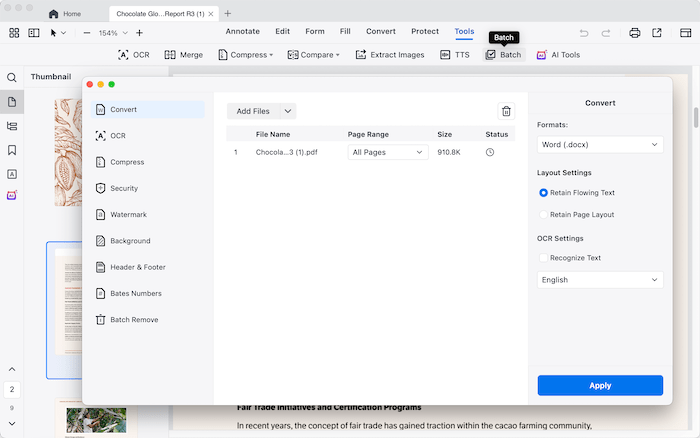
Instead of loading documents one by one, you can drag a whole folder into Cisdem PDFMaster. You can get into the Batch Processing window by taping Tools>  .
.
From there, you can:
* Batch Convert and OCR PDFs to any format or extract texts from scanned PDFs at once.
* Batch Compress all PDFs to reduce file sizes at once.
* Batch apply password protection or remove restrictions across dozens of files in one go.
* Batch add watermarks, backgrounds, head&footers and bates number to customize your PDFs and secure your privacy.
* Batch remove watermark, background, header & footers and bates Number from your PDFs in one go.
This is particularly useful for legal, accounting, or academic professionals who handle large sets of documents daily.
Part 2 Hidden Right-Click Options
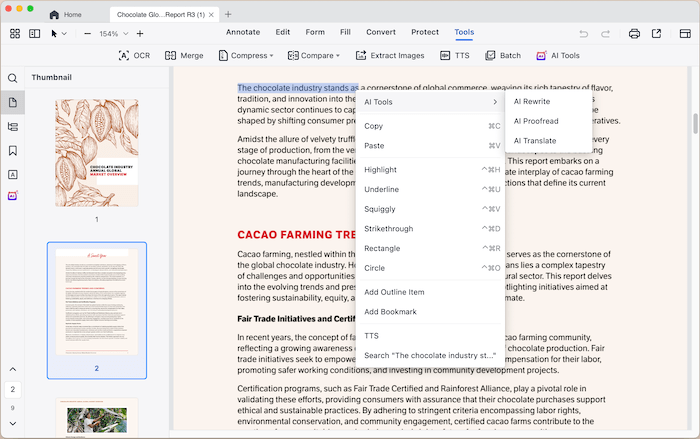
Right-clicking in different areas of Cisdem PDFMaster reveals context-sensitive tools:
* Right-click on text: Quick rewrite, summarize or translate with AI tools, annotate, add outline, or search the selected word across the document.
* Right-click on a Thumbnail: Quickly edit the PDF page by inserting pages, extracting pages, rotating pages, replacing pages and delete pages.
* Right-click on a tab: Quickly rename opened pdf file, locate the file location in Finder, move tab to a new window, or close multiple files at once.
Part 3 Drag-and-Drop Tricks
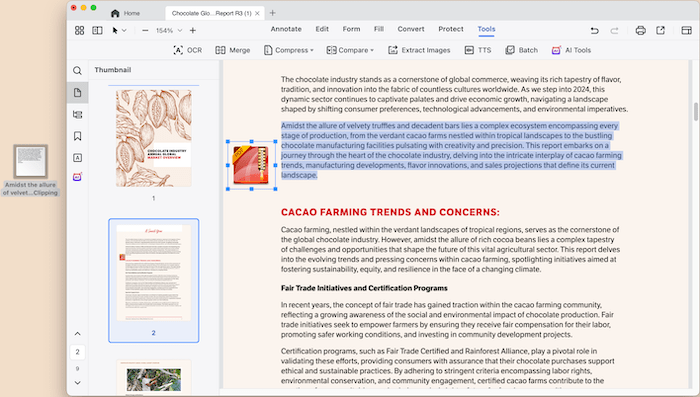
Without clicking any button, you can enable some features directy by dragging and dropping:
* Drag images directly into a PDF page to insert them without going through the “Insert” menu.
* Drag a PDF file into another open document’s sidebar to instantly merge them, please note that the dragged PDF will be inserted after the highlighted page of the opened document.
* Drag a selection of text into your desktop: Cisdem PDFMaster automatically exports it as a text snippet.
Conclusion
These time-saving tricks aren’t always obvious, but once you master them, Cisdem PDFMaster becomes much more than a PDF editor — it becomes a true productivity hub. Try incorporating these techniques into your daily routine, and you’ll see how much faster and smoother your PDF work becomes.
02. Key Facts About Flattened PDFs
Cisdem PDFMaster provides the function to save your PDF as flattened PDF, before using this function, it’s important to understand what happens when a PDF is flattened. And in this guide, we will walk you through all the key facts you need to know.
1. What is Flattened PDF?
When you add annotations and interactive elements into a PDF, they are stored on layers separate from the original PDF content. And when you flattening your PDF, all those layers will be merged into a single and static layer, which locks the content into place, making those annotations and interactive elements no longer editable.
2. When should You Flatten a PDF?
* To prevent others from viewing annotations details: When you add annotations to a PDF, it records who and when those annotations were added. If you don’t want recipients to see this metadata, you can flatten the PDF.
* To prevent changes: If you don’t want to prevent any further edits or modifications to a PDF content, you can flatten the PDF.
* To improve compatibility: The structure of a flattened PDF is simplified than a regular PDF, which helps improve compatibility and ensures more consistent display across different devices and viewers.
Here’s a real-world example to illustrate when flattening a PDF is useful.
“So, basically, when I sent a PDF to someone that I have amended. "cisdem pdfmaster "and the date it was amended...He can also catch it and delete it. How can I make it such that the person who receives it cannot amend it or see it was amended? ”
3. What to Know Before Flattening a PDF?
* Annotations will no longer be editable.
* Links will become inactive.
* Form fields and digital signatures will no longer be fillable.
4. How to Flatten a PDF?
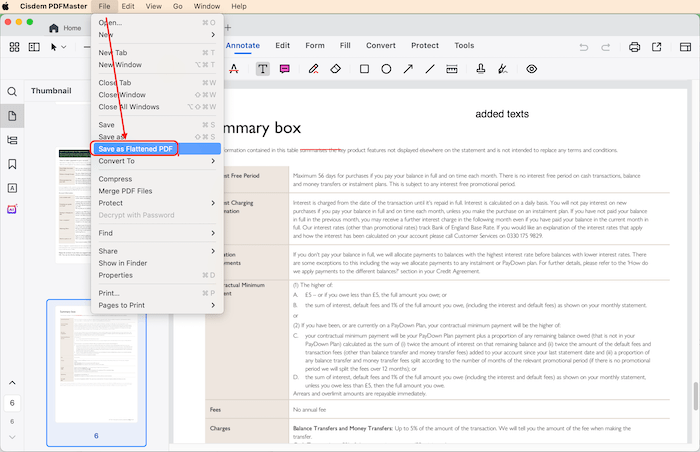
Open the PDF file with Cisdem PDFMaster, click File> Save as Flattened PDF on the top menu bar after finishing the edits. It will generate a flattened PDF and pops up a window to ask you to select a location to save the genrated flattened PDF.
03 How to print an A3 PDF onto two A4 pages?
If you need to print an A3 PDF but only have A4 paper, splitting the document across two A4 pages is an easy and effective solution. By splitting the original page across two A4 sheets, you can produce a readable, full-size printout that can be joined together seamlessly. This guide shows you the steps how to print an A3 PDF on two A4 pages using Cisdem PDFMaster.
1. Open the A3 PDF with Cisdem PDFMaster
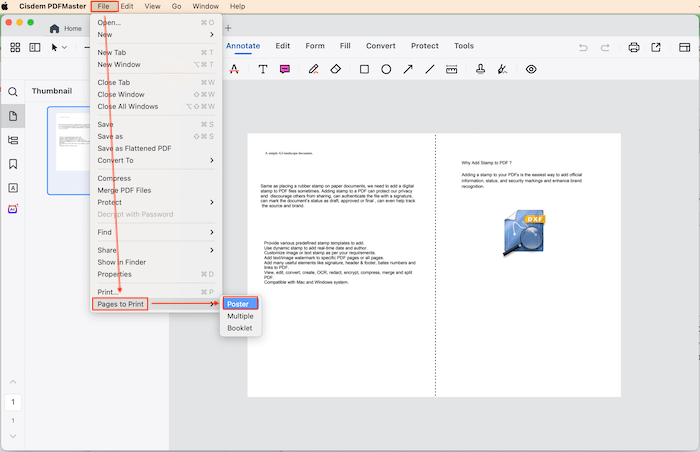
2. Click File> Pages to Print> Poster
3. Navigate to the Split tab on the following Print settings window
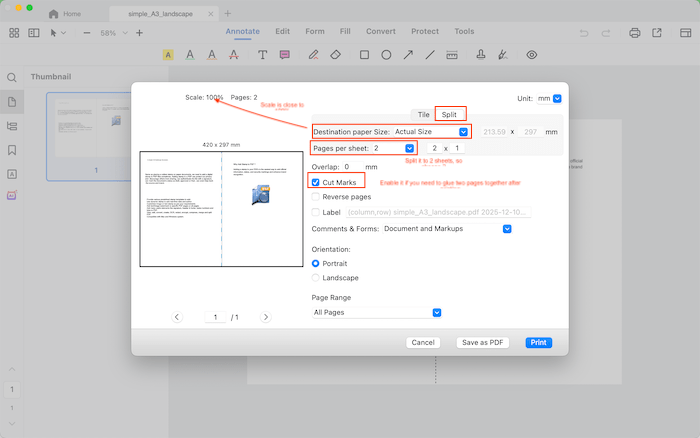
4. Choose an option from the “Destination paper Size” list. You can choose Actual Size or A4, usually at a Scale close to 100% to maintain original size.
5. Choose “2” with the Pages per sheet option. If you need to split the document to 4 pages, and choose 4 with this option. And here we need to split this A3 PDF onto two A4 pages, so we choose “2”
6. Enable “Cut marks” if you need to paste the two separated A4 pages together to form the complete A3 document.
7. Choose the Orientation and Page Range, and then click Print.
This feature can automatically splits any large document into smaller-size documents. In addition to splitting A3 onto A4 sheets, it can also handle other large files such as architectural drawings, presentation banner, and more.

Traci Gordon has worked as a tester in a software company for 8 years, she believes that the best software should be a tool that can help users accomplish what they need with the simplest steps.

Liam Liu takes charge of the entire PDF product line at Cisdem and serves as the technical approver for all related editorial content. He has deep expertise in PDF and document management technologies and nearly a decade of development experience.