Cisdem DVD Burner is a DVD creator software that supports you converting almost all the popular video formats into ISO file, DVD folder or DVD disc. You can quickly burn a DVD disc with the built-in templates or spend more time to create a creative DVD disc with custom menus. Below is a step-by-step guide with four essensial parts showing you how to burn a DVD with Cisdem DVD Burner.
Getting Started
Download & Install
1. You can download the installation package of Cisdem DVD Burner from the below link.
2. Install Cisdem DVD Burner with the downloaded package.
Double-click the .exe file to run it.
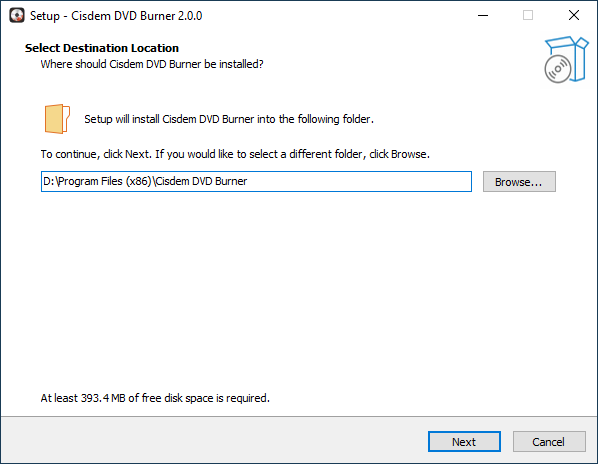
Select a folder to install the program (It is recommended to save it under D: drive instead of C: Drive)
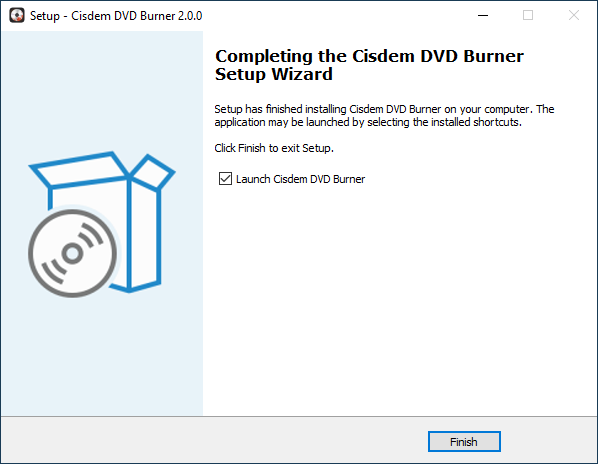
Click Next > Next > Install to continue the installation process, when the below window appears, it means that the program has been installed successfully.
Activation
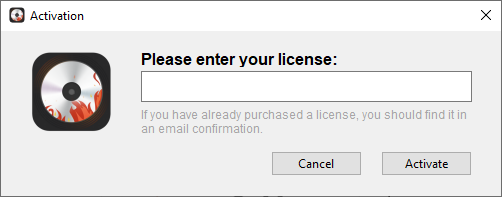
After installing the program, you need to activate the program if you want to use the full version features.
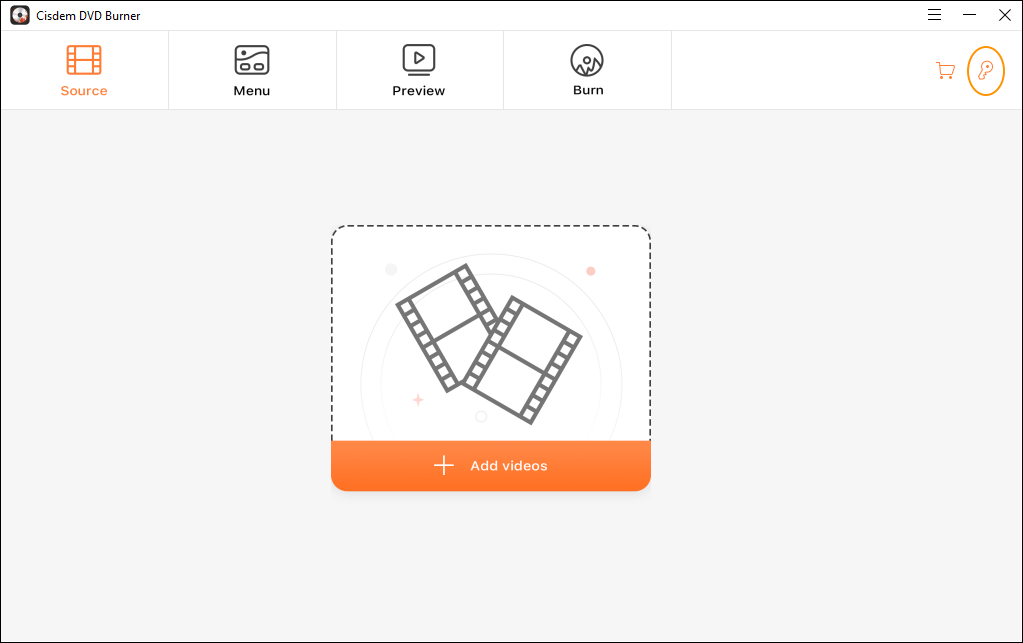
1. Find Cisdem DVD Burner on your desktop or in the folder where you installed it, double click to run it, and then click the key icon at the right upper corner
2. Copy-n-paste the license code into the popped-up window, click Activate.
Create a DVD from Videos
Add videos
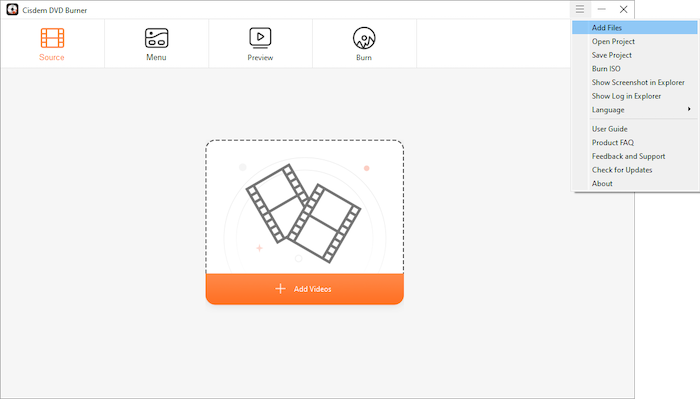
Cisdem DVD Burner supports 200+ video formats input, there are 3 ways to add video files:
1. Click , and then select the target video files on the pop-up window.
2. Drag-n-drop the target video files into the main interface of the program.
3. Click > Add Files at the right upper corner, select the target video files on the pop-up window.
The loaded video thumbnails will be displayed in the main interface, you are allowed to change the display order of those videos by dragging and dropping.
If you need to add more video files, you can click at the lower left corner or continue dragging and dropping more files.
To delete the added videos, you can select the target files, press "delete" on your keyboard or click at the lower left corner of the interface, if you want to delete all videos at a time, press "Ctrl+A" to highlight all the videos to delete.
Select a DVD Type
On the bottom of main interface you will see a progress bar which apprises you about the storage, you can choose the corresponding DVD type: DVD-5, DVD-9 or DVD-10. The difference between them is the storage, the former one can hold up as much as 4.7 gigabytes whereas the latter one can store data of up to 8.5 gigabytes. Also you can choose the TV Standard: 16:9 PAL/NTSC or 4:3 PAL/NTSC and bitrate: Fit to disc, High quality and Standard, we suggest you to select Fit to disc, so that Cisdem DVD Burner will provide you with an optimal solution.
In addition, you are allowed to watch those added videos, just click on the target video, and then a playback window will pop up as below showing.
Edit Videos before Burning
Find the video you need to edit, click under the thumbnail, and then it will bring you to the video edit window.
a. Trim
1. You can click or to play/pause the video, and move and of the playback progress bar to choose a specific part of the video.
2. You can also manually enter the Start Time and End Time to confirm the clip to be trimmed.
3. To reset the start and end time back to the original, just click
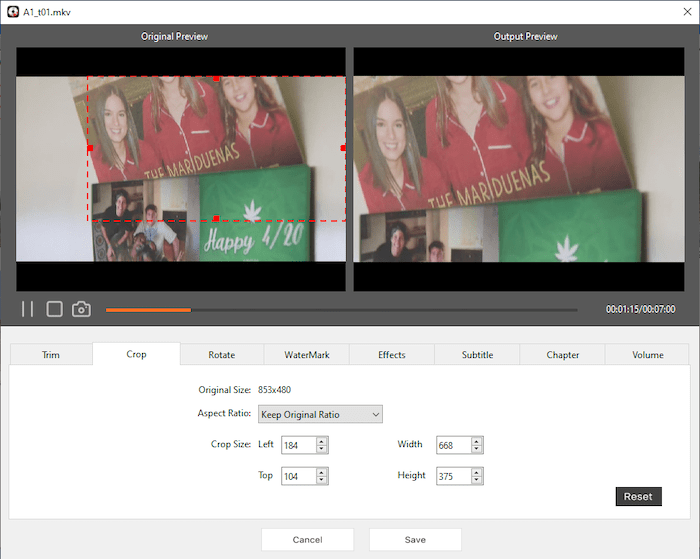
b. Crop
1. Navigate to Crop tab, you can manually adjust the cropping area by dragging the central and surrounding handles.
2. You can also adjust the size and position of cropping area by changing the figures in those four boxes.
3. You can select an output aspect ratio for cropping with four options: Keep Original Ratio, 16:9, 4:3 and Any.
4. To reset the video back to the original, just click
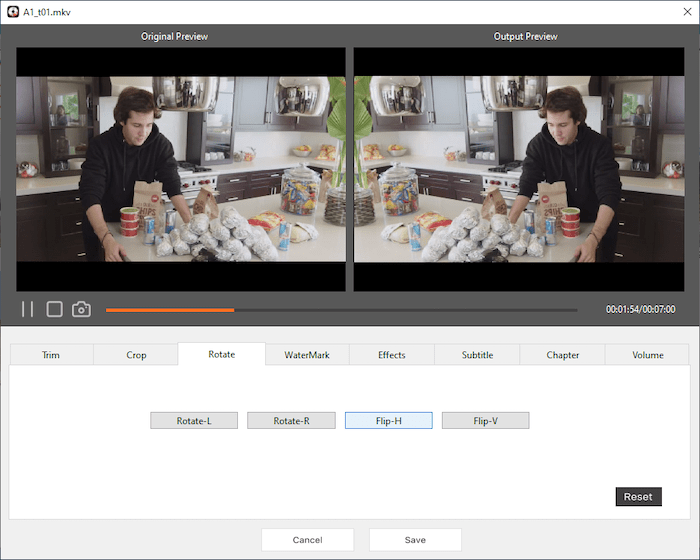
c. Rotate
1. Navigate to Rotate tab, each of the four buttons specifically represents one specific way to rotate or flip the video, click the button as your requirement.
2. To reset the video back to the original, just click
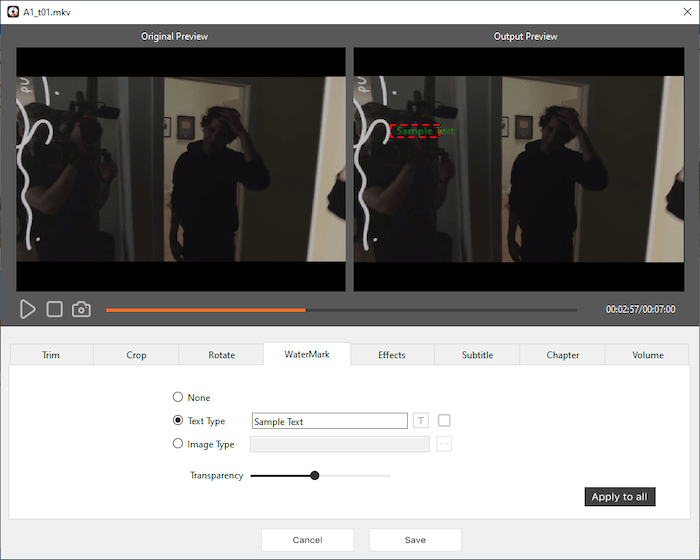
d. Watermark
1. Navigate to Watermark tab, you are allowed to add any text watermark or image watermark to the video.
2. Text watermark: select the "Text type", type the content in the box, pick its font and color by clicking and , and set its position and degree of transparency.
3. Image watermark: select the "Image type", click to choose the image to be used as a watermark, and set its position and degree of transparency.
4. If you want to use the watermark on all loaded videos, you can click after finishing the watermark.
e. Effects
1. Navigate to Effects tab, set the degrees of Brightness, Contrast, Saturation, Tint, Temperature by resetting their respective control sliders.
2. In this section, you also can find the deinterlacement feature, which can turn interlaced videos into a non-interlaced form, enhancing spectators viewing experience rather appreciably. And it is also quite easy to use. Just need to check the box of "Enable Deinterlacing".
3. To cancel all the effects and reset the video back to the original, just click
4. If you want to use the same effects on all loaded videos, you can click after finishing the settings.
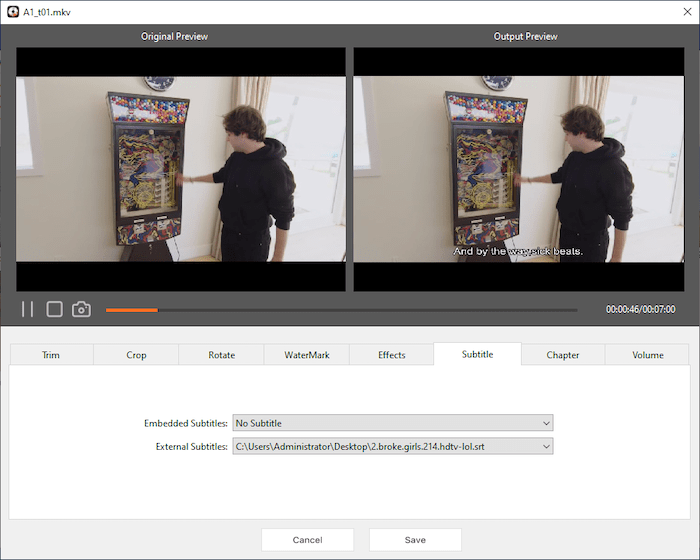
f. Subtitle
Navigate to Subtitle tab, and then you are able to select embedded subtitles the video includes or import an external subtitle files from your local drive.
Note: Cisdem DVD Burner supports .srt, .ass and .ssa subtitle file.
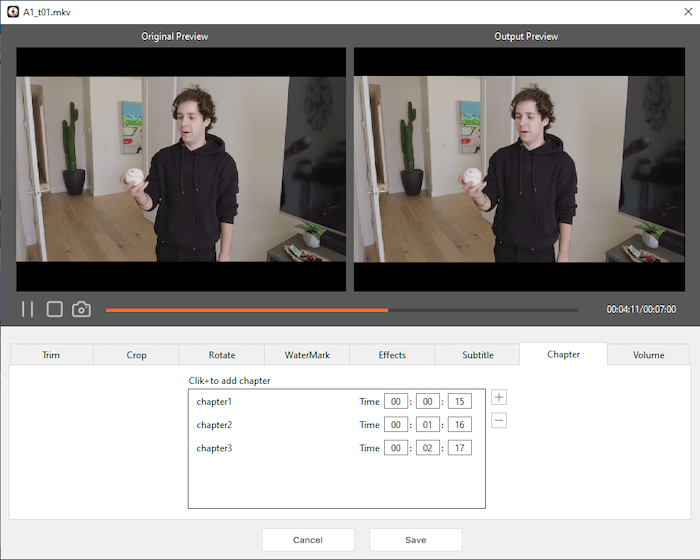
e. Chapter
Navigate to Chapter tab, click , fill in the end time, press "Enter" on your keyboard to confirm your filling, then Chapter 1 is finished. You can also keep clicking to add chapter2 or more chapters in the same manner.
Tips: Cisdem DVD Burner can not only create chapters, but also recognize the chapters that you created in a video editor program. You will just need to get into the Chapter section, and then Cisdem will auto recognize the chapters and display them in the chapter box.
f. Volume
1. In some cases, the voice of the original video is too loud or too low, if you want to adjust it, you can navigate to Volume tab, slide the volume bar as you like.
2. In addition, if you want to add “Fade In” effect at the beginning of the video or add “Fade Out” effect at the end of your video, tick the option “Fade In” or “Fade Out” and then select the duration.
g. Thumbnail
Normally, the video thumbnail shows the first frame of the video, but you might want to change it because the first frame of some videos is whole black. To do that, you can directly click when the screen displays the exact picture you want to use as thumbnail.
Tips: The screenshots (thumbnails) you've captured will be saved in a folder named “Cisdem DVD Burner” under the Pictures folder, you can click File > Show Screenshot in Finder to quickly access it.
Create Custom DVD Menus
The Customize DVD feature in Cisdem DVD Burner allows you to create professional-looking DVDs with personalized title menus, chapter menus, and themes. You can tailor the DVD to your style, making it ideal for home videos, presentations, or gifting.
1. Burn a DVD without menu
If you do not want to add a menu with your DVD, you can directly tick the option and go on the next step.
2. Burn a DVD with title/chapter menu
Choose a Template
Click the menu tab, a preview window opens showing default menu templates. Browse through the available menu templates: Classic, Holiday, Occasion and Travel. Double click to preview the template, when you found your preferred template, click to apply this template to all the title/chapter menus.
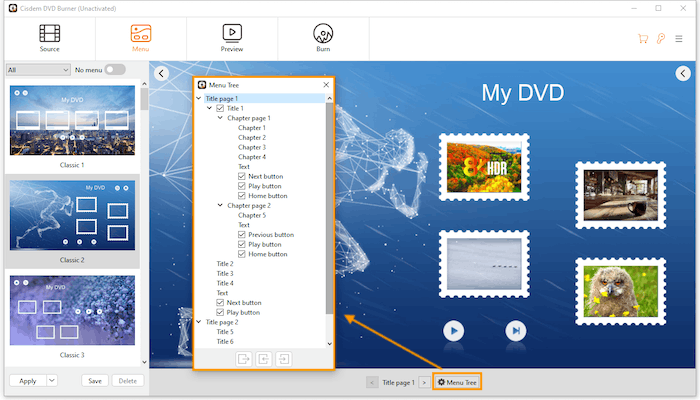
Title/chapter navigation
All your titles are shown on the title pages. If there are more titles than fit on one page, the extra titles will appear on the following pages. Use the arrows to navigate between pages. You can also click to open a separate window where you can view and switch between all titles and chapters. Titles that contain chapters will have a checkbox next to them—select it to enable and display the chapter menu.
If you want to move the titles to previous or next page, you can click the corresponding buttons
Edit menu elements
If you want to edit menu elements: background, titles/chapters, buttons and music, you can just click to show the menu elements editor tools on the right panel.
1. Background
Navigate to the Background tab, you will see all the existing background images are listed in a list, you can pick any one of them to replace the original background image by double clicking.
If you want to have a pure and simple background, you can tick , select a prefered color to has a solid color background.
You can also tick , select an image from your local drive and use it as the background.
Click and choose to apply to all the menus, the current menu, all the title menus or all the chapter menus.
2. Element
The element including text boxes, titles, buttons, etc. You can edit all of them under the Element tab.
For Titles
Highlight the target title of the menu page in the middle of the window, all the editor tools will be displayed on the right side. You need to choose a style first, and then you can change the corresponding elements, like texts, allignment, position, title name, frame or thumbnail according to the style that you've chosen.
Tips:
Please note that if you want to change the title's thumbnail, just click, it will play the highlighted title, you can click when the video displays the picture that you want to use it as a thumbnail.
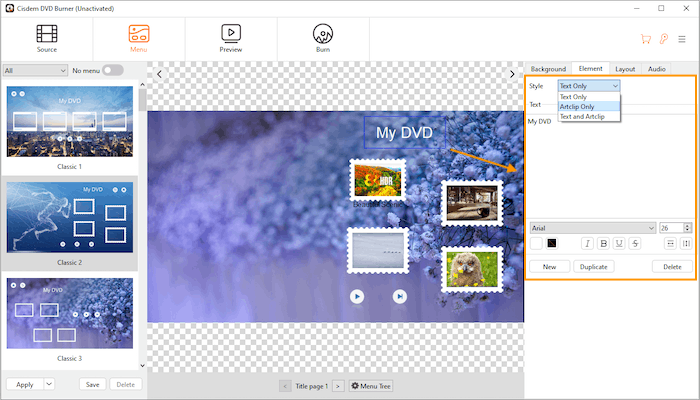
For texts
Highlight "Text" under one of the titles, you can choose a text style, and then change alignment, position, text content, font, color, size, etc. on the right side. You can also click to add a new text box or simply duplicate the highlighted text box by clicking
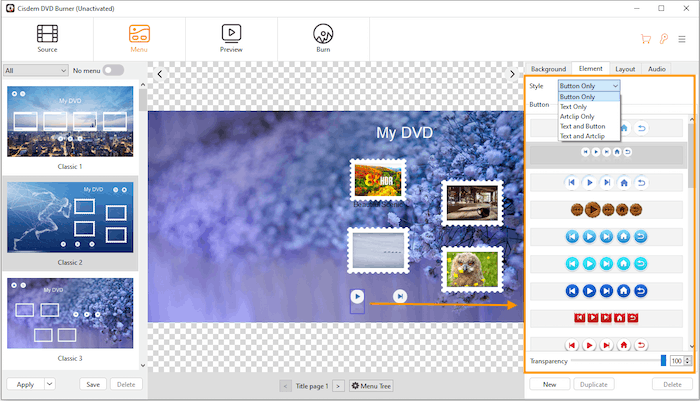
For buttons
Highlight button under the title, and you can choose a button style, then change alignment, position, button types and transparency of the buttons on the right side.
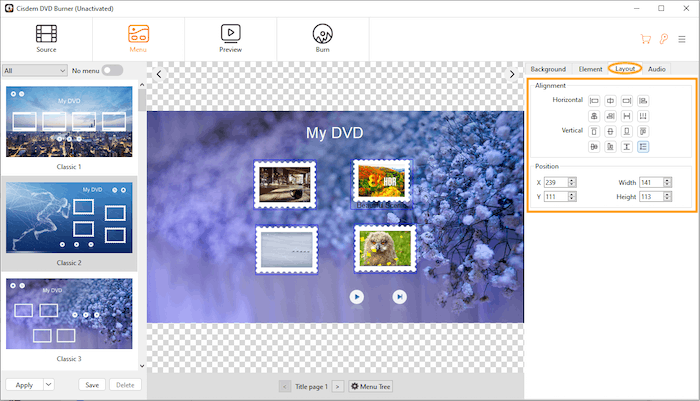
3. Layout
To customize the layout, open the Layout tab. Hold Ctrl while clicking to select one or more elements, then use the controls in the right panel to align, position, and organize them as needed.
4. Audio
Go to the Audio tab and click to import a music file from your computer. After uploading the audio, click if you'd like to use the same background music across all title and chapter menus.
Preview Your DVD
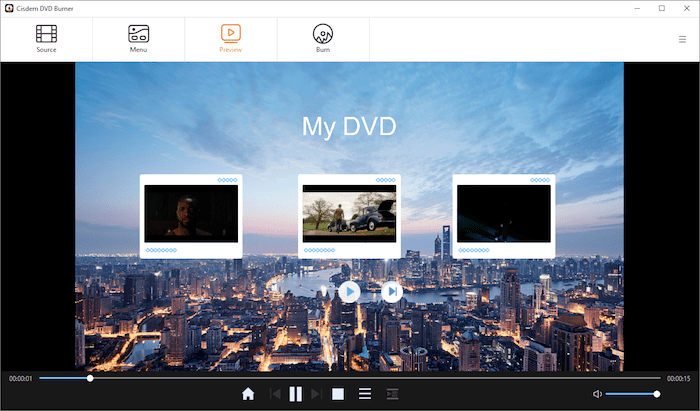
Once you completed editing the menu, you might want to preview the whole DVD, just to get a general idea of how it looks on TVs or computers. To do that, you need to navigate to Preview tab, the previewing will be automatically activated, you are allowed to control the playback using the playback bar below.
Click it to back to the Home page.
/ Click it to play or pause the title.
Click to play the video before this one.
Click to play the video after this one.
Stop playing the video and back to the Home page.
Click to view all the titles in a list and help you to easily navigate the title and view it.
Click to view all the chapters in a list and help you to easily navigate the chapter and view it.
Burn Videos to DVD
After the project has been adjusted and previewed thoroughly and properly, you can begin to burn your own DVD. Navigate to Burn tab, you will be able to set the detailed parameter of your DVDs.
1. You can burn videos to DVD disc directly, also you can convert and backup files to DVD folder or ISO file firstly. Please notice that if you choose the DVD Disc, don't forget to insert a blank DVD Disc into computer's drive.
2. Playback Mode: It used to control the playback of menu and titles, there are 3 modes existing, please check all of them carefully and select the proper one you need before clicking Burn.
1) Start from menu and play all titles sequentially: when you insert the DVD, it will auto play the menu, and then play all your titles one by one, when the last title is finished, it will start from menu again.
2) Start from title and loop all ones: when you insert the DVD, it will auto play the first title and then loop all the titles one by one. If you want to display the menu, you will have to manually press Menu button.
3) Loop the menu, play the title when pick it and then back to menu: when you insert the DVD, it will play the menu in loop until you manually select a title to play, and it will back to menu again when the selected title ends.
4) Loop the menu and loop a title when pick it: when you insert the DVD, it will play the menu in loop until you manually select a title to play, and then it will play this title in loop until you manually select another title.
3. Work Path: It is used to save the files that were generated during the burning process, please make sure this path has enough free space.
4. Output Path: It used to save the created DVD Folder or ISO files when you select to save as DVD folder or save as ISO.
5. Burner: It displays the burners that Cisdem detects, and you can choose a proper burner before clicking the Burn button.
6. Copies Number: Cisdem allows you to burn the videos up to 30 copies, please select the number discs that you want to burn.
Burn ISO File or DVD Folder to DVD Disc
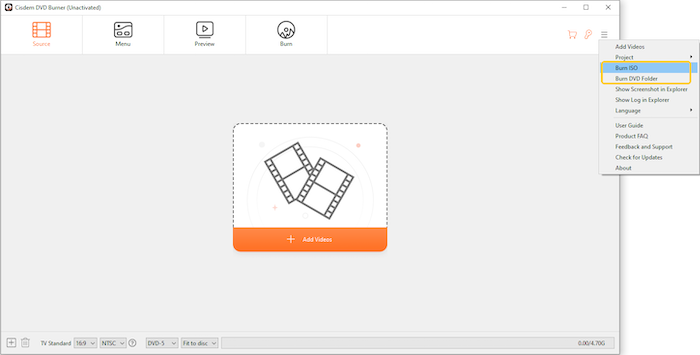
Cisdem DVD Burner for Windows allows you to burn an existing ISO file or DVD Folder to a blank DVD disc. This feature is useful when you have already created a DVD project and saved it as an ISO image or DVD Folder, or when you want to write a DVD backup to a physical disc. Step 1 Launch Cisdem DVD Burner
Open Cisdem DVD Burner on your Windows PC. Click and select Burn ISO or Burn DVD Folder.
Step 2 Add an ISO File or DVD Folder
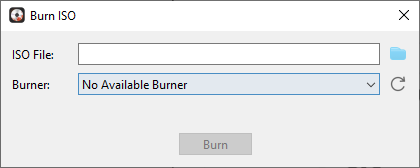
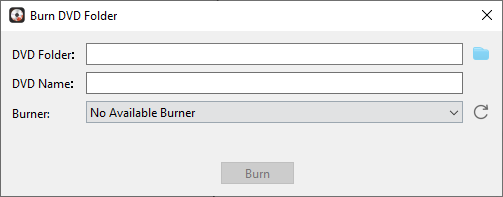
In the pop-up window, click Browse to select the ISO file or DVD Folder you want to burn.
To burn an ISO image, select the .iso file from your computer.
To burn a DVD Folder, select the folder containing the DVD files (usually the VIDEO_TS folder).
After loading the file or folder, Cisdem DVD Burner will analyze the content and prepare it for burning.
Step 3 Insert a Blank DVD Disc Insert a writable DVD disc into your computer’s DVD drive.
Make sure the disc has enough storage space for the ISO file or DVD Folder.
Supported disc types include:
DVD-R
DVD+R
DVD-RW
DVD+RW
Step 4Start Burning ISO/DVD Folder to DVD
Click Burn to start creating the DVD disc.
Cisdem DVD Burner will write the ISO image or DVD Folder to the disc. When the process is complete, you can eject the disc and play it on compatible DVD players or computers.
Tips:
Ensure your DVD drive is connected properly before starting the burning process.
Do not interrupt the burning process to avoid creating a corrupted disc.
For better playback compatibility, use high-quality blank DVD discs.
Update Cisdem DVD Burner
We always suggest users can keep using the latest version of the program.
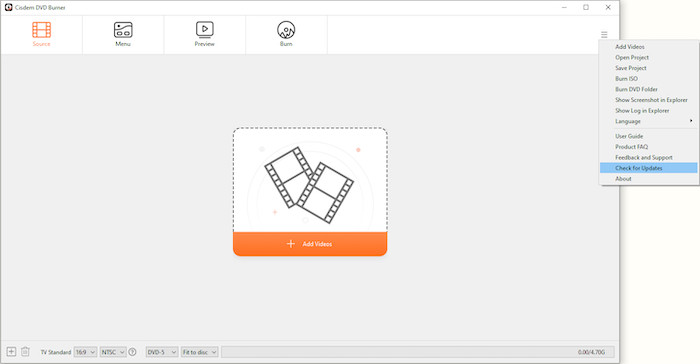
When you launch Cisdem DVD Burner, Cisdem will auto check for updates.
Also, you can click > Check for Updates to manually update it.
Traci Gordon has worked as a tester in a software company for 8 years, she believes that the best software should be a tool that can help users accomplish what they need with the simplest steps.
JK Tam is the lead developer at Cisdem, bringing over two decades of hands-on experience in cross-platform software development to the editorial team. He is now the lead technical approver for all articles related to Data Recovery and DVD Burner.







 Free Download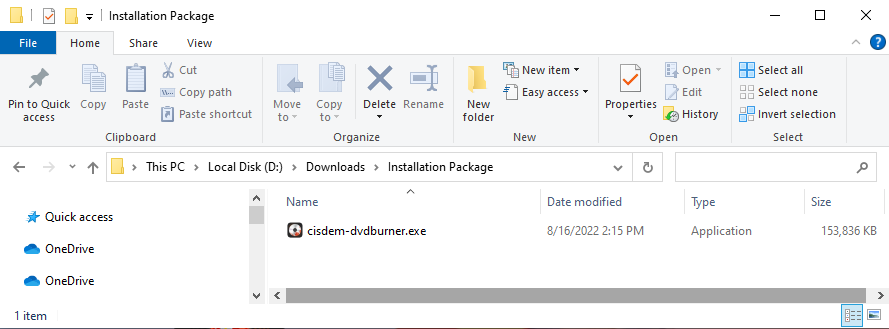
 , and then select the target video files on the pop-up window.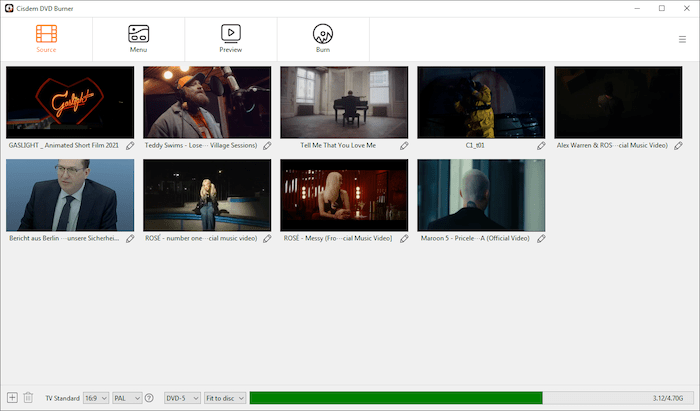
 at the lower left corner or continue dragging and dropping more files.
 at the lower left corner of the interface, if you want to delete all videos at a time, press "Ctrl+A" to highlight all the videos to delete.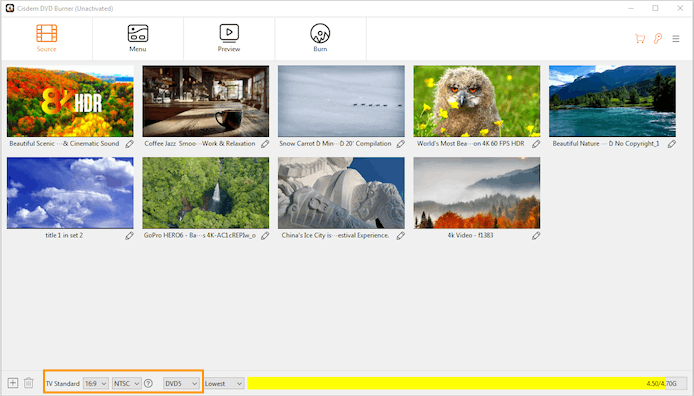
 on the target video, and then a playback window will pop up as below showing.
 under the thumbnail, and then it will bring you to the video edit window.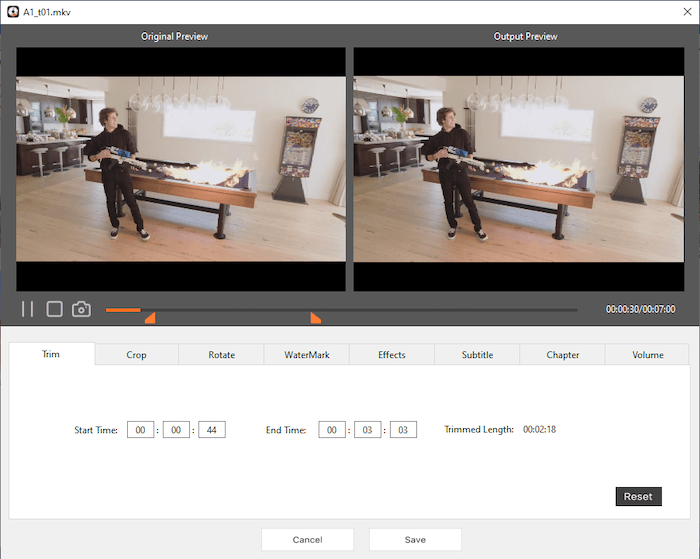
 or
or  to play/pause the video, and move
  and
and  of the playback progress bar to choose a specific part of the video.
 and
and  , and set its position and degree of transparency.
  to choose the image to be used as a watermark, and set its position and degree of transparency.
 after finishing the watermark.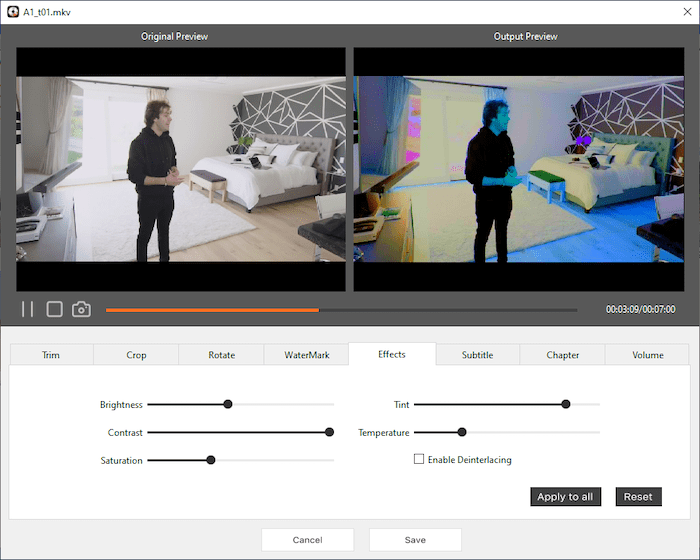
 , fill in the end time, press "Enter" on your keyboard to confirm your filling, then Chapter 1 is finished. You can also keep clicking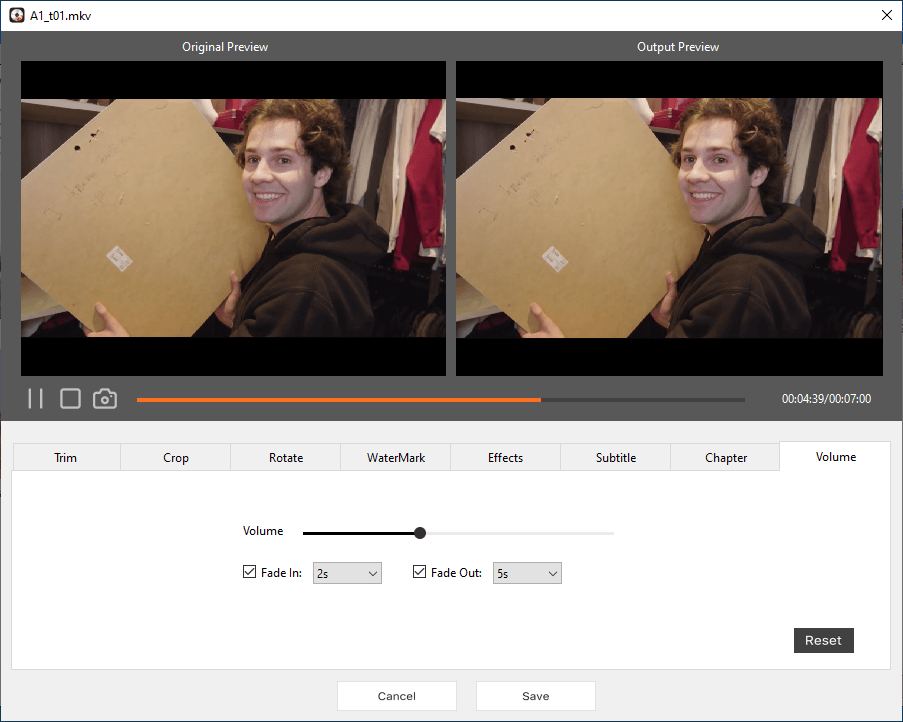
 when the screen displays the exact picture you want to use as thumbnail.
 and go on the next step.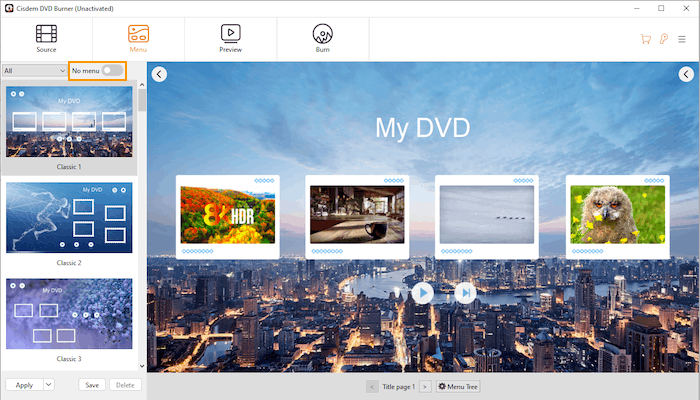
 to apply this template to all the title/chapter menus.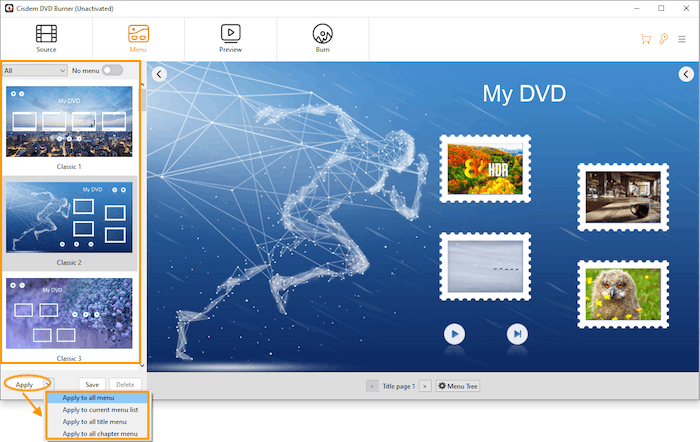

 to show the menu elements editor tools on the right panel.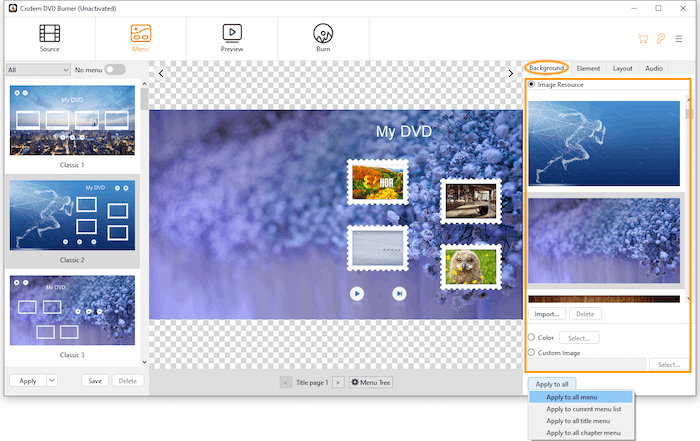
 , select a prefered color to has a solid color background.
 , select an image from your local drive and use it as the background.
 and choose to apply to all the menus, the current menu, all the title menus or all the chapter menus.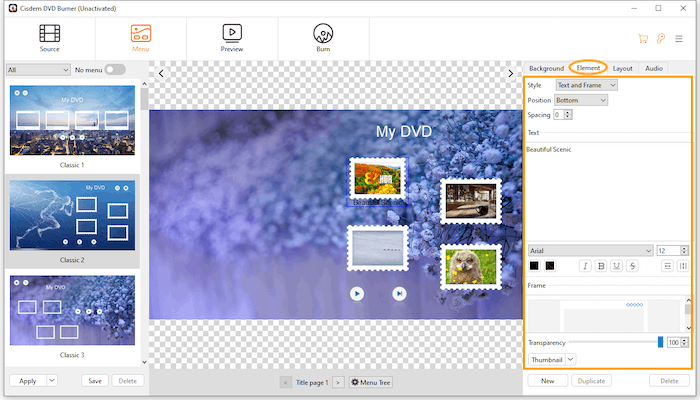
 ,
,  when the video displays the picture that you want to use it as a thumbnail.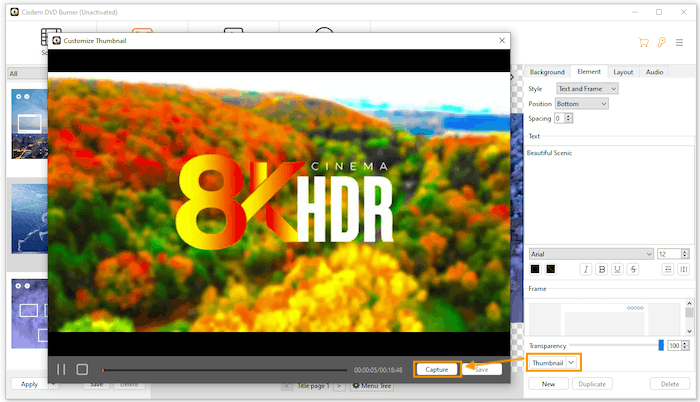
 to add a new text box or simply duplicate the highlighted text box by clicking
 to import a music file from your computer. After uploading the audio, click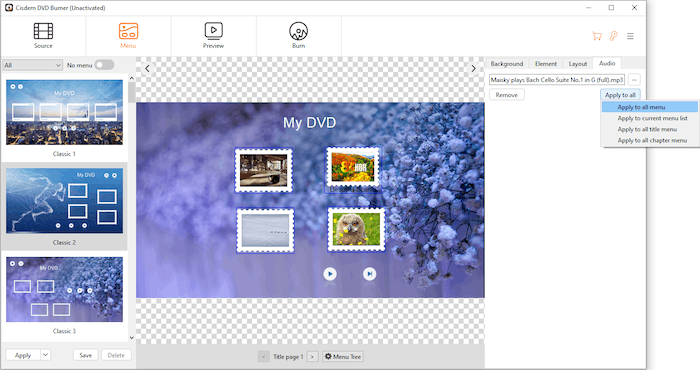
 Click it to back to the Home page.
 /
/ Click it to play or pause the title.
 Click to play the video before this one.
 Click to play the video after this one.
 Stop playing the video and back to the Home page.
 Click to view all the titles in a list and help you to easily navigate the title and view it.
 Click to view all the chapters in a list and help you to easily navigate the chapter and view it.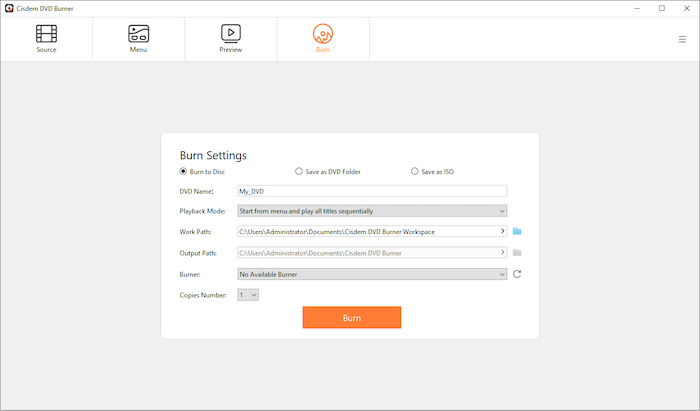
 and select Burn ISO or Burn DVD Folder.