


-
DVD NTSC 4:3 size:640 × 480
-
DVD NTSC 16:9 size:852 × 480
-
DVD PAL 4:3 size:768 × 576
-
DVD PAL 16:9 size:1024 × 576
Cisdem DVD Burner for Windows Advanced Guide
Updated on August 31, 2026
 218
218
 0
0


218
0
No robots used,
this article has been written and edited by our team under strict editorial guidelines.
01. How to Create a DVD Chapter Menu on Windows?
Cisdem DVD Burner for Windows lets you create playable DVDs from your videos and customize how viewers navigate them. In addition to title menus, you can create DVD chapter menus that let viewers quickly jump to specific sections of a video.
This advanced guide explains how to add chapters and customize DVD chapter menus, including templates, backgrounds, thumbnails, buttons, text, frames, and background music.
What You Can Customize in a DVD Chapter Menu
With Cisdem DVD Burner for Windows, you can customize:
- DVD chapter menu templates
- Background images or colors
- Background music
- Chapter thumbnails
- Menu buttons
- Text and titles
- Frames and decorative elements
- Chapter menu layouts
- The same menu design across multiple chapters or titles
If your videos already contain chapters, you can use them directly. Otherwise, add chapters before creating the DVD menu.
How to Create a DVD Chapter Menu on Windows
Step 1. Add Your Videos
Launch Cisdem DVD Burner for Windows and add the videos you want to burn to DVD.
The software supports a wide range of popular video formats and can create a playable DVD, DVD Folder, or ISO file from your videos.
Tip: If you want to create chapter menus, organize your videos and chapters before finalizing the DVD menu.
Step 2 Add Chapters to Your Video
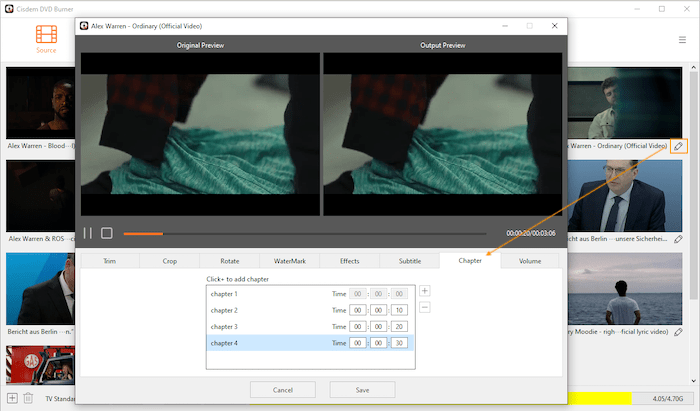
If your video already contains chapters, you can skip this step.
If you need to create chapters, click under the target video's thumbnail to get in the editing window and select Chapter.
Click + to add a chapter, then specify the chapter's start time. Repeat the process to create additional chapters.
When you finish adding chapters, click Save.
Step 3. Open the DVD Menu Editor
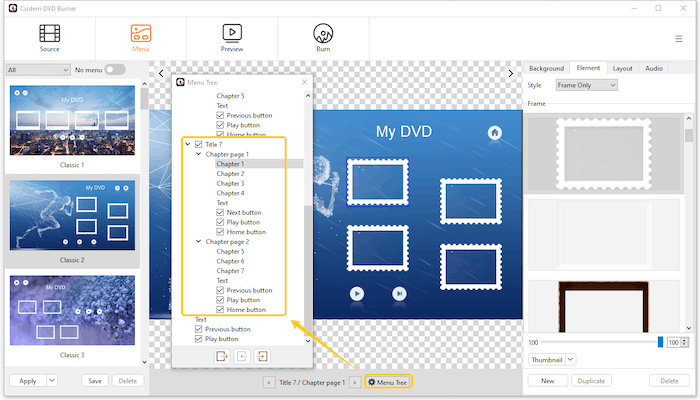
Go to the Menu tab.
Click  to display the menu tree, titles that contain chapters can be expanded in the menu tree. Select a chapter menu to edit its appearance and layout.
You can now customize the chapter menu independently or apply the same design to multiple menus.
How to Customize a DVD Chapter Menu
1. Choose a DVD Menu Template
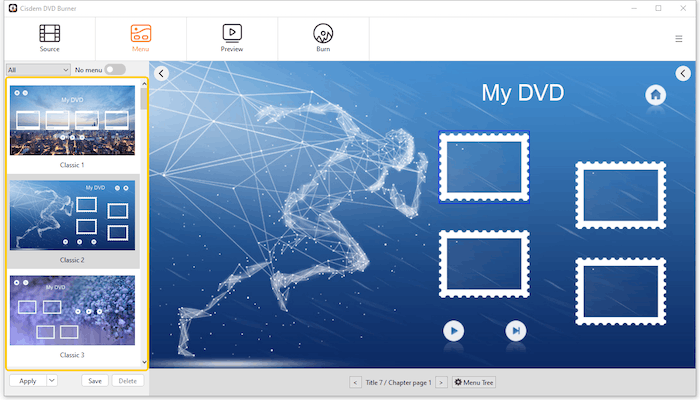
Browse the available menu templates on the left panel.
Double-click a template to preview or apply it to the selected menu.
Templates provide a quick way to create a professional-looking DVD menu without designing the layout from scratch.
2. Change the Menu Background
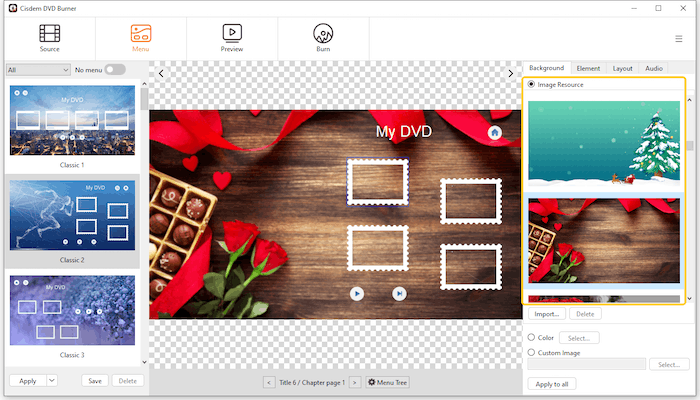
To customize the background, open Background in the right panel.
You can choose:
- A built-in background image
- A solid color
- A custom image from your computer
To use your own image, select Custom Image and choose the image you want to use.
Tips: Imported images must meet the supported size requirements below. If an image exceeds the recommended dimensions or does not match the selected DVD aspect ratio, Cisdem DVD Burner will automatically crop the excess areas to fit.
3. Customize Frames and Buttons
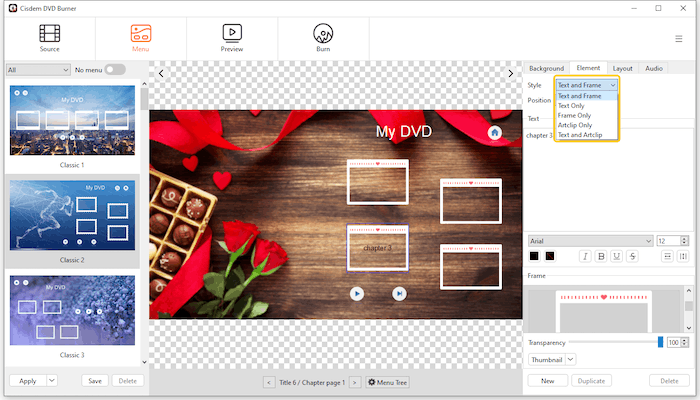
A DVD menu contains several interactive elements, including frames, buttons, thumbnails, and text.
Select the appropriate element style and customize the corresponding elements.
Available styles may include:
- Frame Only
- Text and Frame
- Text Only
- Artclip Only
- Artclip and Text
4. Edit Text and Titles
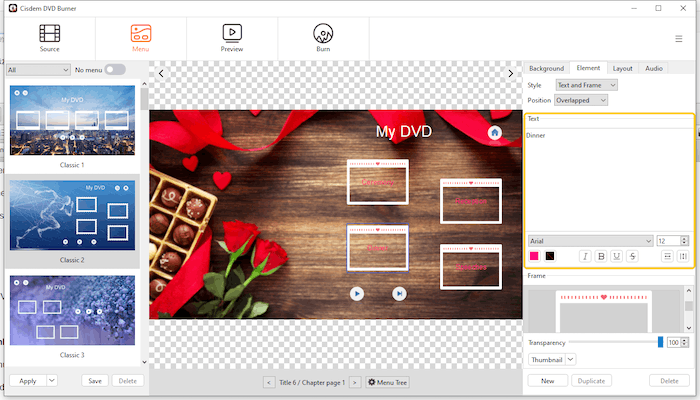
You can customize text elements displayed on the menu.
Depending on the selected menu style, you can edit titles, labels, and other text elements to match the content of your DVD.
For example, you can use descriptive chapter names such as:
- Chapter 1 – Ceremony
- Chapter 2 – Reception
- Chapter 3 – Dinner
- Chapter 4 – Speeches
Clear chapter names make DVD navigation easier, especially when a video contains many chapters.
5. Customize Chapter Thumbnails
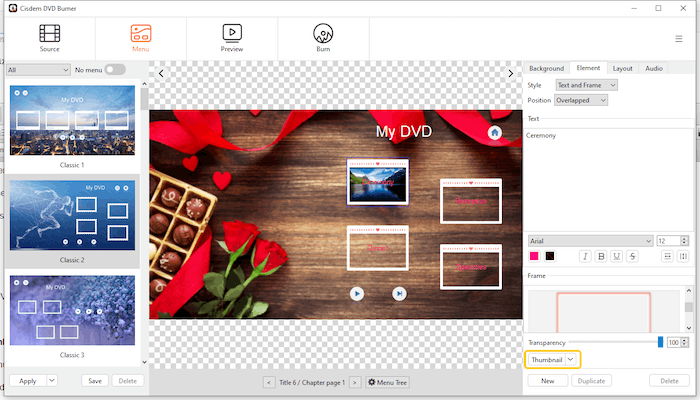
Chapter menus can display thumbnails representing different sections of your video.
Choose the chapter menu and adjust the thumbnail elements according to the selected menu style.
Using recognizable frames from each chapter can make it easier for viewers to identify and select the section they want to watch.
6. Arrange the Menu Layout
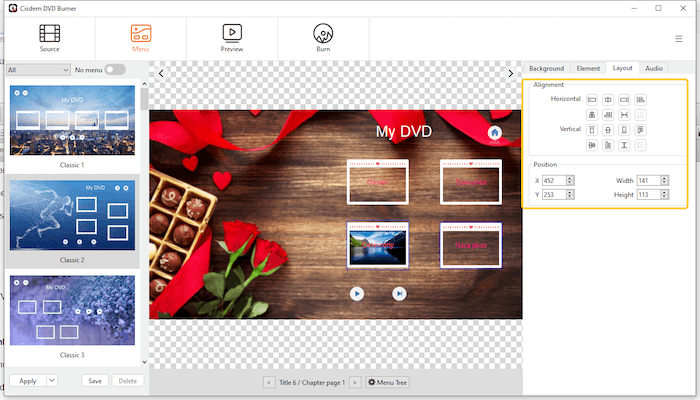
Cisdem DVD Burner lets you adjust the layout of menu elements to create a more organized and personalized DVD menu.
To arrange the layout, you can directly drag the elements to reposition them.
Or highlight the eletments you want to reposition, select the alignment options on the right side.
Tip: Keep important text and buttons away from the edges of the screen, and leave enough space between elements to ensure that the menu remains clear and easy to navigate on a TV screen.
7. Add Background Music
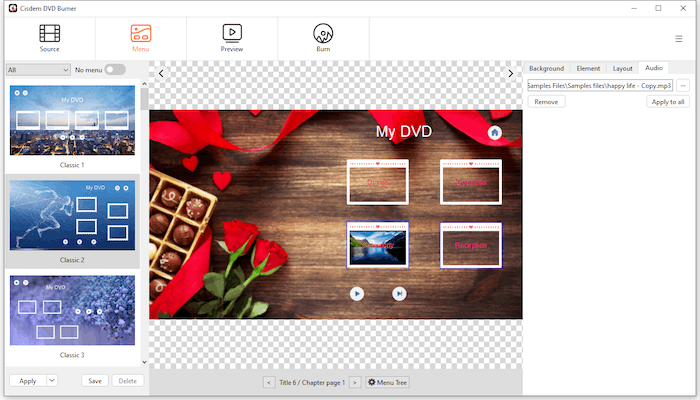
You can add an audio file as background music for your DVD menu.
Open the menu's audio settings and import the desired audio file from your computer.
Background music can be useful for personal DVDs such as:
- Wedding videos
- Birthday videos
- Family memories
- Travel videos
- Holiday videos
- Event recordings
How to Apply the Same Chapter Menu Design to Multiple Menus
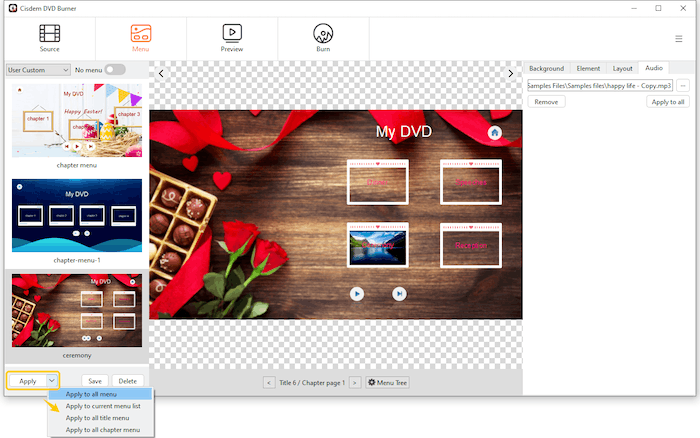
If you have multiple chapter menus and want them to use the same design, you don't need to customize each menu individually.
After finishing one chapter menu:
- Save the customized menu as a template.
- Double-click the saved template on the left panel.
- Click Apply.
- Select the menus to which you want to apply the design.
This is especially useful when creating DVDs with multiple titles or many chapter menus.
How to Preview a DVD Chapter Menu
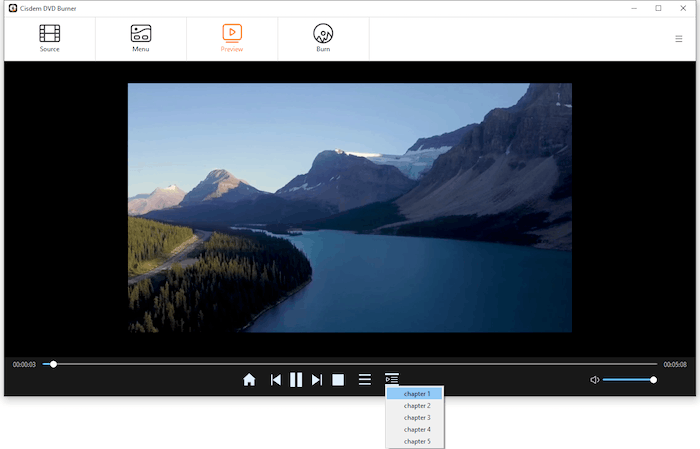
Before burning your DVD, go to the Preview tab.
Check:
- Title menu navigation
- Chapter menu navigation
- Chapter thumbnails
- Menu buttons
- Text and titles
- Background image
- Background music
- Playback behavior
Previewing the DVD before burning can help you identify menu or navigation issues before writing the project to a physical disc.
Conclusion
Creating a DVD with chapter menus gives viewers an easier way to navigate long videos. With Cisdem DVD Burner for Windows, you can add chapters, choose menu templates, customize backgrounds, thumbnails, buttons, text, and music, and reuse your preferred design across multiple menus.

Written by
Traci
Traci Gordon has worked as a tester in a software company for 8 years, she believes that the best software should be a tool that can help users accomplish what they need with the simplest steps.

Approved by
JK Tam
JK Tam is the lead developer at Cisdem, bringing over two decades of hands-on experience in cross-platform software development to the editorial team. He is now the lead technical approver for all articles related to Data Recovery and DVD Burner.
Loved the article, share!
Comments (0)
Leave a Reply
July 07, 2026
Cisdem DVD Burner for Windows User Guide