


How to Import iCloud Contacts to Google [3 Ways]
 2.7K
2.7K
 1
1


Now most of us rely on Internet accounts to store contacts information, such as iCloud, Google, Exchange, and more. However, when we need to move contacts from one platform to another, how to transfer contacts efficiently becomes an important issue. In this article, we'll discuss how to import iCloud contacts to Google in 3 different ways. Whether you want to do it on iPhone or computer, I will provide you with detailed steps to help you complete the transfer easily and better manage your contacts information.
 Cisdem ContactsMate
The Best Tool to Import iCloud Contacts to Google on Mac
- Support contacts from various sources: iCloud, Google, Mac Contacts, Exchange, etc.
- Transfer contacts between supported sources with drag and drop
- Import contacts from CSV and vCard files
- Export contacts from supported sources to 8 formats: CSV, vCard, Excel, etc.
- Let you view, search, create, edit, group, tag, email, text, share and print contacts
- Let you backup/restore contacts with 1-click
- Find and delete/merge duplicate contacts
- Easy to use
- Compatible with macOS 10.11 or later
- (ContactsMate has a Windows version with similar features)
 Free Download macOS 10.11 or later
Method 1: Sync iCloud contacts to Google on iPhone Settings
There’s a sync contacts feature on iPhone that allows you to synchronize contact information between different accounts such as iCloud, Google, etc. When you enable this feature, the iPhone will sync with your accounts so that contact information can be updated and shared across devices.
This feature also helps in importing iCloud contacts to Google. To do that, you need to sync your iPhone contacts with both iCloud and Google accounts. Here’re detailed steps:
Part 1: Sync iPhone contacts with iCloud
1. Find and open the Settings app on your iPhone.
2. Tap your name at the top of the screen.
3. Click iCloud.
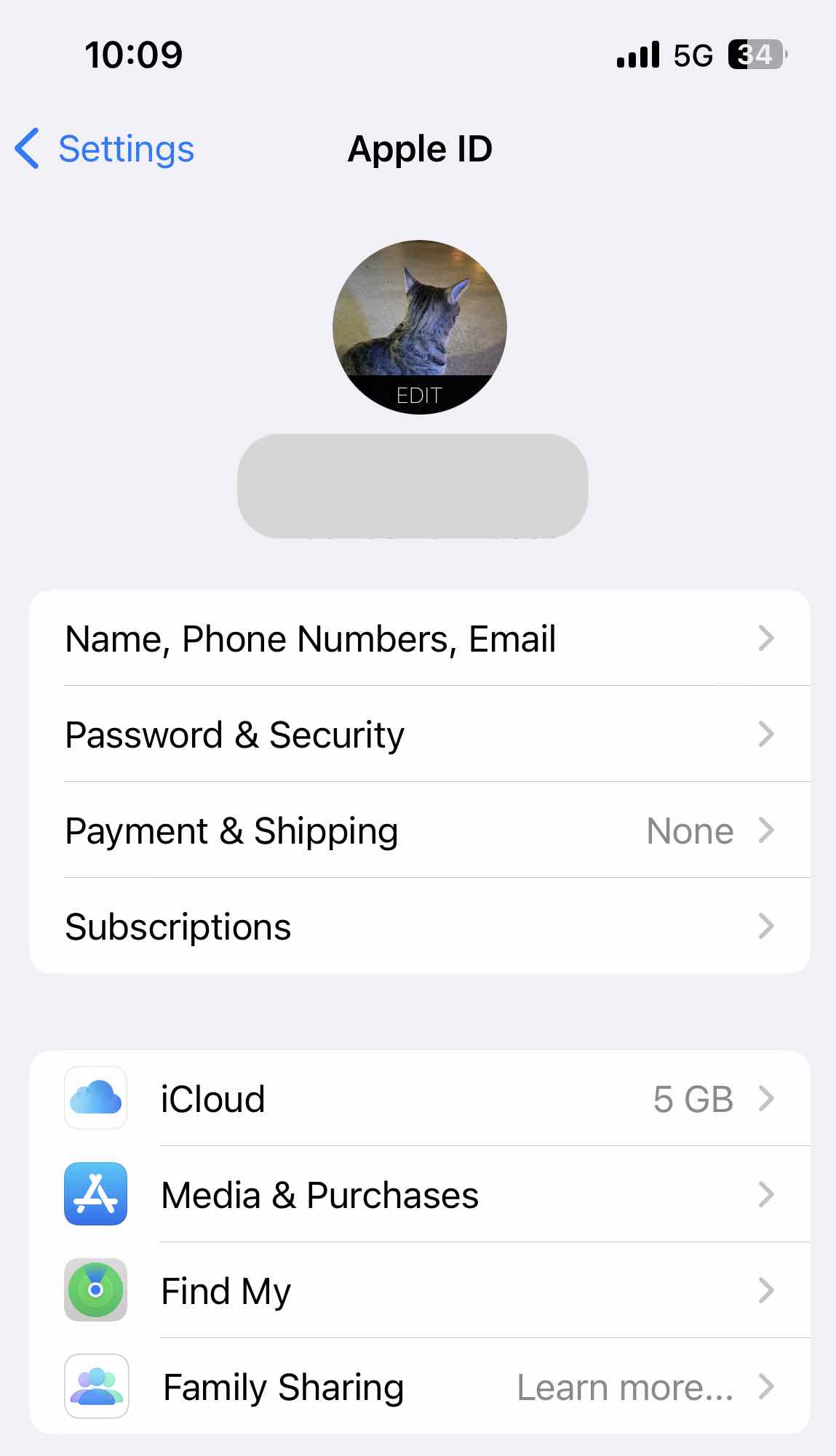
4. On the APPS USING ICLOUD section, click on Show All.
5. Find Contacts. Then enable the toggle next to it.
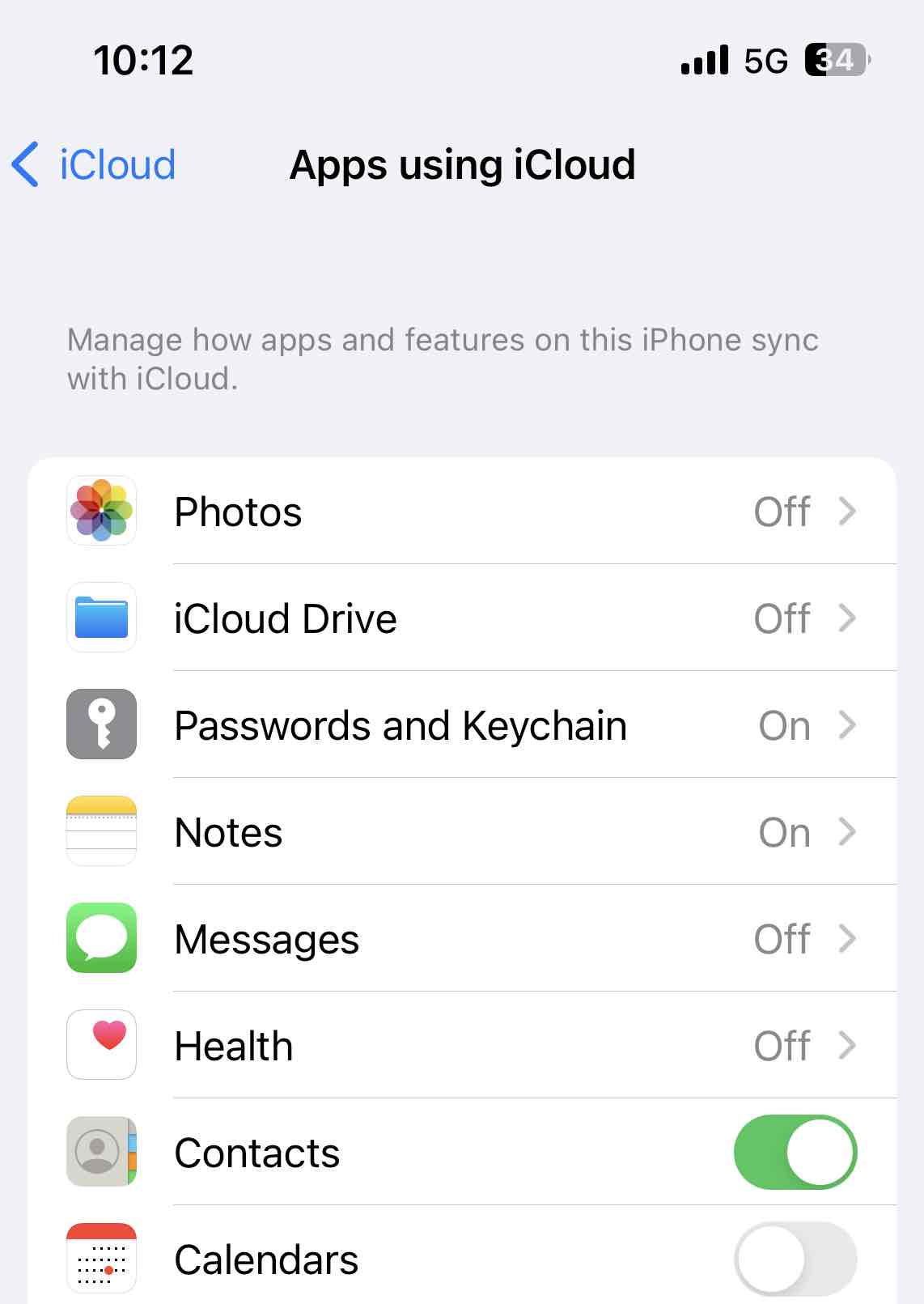
Now your contacts on iPhone have all synced with iCloud account.
Part 2: Sync iPhone contacts to Google
1. Open the Settings app.
2. Scroll down to find and tap Contacts.
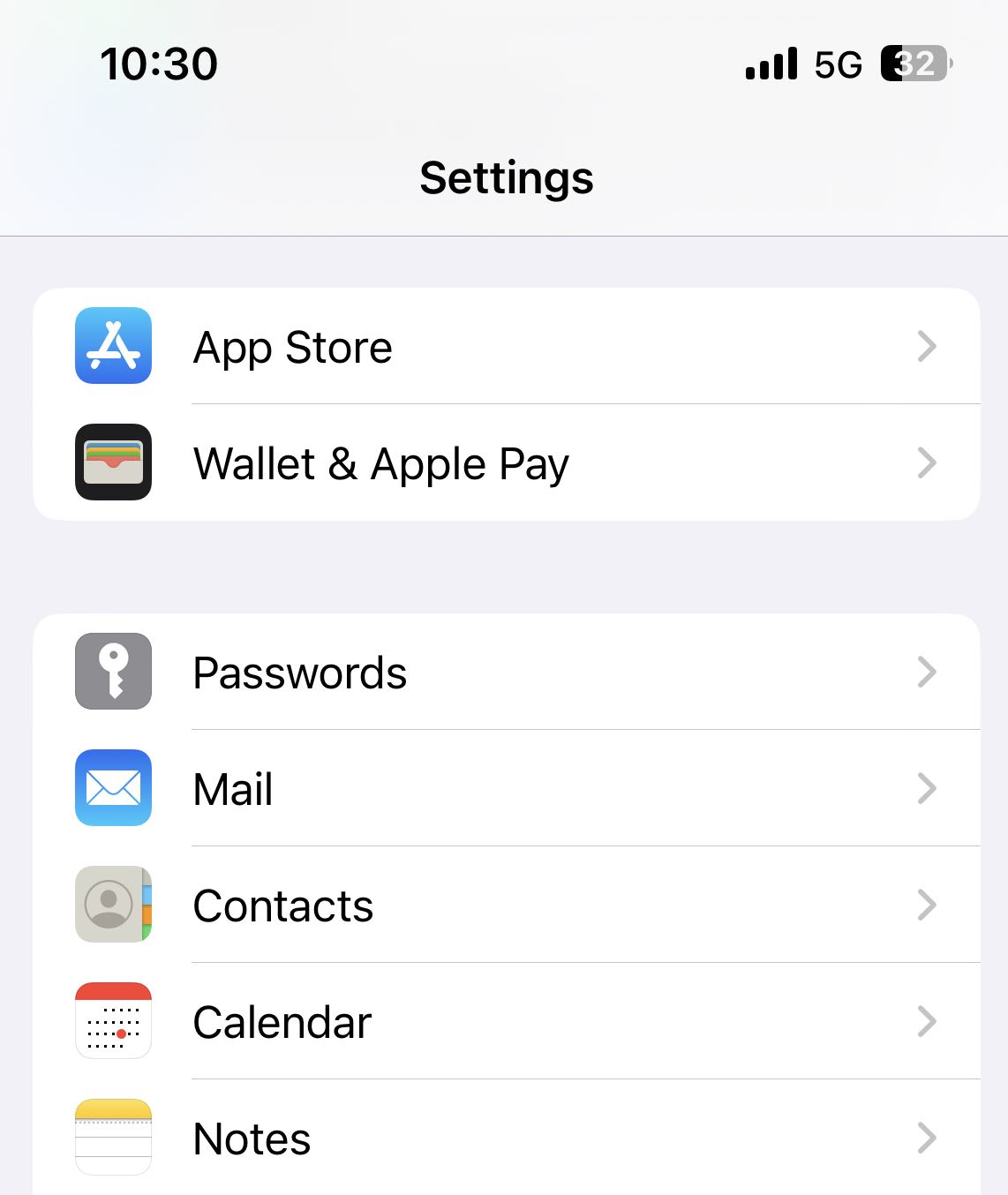
3. Tap Accounts option. You'll see the accounts you’ve signed into, including iCloud.
4. Select Add Account on the next screen.
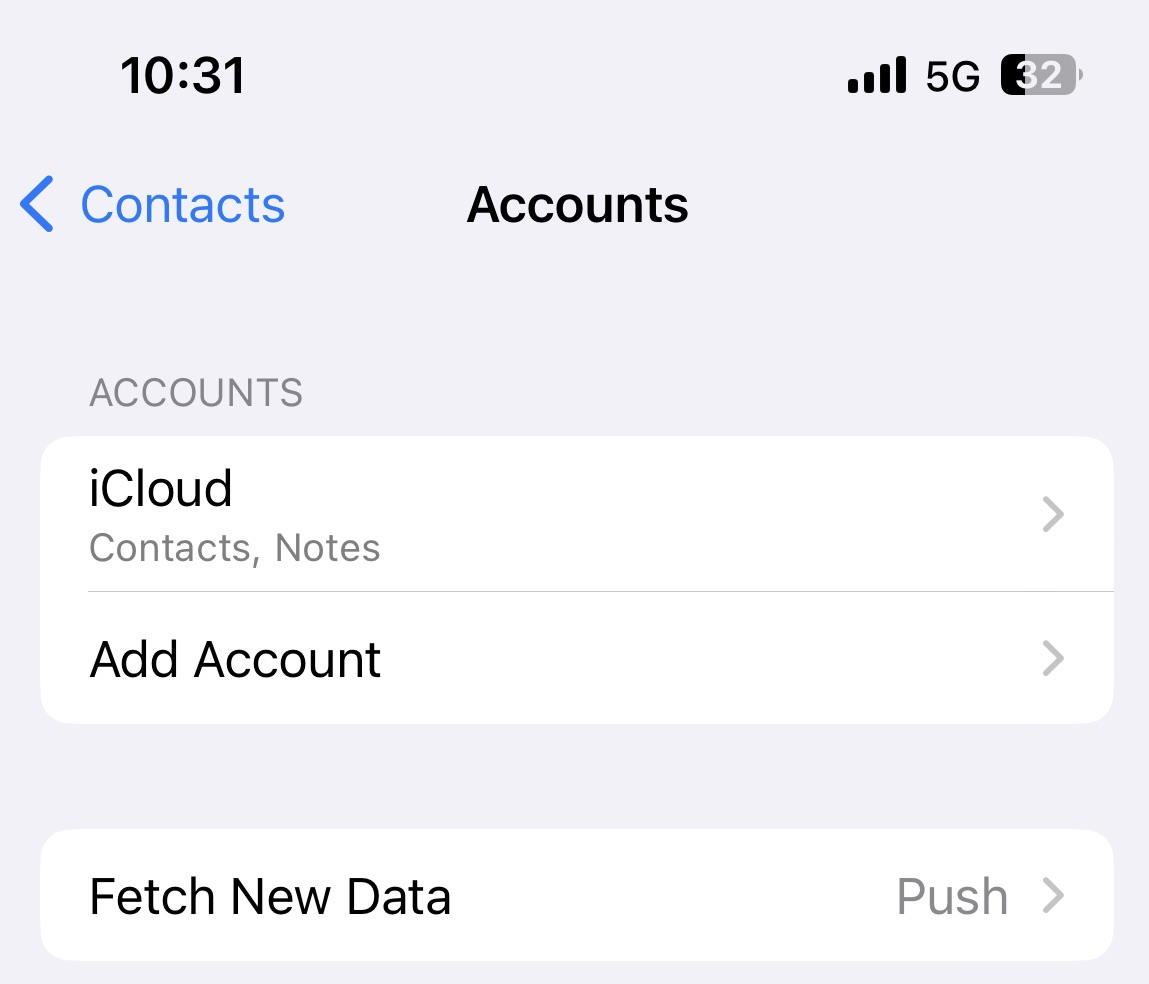
5. Select Google in the list.
6. Enter your email address and password. Follow the prompts to complete the account verification process. Now your Google account has added to your iPhone.
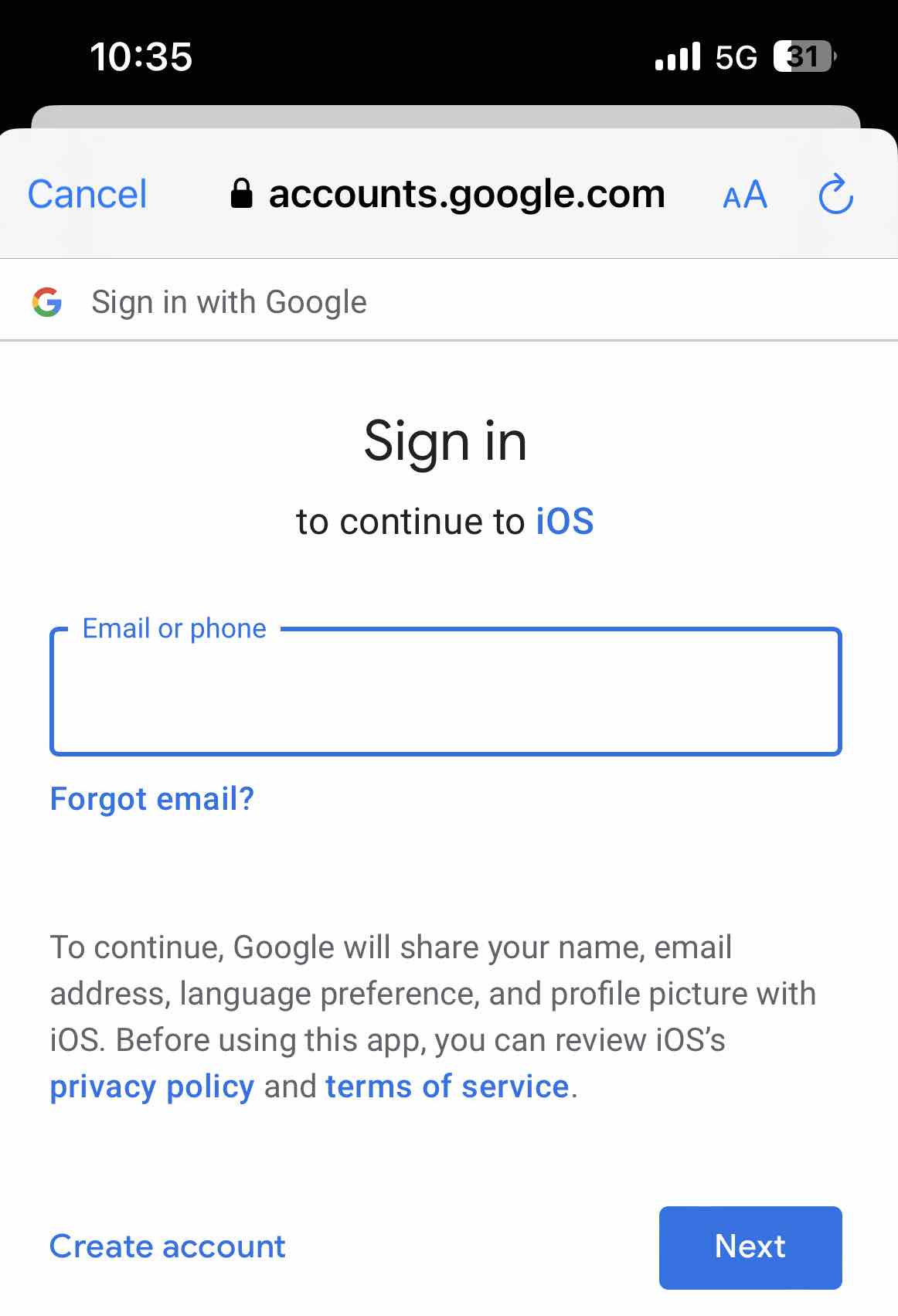
7. Go back to Settings > Contacts. Then select Gmail account.
8. Enable the toggle next to Contacts.
Your Google Contacts are now synced with your iPhone, as well as iCloud. When you add, edit or delete contacts on iCloud, your Google contacts will keep in sync. Note that these steps may vary by version of iOS, so your device may display slightly differently.
Tip: How to share an iCloud contact to a Gmail account on iPhone?
If you just need to share/import an iCloud contact to Gmail, but don’t want to keep all contacts in both 2 accounts in sync, you can use the Share Contacts feature.
1. Open the Contacts app on your iPhone.
2. Find the contacts that you want to import to Google.
3. Tap on Share Contact.
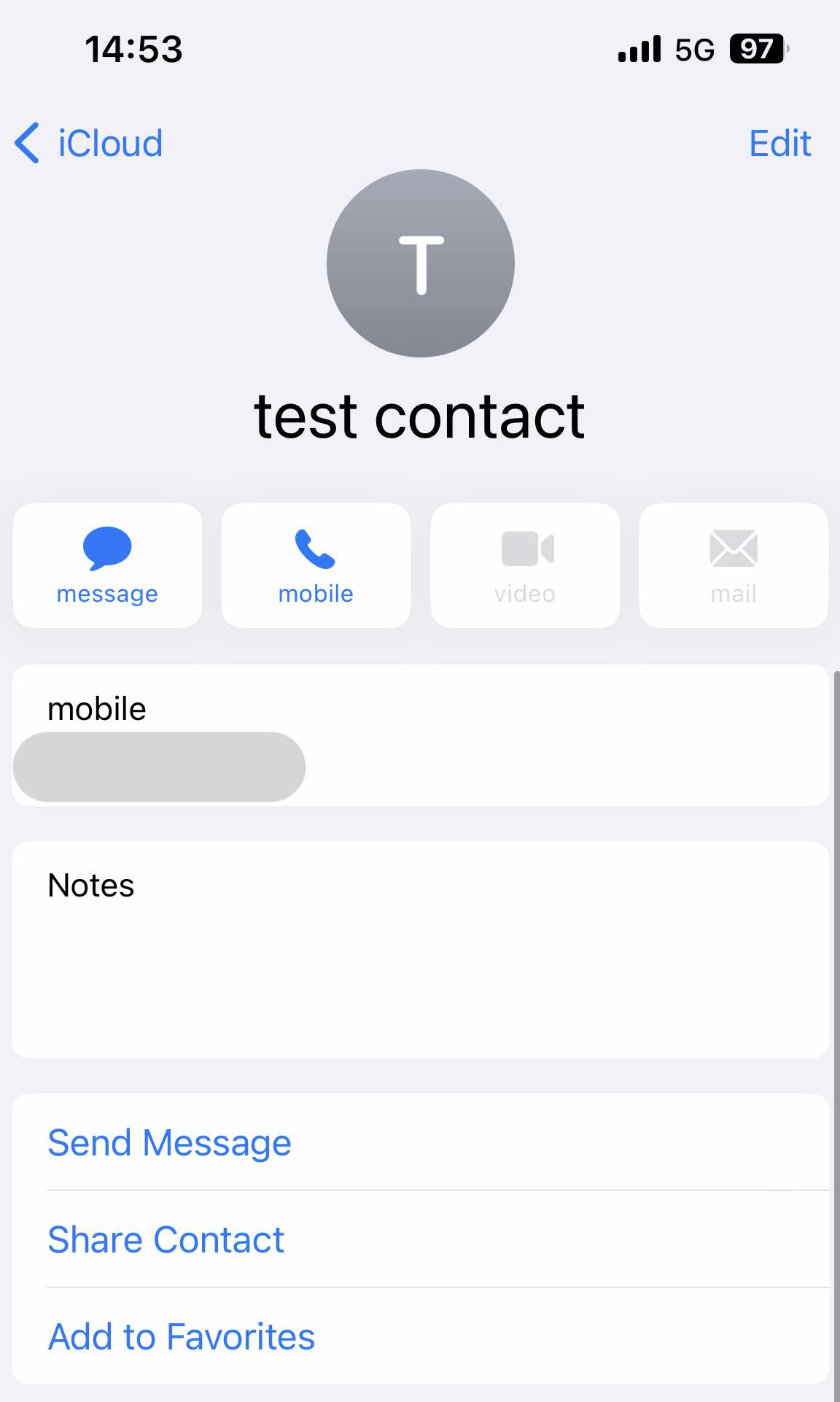
4. Select Mail app.
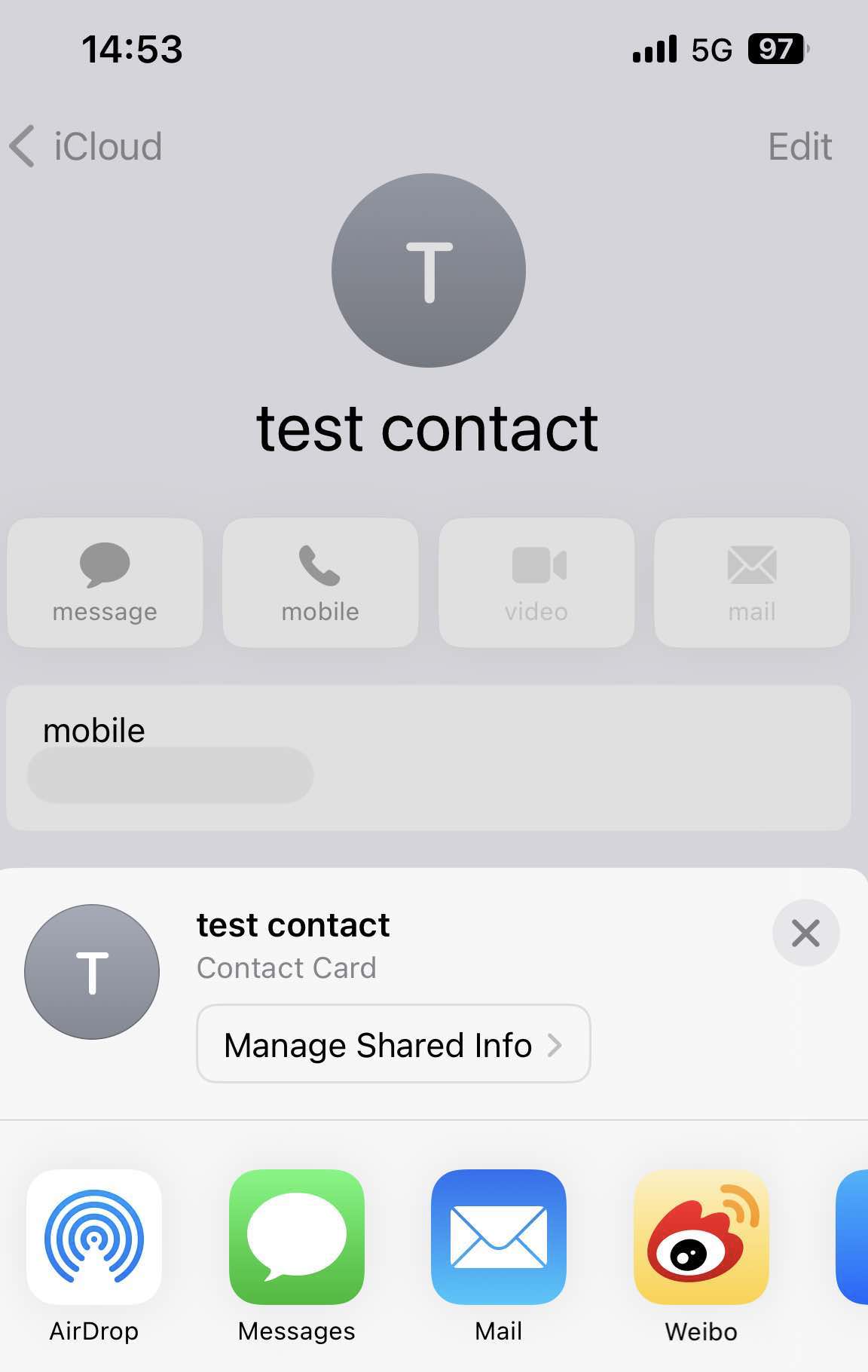
5. Choose Google from the pop-up window. Then enter the email address of the Gmail account that you want to share the contact with. Now you are able to go to the Google account and add the shared contact to your contacts list.
Method 2: Import iCloud contacts to Google via iCloud website
vCard (also know as VCF) is a file format used for electronic business or personal cards. It can be easily read and is widely used on email programs. Google also supports contacts from this format. To import iCloud contacts to Google, you can first export your iCloud contacts to vCard, than import them to Google. Follow the steps below to do that:
Part 1: Export iCloud contacts to vCard from iCloud.com
1. Visit iCloud.com on your web browser.
2. Sign in your iCloud account.
3. Select Contacts option.
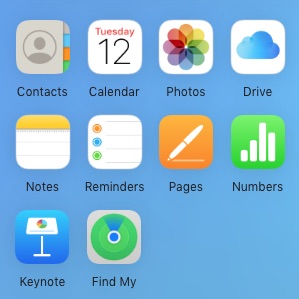
4. Select one or more contacts that you want to export to Gmail.
5. Click the Settings icon on the button right corner. Select Export vCard.
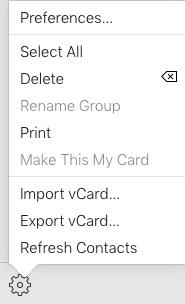
Now the vCard file that stores you iCloud contacts information is downloaded on your computer.
Part 2: Import contacts to Google from vCard file
1. Visit contacts.google.com on your computer.
2. Sign in your Google account.
3. Click Create contact on the upper right.
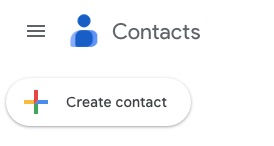
4. Select Create Multiple Contacts.
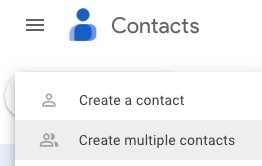
5. Tap Import contacts from the pop up window. Tap Select file.
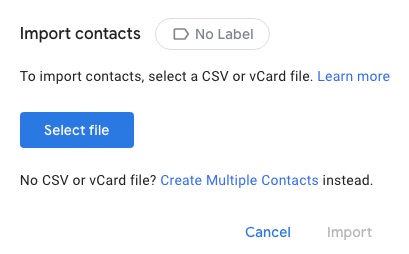
6. Find the vCard file that you previously exported from iCloud. Click Open.
7. Click Import.
Above are steps on how to import contacts from iCloud to Google via iCloud websites. The advantage is that it lets you choose which contacts to import instead of syncing them all. Compared with method 1, it is more flexible. However, problems with the import process usually occur, such as the file you’re importing isn’t formatted for Google Contacts, or the format of the vCard file isn’t correct. If you're new to Gmail, this method is not a good choice for you.
The easiest way to transfer iCloud contacts to Google directly
This method is using a professional contacts management tool - Cisdem ContactsMate to directly drag and drop iCloud contacts to Google. If you have many contacts from multiple sources, such as Mac Contacts, iCloud, Gmail, and more, it also helps manage and organize all your contacts in one place. All your settings (including add, edit, delete, import, export, group and tag contacts) in this tool will keep in sync with your accounts.
Here’re how to import iCloud contacts to Google via ContactsMate:
1. Download and install this tool.
Free Download macOS 10.11 or later
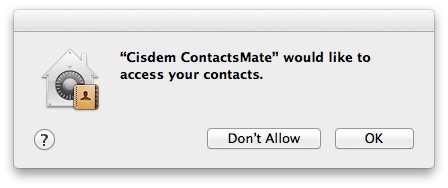
2. Allow ContactsMate to access your contacts when you first launch it.
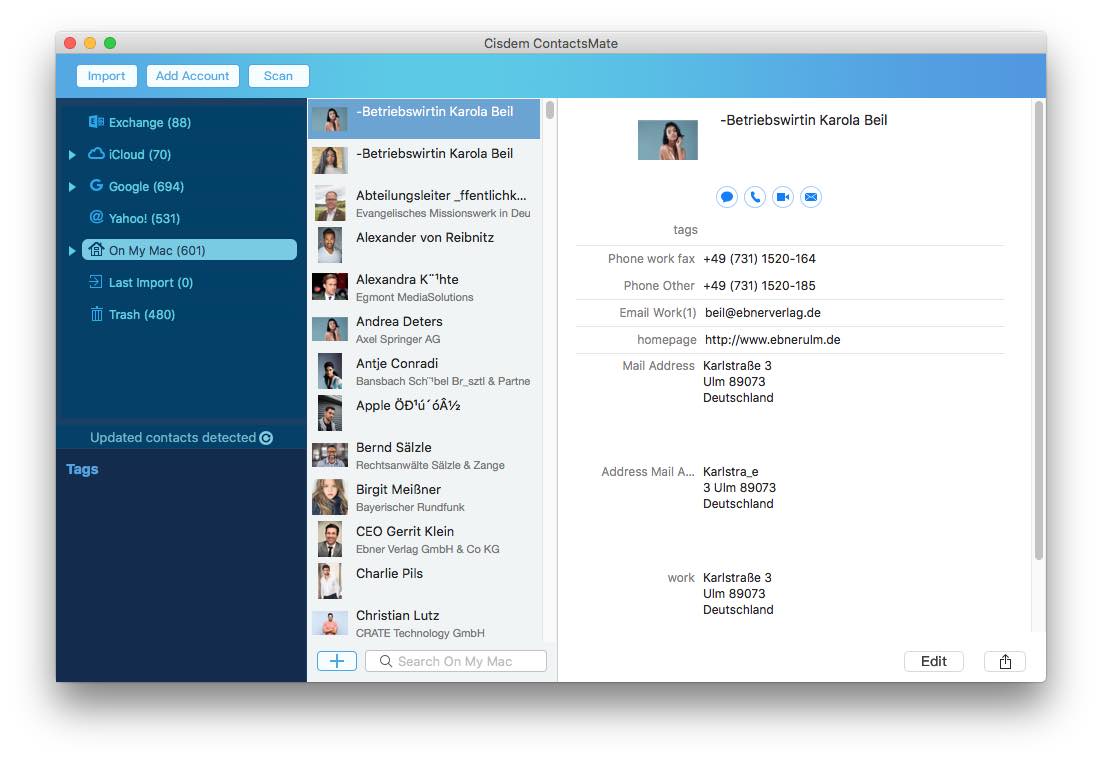
3. Click Add Account on the tool bar of the ContactsMate window.
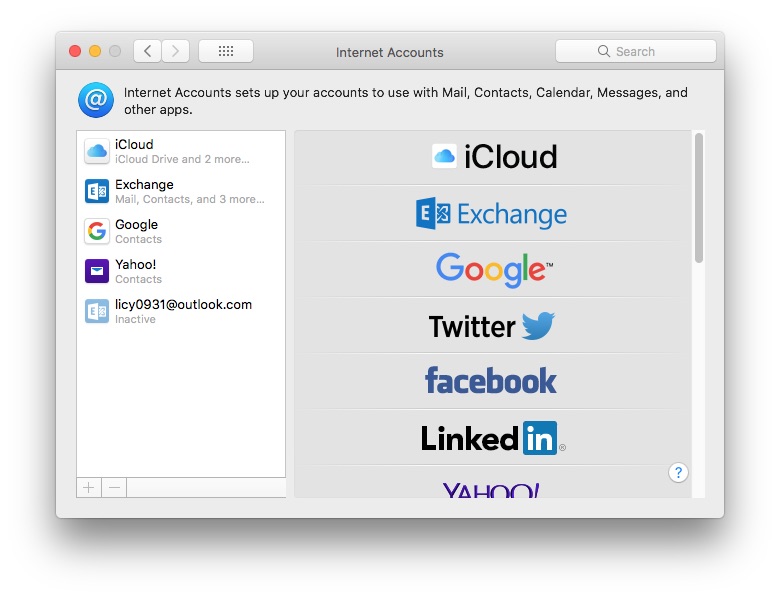
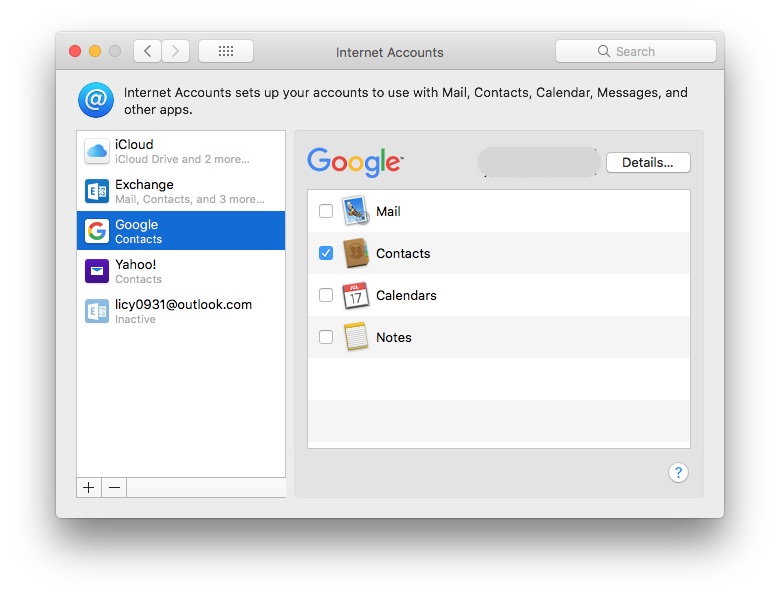
4. Choose iCloud in the Internet Accounts window. Sign in with your Apple ID and password.
5. Select the Contacts checkbox.
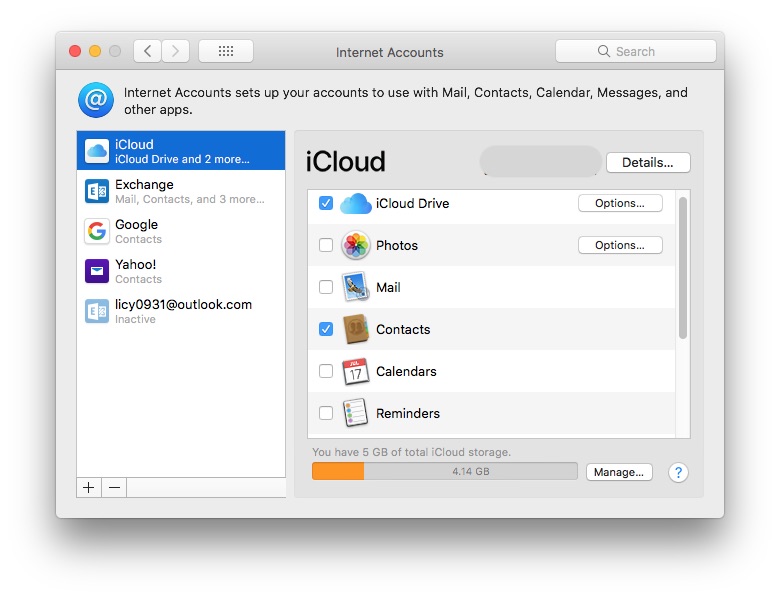
6. Sign in your Google account in the same way. Remember to check the box next to Contacts.
7. In the left sidebar of the main window, click the Refresh button next to “Updated contacts detected”. Then the iCloud and Google group will in the sidebar,
8. Select the contacts that you want to transfer from the iCloud group. Drag and drop them to the Google group.
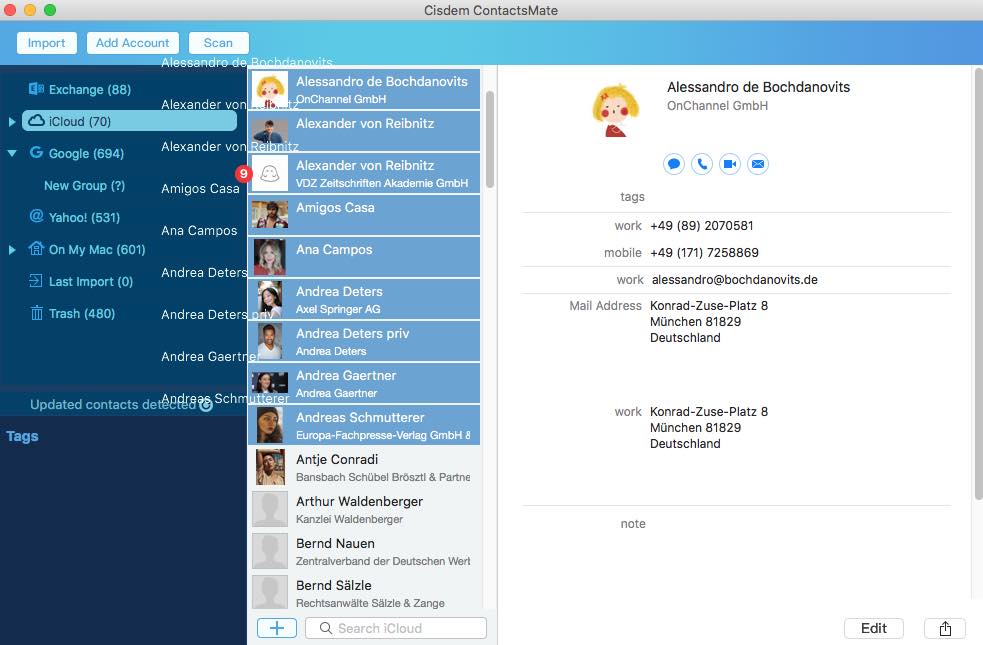
Now your iCloud contacts are imported to Google. Open the Google Contacts page, and you’ll see your imported contacts.
FAQs
Will I lose all contact photos after importing iCloud contacts to Google?
No, as long as you use the method in this article and follow the step-by-step guide to transfer your contacts, your contact photos will not be lost.
How can I transfer iCloud contacts to Google on Windows?
You can transfer iCloud contacts to Google on Windows PC via iCloud website. First, export your contacts from iCloud website to vCard file. Then, import the file to Google.
It's possible to clean up duplicate contacts between my iCloud and Google accounts?
Yes. With Cisdem ContactsMate, you can easily find and clean up duplicate contacts after importing iCloud contacts to Google. The app lets you merge or delete them in bulk with one click.
Conclusion
Although there’re several ways to import iCloud contacts to Google, they are for different needs. The method 1 I mentioned above is for users who want to keep all iCloud and Google contacts in sync. If you just want to import selected contacts from iCloud to Google, you can try method 2 and method 3. What’s more, the last method enables you to import contacts directly via drag and drop. It’s the most efficient.

With a passion for tech and writing, Sarah joined Cisdem, where she focuses on creating articles about using utility tools to enhance file management and simplify contact management.

Adrian Li is Cisdem’s Chief Engineer and serves as the editorial advisor for Duplicate Finder and ContactsMate. His work and insights have been featured in leading tech publications such as Fossbytes, TUAW, Redmond Pie, SafetyDetectives, and BestForAndroid.
Hilde Thimig
The last method is very simple and straight forward. Thanks!