


How to Import Excel Contacts to iPhone [2025 Guide]
 1.7K
1.7K
 0
0


In today's digital age, we increasingly rely on mobile device to store and manage our contact information since it’s convenient to carry. Excel is our commonly used format to save contact list. If you are people that often need to keep in touch with your customers or partners or other people, importing contacts into iPhone from Excel in bulk can help you improve things up. But, the process can be tricky because these two platforms don't have very well format incompatibilities. Many ones may choose to input by hand, which can take time. Fortunately, there are some efficient ways to solve this problem. This article will introduce 2 ways on how to import Excel contacts to iPhone, with or without iTunes.
 Cisdem ContactsMate
Easily Import Excel Contacts to iPhone on Mac
- Support contacts from iPhone, Mac Contacts, Google, iCloud, Exchange and more.
- Let you easily transfer contacts between supported sources.
- Allow you to import contacts directly from CSV, vCard.
- Convert/Export contacts to 8 formats: Excel, CSV, VCF, etc.
- Let you efficiently sync, import, export, add, edit, group, tag, print and share contacts.
- Find and delete or merge duplicate contacts
- Let you backup/restore contacts with 1 click
- Enables you to import contacts to iPhone from Excel, CSV, vCard, etc.
- Easy and safe to use
- (ContactsMate has a Windows version with similar features)
 Free Download macOS 10.11 or later
Way 1: Import Excel contacts to iPhone via professional contacts management tool
Using a professional contacts management tool can greatly improve the efficiency and accuracy of importing and exporting contacts. Cisdem ContactsMate is a Mac tool that can quickly get your contacts from Apple Contacts, iCloud, Gmail, CSV, vCard, etc. And enables you to easily import, export, transfer, add, edit, group, share and email contacts as you like. Just follow my step-by-step guide below to import contacts from Excel to iPhone.
1. Open your web browser. Go to this free online converter website: https://onlineconvertfree.com/convert-format/xls-to-csv/
2. Click on ADD MORE FILES. Select your Excel file that contains contacts information. Click Convert.

3. Download the converted CSV file to your computer.

4. Download and install Cisdem ContactsMate on your Mac.
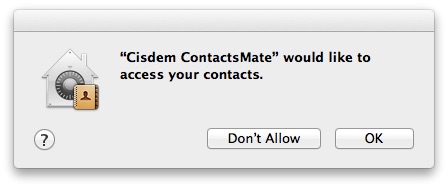
5. Allow this tool to access your contacts when you first launch it.
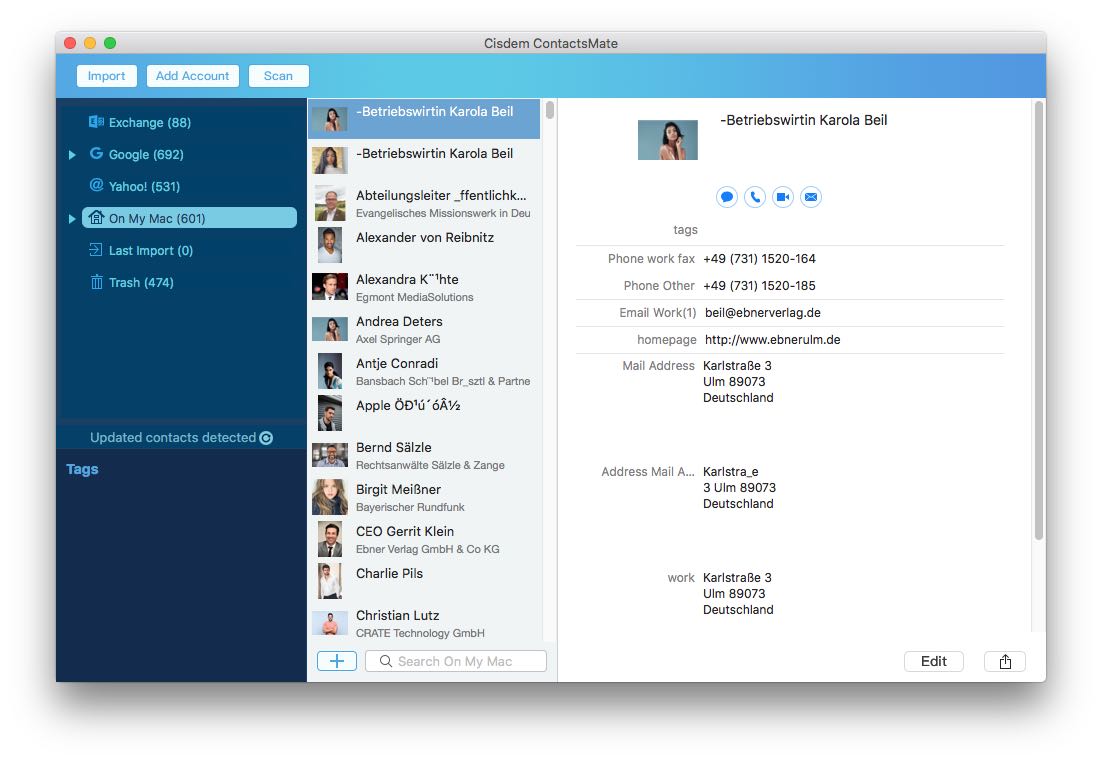
6. Click on Add Account on the top menu bar.
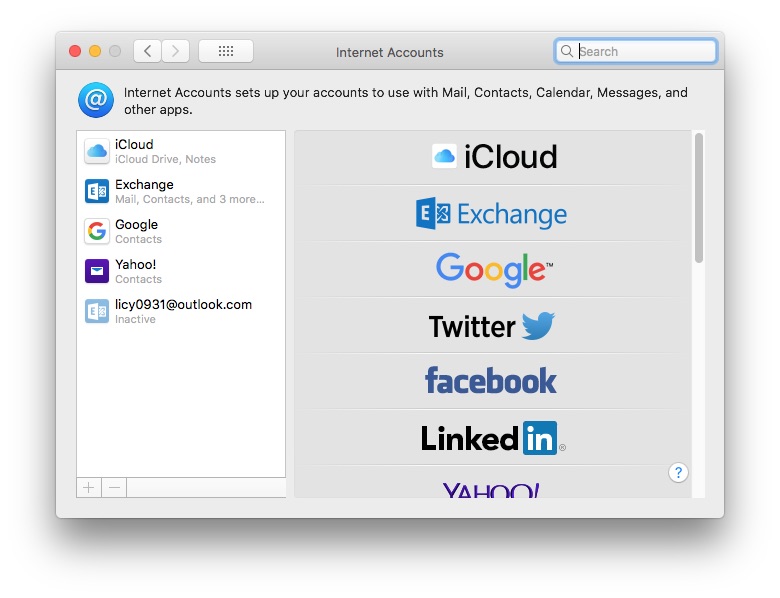
7. Select iCloud. Sign in with your Apple ID and password.
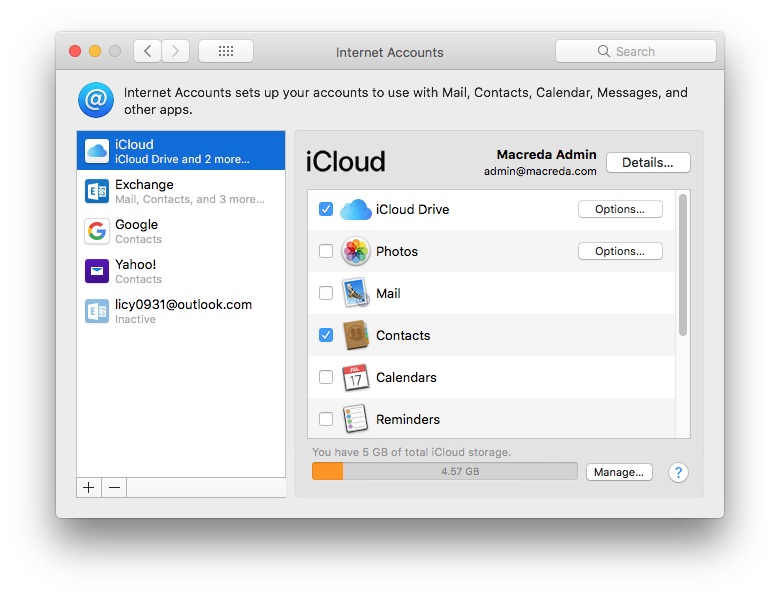
8. Check the box next to Contacts.
9. Click on the refresh icon next to Updated contacts detected on the main window. Then you will see iCloud group on the left sidebar.
Right-click on the iCloud group. Select Import.
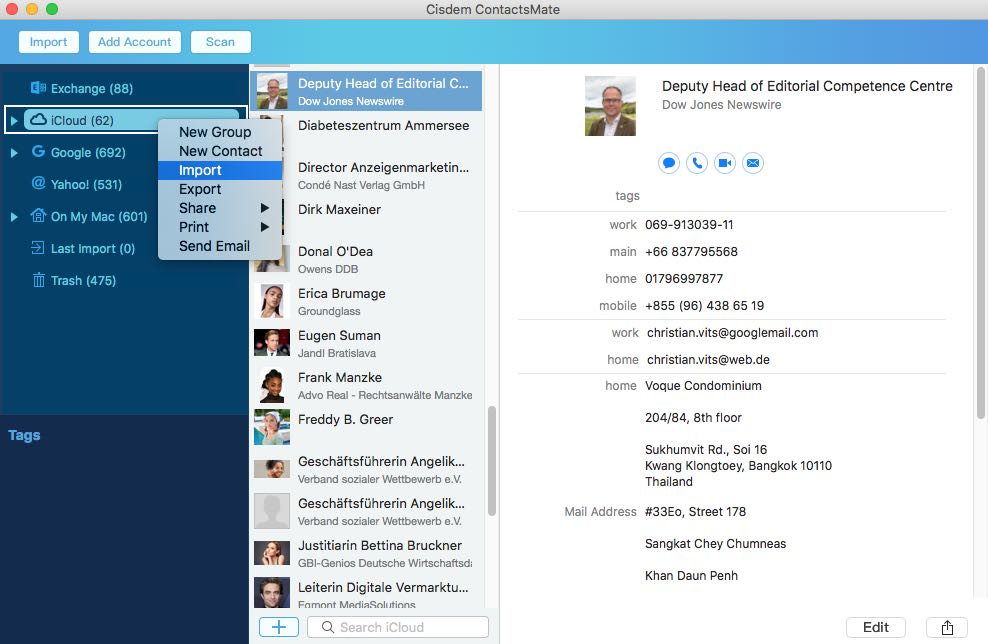
10. Choose the CSV file that you converted and downloaded in step 3. Click Open. Click OK on the pop up Field Mapping Selection window.
11. Now your contacts from the Excel file have been imported to iCloud. ContactsMate will keep syncing with your iCloud account. The last step you need to do is to make sure you have synced your iPhone contacts with iCloud.
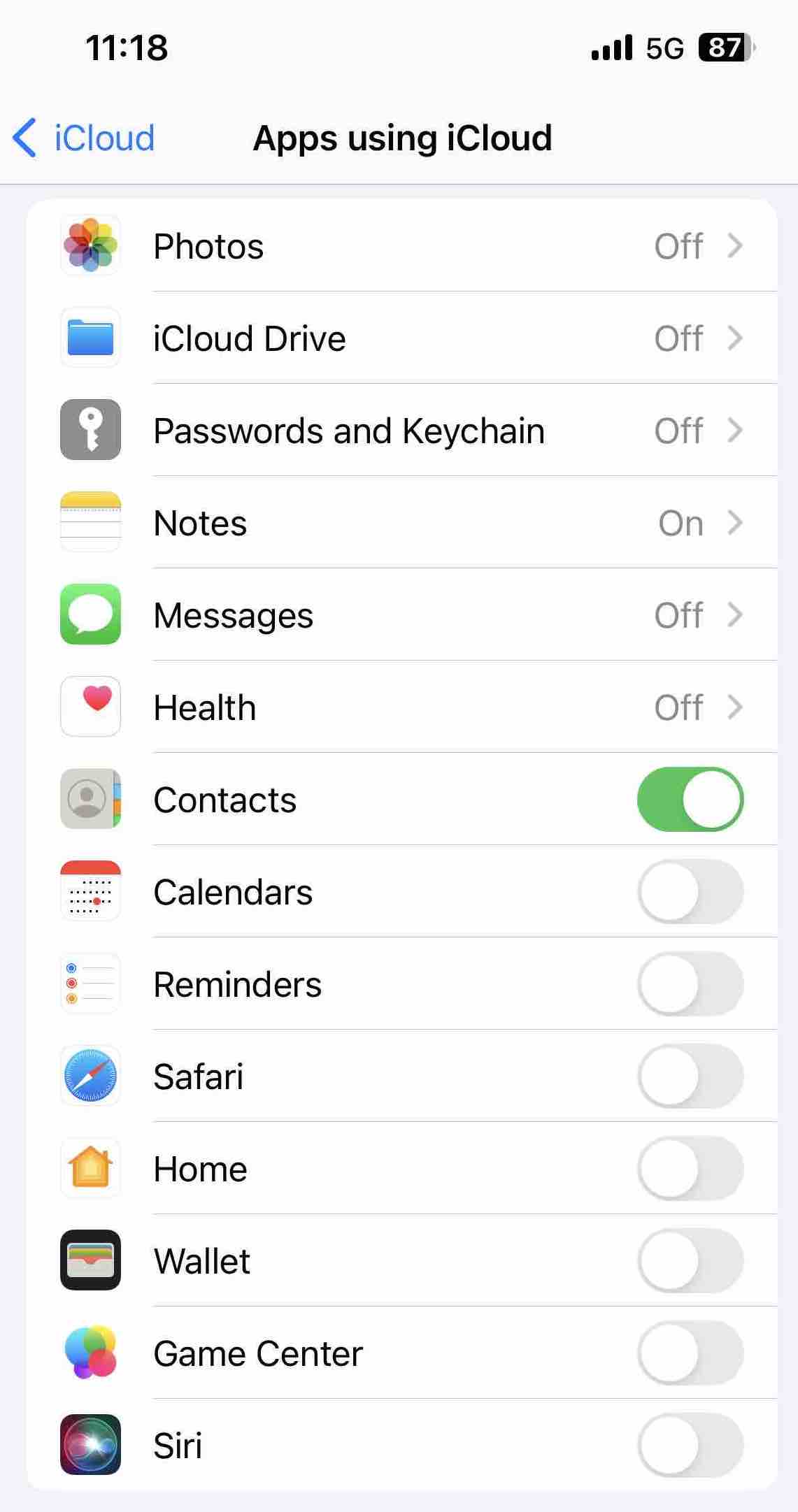
If not, go to Settings app on your iPhone. Click [your name] on the top of the screen. Then select iCloud. Go to Apps using iCloud section. Enable Contacts.
Tips
How to import contacts to iPhone from Mac Contacts, Gmail, Exchange and more?
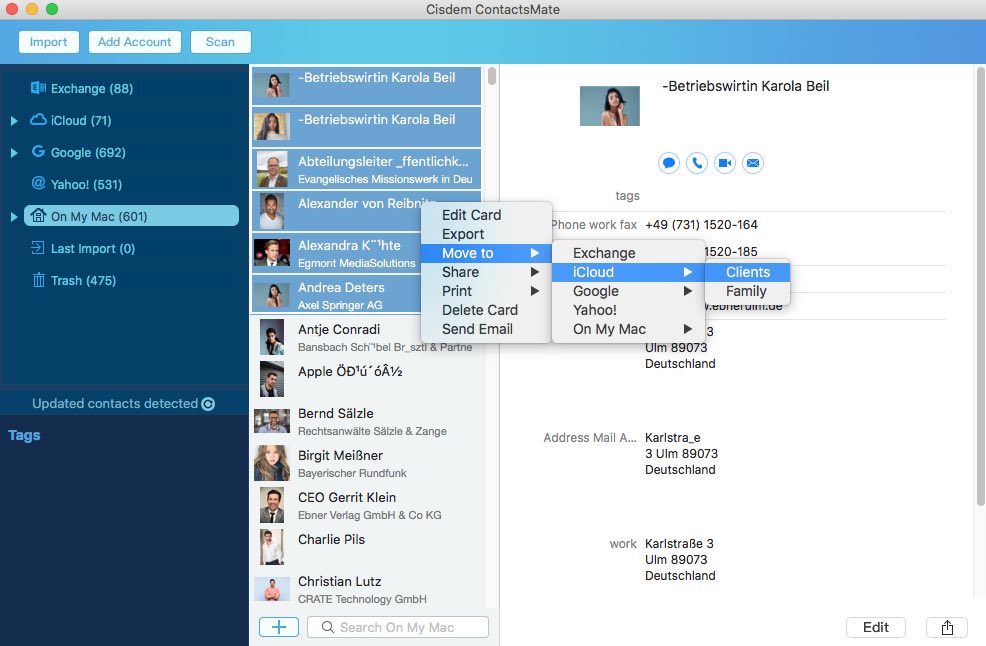
Cisdem ContactsMate is a contacts management tool that helps you organize and manage all your contacts in one place. It’s convenient to use it to import/transfer contacts to iPhone from other platforms such as Mac Contacts, Google, Exchenge, etc. Simply right-click on the contacts that you want to transfer, or select a group of contacts. Select Move to > iCloud. You can also transfer contacts directly by dragging and dropping.
How to get rid of duplicate contacts on iPhone?
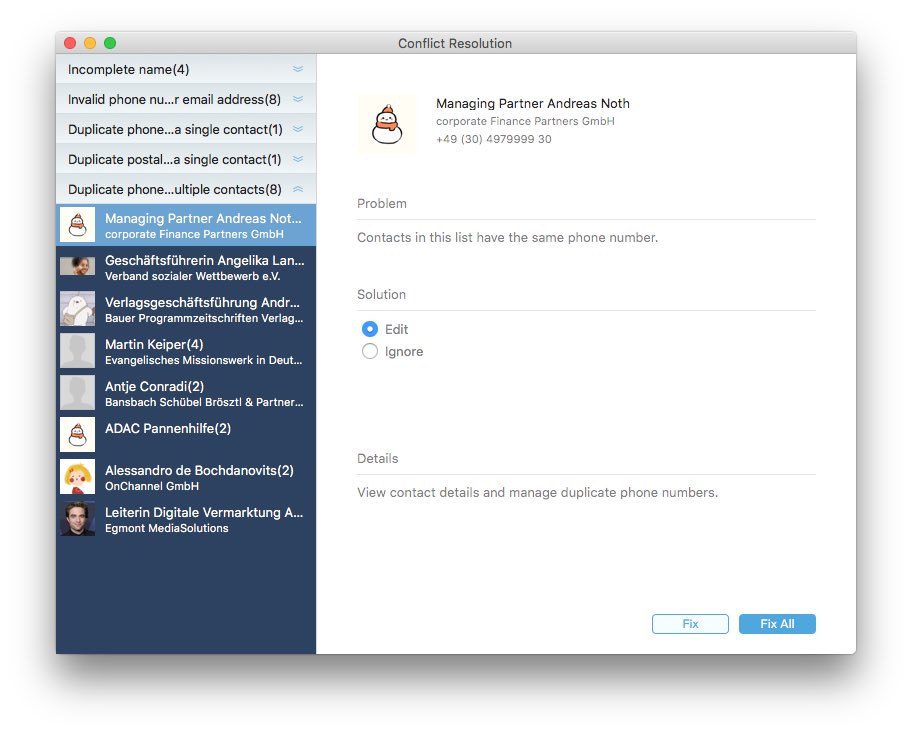
There may be a lot of duplicate contacts on iPhone if you frequently import contacts to iPhone from other sources. Removing duplicate contacts can make your iPhone contact list clean and organized. Cisdem ContactsMate provides the duplicates detecting and deleting feature. Select iCloud on the left sidebar. Click on Scan. The scanning result will be show on the Conflict Resolution window immediately. Select duplicate contacts from the list. Click on Fix to remove/merge the duplicates.
Way 2: Import contacts from Excel to iPhone through iTunes
Above are how to import Excel contacts to iPhone with the help of contacts management tool and iCloud. iCloud is the free data storage service provided by Apple, which is widely used by iPhone users. If you don’t want to use iCloud, here’s another way.
1. Open the Excel file on your computer.
2. Click on File > Save as. Select CSV from the list. Save the file on your computer.
3. Launch Outlook app.
4. Click the contacts icon on the bottom right corner.
5. Tap on People. Right-click on the Contacts folder on the left sidebar. Create a new contacts folder.
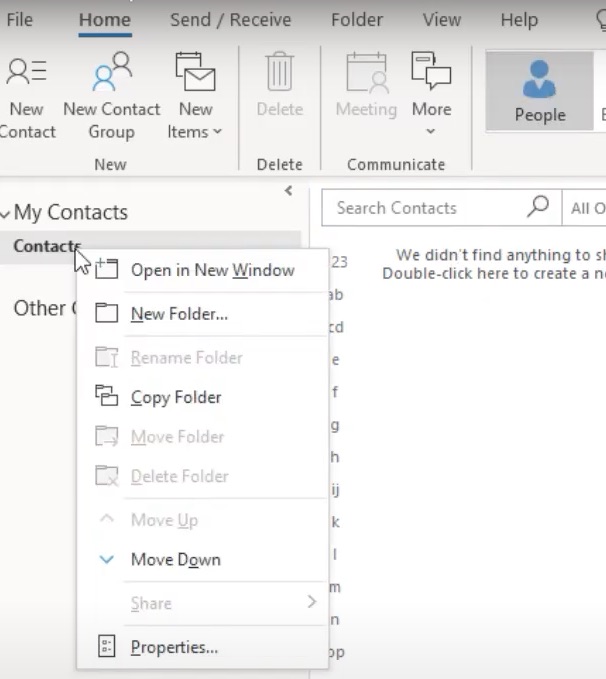
6. Then type in the folder name. Click OK.
7. Select the new contacts folder you just created.
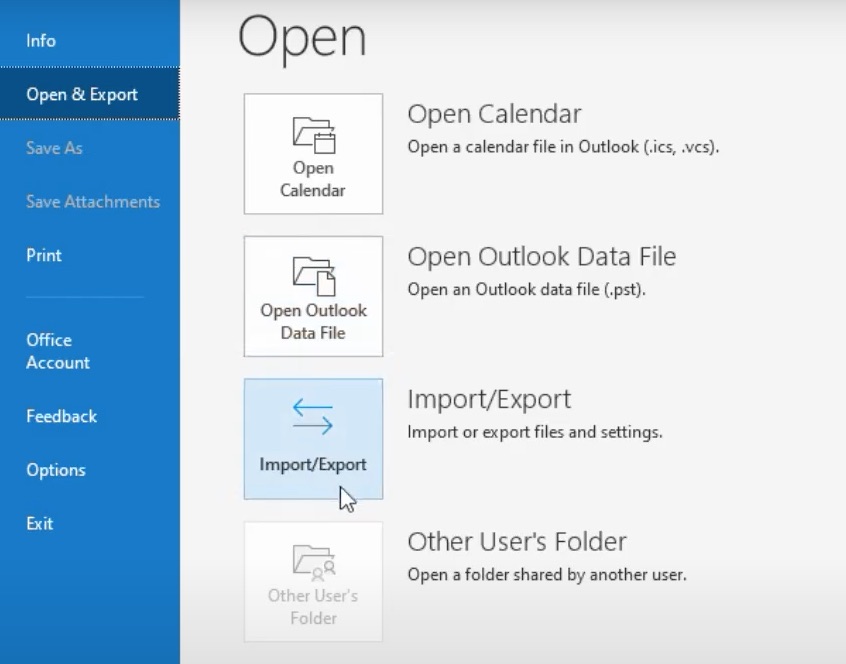
8. Click on File > Open & Export > Import/Export.
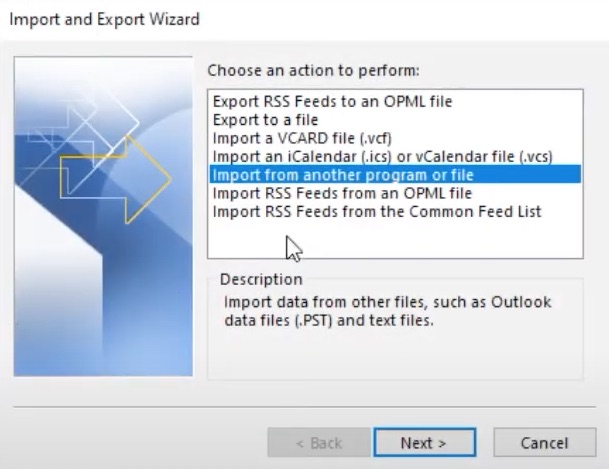
9. Choose Import from another program or file from the pop-up Import and Export Wizard window. Click Next.
10. Select Comma Separated Values from the next window. Click Next again.
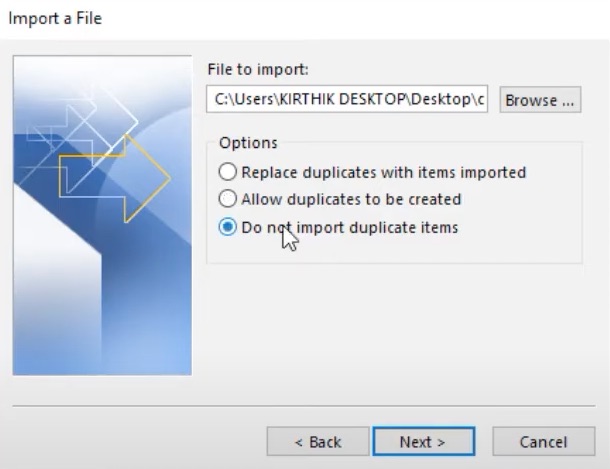
11. Tap on Browse. Select the CSV file you just converted in step 2. Then choose the Do not import duplicate items option to prevent duplicates. Click Next.
12. Select the contacts folder to import the CSV contacts. Click Next.
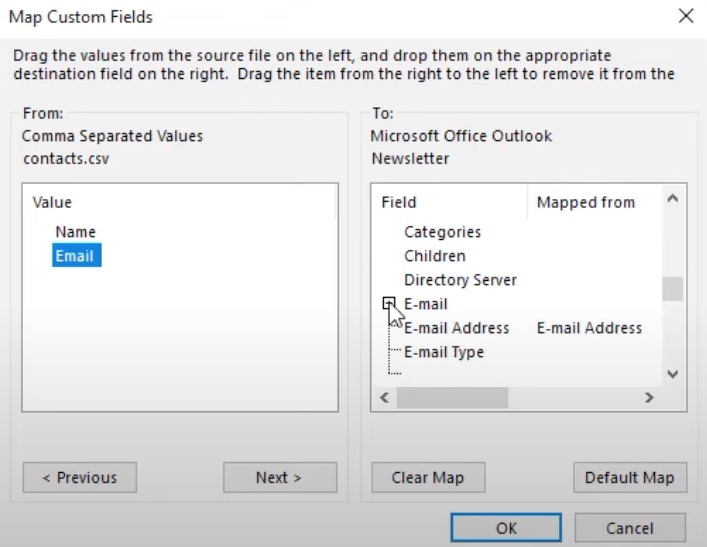
13. Click on Map Custom Fields and mapping the CSV file columns to Outlook fields manually. You can directly drag the item from CSV file on the left, and drop them on the appropriate destination fields on the right. Click OK then click Next.
14. Click the Finish button.
15. Connect your iPhone with computer using a USB cable.
16. Launch iTunes on your computer. Sometimes it’ll automatically pop up.
17. Click on your iPhone’s name on the top right.
18. Click Info. Check the box next to Sync Contacts With.
19. Select your Outlook account.
20. Tap on Apply.
Frequently Asked Questions
Can I directly import contacts to iPhone from Excel file?
No. iPhone does not supports contacts from Excel.xls or.xlsx format at all. There’s no direct way to do it. We need to convert the Excel file to CSV first. Fortunately, the conversion is easy. Using the free online tool I mentioned on method 1 or the Excel program I introduced in method 2 can easily solve this problem.
How to prepare the Excel contacts list for importing?
If you haven't organized your contacts in Excel well, you may encounter problems while converting and importing contacts to iPhone. The following are common column header names to place in the first row of the Excel contact sheet:
- First Name
- Last Name
- Email Address
- Phone Number
- Job Title
- Company
- Anniversary
- Birthday
- Home Address
- City
- State/Province
- Zip/Postal Code
How to import contacts from Excel to iPhone without iTunes?
We have explained 2 best ways to import contacts from Excel to iPhone. The first way in this article doesn’t require iTunes. You can install this tool on your Mac computer running macOS 10.11 or later.
Conclusion
Above are 2 ways on how to import Excel contacts to iPhone. The first method will be easier if you are not good with computer. In addition, the contacts management tool can solve you many other problems with importing and exporting contacts between sources. If you have more efficient ways on importing contacts into iPhone from Excel, welcome to leave messages in the comment box below.

With a passion for tech and writing, Sarah joined Cisdem, where she focuses on creating articles about using utility tools to enhance file management and simplify contact management.

Adrian Li is Cisdem’s Chief Engineer and serves as the editorial advisor for Duplicate Finder and ContactsMate. His work and insights have been featured in leading tech publications such as Fossbytes, TUAW, Redmond Pie, SafetyDetectives, and BestForAndroid.