


How to Easily Merge vCard Files into One: 5 Ways
 108
108
 0
0


vCard (aka VCF) is a format dedicated to storing contact information. A single vCard file can be used to store one contact or multiple ones (e.g., one hundred contacts).
There can be situations where you need to combine vCards into one single vCard. For example, doing this may help you manage, organize, or share contacts more efficiently.
In this article, I will share five ways to merge vCard files. I tested each method and provide step-by-step instructions. You can choose the method that best suits your needs.
 Cisdem ContactsMate
Easily Merge vCards without Duplicate Contacts
- Import contacts from vCard and CSV files
- Export contacts to vCard, CSV, Excel, and more
- Help you merge vCard files into a single file without losing data
- Detect and remove duplicate contacts with a click before merging
- Also detect formatting issues, such as incomplete names, and invalid phone numbers or email addresses
- Support various contacts sources: Mac's Contacts app, iCloud, Google, Outlook, and more
- Let you view, search, add, edit, delete, group, tag, email, share, print, sync, back up, and restore contacts
- User-friendly for everyone

Method 1. How to merge vCard files using ContactsMate
Applies to: Mac
If you are a Mac user, you can use a contact manager called Cisdem ContactsMate for this task. After the merging, every piece of information (such as names and phone numbers) will be in the right field. In addition, since ContactsMate provides a feature to help scan for and fix duplicate or incorrect data, you can perform a scan before the merging if needed.
Here are the steps.
1. Download and install ContactsMate.
 Free Download macOS 10.11 or later
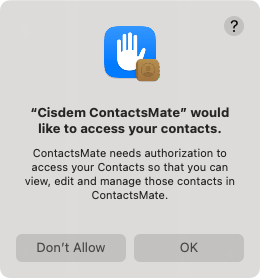
2. The first time you open this tool, click OK to allow access to contacts.
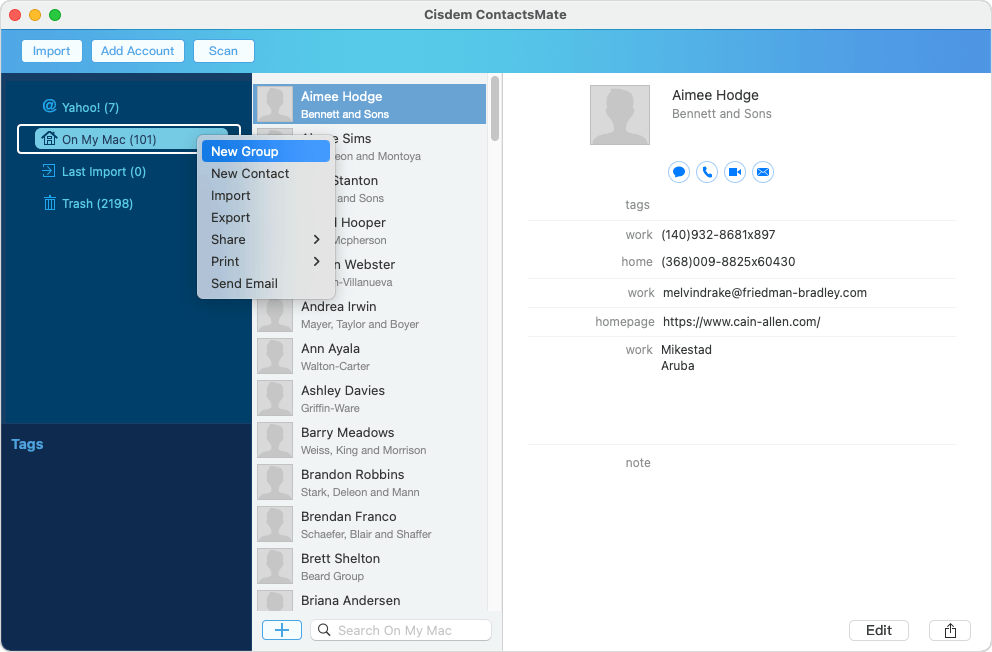
3. In the left sidebar, control-click On My Mac and choose New Group.
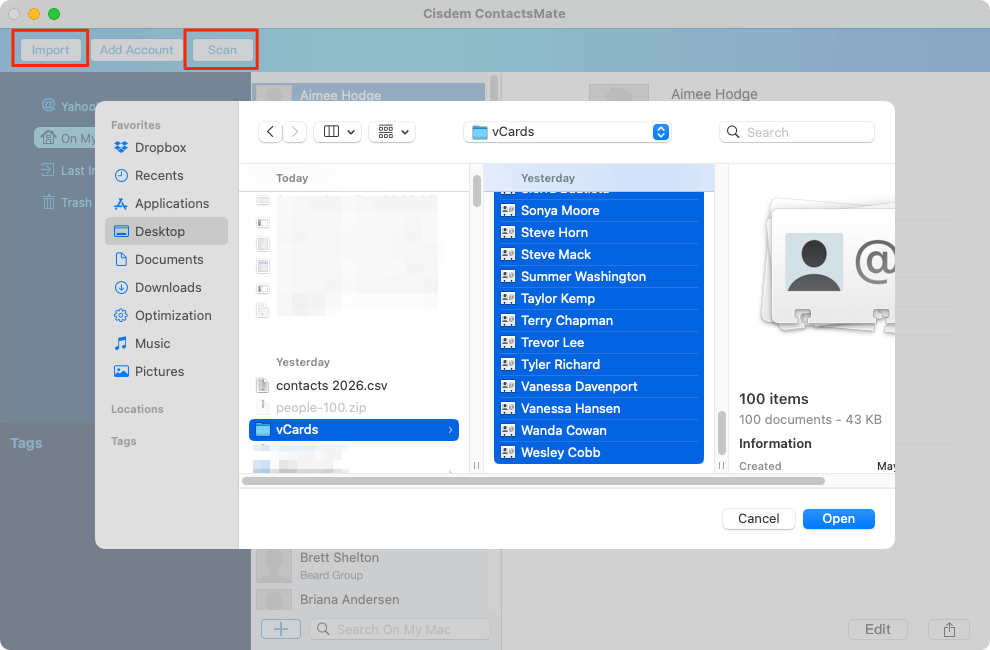
4. Click Import in the toolbar, locate the folder containing the vCard files you want to merge, select all these files, and click Open.
5. In the left sidebar, choose Last Import, select all contacts inside, and then drag selected contacts to New Group.
6. Optionally, click Scan in the toolbar to scan for and fix duplicates.
7. Control-click New Group and choose Export.
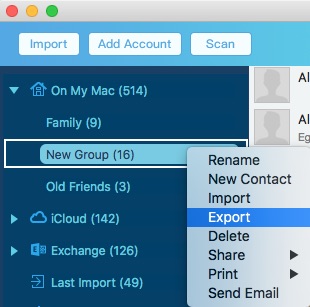
In the dialog that appears, select vCard from the Format dropdown menu, then click Save.
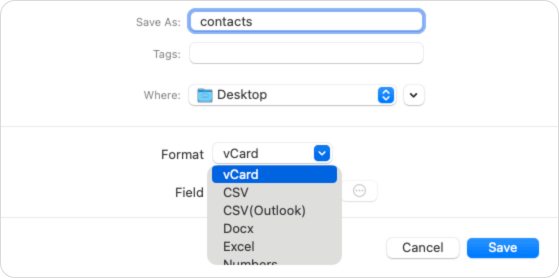
Now, all those individual vCards are merged into one vCard.
Method 2. How to use Command Prompt to combine vCards
Applies to: Windows
For Windows users who are familiar or comfortable with command-line tools, using Command Prompt can be a good choice. It's built-in to Windows and free to use. However, it may not be as as user-friendly as software tools.
If you want to perform a merging successfully using this method, make sure you strictly follow the steps below.
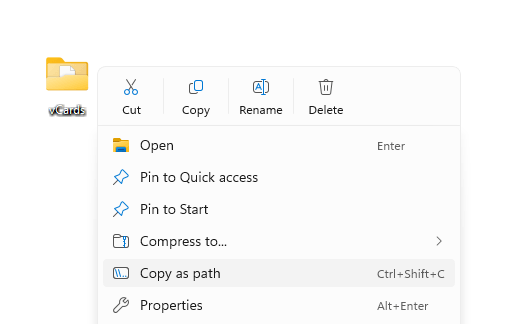
1. Right-click the folder containing vCard files and choose Copy as path.
This way, you will get the path of this folder, e.g., C:\Users\Administrator\Desktop\vCards. Note that you need to remove any quotation marks.
2. On the taskbar, search CMD. Then, click Command Prompt in the results.
3. In the window that opens, type cd and then a space. Then, paste the folder path (without quotation marks).
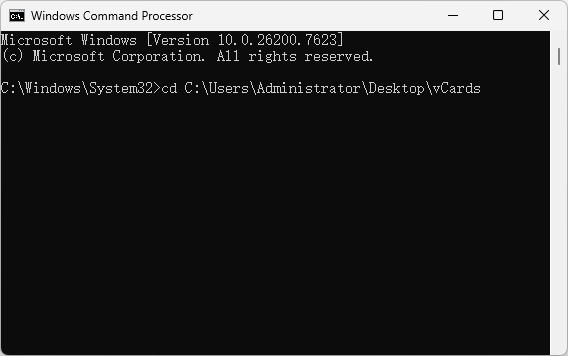
4. Press the Enter key.
5. In the new line, enter copy *.vcf contacts_list.vcf.
6. Press the Enter key.
Now, the merging will start. When it's complete, you will see the 1 file(s) copied message.
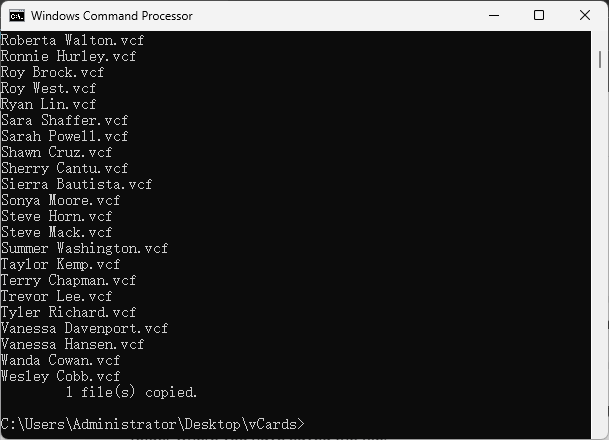
The merged vCard file is located in the very folder that contains those individual vCards. And the vCard is called contacts_list.
Tip
In step 1, if Command Prompt says that it can't find the folder specified by you, try renaming the folder with a single word. For example, change the folder name form "my contacts" to "contacts" or "my_contacts".
Method 3. How to do the merging with SysTools VCF Merger Tool
Applies to: Windows
For Windows users who prefer an easier method, there's a dedicated tool called SysTools VCF Merger Tool. While I'm not sure if it's the "best software to combine multiple vCard files into one" as the ad says, the merging is truly easy and fast.
1. Install the tool on your PC. Open it.
2. Click Add File in the tool bar to add your vCard files.
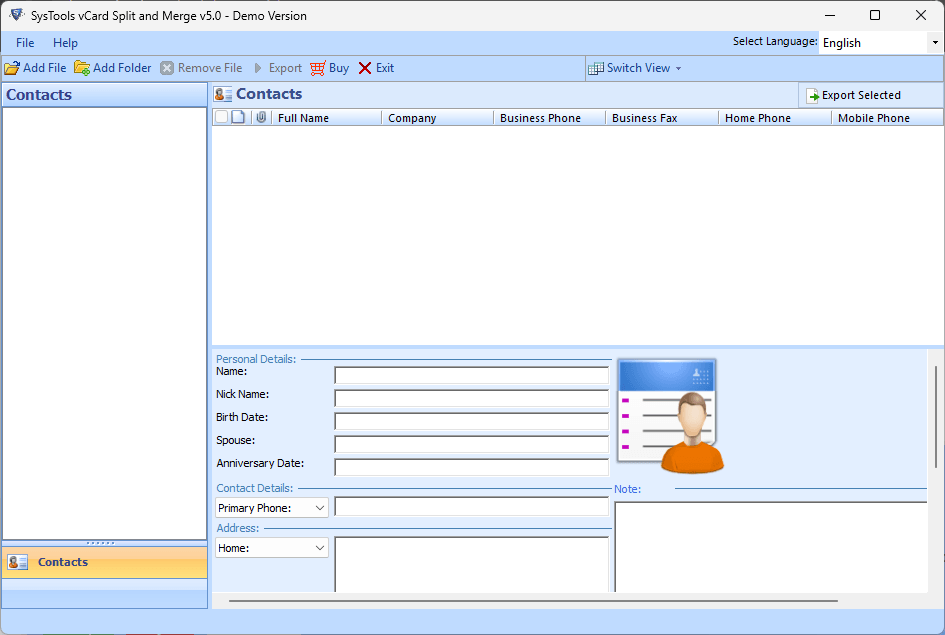
Now, all the contacts will appear in the left sidebar.
3. Optionally, edit contact information if needed, since there's a editor available.
4. Click Export in the tool bar.
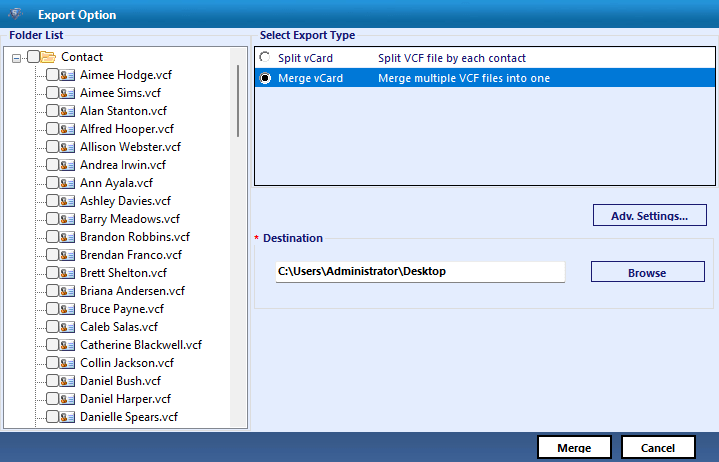
5. In the Export Option dialog that appears, select all contacts and select the Merge vCard option. Then, specify a Destination folder and click Merge.
Tip
In step 5, there's also an Advanced Settings button, and you can configure settings if needed. For example, you can select a desired vCard version for the merged vCard file. (vCard 3.0 is currently the most popular and compatible version.) You can also prevent duplicate contacts from appearing in the merged vCard.
Method 4. How to merge vCard files into one online with VCF File Merger
Applies to: Mac, Windows, Android, iOS, Linux
With the previous three methods, the merging works offline. If you don't mind using online tools, you can consider VCF File Merger, which is free to use and easily accessible. Despite being free, it can offer good merging results.
1. Open a desktop or mobile browser.
2. Visit vcf-file-merger.com.
3. Click the box on the right.
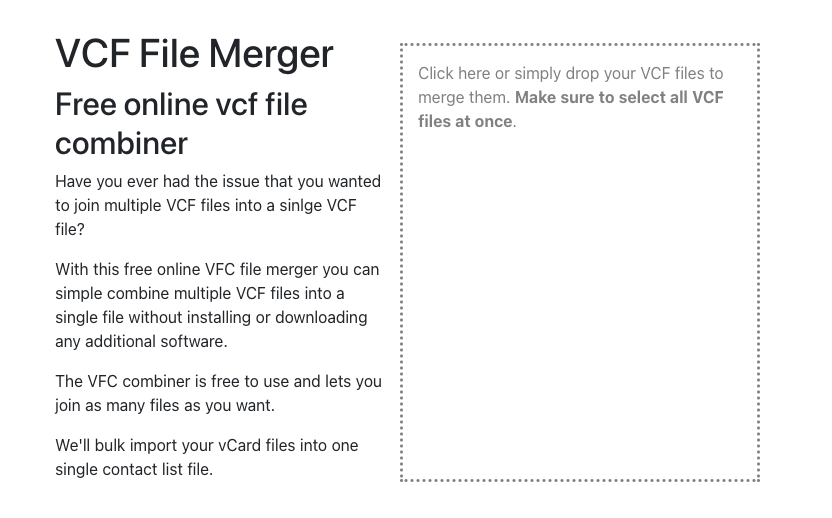
4. In the dialog box that appears, navigate to the folder containing vCard files, select all these files, and click Open.
5. The merging process will automatically start, and the merged vCard (named "contacts") will be automatically downloaded to your device.
Method 5. How to do the merging online with the Merge VCF Online tool
Applies to: Mac, Windows, Android, iOS, Linux
There's another popular online vCard merger: Merge VCF Online. This tool supports importing individual vCards or ZIP files to merge. (Make sure the ZIP file only contains vCards inside.) In the tests, the tool sometimes failed to merge all the vCard files. The fewer vCards there are, the more likely the merging will succeed.
1. Open a browser on your device.
2. Go to thewebvendor.com/online_vcf_merger.html.
3. Click Browse.
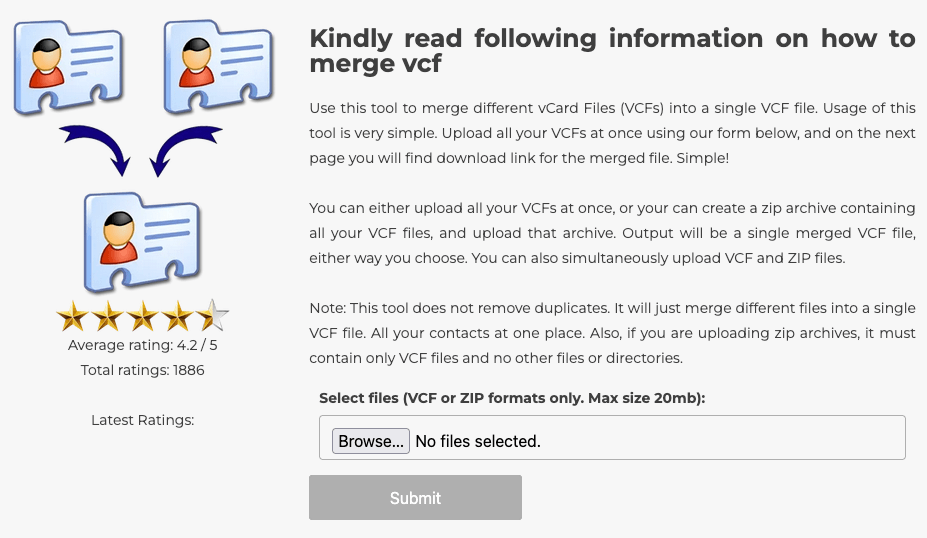
4. Select vCards or a ZIP files to import.
5. Click Submit to start the merging process.
6. When it's complete, click the Click here to download your file option to save the file to your device.
FAQs
Is it safe to use an online tool to combine multiple vCard into one?
With online tools like VCF File Merger, the merging process actually happens on users' devices, and none of users' contacts data will be uploaded online. Most other online tools, such as Merge VCF Online, provide a safety claim, explicitly telling users they won't store any users' data.
Can I use Google Contacts to merge vCards?
Yes, you can. However, it's not convenient or efficient. (Therefore, I don’t share it as a method.) That being said, if there are only a few vCards, it's actually feasible. Here's how.
1. Open Google Contacts in your browser.
2. Click Import on the left.
3. In the Import contacts dialog, click Select file and add a vCard. Then, add a label (e.g., Merge) to this vCard. Now, click Import.
Repeat this step to add other vCard files one by one.
4. On the left, click the specific label (such as Merge).
5. Click the Share button in the top right corner, select the vCard for Android or iOS format, and click Export.
Is there an easy way to gather all vCard files on my device before merging?
As far as I know, there isn't a particularly efficient way to gather vCard files. Here's how I do this, which hopefully can help. On a Mac, I use the built-in file manager: Finder. In Finder, type ".vcf" in the search box and select Electronic business card in the menu that appears, which will search for all the vCard files. Then, you can move all vCard files to a new folder created by you. On a Windows PC, I recommend a free app called Everything instead of the built-in File Explorer.
To wrap up
Merging individual vCard files into one single file can help make it easy for you to manage (e.g., import, back up, share, or convert) them. I've shared several methods, but you don't have to try them one by one, since I've already discussed the possible pros and cons. While I'm not sure which method can be the best for you, method 1 or 3 is the best option if you want to maintain a clean contacts list.

With a passion for tech and writing, Sarah joined Cisdem, where she focuses on creating articles about using utility tools to enhance file management and simplify contact management.

Adrian Li is Cisdem’s Chief Engineer and serves as the editorial advisor for Duplicate Finder and ContactsMate. His work and insights have been featured in leading tech publications such as Fossbytes, TUAW, Redmond Pie, SafetyDetectives, and BestForAndroid.