


Cisdem PDF Password Remover for Windows User Guide
 1.7K
1.7K
 0
0


Cisdem PDF Password Remover for Windows helps you remove passwords and restrictions from protected PDF files. You can remove a permission password without entering it, remove an open password when you know it, or try to recover a forgotten open password.
This guide explains how to use Cisdem PDF Password Remover to unlock your PDF files.
Getting Started
Download & Install
1. Download the Cisdem PDF Password Remover installation package.
 Free Download
2. Double-click the downloaded .exe file to start the installation.

3. Follow the on-screen instructions to complete the installation.
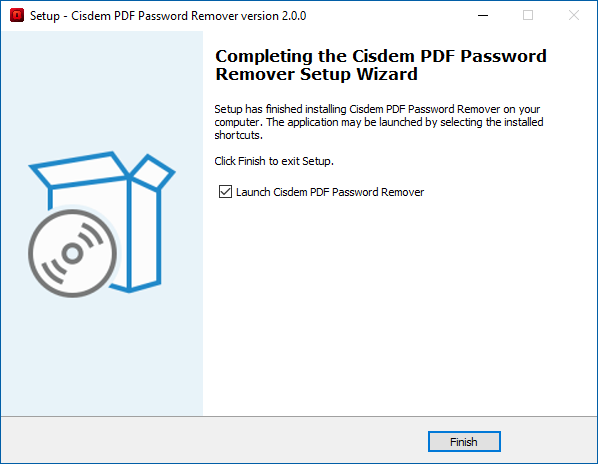
4. Launch Cisdem PDF Password Remover after installation.
Activate the Full Version
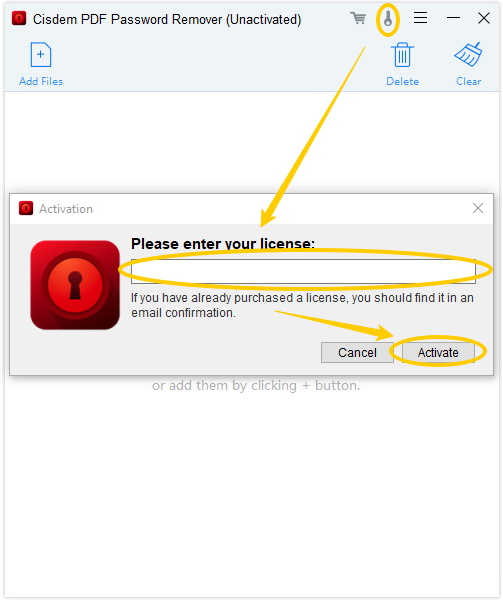
You can use the trial version to test Cisdem PDF Password Remover. To access the full version, activate the app with your license code.
- Launch Cisdem PDF Password Remover.
- Click the Key icon in the upper-right corner.
- Enter or paste your license code.
- Click Activate.
Understand PDF Password Types
PDF files can be protected with two common types of passwords.
Open Password
An open password, also called a user password, prevents a PDF from being opened without the correct password.
When you add an open-password-protected PDF to Cisdem PDF Password Remover, it is automatically marked with a lock icon.
Permission Password
A permission password, also called an owner password, controls whether a PDF can be printed, copied, edited, or otherwise modified.
A PDF protected only by a permission password can usually be opened normally, but certain actions may be restricted.
How Cisdem Identifies PDF Protection
Cisdem PDF Password Remover automatically identifies the password type:
- Unprotected PDF: Cannot be added to the app.
- Open-password-protected PDF: Marked with a lock icon.
- Permission-password-protected PDF: Can be added without a lock icon.
Note: If a PDF has both an open password and a permission password, both types of protection can be removed after the open password is unlocked.
Remove a Permission Password
If your PDF is protected only by a permission password, you can remove the restrictions without entering the password.
Step 1 Add PDF files
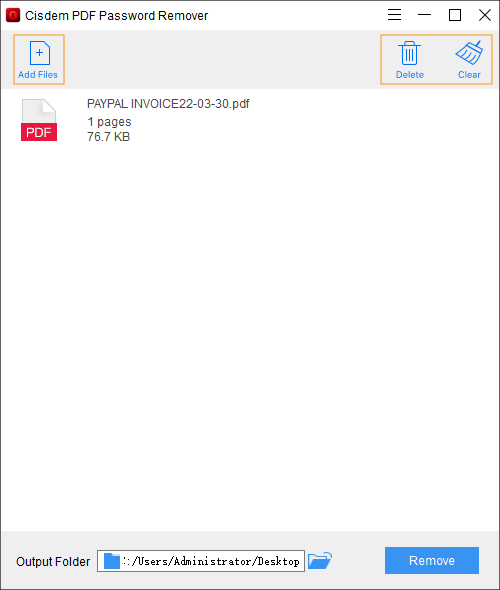
You can add one or more PDF files in either of the following ways:
- Drag and drop the PDF files into the main interface.
- Click Add Files and select the PDF files.
To remove an imported file, select it and click the Delete button. To clear all imported files, click Clear.
Step 2 Choose an Output Location
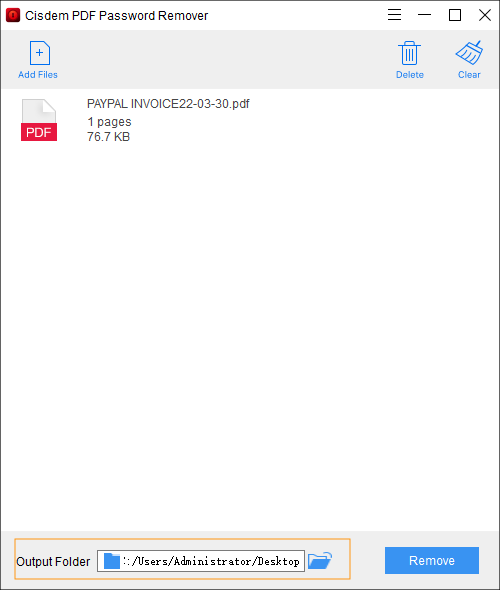
Select a folder where you want to save the decrypted PDF files.
Step 3 Remove the Password
Click Remove to start removing the permission password.
When the progress reaches 100%, the process is complete. Click the folder icon to open the output location.
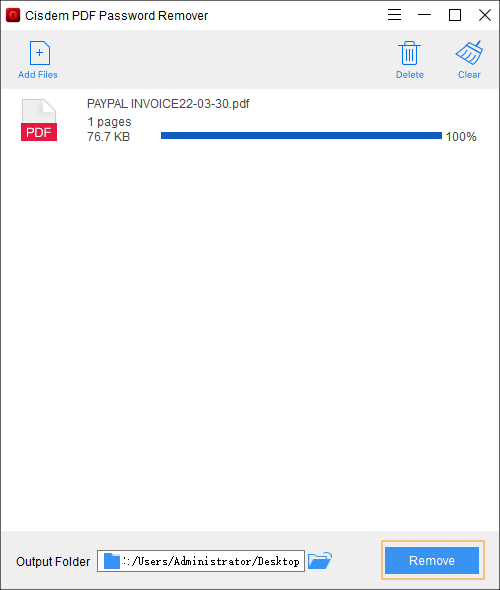
Note: Cisdem creates a new unlocked PDF file. Your original PDF remains unchanged.
Remove an Open Password You Know
If your PDF is protected with an open password and you know the password, you can remove it directly.
This method also works when the PDF has both an open password and a permission password.
Step 1 Add PDF files
Drag and drop the PDF into the main interface, or click Add Files to select it.
A PDF protected with an open password will display a lock icon.
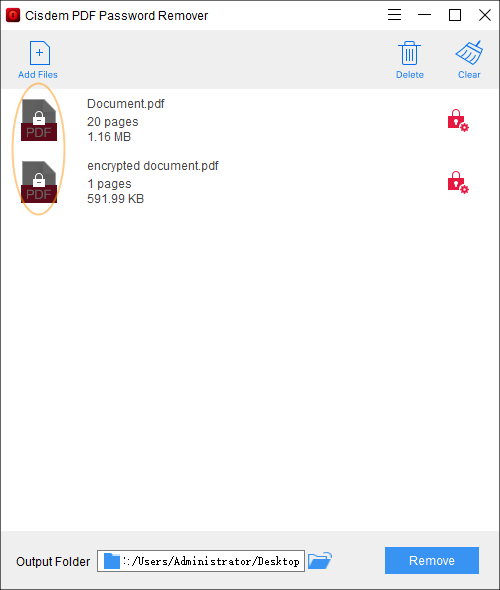
Step 2 Enter the Open Password
- Click the Lock icon next to the PDF.
- Enter the open password.
- Click OK.
If multiple imported PDFs use the same password, select Apply to All after entering the password to unlock them at the same time.
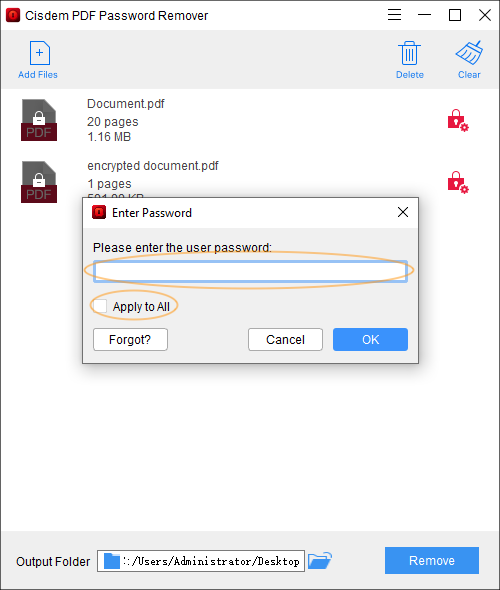
Step 3 Remove the Password
- Select an output folder.
- Click Remove.
- Wait until the progress reaches 100%.
Click the folder icon to open the location containing the unlocked PDF.
Note: If the PDF has both an open password and a permission password, both passwords will be removed.
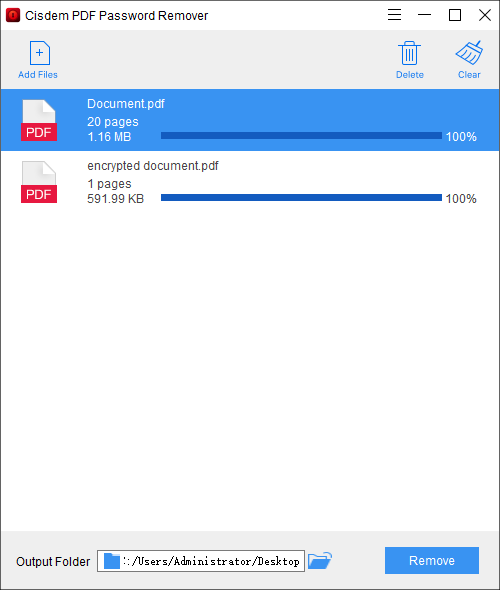
Recover a Forgotten Open Password
If you don't know the open password, you can use the built-in password recovery feature to try to recover it.
Important: Password recovery is performed by trying possible password combinations. The time required depends on your password settings and your computer's performance.
Step 1 Add the Protected PDF
Add the password-protected PDF to Cisdem PDF Password Remover.
The PDF will be marked with a lock icon.
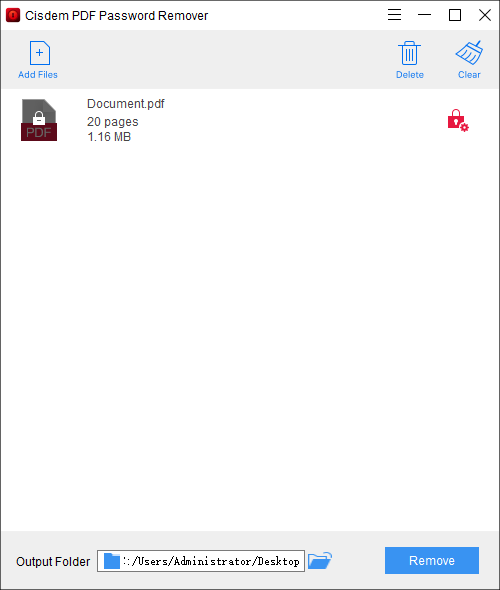
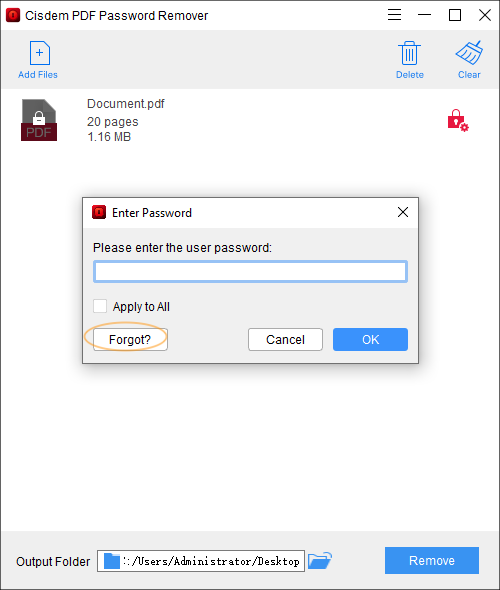
Step 2 Open Password Recovery
- Click the Lock icon next to the PDF.
- Click Forgot? in the password dialog.
- Click Decrypt to open the password recovery settings.
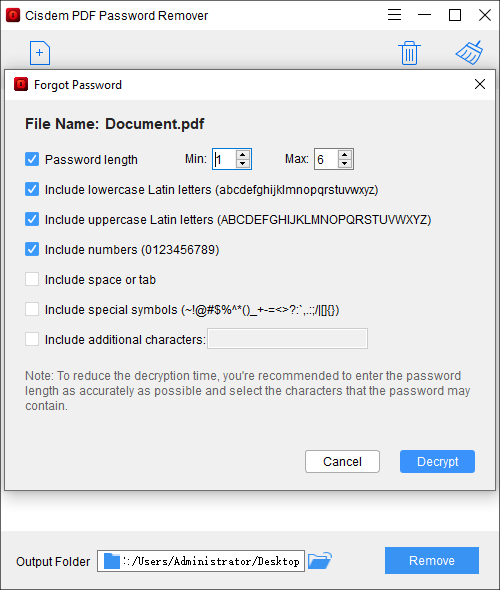
Step 3 Set Password Recovery Conditions
Set the conditions based on what you remember about the password.
For example, specify:
- Password length
- Uppercase letters
- Lowercase letters
- Numbers
- Special characters
Select only the character sets that the original password may contain.
The more accurate your settings are, the fewer possible combinations Cisdem needs to try.
Step 4 Start Decryption
Click Decrypt to start recovering the password.
Cisdem will try possible password combinations based on the conditions you selected.
The app displays the decryption progress and estimated remaining time while the process is running.
Note: Password recovery can take a long time if the password is long or contains many possible characters. You can leave the process running until it finishes.
Step 5 Remove the Password
After the correct password is recovered, Cisdem returns to the main interface.
- Select an output folder.
- Click Remove.
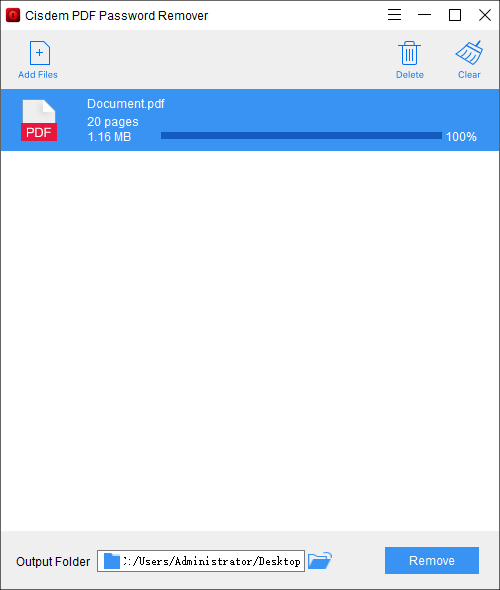
- Wait until the progress reaches 100%.
Click the folder icon to open the location containing the unlocked PDF.
Note: If the PDF has both an open password and a permission password, both types of protection will be removed.
Update Cisdem PDF Password Remover
We recommend using the latest version of Cisdem PDF Password Remover.
The app automatically checks for updates when you launch it.
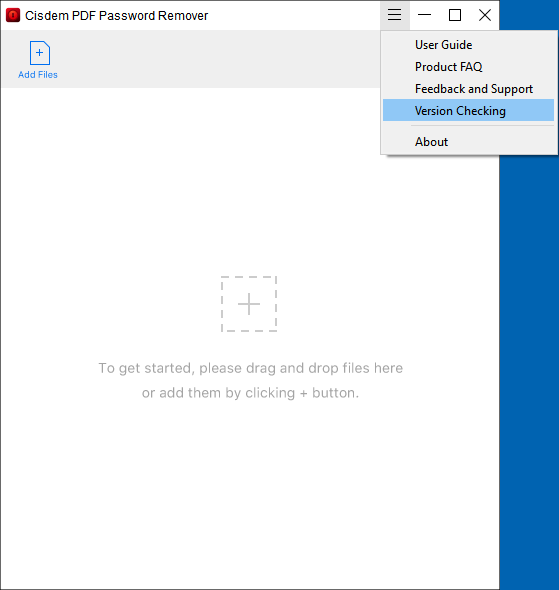
You can also check for updates manually:
- Launch Cisdem PDF Password Remover.
- Click the Menu icon in the upper-right corner.
- Select Version Checking.
If a new version is available, follow the on-screen instructions to update the app.

Traci Gordon has worked as a tester in a software company for 8 years, she believes that the best software should be a tool that can help users accomplish what they need with the simplest steps.

Liam Liu takes charge of the entire PDF product line at Cisdem and serves as the technical approver for all related editorial content. He has deep expertise in PDF and document management technologies and nearly a decade of development experience.