


Cisdem Document Reader for Windows User Guide
 36
36
 0
0


Cisdem Document Reader is a powerful document viewing solution that helps you open, read, and manage various document formats in one application.
Instead of installing multiple programs for different file types, you can access dedicated readers for:
- PST
- DXF
- DjVu
- Winmail
Download & Install
1. Download Cisdem Document Reader installer from the below link
 Free Download
2. Double-click the installation package.
3. Follow the instructions in the setup wizard.
4. Launch Cisdem Document Reader after installation.
Activate
Cisdem Document Reader uses a flexible module-based purchase system. You can purchase only the reader or feature module you need.
To activate:
1. Launch Cisdem Document Reader.
2. From the Home screen, click the desired document format to access its dedicated section.
3. Click the key icon in the upper-right corner of the window, then copy and paste your license code into the activation window to activate the app
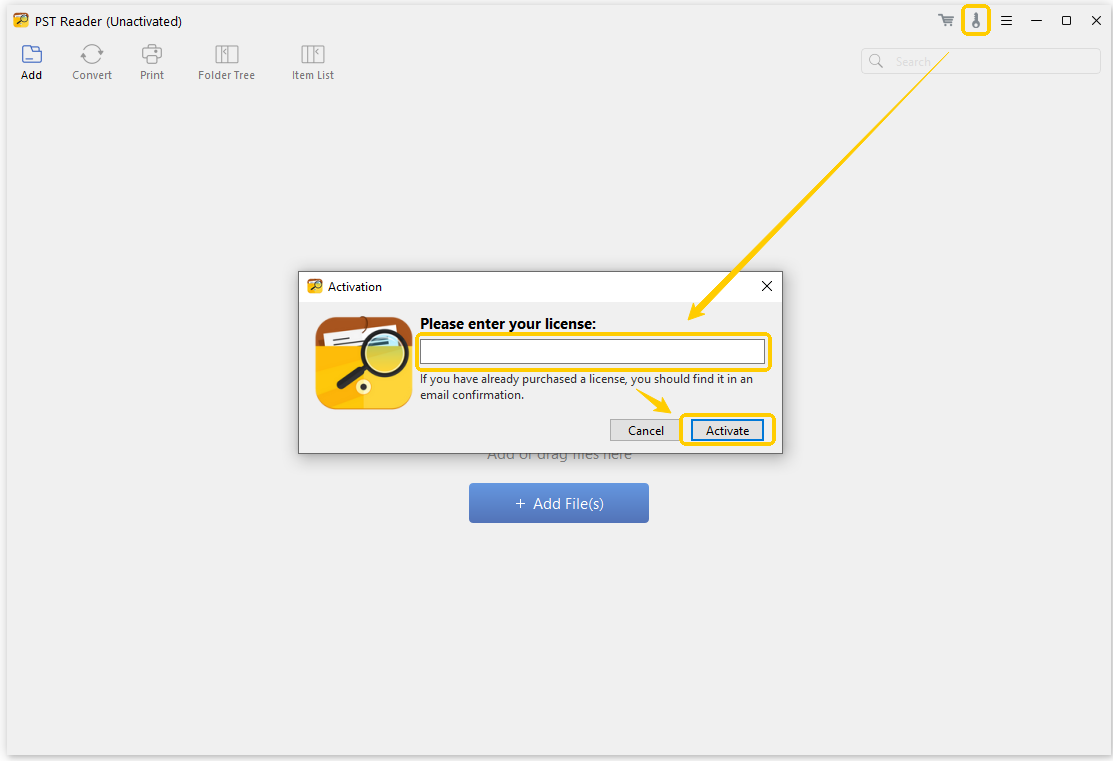
After activation, the purchased features will become available.
Open Files
You can open documents in several ways:
Method 1: Open from the App
Launch Cisdem Document Reader.
Select the required reader.
Click 
Select one or more documents.
Method 2: Drag and Drop
Drag supported files directly into the application window.
Method 3: Open from File Explorer
Right-click a supported file and open it with Cisdem Document Reader.
View and Manage Files
Cisdem Document Reader allows you to view and manage files with a comfortable reading experience.
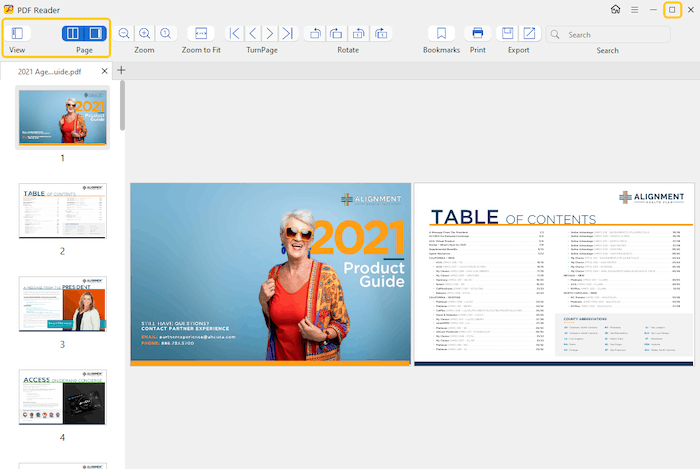
1. Different View Modes
Single Page View
Single Page View displays one page at a time, allowing you to focus on the current page while reading documents.
To enable Single Page View, just click on the toolbar.
Two Page View
Two Page View displays two pages side by side, providing a book-like reading experience. It is especially useful when reviewing documents with continuous page layouts.
To enable Two Page View, just click on the toolbar.
Thumbnail View
Thumbnail View displays small previews of document pages, allowing you to quickly browse and navigate through the file.
To use Thumbnail View, click the Thumbnail button to display the thumbnail panel, and then you can select a page thumbnail to jump to that page.
Full Screen View
Full Screen View removes unnecessary interface elements and provides a distraction-free reading experience.
To enter Full Screen View, click Full Screen on the toolbar, the document will expand to fill your screen.
2. Zoom Documents
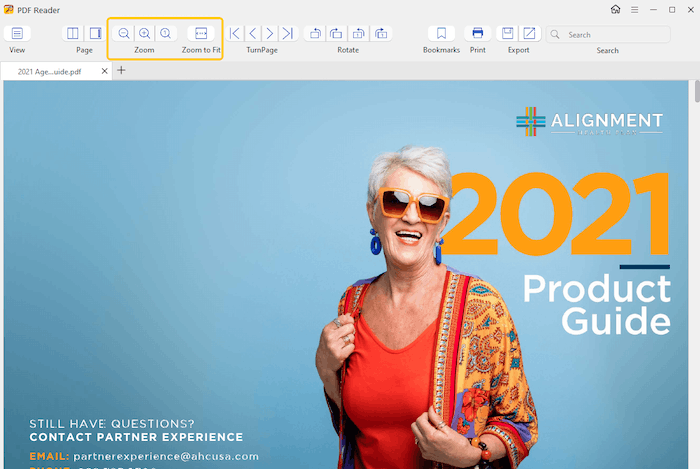
You can adjust the document size to view content more clearly. Cisdem Document Reader provides several zoom options:
- Zoom in
- Zoom out
- Zoom actual size
- Zoom to fit
Zoom In and Zoom Out
Use the zoom controls to enlarge or reduce the document view.
This is useful when reading small text, reviewing detailed drawings and checking document layouts.
Zoom Actual Size
It displays the document at its original size based on its actual dimensions.
This mode is useful when you need to view content at its original scale, check the actual size of document elements or review drawings or detailed content more accurately.
Zoom to Fit
Zoom to Fit automatically adjusts the document size so the entire page fits within the application window.
This mode is useful when you want to view the complete page at once, get an overview of the document layout or quickly adjust the view after changing the window size.
3. Navigate Pages
Cisdem Document Reader provides multiple ways to move through documents.
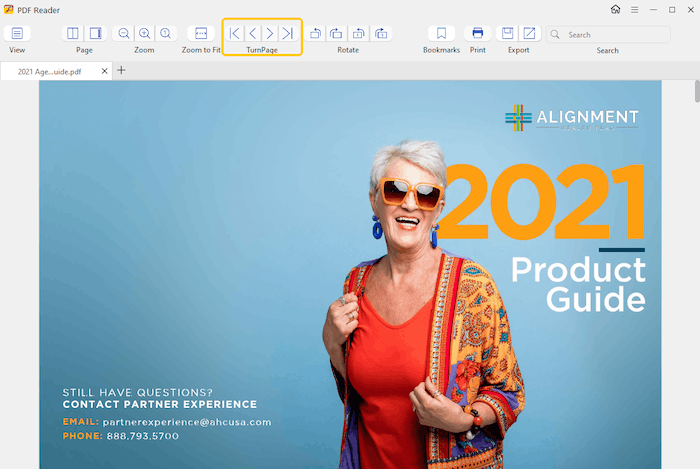
You can navigate pages using Previous and Next Page buttons, First Page and Last Page buttons, scroll navigation and Thumbnail navigation.
4. Rotate Documents
Cisdem Document Reader allows you to rotate documents for a more convenient viewing angle.
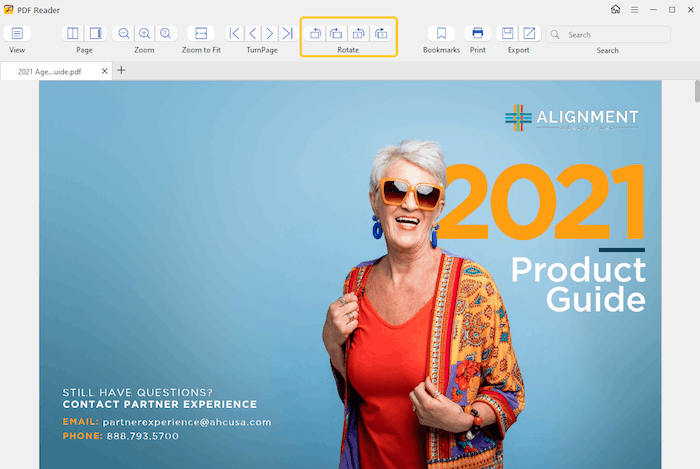
To rotate a document, just click the Rotate buttons on the toolbar. You can select clockwise or counterclockwise rotation, you can also choose rotate the current page or all pages.
Rotation is useful when viewing scanned documents, drawings, or pages with different orientations.
5. Search Document Content
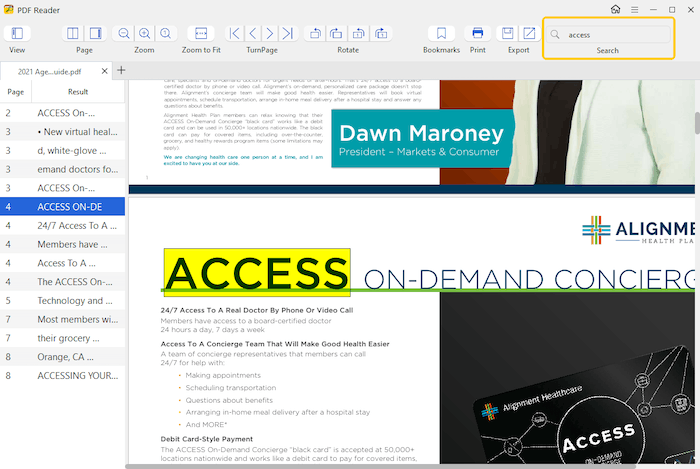
The search feature helps you quickly find specific words or phrases inside supported documents.
To search content, just enter a keyword or phrase in the search bar and press Enter to search.
Search results will highlight matching content, allowing you to quickly locate important information.
6. Use Bookmarks
Bookmarks allow you to save important pages and return to them quickly.
To add a bookmark:
- Open the page you want to save.
- Click
 .
. - Add the current page to your bookmarks.
To access bookmarked pages:
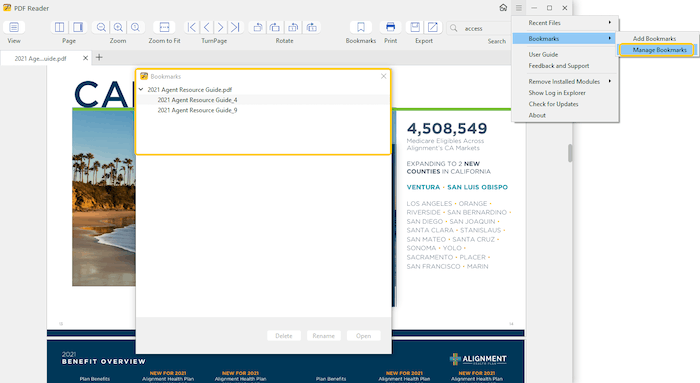
- Click
 > Bookmarks > Manage Bookmarks on the top menu bar.
 - Select a bookmark.
- Click Open and jump directly to the saved page.
Bookmarks are useful for:
- Frequently accessed pages
- Important sections
- Reference documents
7. Use Multi-Tab View
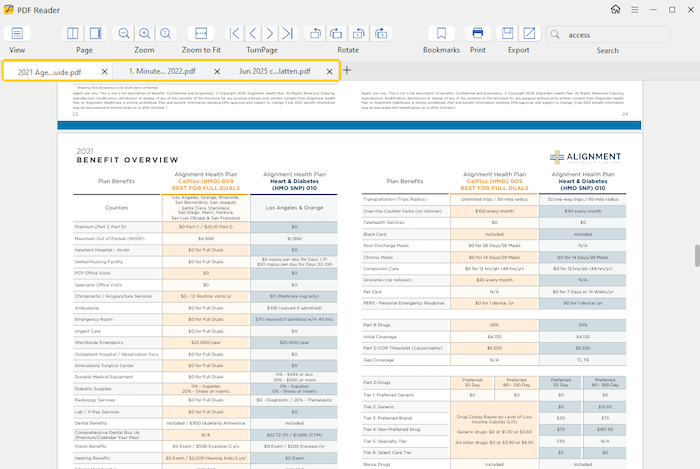
Cisdem Document Reader supports opening multiple documents in different tabs, making it easier to work with several files at the same time.
With multi-tab view, you can:
- Open multiple documents simultaneously
- Switch between files quickly
- Compare information between documents
8. Print Documents
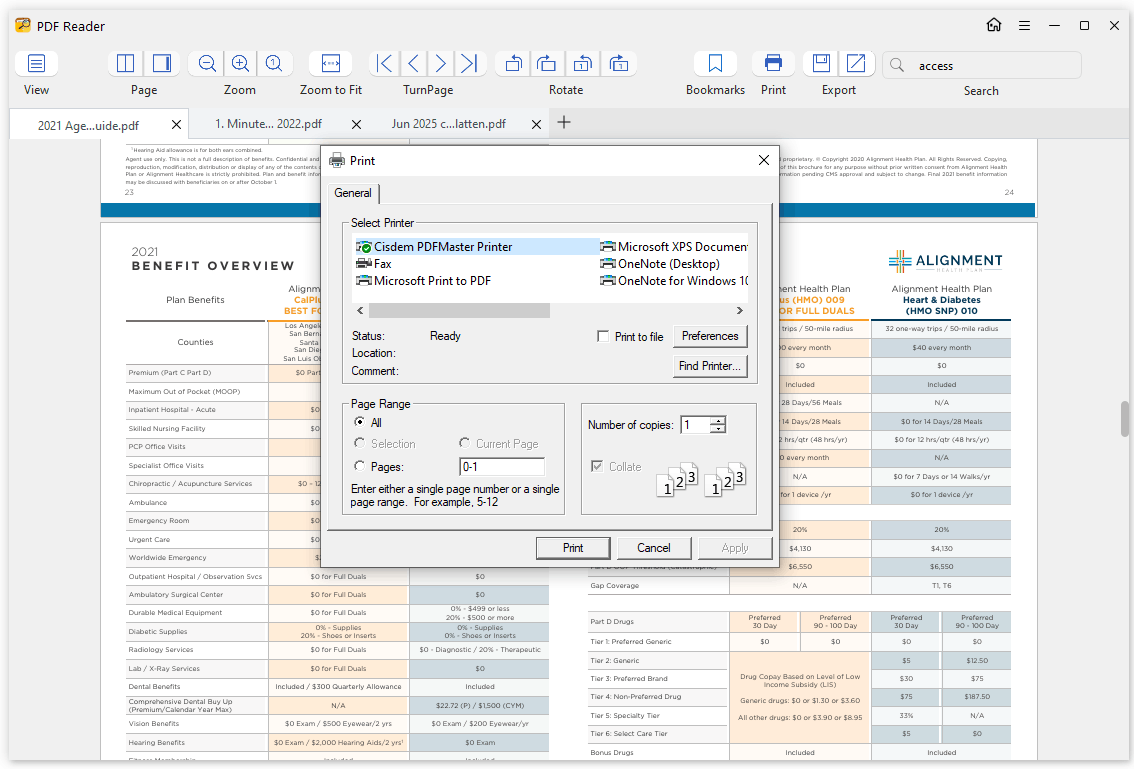
Cisdem Document Reader allows you to print supported documents directly from the application.
To print a document:
- Open the document.
- Click
 .
. - Select your printer settings.
- Click Print.
Use PST Reader
Open PST Files Without Outlook
PST Reader allows you to open Outlook PST archives without installing Microsoft Outlook.
You can view:
- Emails and Attachments
- Calendar
- Contacts
- Journal
- Notes
- Tasks
Convert PST Files to Other Formats
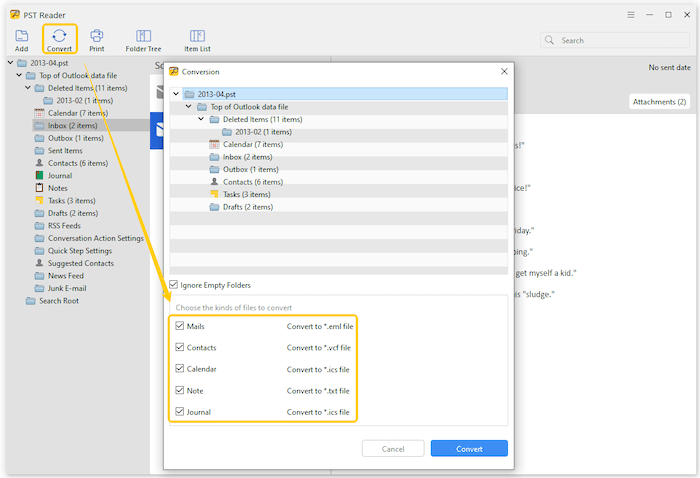
You can convert PST files into different formats, including Mails(.EML), Contacts(.VCF), Canlendar(.ICS), Note (.TXT), Journal(.ICS)
Steps:
- Open a PST file.
- Click Convert.
- Choose the files that you want to convert
- Select the destination folder.
Use DXF Reader
Open DXF Drawings Without AutoCAD
DXF Viewer allows you to review CAD drawings without installing professional CAD software.
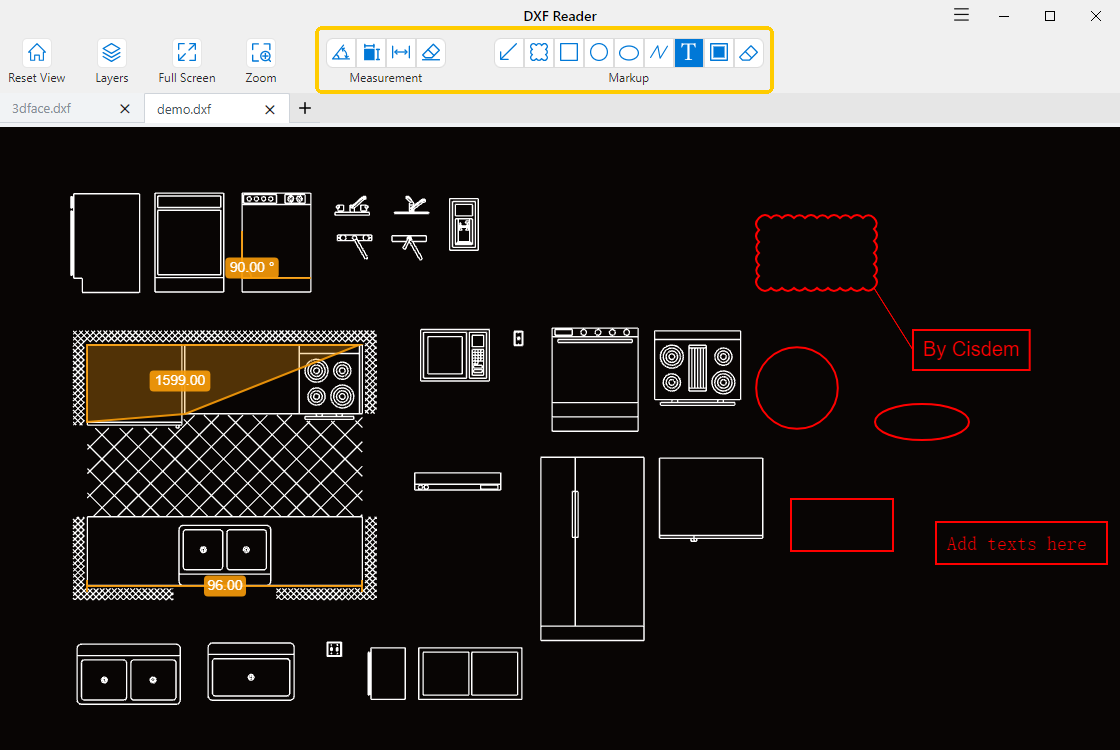
Measure Areas or distances in DXF Files
To measure an area or distance:
- Select a measurement tool.
- Move your mouse to mark the areas or distances you want to measure.
- View the measurement result.
Add Markups to DXF Drawings
You can add markups to DXF files for review and collaboration.
Steps:
- Select a markup shape.
- Click on the target place and move your mouse to adjust the markup size.
- Save your work.
Use DjVu Reader
Open DjVu Documents
DjVu Reader allows you to view DjVu files while preserving their original formatting.
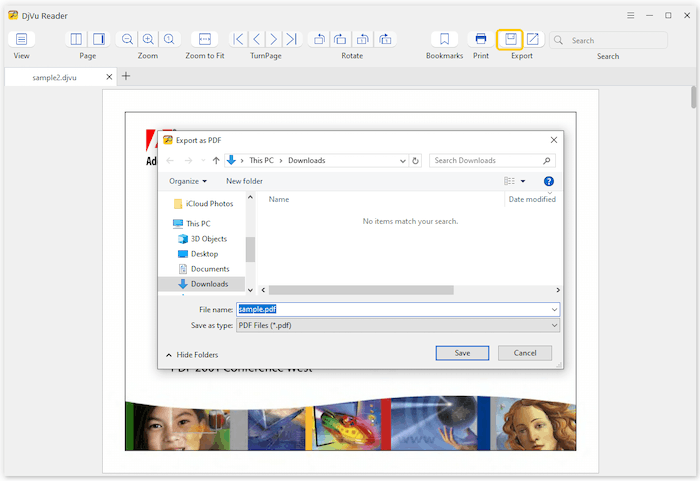
Convert DjVu to PDF
You can convert DjVu file to PDF format for easier sharing. Just click  , enter a name for the created PDF and click Save.
Extract Images from DjVu
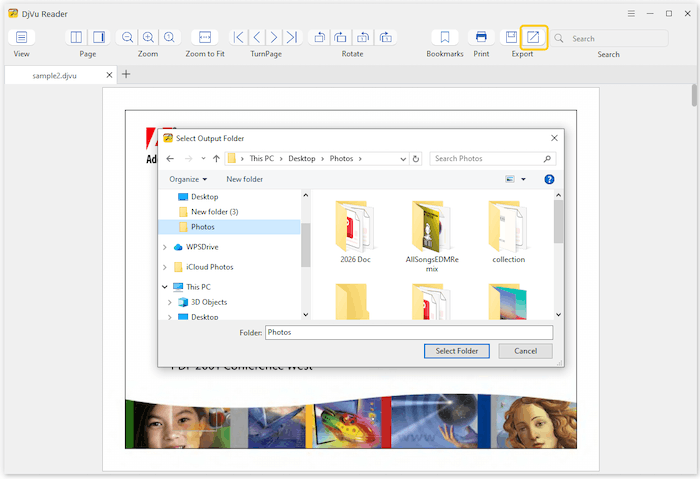
You can extract all images from your DjVu file with one click. Just click  and select a location to save all the extracted images.
Use Winmail Viewer
Open Winmail.dat Files
Winmail Viewer allows you to access the contents of winmail.dat files.
Extract and Save Attachments from Winmail.dat
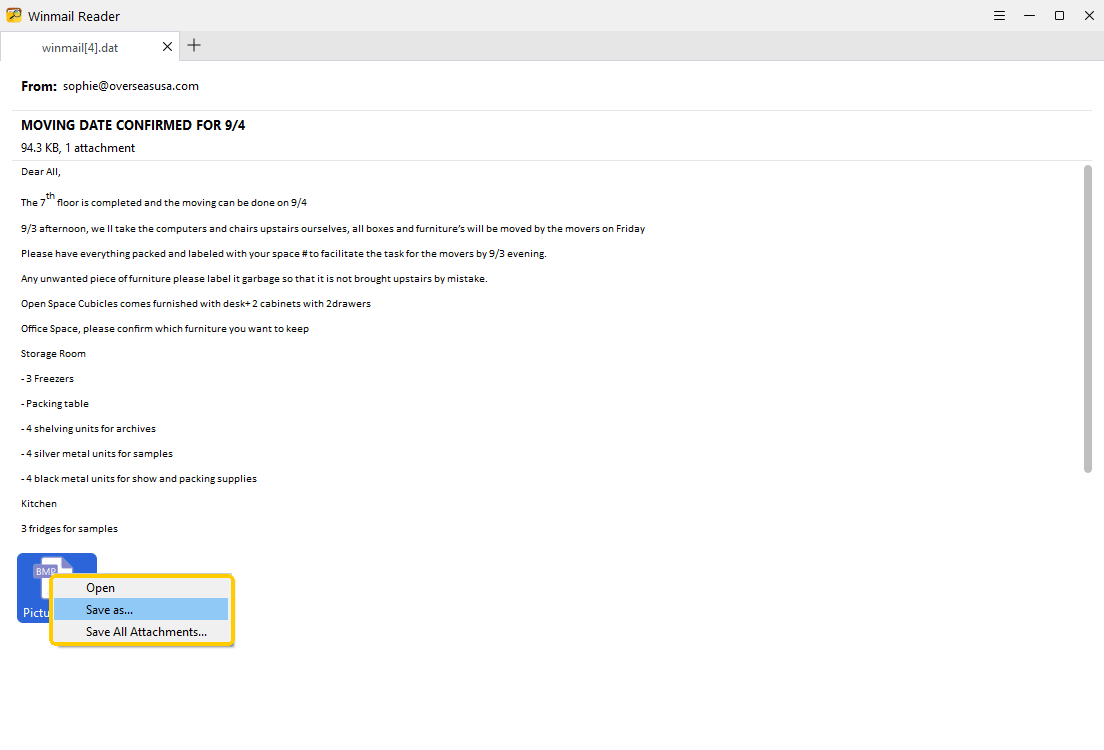
You can open and save the attachments on your preferred location. Just right click the attachment and choose Open, Save as or Save All Attachments.
Update Cisdem Document Reader
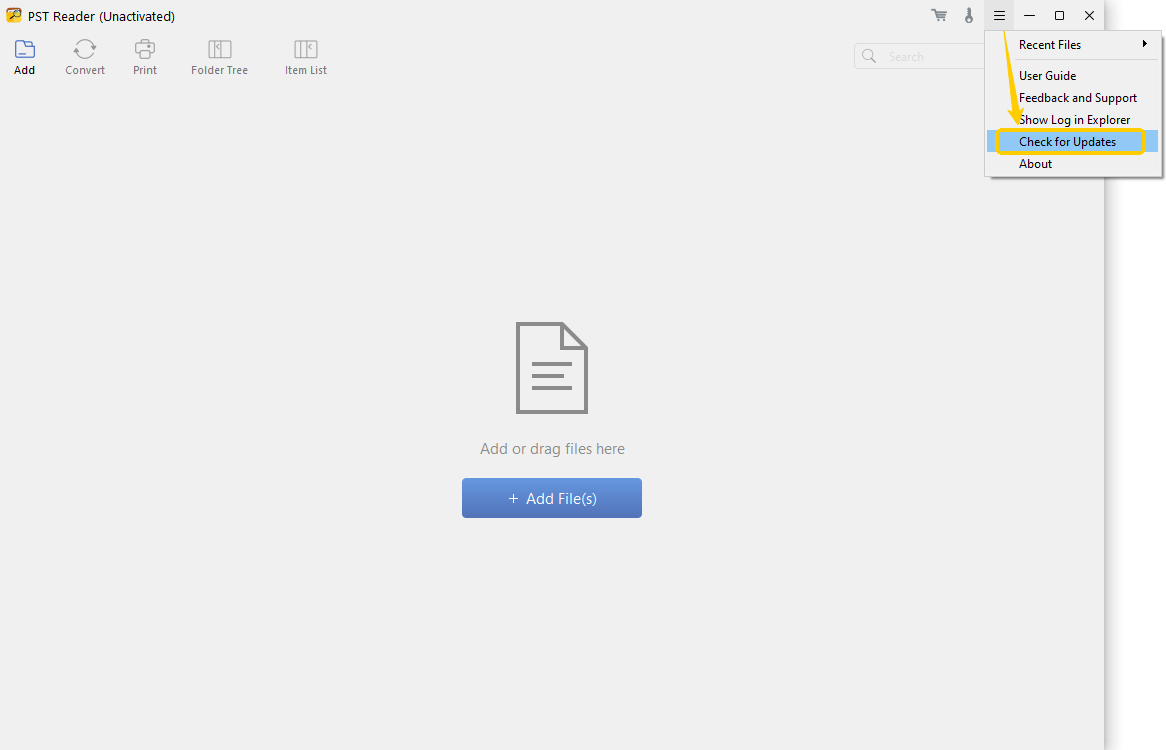
Same as activation, each file format reader needs to be updated separately. Go to the section for the specific file format, then click  > Check for Updates. If you’re not using the latest version, you’ll be prompted to update to it.

Traci Gordon has worked as a tester in a software company for 8 years, she believes that the best software should be a tool that can help users accomplish what they need with the simplest steps.

Liam Liu takes charge of the entire PDF product line at Cisdem and serves as the technical approver for all related editorial content. He has deep expertise in PDF and document management technologies and nearly a decade of development experience.