


PhotoSweeper Review: The Facts and How-to Guide
 10.6K
10.6K
 0
0


If you take and manage many photos, you probably know how annoying duplicate photos can be. What is the easiest way to remove them? You might be wondering. The most efficient solution is to use a duplicate photo finder app.
Here's my review of PhotoSweeper, a popular duplicate photo finder, which can help you decide whether it's the right tool for you. The article also provides instructions on how to use PhotoSweeper.
 Cisdem Duplicate Finder
A PhotoSweeper Alternative that Supports All File Type
- Available for Mac and Windows
- Identify duplicate photos, videos, documents, audio files, and all other files
- Detect similar images, allowing you to adjust the similarity threshold for comparing images
- Support Mac, Windows PC, external storage devices, and more
- Find duplicate files in folders, Mac's Photos, Apple's Music, and iTunes
- Offer 3 mode to view duplicates, including a side-by-side one
- Automatically select all but one file for deletion in each set of duplicates, enabling you to remove all duplicates at once
- Allow you to adjust selections manually, or choose from 8 rules (e.g., Select Newest, Select by Priority, and Select Smallest)
- Easy to use for everyone
- Customizable, letting you take control


PhotoSweeper review
PhotoSweeper is a Mac-only app that finds and removes duplicate and similar images. It helps you delete duplicate videos as well.
Installation
You can download PhotoSweeper from its official website and the Mac App Store. The latest version is 5.4.1, which was released on February 24, 2026. The installation package is 58.4 MB in size.
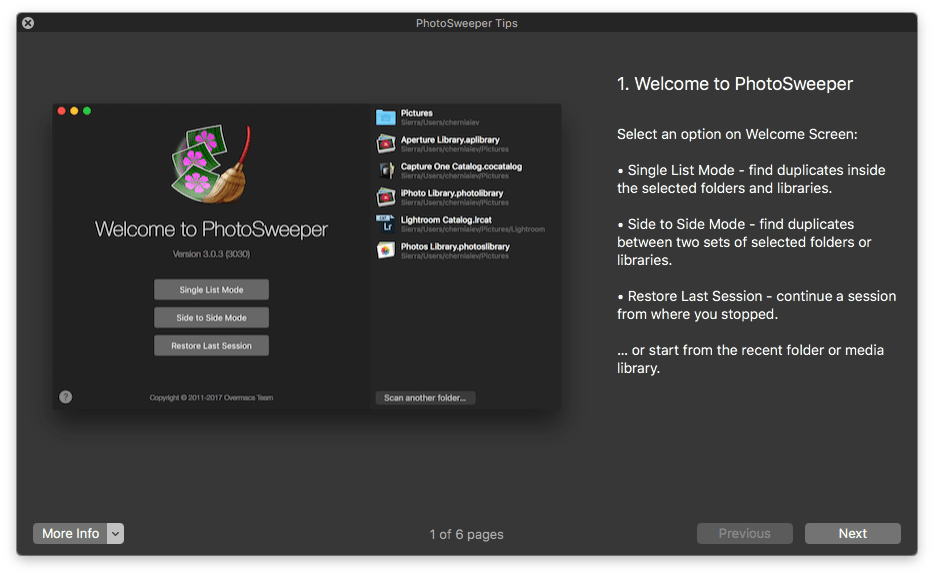
PhotoSweeper does a good job of doing what it's designed for, but it's not very user-friendly, especially when compared to some alternatives. The good news is users will see a welcome screen with helpful tips on how to use the app.
Interface
PhotoSweeper has a dark interface, and no light theme is available. Honestly, I prefer a light theme.
What interface you will see depends on which mode you choose. On the Welcome screen, you will be guided to choose from 3 modes: Single List Mode, Side to Side Mode, and Restore Last Session.
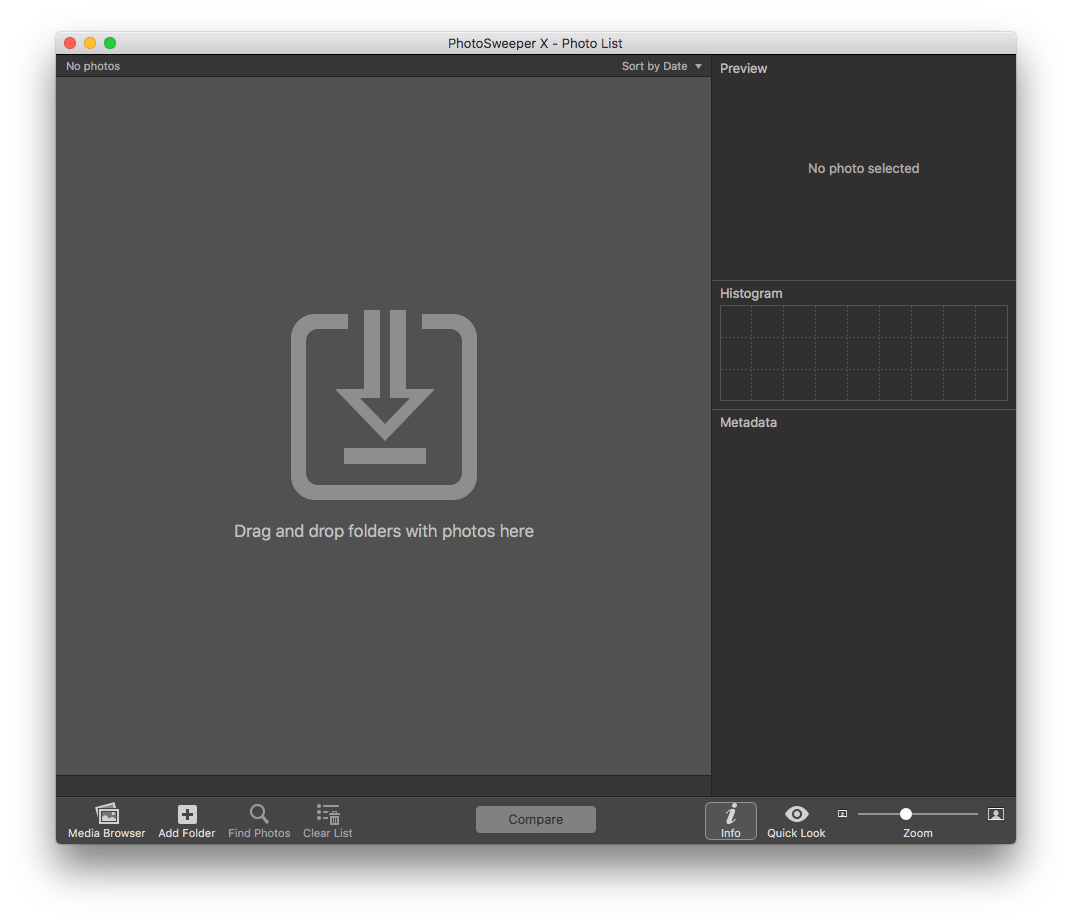
- Single List mode
It allows users to find duplicates in a certain location. You can drag and drop a folder to the interface, then use the app compare photos from this single folder.![single list mode]()
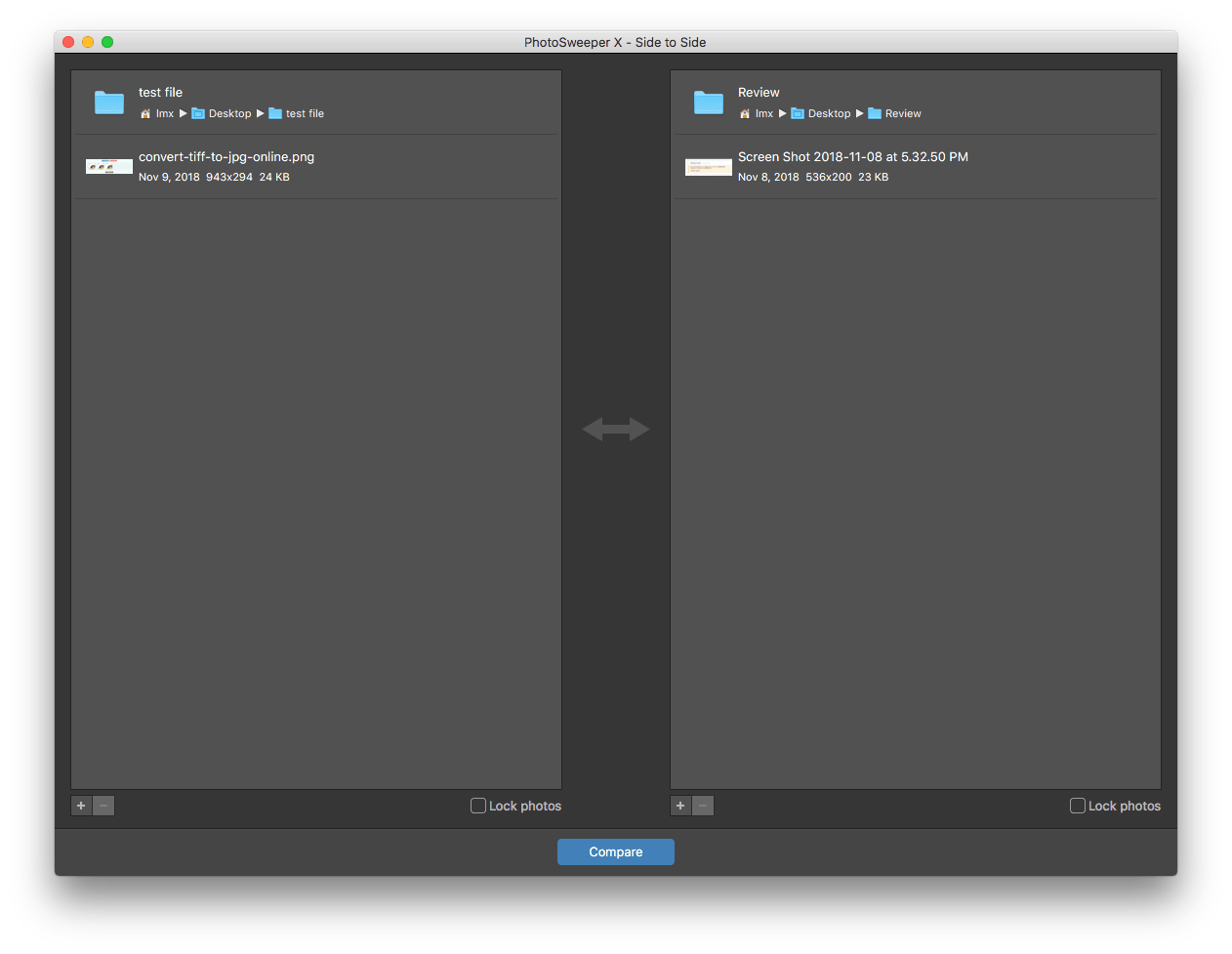
- Side to Side mode
With this mode, you can compare folders for duplicates. You can drag and drop a folder or image into each side of this window, and the app will compare photos and find duplicates between the two folders or images.![side to side mode]()
- Restore Last Session
By choosing this mode, the program will restore photos and comparison results from the previous session. It will either be Single List Mode or Side to Side Mode.
Filter photos
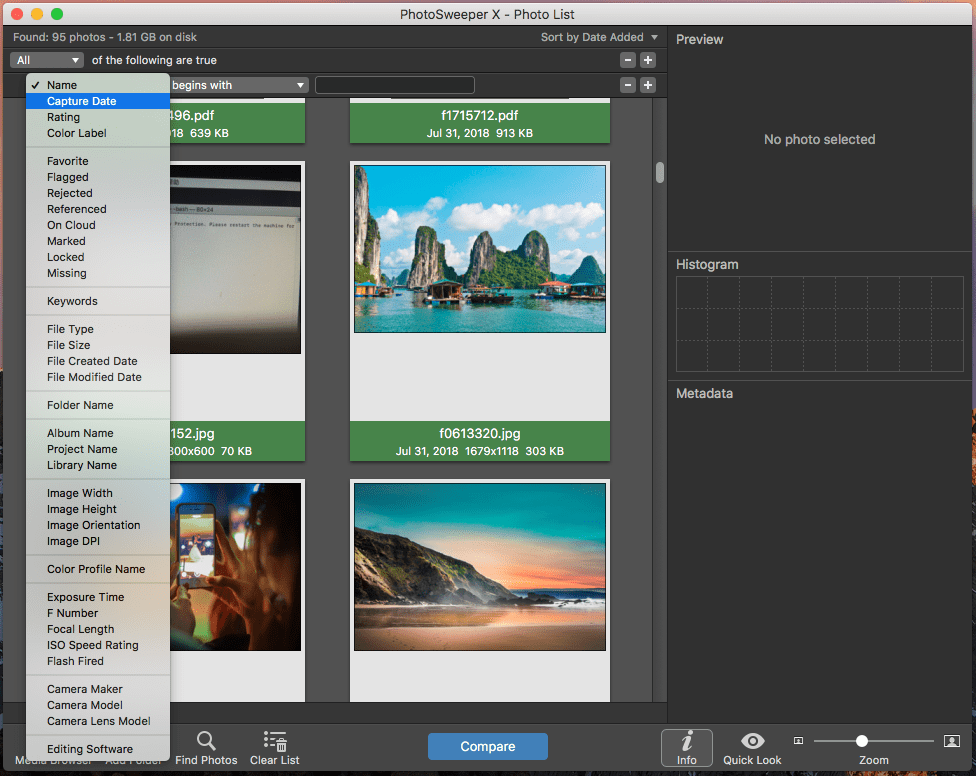
After you add a folder to PhotoSweeper, all photos from it will be displayed on the interface, and you can start comparing these photos to find duplicates. However, what if you don't want to compare all photos?
In such a case, you can use the Find Photos feature, which acts like the filter feature in many other duplicate file finders but is more sophisticated. There are a wide variety of filter criteria, such as name, date, format, size, and many more.
Compare photos
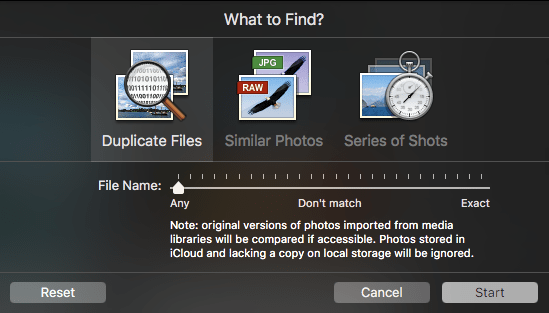
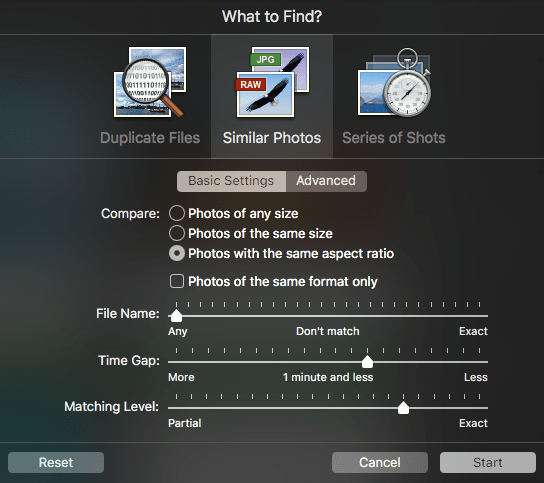
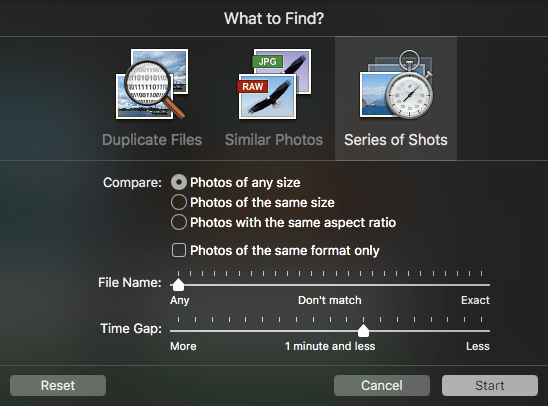
PhotoSweeper provides three modes to help users find duplicate and similar photos, allowing users to customize each mode based on their specific needs.
- Duplicate Files
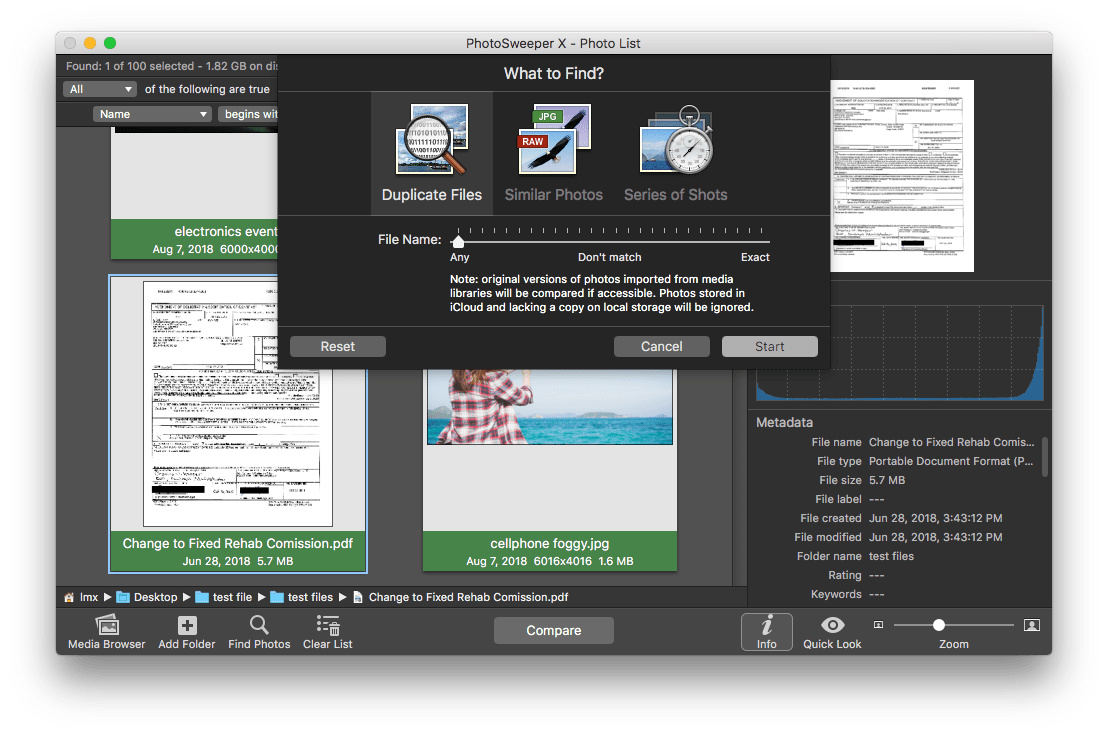
This mode is dedicated to finding duplicate photos and videos. You can decide whether to consider file names when identifying duplicates. I recommend ignoring file names.![duplicate files]()
- Similar Photos
This mode can find both identical and similar photos. You can customize settings to get more desirable results. For example, by adjusting the Matching Level, you can control how similar the detected photos will be.![similar photos]()
- Series of Shots
We often take pictures using continuous shooting mode with the intention to choose the best shot later. The Series of Shots is effective for finding and grouping those burst mode photos. In each set, you can easily keep the best shot(s).![series of shots]()
Delete duplicates
- Mark duplicates
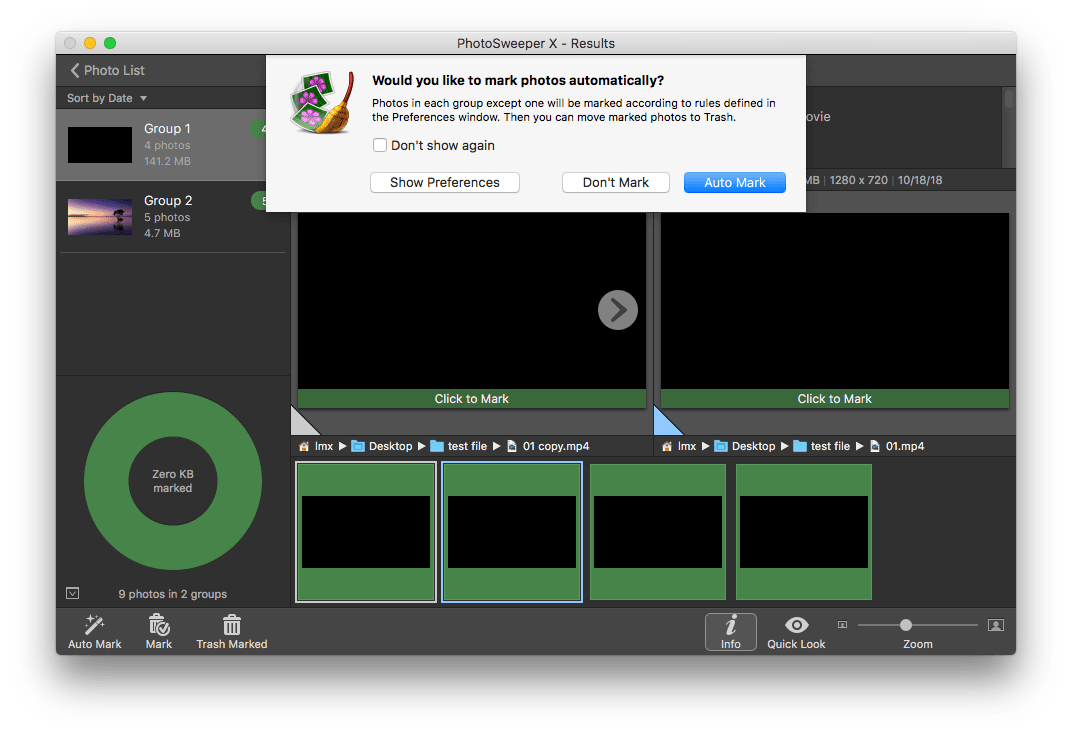
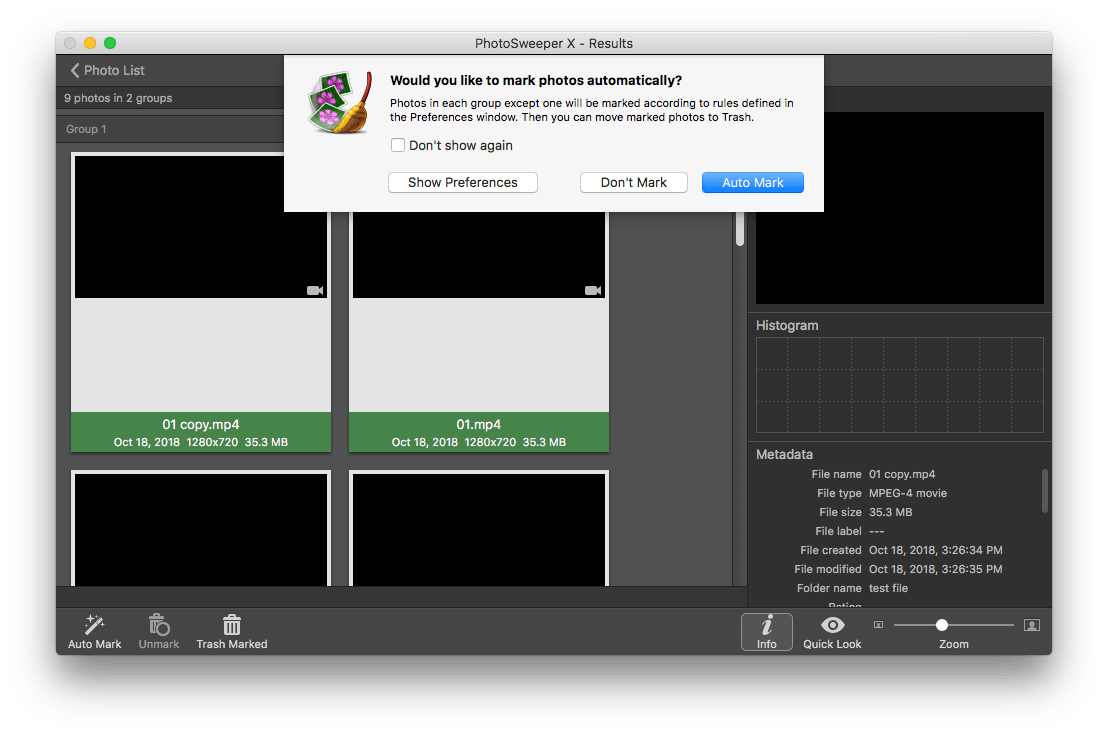
Once you have clicked on the “Start” button to process the comparing, PhotoSweeper will prompt you to mark the photos for removal. You can auto mark according to preset preferences, or manually mark one by one later.![mark]()
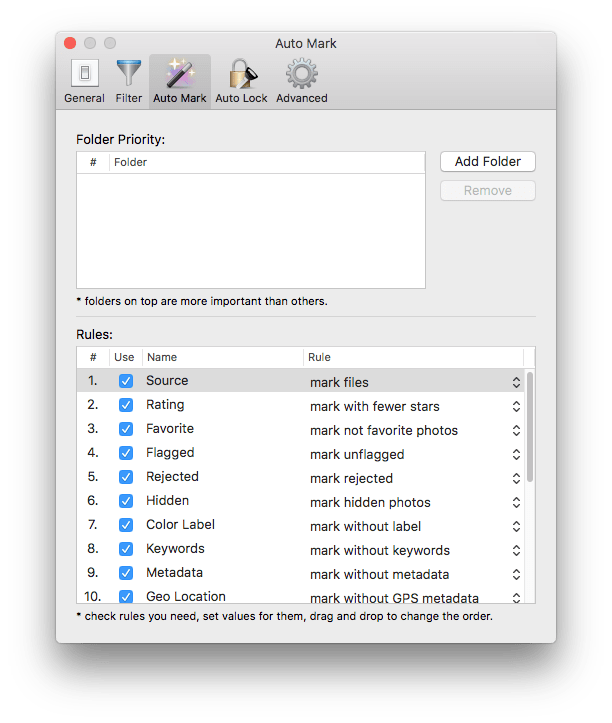
For Auto Mark, you need to check the rules for auto mark by clicking on “Show Preferences”, then tweak according to your personal needs.![auto-mark]()
- Preview duplicates
There are 3 modes to preview the found duplicates:
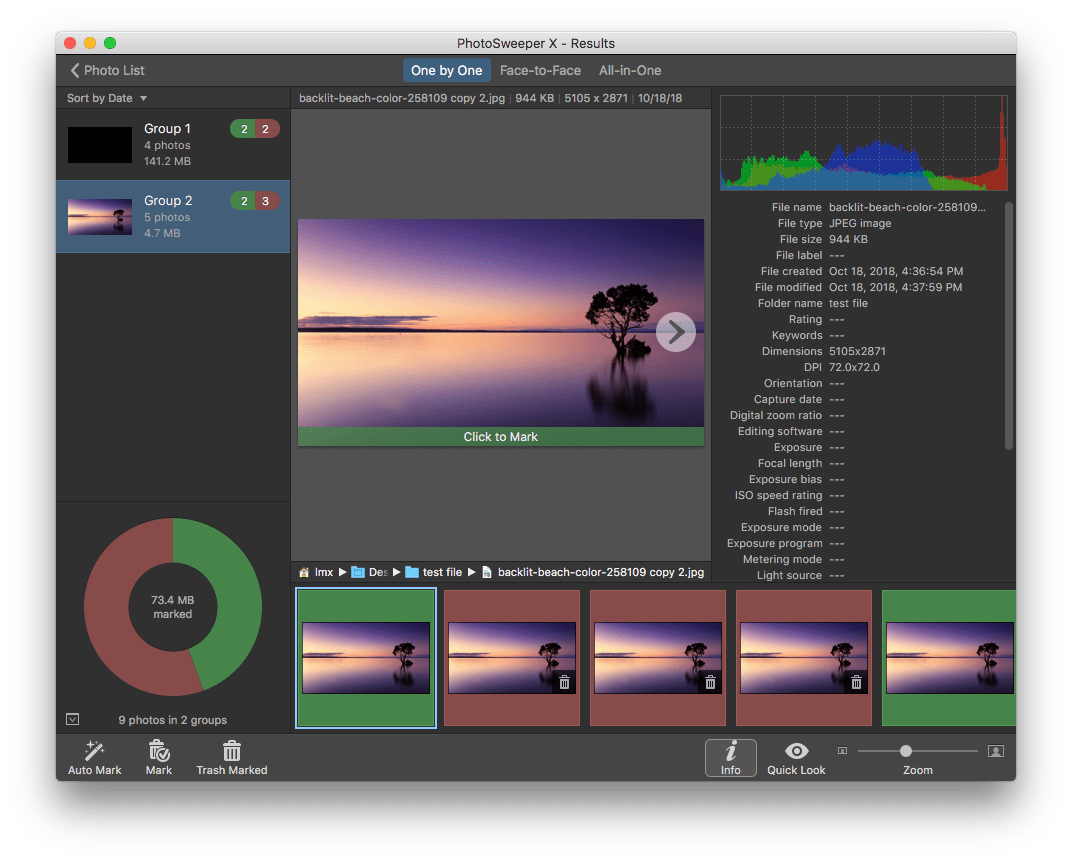
1. One by One: preview duplicate files one by one![one by one]()
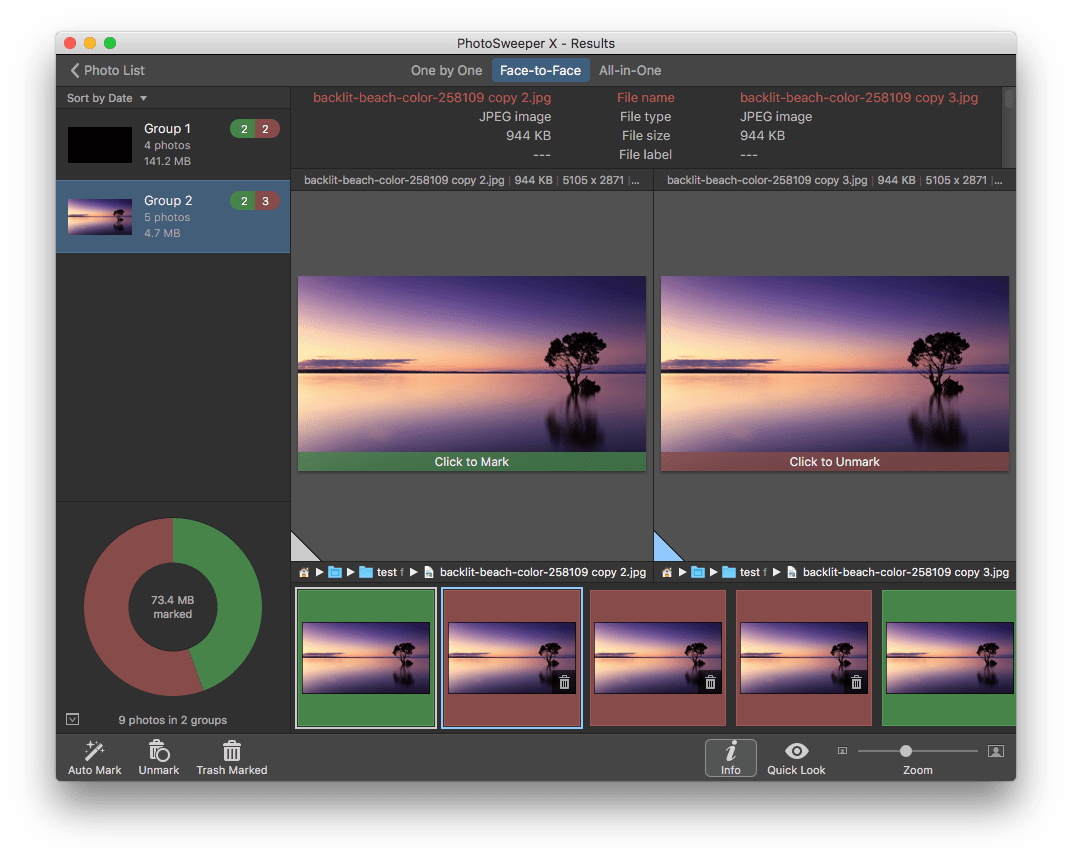
2. Face-to-Face: preview and compare 2 photos at the same time, then mark the one you want to delete![face to face]() 3. All-in-One: preview all the duplicate files in the same window, this is convenient when you have to preview a lot of duplicates.
3. All-in-One: preview all the duplicate files in the same window, this is convenient when you have to preview a lot of duplicates.![all in one]()
- Delete duplicates to Trash
PhotoSweeper delete duplicates to trash bin and those removed duplicated won’t be permanently deleted. This feature allows users to restore the deleted duplicates if they accidentally deleted some photos.
 3. All-in-One: preview all the duplicate files in the same window, this is convenient when you have to preview a lot of duplicates.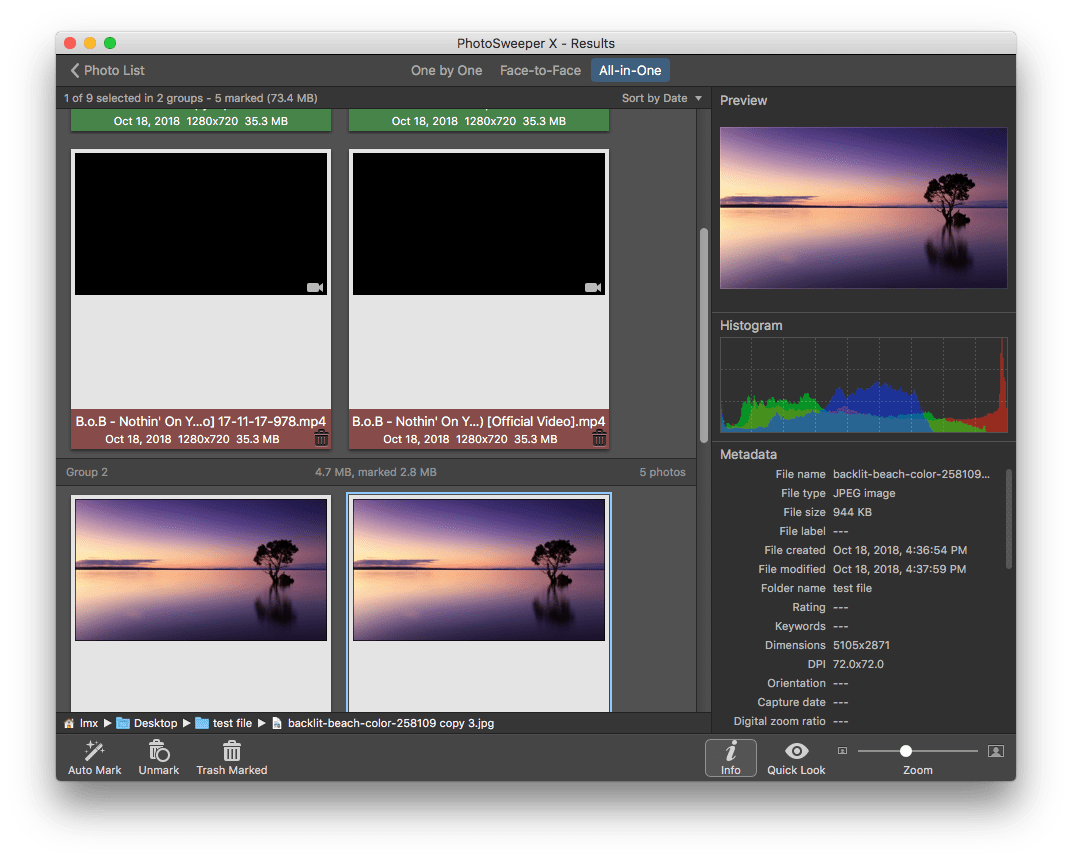
Free trial and purchase
PhotoSweeper offers free 30-day trial version before any commercial decisions, and only 10 photos can be removed for free. If you need the full service, you will have to pay $14.99 to get a license.
Pros & Cons
Advantages:
- Find identical and similar photos
- Provide 2 modes for users to choose from
- Offer 3 helpful modes for viewing photos, along with metadata and histogram information
- Save users from manually selecting duplicates for deletion by providing a powerful Auto Mark feature
- Support folders and Mac's Photos app
- Very customizable
Disadvantages:
- Only support photos and videos input
- Require learning curve to utilize its features
- Poor performance on finding video duplicates, doesn’t support video preview
- Lack a light theme
Perfectly suitable for
This program is perfectly suitable for users who have some advanced skills to work with a desktop program, and need to find duplicates from a great many of photos, since this program is exclusively to find and delete duplicates photos on Mac.
How to use PhotoSweeper on Mac
Step 1. Download and install PhotoSweeper on Mac.
Step 2. Launch the program and choose a mode.
.png)
Step 3. Drag and drop a folder to the program, or add folder directly, or open “Media Browser” to add.
.png)
Step 4. Optionally, click “Find Photos” and tweak the settings to filter photos quickly.
.png)
Step 5. Click “Compare”, choose to find duplicates, or similar files or choose from series of shots.
Step 6. Click “Start” to comparing, then Auto Mark the photos you want to delete, or Don’t mark to manually add later.
Step 7. Finally click “Trash Marked” to remove those duplicates you have marked within the program.
PhotoSweeper vs. Duplicate Annihilator vs. Cisdem Duplicate Finder
Besides PhotoSweeper, there are other excellent programs to find and delete duplicate photos on a Mac, such as Duplicate Annihilator for Photos and Cisdem Duplicate Finder for Mac, they all are top-rated and support the latest macOS version.
Duplicate Annihilator
Duplicate Annihilator created by Brattoo Propaganda, offers a series of duplicate finders, including Duplicate Annihilator for Photos, Duplicate Annihilator for iPhoto, Duplicate Annihilator for iOS and Duplicate Annihilator for Aperture, which designed for different photo storage device or application.
As for Duplicate Annihilator, it is a Mac program helping users to find and analyze duplicate photos in Photos library.
Advantages:
- Easy to use
- Low price at $7.95
- Allow to configure algorithm to find duplicates
Disadvantages:
- Only applicable for finding duplicates in Photos Library
- Manually search duplicate in Photos
- Only remove duplicates to Trash Bin
Cisdem Duplicate Finder
Cisdem Duplicate Finder is available for both Mac and Windows PC. Its Mac version can find and remove duplicate photos, videos, documents, audios, archives, etc from internal or external storage device. With 3 steps, scan-report-delete, users can easily remove duplicates permanently or to trash bin. Also, users can find similar photos with this program.
Advantages:
- Find duplicate pictures, audios, videos, archives, packages, documents, etc.
- Delete duplicates on Mac's internal storage and external storage devices
- Remove dupes from Photos and iPhoto libraries
- Scan for duplicates by file content
- Also let you choose to scan by filename
- Allow you to exclude folders and files from scan
- Enable you to preview and compare image side by side
- Auto-select duplicates for you to bulk delete with 1 click
- Offer 3 ways to handle duplicates: Move to Trash, Move to Folder, Delete Permanently
Disadvantages:
- None
PhotoSweeper vs. Duplicate Annihilator vs. Cisdem Duplicate Finder
| Easy to Use | Support Files | Support Internal & External Disk | Find Similar Photos | Preview | Deletion Modes | Accuracy | |
|---|---|---|---|---|---|---|---|
| Cisdem Duplicate Finder | Yes | Photos, Videos, Audios, Archives, Documents, etc | Yes | Yes | Yes | 3 | High |
| PhotoSweeper | No | Photos | Yes | Yes | Yes | 1(to trash) | High |
| Duplicate Annihilator | Yes | Photos | No | No | No | 1(to trash) | Medium |
According to above, we can conclude that, for users who want need to deal with tremendous quantity of photos, PhotoSweeper is the choice, but if you want to find various duplicate files or are looking for a solution simple yet efficient, Cisdem Duplicate Finder is worth a try.
Looking for PhotoSweeper for Windows?
Here's the scenario. You like PhotoSweeper, but you are using a Windows PC instead. And the fact is that PhotoSweeper doesn't have a Windows version.
You can check out its alternative that has a Windows version, like Cisdem Duplicate Finder. Cisdem Duplicate Finder can help Windows users quickly identify and remove duplicate and similar photos along with other duplicate files. In addition to your computer's hard drive, it supports cloud drives like OneDrive and Dropbox.
Conclusion
PhotoSweeper is absolutely a great tool for advanced users who have to deal with a lot of photos, but deal with duplicate photos only. If you want a tool to do the job in a simple and easy way, or need to find duplicate videos, audios or other documents, you can try others that on our recommendation list.

With a passion for tech and writing, Sarah joined Cisdem, where she focuses on creating articles about using utility tools to enhance file management and simplify contact management.

Adrian Li is Cisdem’s Chief Engineer and serves as the editorial advisor for Duplicate Finder and ContactsMate. His work and insights have been featured in leading tech publications such as Fossbytes, TUAW, Redmond Pie, SafetyDetectives, and BestForAndroid.