


How to Reduce PDF File Size on Mac (below 1MB) in 2026?
 237.9K
 3
3


Preview is positively the most convenient and reliable tool to compress a PDF file on Mac. If you are looking for detailed steps of using Preview to reduce PDF file size and get to know how good the compression result would be, or you are seeking for better solutions when Preview did not deliver a satisfying result, this guide includes additional tools, step-by-step process, and test results.
 Cisdem PDF Compressor
Reduce PDF File Size on Mac Efficiently
- Compress PDFs with maximum reduction (1MB, KB, etc.)
- Provides 4 compression modes: small, medium, large, custom
- Apply a specific compression mode to all files
- Compress hundreds of PDF files at a time
- Reduce PDF file size without losing quality
- Support password-protected PDF files
- Fast compression speed

How We Tested the PDF Compressors
To help you find which available option works best at reducing PDF file size, we tested PDF compressor tools using different PDF files each with different size and content.
① Number 1 test PDF: A 4.4 MB sized PDF that has 1294 pages and only contains text.
② Number 2 test PDF: A 4.6 MB sized PDF that has 198 pages and its content has both images and text.
③ Number 3 test PDF: A 9.4 MB sized PDF that has 20 pages and only contains images.
④ Number 4 test PDF: A 60 MB sized PDF that has 117 pages and its content has both text and images.
⑤ Number 5 test PDF: A 4.6 MB sized PDF that has 543 pages and is mostly text based, has no images.
⑥ Number 6 test PDF: A 3.6 MB sized PDF that has 60 pages and its content has both images and text.
⑦ Number 7 test PDF: A 55.1 MB sized PDF that has 23 pages and its content is mostly images.
1# Preview --- Reduce PDF File Size on Mac Free
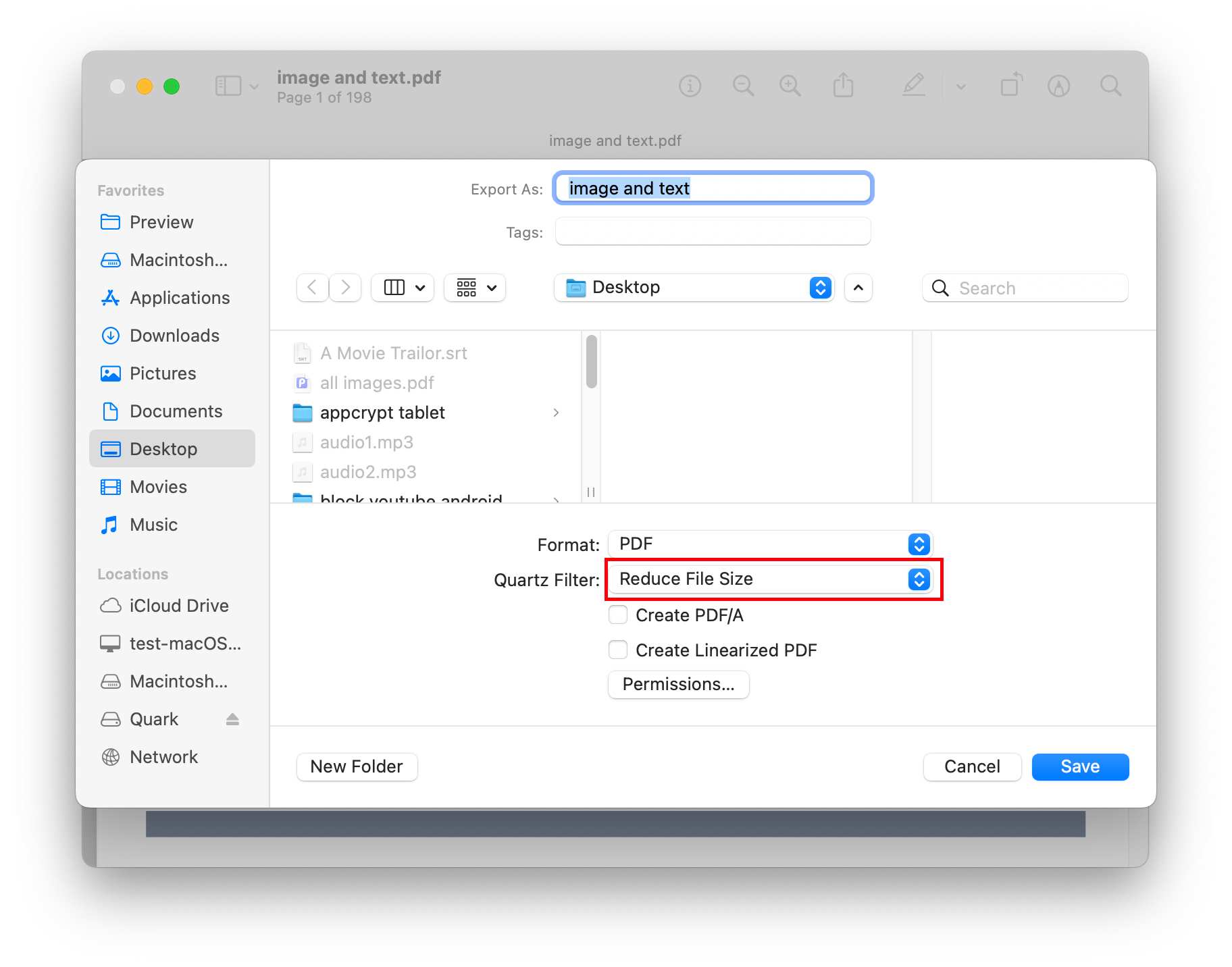
A Mac is designed to boost productivity both in life and work, so it is quite reasonable that some powerful applications come with macOS for totally free. Among these apps, there are 2 tools that can reduce PDF file size on Mac for free. Preview is one of them. It is a free Mac program developed to view and manage PDFs or images. With 3 steps, Preview can get your PDF file size reduced.
- Open your PDF with Preview.
- Go to File > Export > Quartz Filter, choose Reduce File Size.
![reduce pdf file size mac preview]()
- Click Save.
Test Result of Reducing PDF Size with Preview
File size after compression:
Number 1 test PDF: 4.4MB - 2.3MB (↓47.7%)
Number 2 test PDF: 4.6MB - 5.8MB (↓-26%)
Number 3 test PDF: 9.4MB - 1.3MB (↓86.1%)
Quality after compression:
In our test, the file size sometimes even increases after using the feature of “Reduce File Size” in Preview. Yet, what surprises us is that, although it has increased the size of the PDF file, the quality of the output PDF file is still damaged and images in PDF are less clear than the original.
Disadvantages:
- File quality is lost to some extent
- Doesn't work on PDFs with complicated elements (images, texts, tables, etc.)
- Cannot batch reduce pdf file size on Mac.
2# Colorsync --- Compress PDF on Mac for 100% Free
Another Mac tool to compress PDF for free is ColorSync. It is a color management system, helping users to modify an image by adding effect, tweaking color space, adjusting colors or brightness, etc. Like Preview, it builds in Reduce File Size filter to compress a PDF on Mac.
- Go to Finder > Applications, and open ColorSync Utility.
![reduce pdf size mac free01]()
- Go to File > Open to upload a PDF into the program.
![reduce pdf size mac free02]()
- In the Filter menu, choose Reduce File Size, then click Apply.
![reduce pdf size mac free03]()
- Go to File > Save As, rename the compressed PDF and click Save to reduce PDF file size.
![reduce pdf size mac free04]()


Test Result of Reducing PDF Size with ColorSync
File size after compression:
Number 1 test PDF: 4.4MB - 2.2MB (↓50%)
Number 2 test PDF: 4.6MB - 5.5MB (↓-19.6%)
Number 3 test PDF: 9.4MB - 1.3MB (↓86.1%)
Quality after compression:
Sometimes, the compressed PDF file size may be larger than the original PDF, while the quality is still poorer than before. According to our test, it gives almost the same results as Preview, from compression time to file size and quality after compression.
Disadvantages:
- File quality can be easily sacrificed.
- Doesn't work on PDFs with complicate elements(images, texts, tables, etc.).
- Doesn't support batch compressing.
- It takes several steps to compress a PDF.
3# Ghostscript --- How to Reduce PDF Size on Mac Using Command
An extended way to reduce PDF file size on Mac free and offline is using command line. Here we need to use Ghostscript, a standalone command line application and interpreter for the PostScript language and PDF documents. Ghostscript’s standpoints include file compression, file conversion with OCR technology, color management, printing, etc. Now, follow our steps and try this way if you are not new to the command line.
- First, use brew to install Ghostscript program on your Mac:
brew install ghostscript - Now, you can compress the PDF file using the following command line:
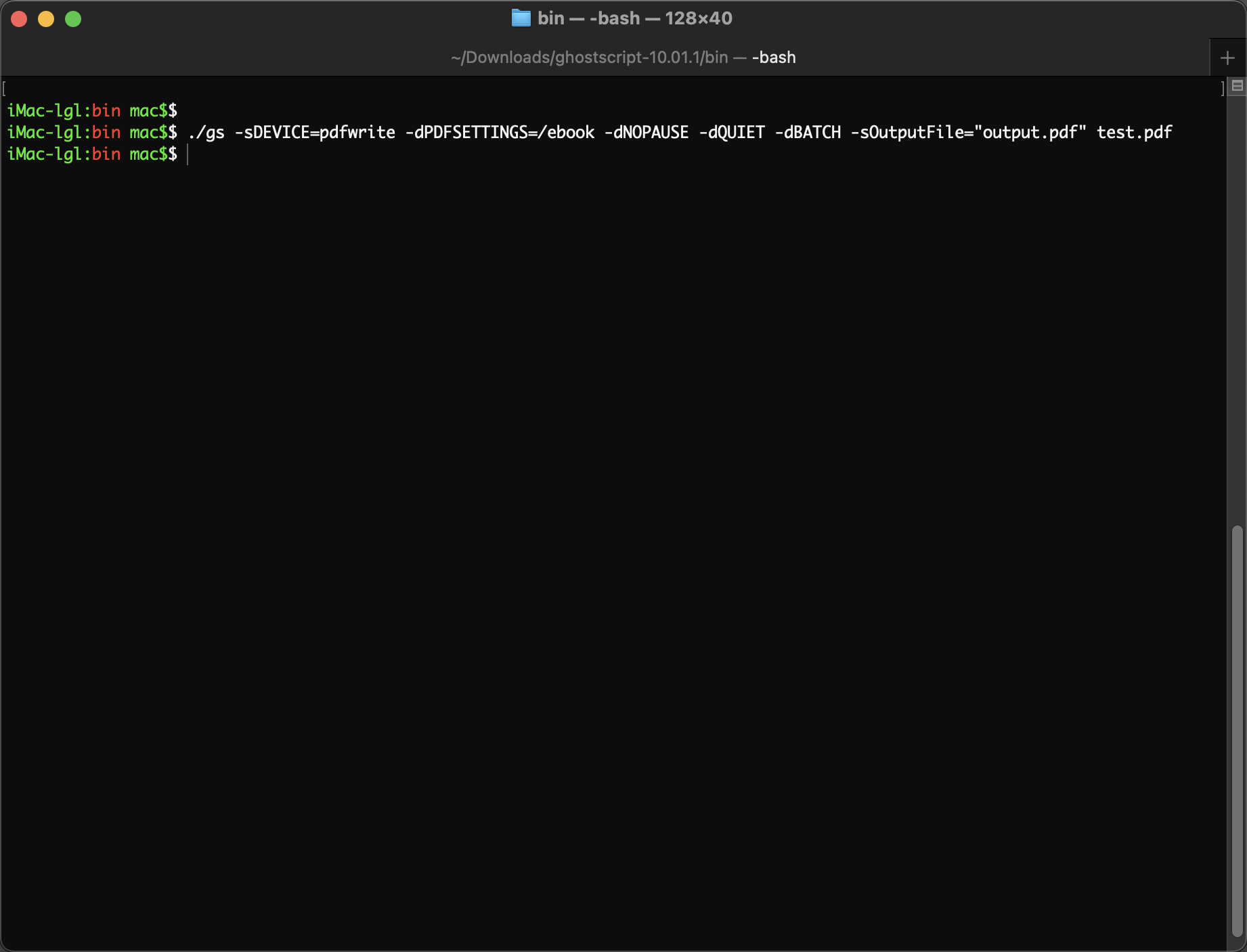
ghostscript -sDEVICE=pdfwrite -dPDFSETTINGS=/ebook -dNOPAUSE -dQUIET -dBATCH -sOutputFile="output.pdf" input.pdf![reduce file size mac command1]()
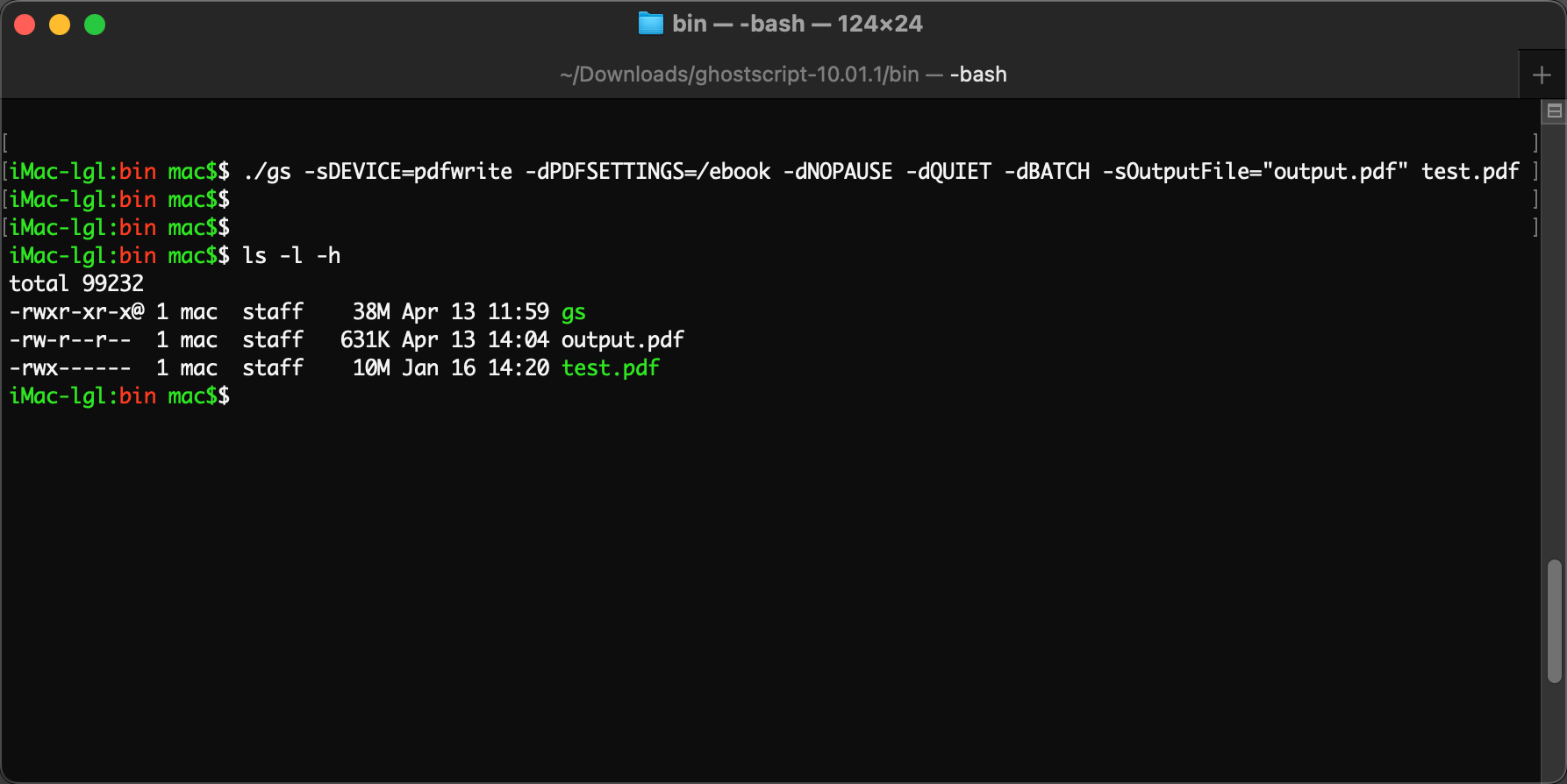
- Pay attention that you need to replace “input.pdf” with the PDF file that you need to reduce size, and replace “output.pdf” with the path to the output folder on your computer.
![reduce file size mac command2]()
- Then you can find the compressed PDF file in the output folder you set up.
Test Result of Reducing PDF Size with Command
File size after compression:
Number 4 test PDF: 60MB - 3.28MB (↓94.5%)
Quality after compression:
Ghostscript reduces PDF size by degrading image quality, potentially altering structure, fonts, or metadata to preserve visual appearance, so the file quality loss happens very often.
Disadvantages:
- Not user friendly, command basic knowledge is required.
- File quality can be often sacrificed.
- Errors happen when working on PDFs with intricate structures.
4# PDFCompressor --- Batch Compress PDFs on Mac Online
Most online PDF compressors are free, which makes them the most affordable way to compress PDF on Mac. After testing all the online PDF compressors ranked in the top 2 pages of Google results, PDFCompressor finally comes as my favorite online choice. It can compress a PDF file as small as possible, also supports to reduce a single or up to 20 PDFs in batch.
- Go to PDFCompressor.
- Drag and drop single or multiple PDF files into the working area. Once the files are uploaded, the compression starts.
![reduce pdf size mac online01]()
- Click Download or Download All to get the reduced PDF files online.

Test Result of Reducing PDF Size with PDFCompressor
File size after compression:
Number 1 test PDF: 4.4MB - 2.1MB (↓52.3%)
Number 2 test PDF: 4.6MB - 2.2MB (↓52.2%)
Number 3 test PDF: 9.4MB - 1.8MB (↓80.8%)
Quality after compression:
Reducing the file size also reduces the image quality. Text-based PDF will maintain quality after compression, while for files containing a lot of images, the images get corrupted and some are even unusable.
Disadvantages:
- Potential risk of information leakage.
- Internet connection and file size will greatly influence the compressing.
- The conversion quality will greatly depend on the file itself, it maybe unstable.
- There isn’t any compression settings.
5# Smallpdf --- Reduce PDF File Size Online with Good Quality
When it comes to online PDF compressor, the most popular is Smallpdf.com. It is the platform that enjoys large popularity to provide various online PDF services. You can upload a single PDF for compression from device, Google Drive or Dropbox. However, a default mode is set for users without subscription--compress imported PDF into medium file size and standard resolution.
Follow the steps to compress PDF on Mac Online with good quality
- Go to Smallpdf.com and choose Compress PDF tool from Tools menu.
![reduce pdf size mac online01]()
- Drag and drop your PDF file to Smallpdf, click Compress.
![reduce pdf size mac online02]()
- After processing, you can download the compressed PDF on your device, or save it in your Google Drive or Dropbox.


Test Result of Reducing PDF Size with Smallpdf
File size after compression:
Number 1 test PDF: 4.4MB - 1.7MB (↓61.4%)
Number 2 test PDF: 4.6MB - 3.9MB (↓15.2%)
Number 3 test PDF: 9.4MB - 1.51MB (↓83.9%)
Quality after compression:
The site may show a failure if the imported PDF is small size and contains only text. As for successful compression, the output quality is merely satisfactory, with some images turning out blurred.
Disadvantages:
- Batch compressing is not free.
- 2 file download is allowed for free.
- Potential risk of information leakage since your file is uploaded to the server for processing.
- Internet connection and file size will greatly impact the compressing.
6# Cisdem PDF Compressor --- Batch Reduce PDF Size on Mac without Losing Quality
It is true that in most cases, users are looking for a PDF compressor when they need to upload a PDF file or send it via email. They know that there are many online sites that can help compress the size of PDF files, but for privacy and security's sake, they prefer an offline option that can compress PDF files in batches. And that is why Cisdem PDF Compressor stands out from various choices.
What You Can Expect from Cisdem PDF Compressor?
- Reduce PDF file size without losing quality---If you have higher requirement on shrinking PDF files on Mac, it allows you to shrink PDF files in 4 modes, Small File Size, Medium File Size and Large File Size, even you can customize the quality by manually adjusting the parameters.
- Batch compress PDFs---If you need to deal with many PDF files, this program makes it amazingly simple to import and compress hundreds of PDF files at one time.
- Reduce PDF size fast---The compressor processes compression extremely fast, within seconds, you will get files with reduced size. In my test, I compressed a 1000-page PDF within 10 seconds.
- Compress protected PDF on Mac---Once you have input the correct password in this program, the compressor will continue to reduce your PDF file.
How to Batch Reduce PDF File Size on Mac Without Losing Quality:
- Download the free trial of Cisdem PDF Compressor on Mac.
 Free Download macOS 10.15 or later
 - Drag and drop PDF files into the program or click on the Add Files button on the top left corner. You can load batches of PDF files at once.
![reduce pdf size mac cisdem01]()
- Click the Gear button and choose a compression mode according to your need, continue with OK.
![reduce pdf size mac cisdem02]() 4. Click Compress to start shrinking PDF files on Mac.
4. Click Compress to start shrinking PDF files on Mac.

 4. Click Compress to start shrinking PDF files on Mac.
Also, you can check the tutorial video of reducing PDF file size on Mac:
Test Results of Reducing PDF Size with Cisdem
Time takes for compression:
Number 1 test PDF: All the 3 modes take less than 7 seconds.
Number 2 test PDF: All the 3 modes take less than 2 seconds.
Number 3 test PDF: All the 3 modes take less than 2 seconds.
File size after compression:
Number 1 test PDF:
Small File Size Mode: 4.4MB - 1.71MB (↓61.1%)
Medium File Size Mode: 4.4MB - 1.71MB (↓61.1%)
Large File Size Mode: 4.4MB - 1.71MB (↓61.1%)
Number 2 test PDF:
Small File Size Mode: 4.6MB - 1.71MB (↓62.8%)
Medium File Size Mode: 4.6MB - 1.75MB (↓61.9%)
Large File Size Mode: 4.6MB - 1.91MB (↓58.5%)
Number 3 test PDF:
Small File Size Mode: 9.4MB - 1.05MB (↓88.9%)
Medium File Size Mode: 9.4MB - 1.67MB (↓82.9%)
Large File Size Mode: 9.4MB - 4.31MB (↓54.1%)
Quality after compression:
Number 1 test PDF: All 3 modes give the same results, nearly no image quality loss.
Number 2 test PDF: The quality of text stays the same in 3 modes. Images in "Large File Size" and "Medium File Size" modes give almost the same results as the original quality, while the picture quality of small size mode is obviously reduced.
Number 3 test PDF: The "Large File Size" and "Medium File Size" modes give almost the same results as the original quality, the picture quality of small size mode is obviously reduced.
Picture quality comparison of the 3 modes
See none of them showed any difference in quality from the original quality.

7# Adobe --- If You've Installed Adobe Acrobat
We all know, Adobe is leading in offering solutions to manage PDFs, its PDF editor, the Adobe Acrobat series is super powerful to handle all kinds of PDF files, including reducing PDF file size on Mac with good quality. If you have installed this program, make use of this tool to compress your PDF files.
Notes: Adobe Reader doesn't support reducing PDF file size on Mac.
- Open Adobe Acrobat and click All tools > Compress a PDF > Open.
![compress pdf mac adobe acrobat01]()
-
Under REDUCE FILE SIZE, choose Single File.
![compress pdf mac adobe acrobat02]()
-
Choose the location to save the smaller size PDF. You can choose to save it to your computer, adobe cloud or other file storage.
![compress pdf mac adobe acrobat03]()


Tips: You can click advanced optimization to optimize the PDF size as standard or for mobile, and you can choose to only reduce image size in the PDF.

Test Result of Reducing PDF Size with Adobe Acrobat
File size after compression:
Number 5 test PDF:
Adobe standard Mode: 4.6MB - 3.9MB (↓15.2%)
Adobe mobile Mode: 4.6MB - 3.9MB (↓15.2%)
Number 6 test PDF:
Adobe standard Mode: 3.6MB - 1.1MB (↓69.4%)
Adobe mobile Mode: 3.6MB - 2.38MB (↓33.9%)
Number 7 test PDF:
Adobe standard Mode: 55.1MB - 11.9MB (↓78.4%)
Adobe mobile Mode: 55.1MB - 16.24MB (↓70.5%)
Quality after compression
Number 5 test PDF: All 2 modes give the same results, nearly no quality loss.
Number 6 test PDF: The quality of text stays the same in 2 modes. For images, you'll see image quality degree in "mobile Compression”. While for the standard mode, it gives the same quality as that of the original PDF.
Number 7 test PDF: You'll see image quality degree greatly in mobile mode, the standard mode gives almost the same quality.
Small Tips to Compress PDF on Mac
If you are not intended to reduce PDF file size with a software or online services, here are some small tips to compress PDF for you.
- Keep the image smaller: Very often, it is the images taking too much space. So, when you are working on PDFs, try to include an image in JPG format, which is in relatively smaller size.
- Delete unnecessary pages or images to reduce PDF size manually: Directly remove some pages or images (even multimedia objects) that are not necessary in your file.
-
Ensure image quality: Presenting high-quality images and texts can give a more engaging experience for the recipient. After you compress the size of PDF file, double-check to ensure that they still look clearly.
- Convert PDF to other formats: This really works when you are working on PDF image files or scanned PDF. I did this for several times, when I exported PDF as editable Word, or other formats, I did get a smaller file.
Final Words
If you only need to compress 1 or 2 PDFs, I recommend using the standard Mac app or a free online site, especially if your file is small. If you often need to work with PDFs, or if you want to compress PDF company documents or PDFs with personal information, we recommend using specialized software like Cisdem PDF Compressor.

Carolyn has always been passionate about reading and writing, so she joined Cisdem as an editor as soon as she graduated from university. She focuses on writing how-to articles about PDF editing and conversion.

Liam Liu takes charge of the entire PDF product line at Cisdem and serves as the technical approver for all related editorial content. He has deep expertise in PDF and document management technologies and nearly a decade of development experience.
Megan
I’ve tried using Preview before, but like you mentioned, it sometimes reduced quality or even increased file size, which was really frustrating when I needed to send documents quickly.
David D. Troxel
Well, I opened my large PDF file with Preview and tried to compress it, but the file size was even bigger than before. So I tried the PDF compressor software you recommended, it works well!
Henry B
I also got huge frustration from large size PDFs, I tried to compress in Adobe, but still too large to be viewed by our office software. Until I tried your method 2 and 3, and I personally recommend method 2, though you have to pay for it, it saves work.