


How to Import Contacts to Gmail from Excel Effectively
 24.1K
24.1K
 1
1


This article will show you how to import contacts to Gmail from Excel easily and effectively.
Available in Gmail, Google Contacts is a contact management tool from Google. It offers a number of useful features. For example, it allows you to import contacts for backup, management or other purposes. It supports importing contacts from CSV and vCard files. What if your contacts are stored on an Excel spreadsheet? Please read on.
 Cisdem ContactsMate
Import contacts into Gmail from Excel
- Support contacts from sources such as Mac Contacts, Gmail, iCloud, Exchange, and more
- Lets you easily transfer contacts between supported sources
- Allow you to import contacts directly from CSV or vCard file
- Export contacts to 8 formats, including Excel, CSV, vCard, etc. (Mac version)
- Export contacts to Excel, CSV, or vCard format (Windows version)
- Let you efficiently view, search, add, edit, group, tag, print, share, and sync contacts
- Enable you to backup/restore contacts with 1 click
- Make it easy to find and delete/merge duplicate contacts
- Help you fix conflicting or incomplete contacts
- Easy and safe to use
- Compatible with Mac and Windows
 Free Download macOS 10.11 or later
  Free Download Windows 10 or later
Get your Excel spreadsheet ready to be imported to Gmail
There are two things to do.
- Convert Excel to CSV.
- Make sure you use correct headers for the columns in your CSV file, which is optional but may be necessary.
When it comes to importing contacts from a file, Gmail only supports CSV and vCard files. If your contacts are stored in an Excel (with the extension .xlsx or .xls) file, then you need to convert the file to CSV (.csv).
You can do it with some professional Excel to CSV converter tool such as cloudconverter. This is an online document and spreadsheet converter that supports multiple files formats. It enables you to convert Excel to CSV and download the converted file freely.
You can also manually do this with Microsoft Excel or Google Sheets:
- Open your web browser. Go to Google Drive.
- Sign in.
- Upload the Excel file that contains your contacts.
- Right-click it and select Open with > Google Sheets.
- Choose File > Download > Comma-separated values (.csv, current sheet).
![Download]()
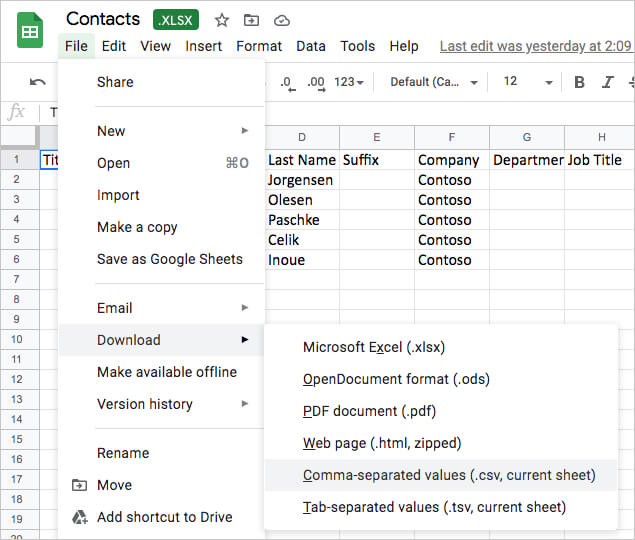
Now you can try to import your contacts.
One more tip: make the conversion more efficient
In many cases, things can go wrong. For example, there could be missing fields (e.g. name, email address and phone numbers). Let’s find out how to successfully import contacts to Gmail from Excel.
Where does the Excel file come from? You may create a spreadsheet for your contacts manually. You may export the contacts from an email client. In either case, it’s recommended to check the header of each column in your file before the import. If a column header is not properly named, Gmail may have problems recognizing the data.
- Go to Google Contacts.
- Sign in.
- In the top left corner, click Create Contact. Then click Create a contact.
![Create a contact]()
- Fill in as many fields as possible if needed. Click Show more to reveal more fields. You can use fake information.
![fill in fields]()
- In the list of contacts, click the 3-dot icon next to the contact. Choose Export. Then choose CSV.
![]()
- Open the CSV file provided by Gmail in Microsoft Excel or Google Sheets. Take a look at how Gmail names the headers.
- Edit the spreadsheet containing your contacts. Make sure that the column headers in your file are the same as the column headers in the template from Gmail.
- Save the edited file to CSV.
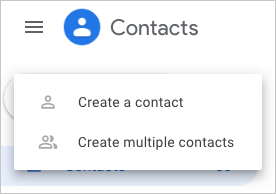
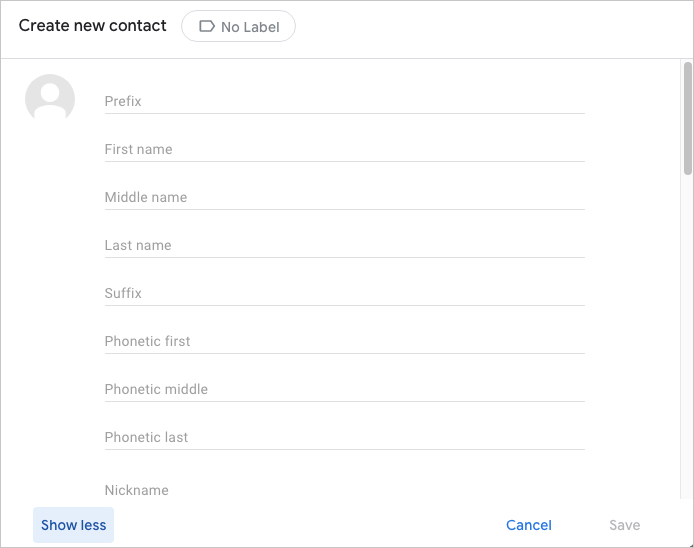
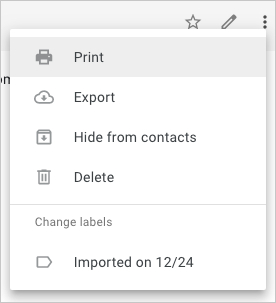
This is how you prepare your contacts file before you upload it to Gmail. You can do it in your preferred way. The instructions here aim to help you figure out how to make things more effective before you import contacts to Google Contacts from Excel.
If you already have a very organized contacts list in the first place, then things can be easy. If not, it may take a lot of copying and pasting.
The header names don’t have to be exactly the same. For example, Gmail’s default header name for the email field is “E-mail 1 - Value”, but it can also recognize “E-mail Address”. For convenience’s sake, you can directly use the default headers. Don’t delete any column in the template. As for headers/columns that you don’t need, just leave them empty.
Below are some of the column headers in the template.
- Name
- Given Name
- Additional Name
- Family Name
- Yomi Name
- Given Name Yomi
- Additional Name Yomi
- Family Name Yomi
- Name Prefix
- Name Suffix
- Initials
- Nickname
- Birthday
- Gender
- Location
- Billing Information
- Occupation
- Notes
- E-mail 1 - Type
- E-mail 1 - Value
- Phone 1 - Type
- Phone 1 - Value
Import contacts to Gmail from Excel with Google Contacts
- On your web browser, sign in to Google.
- Go to https://contacts.google.com/.
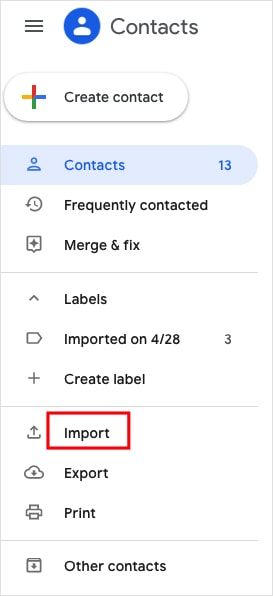
- On the left, click Import.
![]()
- Click Select file and upload the CSV file containing your contacts.
- Under the Labels section, find the contacts you've imported.
- Mass select all of them and click the Add to contacts icon.
![Add to contacts icon]()
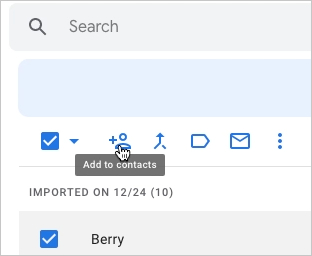
If you don't do step 6, the imported contacts won't appear.
Import contacts from Excel to Gmail with ContactsMate
Mac and Windows users can also import contacts to Gmail from Excel using Cisdem ContactsMate, the best contact manager app.
For Mac
1. Download Cisdem ContactsMate and install it.
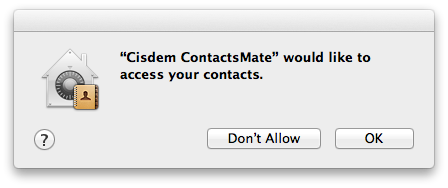
2. Open it. Grant it access to your contacts. Click OK.
3. Click Add Account in the toolbar.
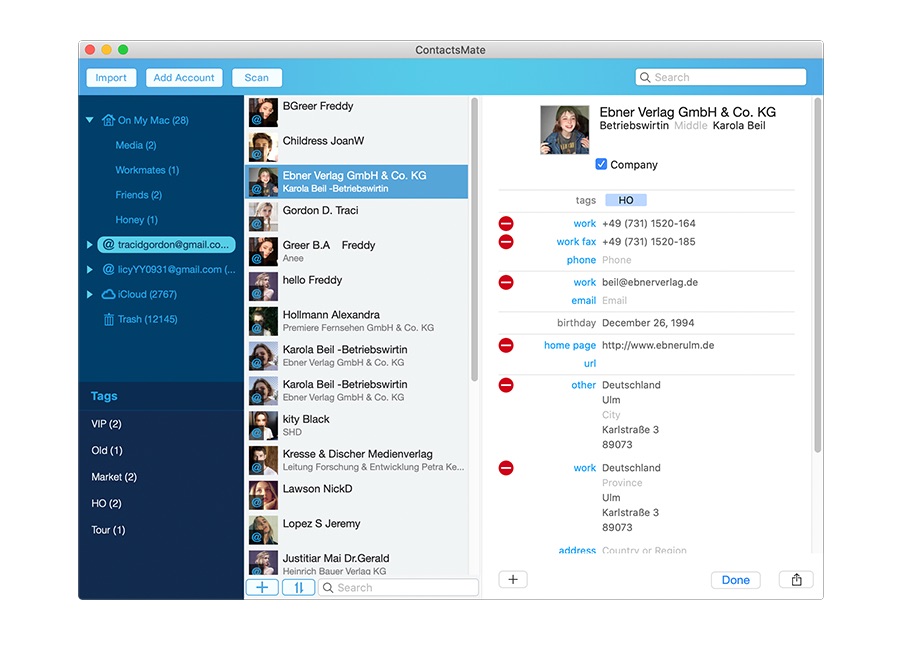
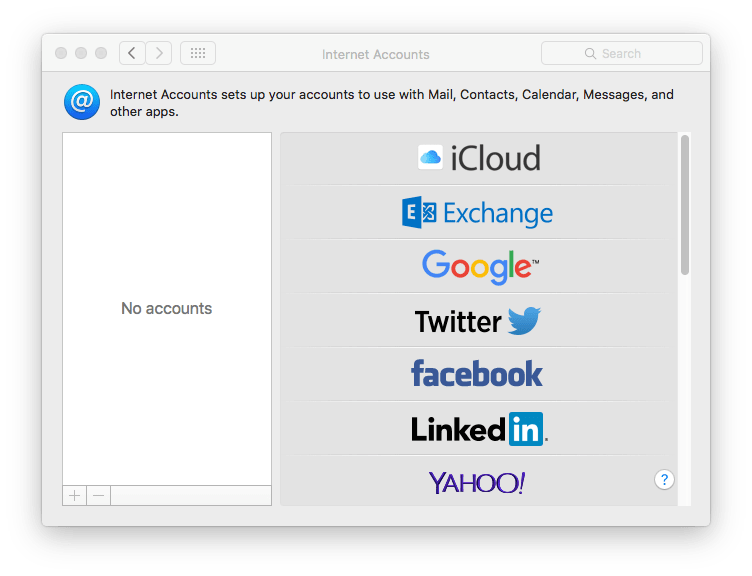
4. Select Google and sign in with your Gmail account.
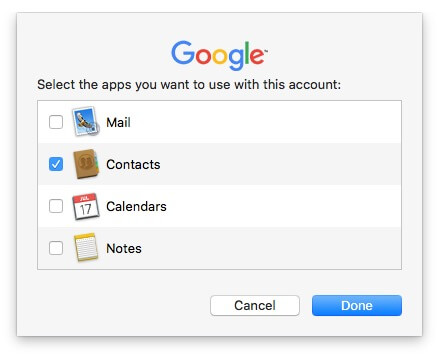
5. Select the box next to Contacts.
6. Click the button next to the Updated contacts detected message. Now you should find Google in the sidebar.
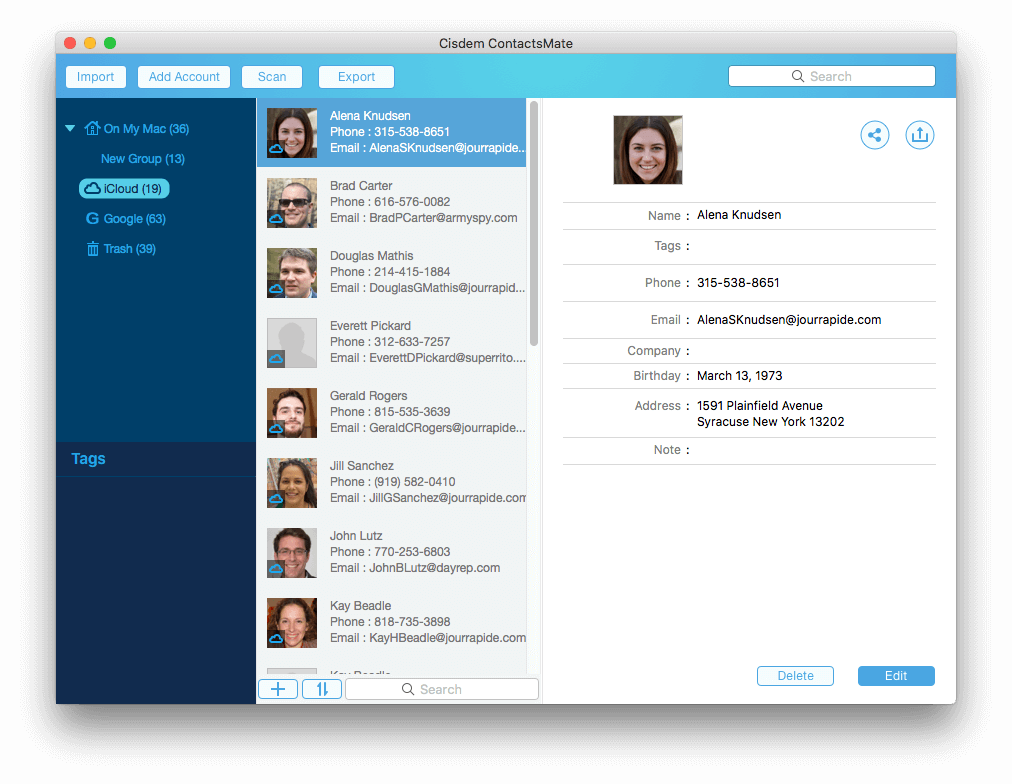
7. Click Import in the toolbar.
8. Select the CSV file you have prepared for import. Click Open. Drag the imported contacts from Latest Import into Google in the sidebar.
Tip 1: Transfer contacts from other sources to Gmail
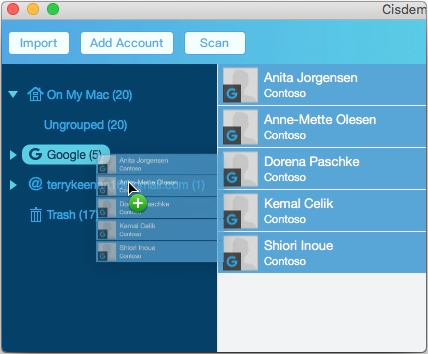
ContactsMate works with contacts from Mac’s Contacts app, Gmail, iCloud, Facebook, Twitter, LinkedIn, Exchange Yahoo and more. It enables you to transfer contacts between all these sources without converting contacts formats. For example, if you want to transfer your Exchange contacts to Gmail, here you don’t need to export your contacts from Exchange then import to Gmail. With ContactsMate, just a simple drag and drop can do that. All your settings in this tool will keep up to date with your contacts systems.
Tip 2: Fix contacts formatting errors and merge duplicate contacts
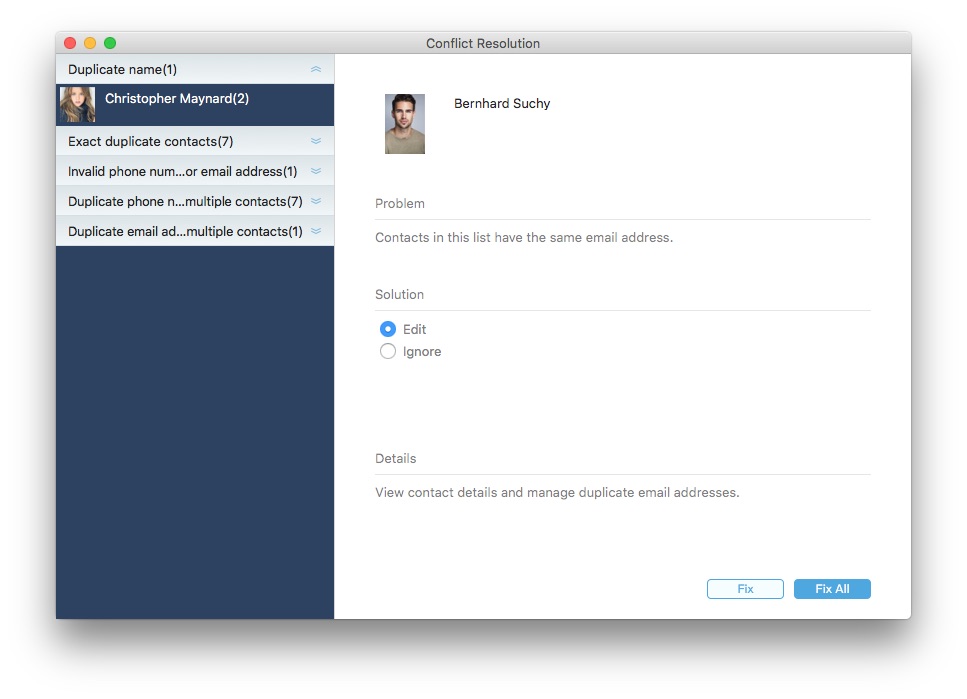
This tool helps you to fix conflicting or incomplete contacts. Also detect duplicate contacts for you to delete or merge in bulk. This can make your contacts list clearer especially when you have a huge list of contacts. To do that, choose an account group then click on “Scan” on the top tool bar. After scanning, the Conflict Resolusion window will appear and show you the found duplicate and conflicting contacts. They’ll be listed in types, such as Exact Duplicate Contacts, Duplicate Name, Invalid phone number or email address, etc. Select contacts in a type then choose a desired solution.
For Windows
1. Download and install this contacts manager on Windows.
Free Download Windows 10 or later
2. Open it. Sign in with your Google account. Allow it to access your Google contacts.

3. Click your Google account in the sidebar. Click Manage contacts > Import contacts.

4. Click Browse. Upload the contacts file you have prepared.

Now the contacts are imported to your Gmail from Excel.
FAQs
Can I import contacts to Gmail directly from Excel?
No, Gmail does not support contacts feom this format. So you should convert the Excel file to CSV or vCard first, and then follow the steps in this article to import it into Gmail.
What’s the easiest way to import contacts from Excel to Gmail?
The easiest way is to use an online converter like cloudconverter to convert the Excel file to CSV first. Then import the converted file to Gmail using Cisdem ContactsMate.
Conclusion
You can successfully import contacts to Gmail from Excel with ease as long as you use the right method. I hope this article can be helpful. Gmail or Google Contacts can be used to back up and manage your contacts. The service is free and easily accessible. It’s web-based and widely compatible.

With a passion for tech and writing, Sarah joined Cisdem, where she focuses on creating articles about using utility tools to enhance file management and simplify contact management.

Adrian Li is Cisdem’s Chief Engineer and serves as the editorial advisor for Duplicate Finder and ContactsMate. His work and insights have been featured in leading tech publications such as Fossbytes, TUAW, Redmond Pie, SafetyDetectives, and BestForAndroid.
Christian Lutz
Very practical guide! I followed the steps in the article and successfully bulk imported all my contacts from Excel to Gmail without any errors. Thank you!