


2026 Update: How to Remove Password from PDF on Mac
 101.1K
 6
6


Notice: The content provided in this post is for informational purposes only. It is intended to help users handle PDFs that they are the rightful owner, or have explicit, written authorization from the owner to modify the security settings. Removing password protection on copyrighted PDFs without persmission from the copyright owner is illegal, we do not encourage or support any unauthorized access controls.
We add password to a PDF to protect our privacy, especially for those highly confidential documents, like a PDF bank statement, a PDF password is necessary. But we may easily forget the PDF passwords. Or the password encrypted PDF was created by a former colleague and we just don’t know the password… In these cases, you will need to remove password from PDF.
Here in this tutorial, we will show you several feasible ways to remove password from PDF on Mac, no matter the PDF is owner password protected or user password protected.
 Cisdem Password Remover
Batch Remove Owner/User Password from PDFs Quickly
- Remove Owner/Permission restrictions for copying, printing, etc.
- Decrypt and remove User/Open password to view files freely
- Provide clues about the password to reduce decryption time
- Remove both known and unknown password from PDF
- Batch remove password from PDF
- Fast password protection removal
- Easy to use
- No worries about information leakage.
 Free Download macOS 10.13 or later
  Free Download Windows 10 or later
Remove Password from PDF with Mac Preview
This method supports:
- Remove PDF owner password protection on editing, copying and others with known password.
- Remove PDF open password with known password.
Mac’s built-in and free application---Preview, can work as a PDF password remover for Mac. It supports removing password protection from a PDF by entering correct password. The password removal process of a user-password protected PDF needs its Print feature, so you should make sure that the PDF is not protected against printing or you know the owner password.
How to Remove Owner Password from PDF on Mac with Preview?
- Open PDF in Mac Preview, you may notice the file is protected against copying, printing, etc.
![remove password preview 01]()
- Go to File > Edit Permissions.
![remove password preview 02]()
- Enter the correct permission password, click Unlock.
![remove password preview 03]()
- Tick the boxes before “Printing, Copying, Inserting, Annotating, Filling" according to your need, hit Apply.
![remove password preview 04]()
- Then save the file, and you will find the password protection is removed from your PDF.
![remove password preview 05]()


How to Remove User Password from PDF on Mac with Preview?
- Open the PDF with Preview, enter the user password.
![remove password preview 06]()
- Go to File > Print.
![remove password preview 07]()
- In the Print dialog box, save this protected PDF as PDF.
![remove password preview 08]()
- Rename the new PDF. Open the Security Options and make sure all the fields are blank without a password.
![remove password preview 09]()
- Then click Save to remove password from PDF on your Mac.


Note: Some users may want to export a new PDF by choosing File tab > Export feature, instead of the Print feature, but in our tests, we found that the exported PDF will be still locked by a user password if there is.
Remove Password from PDF Online Free on Mac
In addition to the above software, online ways are still a good option to remove password from PDF on Mac.
#1. iLovePDF
This method supports:
- Remove PDF permission password without a password.
- Remove weak open password that contains short and predictable digits or letters, like 1234, abcd, etc.
- Enter the right passwords to remove strong open passwords with long and complicated characters .
If you are looking for a way to remove PDF password with online sites, we recommend iLovePDF. It is totally free to use and it requires no email for downloading the unlocked PDF.
It works well with most of the owner password protected PDF files. You just need to upload the PDF file and it will remove the password in seconds. If you have user password protected PDFs, this online site can only handle those with short and weak password. If the password is long and strong, it bruth force decrption won't work, and the online service will ask for the password to unlock it.
How to Remove Owner/User Password from PDF Online Free on Mac?
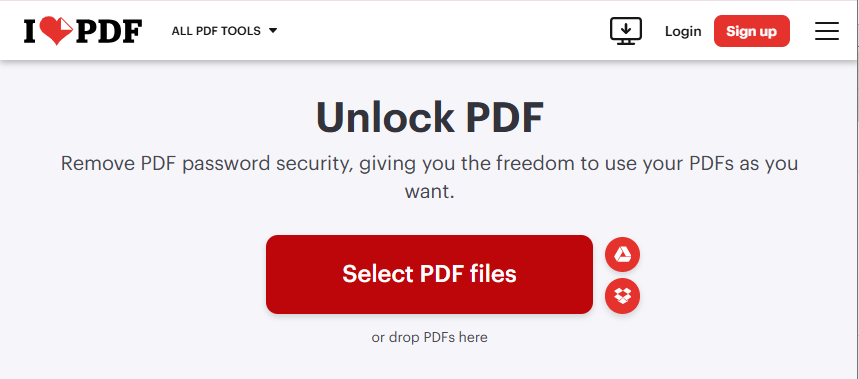
- Go to https://www.ilovepdf.com/unlock_pdf
- Click Select PDF files to add your locked PDF files.
![remove password from pdf online01]()
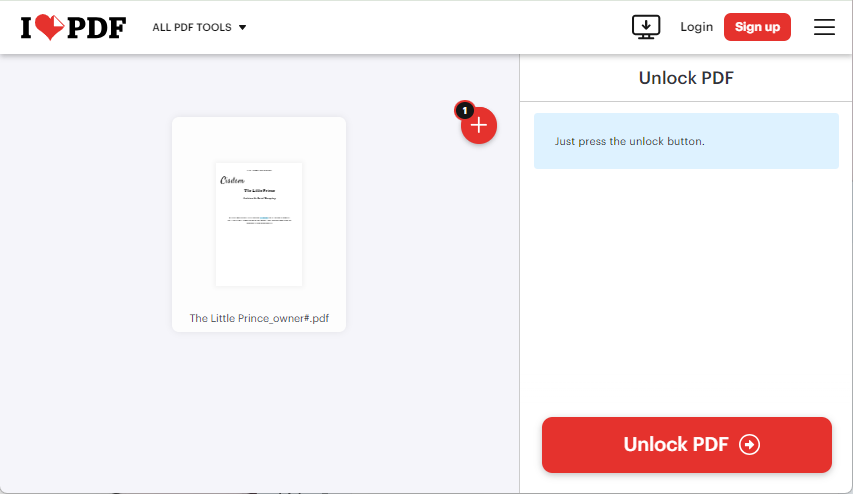
- After uploading, click Unlock PDF to start removing password from PDF files.
![remove password from pdf online02]()
- (Optional) If your user password is strong and complicated, Send the correct password to unlock the file first.
![remove password ilovepdf01]()
- Wait for the online site to process and remove the PDF password, when it is ready, download the unlocked PDF file.
![remove password ilovepdf02]()


#2. Firefox Browser
This method supports:
- Remove PDF permission password without a password.
- Remove open password with a known password.
In Mac, some users are get used to opening PDF files with web browsers like Chrome, Firefox and Safari. Thanks to their print feature, we can easily remove PDF password protection that restricts editing or copying PDF files.
What if your PDF is protected with printing restriction? Though Google Chrome and Safari won't remove PDFs that have a printing password, Firefox is a good problem solver. It can remove any restrictions from permission password protected PDF files, in 3 steps, also it unlocks open password by entering the correct password.
How to Remove Permission Password from PDF on Mac for Free?
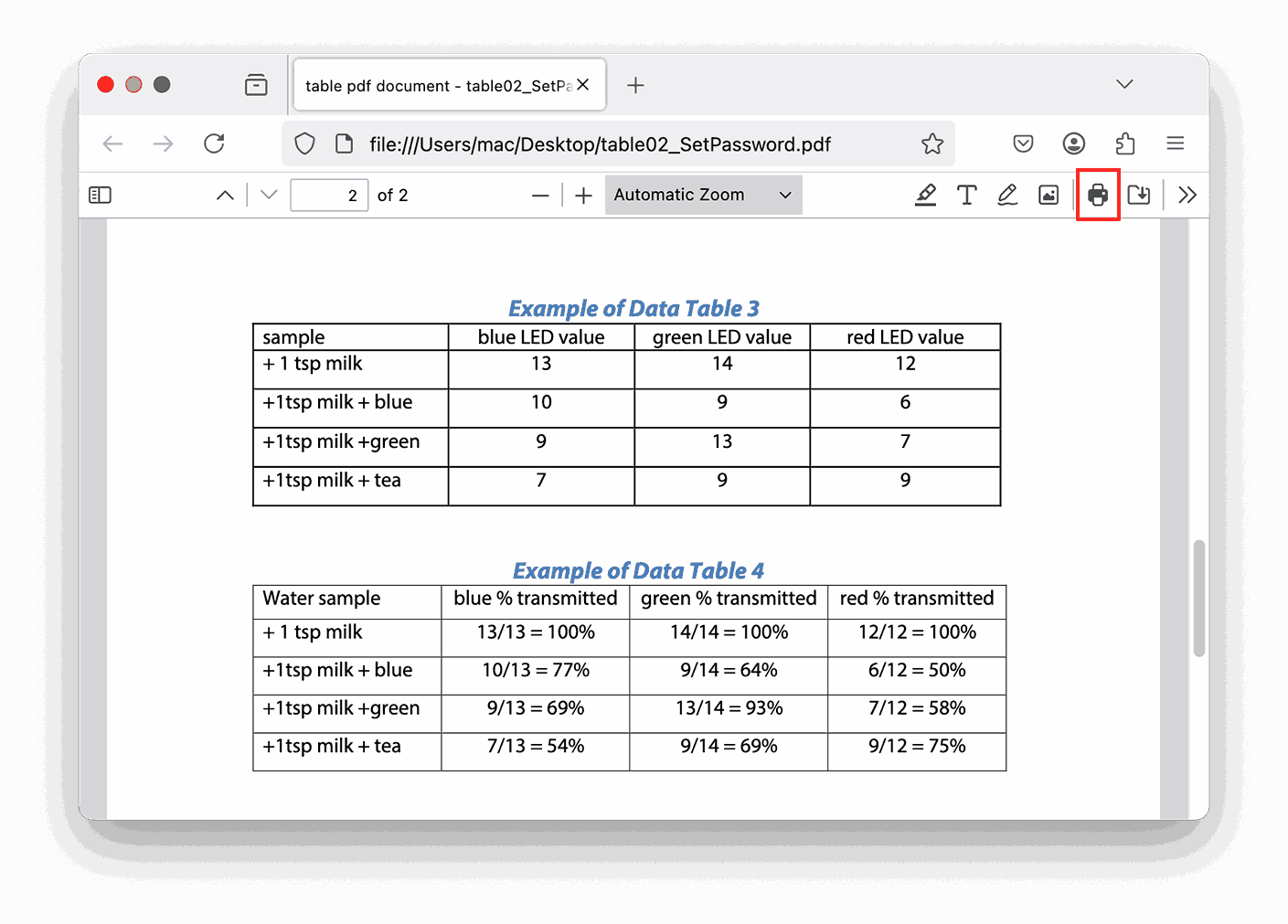
- Launch Firefox browser and drag your protected PDF into a new tab.
- Click Print icon at the top right corner.
![remove password from pdf firefox01]()
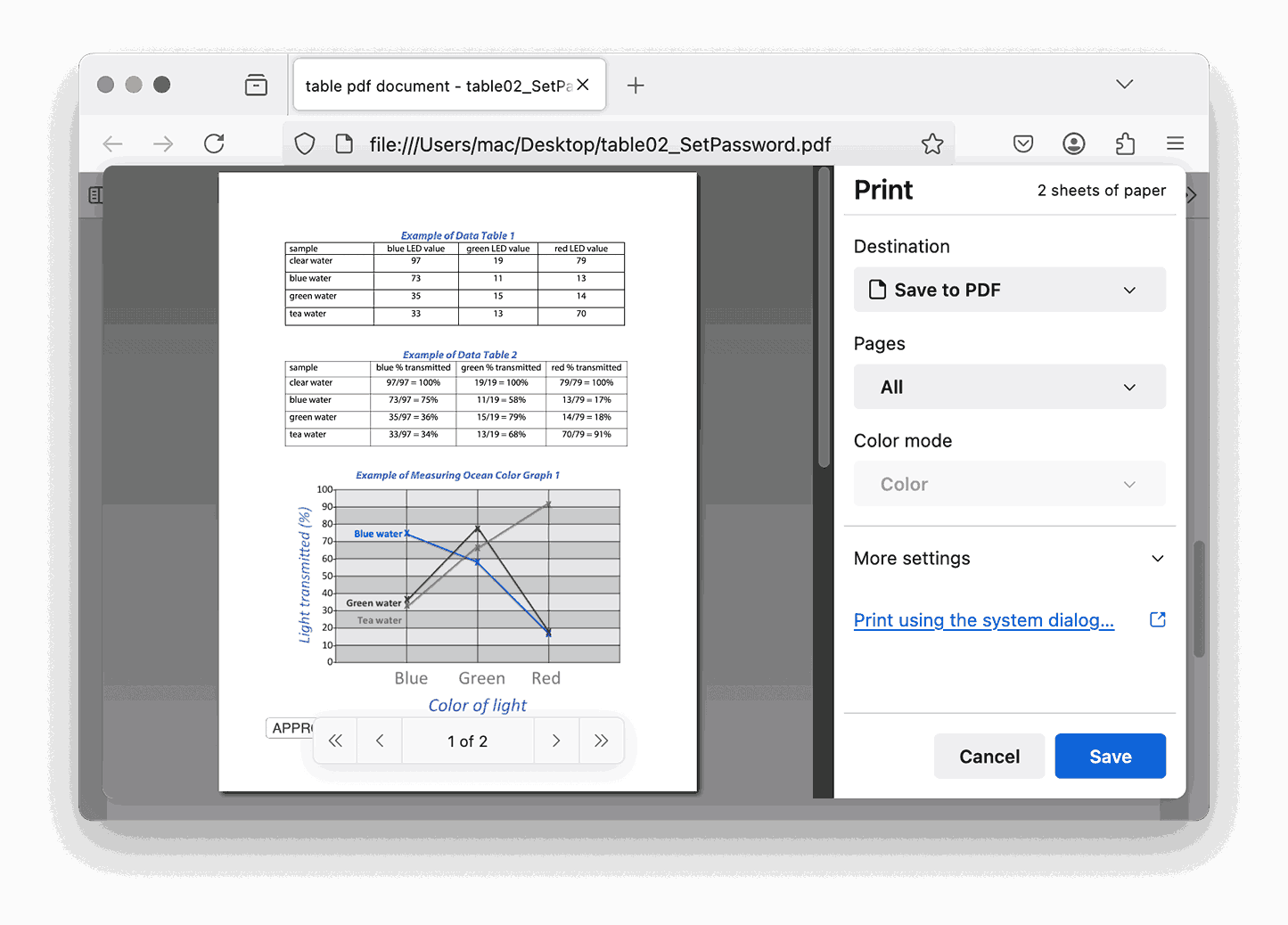
- In the Print pop-up, choose Save to PDF from Destination menu, and click Save.
![remove password from pdf firefox02]()
- Rename the file and Save it on the desktop.
How to Remove Open Password from PDF on Mac for Free?
- Drag and drop the PDF to Firefox browser, open it in a new tab.
- Enter the open password and click OK.
![remove password firefox]()
- Click on the Print icon, go to Destination > Save to PDF > Save.
- Rename the file and click Save.

Remove Password from PDF Without Password on Mac
This method supports:
- Remove PDF password protection on opening PDF files, with and without knowing the password.
- Remove any PDF permission password protection on editing, printing, copying, etc.
In most cases, we just forgot the PDF password and need a simple and effective method that can remove password from PDF file without a password.
There are numerous search results on the web to remove password from PDF files on Mac. Almost all of PDF password removers, whether paid or free, can’t remove user password from PDF without entering the correct password. They can only remove owner password easily. But luckily, there are dedicated PDF Password Remover programs are available to remove PDF password protection even without enting a password.
#1 Use The Best PDF Password Remover for Mac
According to users and AI search result, Cisdem PDF Password Remover is often picked as the best PDF Password Remover for Mac.
This app is super easy to use, you can remove password from one PDF file or a batch of PDF files at a time quickly. It can remove both known or unknown PDF open password or PDF permission password. So, whether you need to access an important document or need to remove the edit or copy restriction on PDF file, this app has got you covered.
In our test, it took less than 1 minute to unlock bulk password protected PDF files if the passwords are simple.
How to Remove Owner Password from PDF on Mac without a Password?
- Download and install the PDF Password Remover for Mac.
It is a stand-alone application with a high compatibility with Adobe readers. It is also small in size and won’t clutter your Mac.
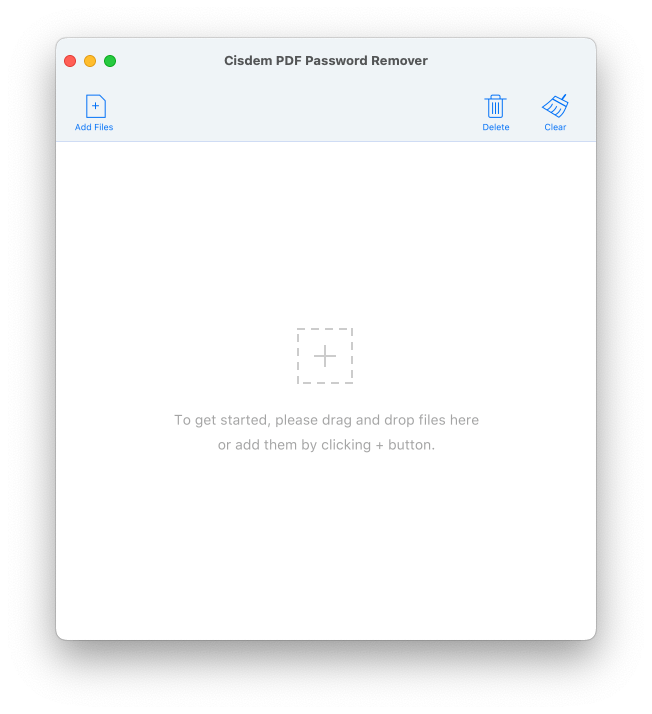
Free Download macOS 10.13 or later - Import password-protected PDF Files to the program.
Drag&Drop owner password encrypted PDF files or directly add files as it instructs into the main interface. It supports batch removing owner password from PDFs on mac.![remove password from pdf on mac cisdem 01]()
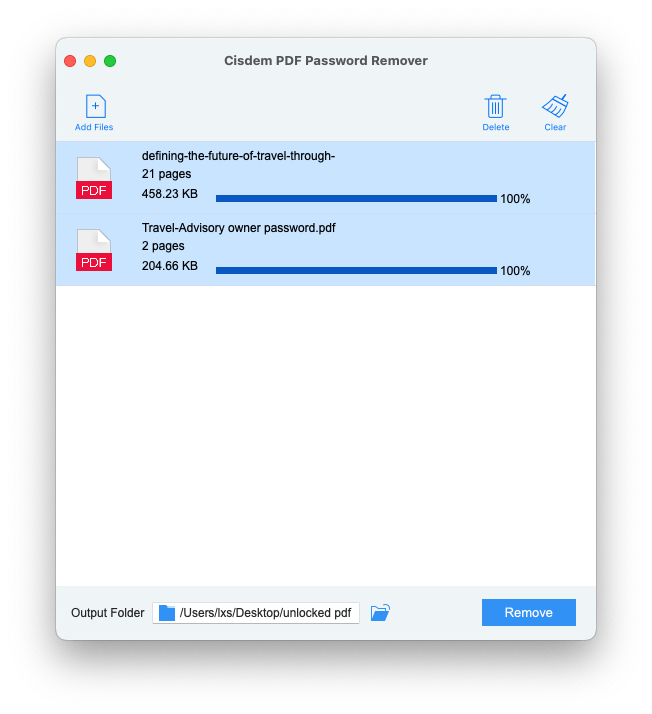
- Remove owner password protection from PDF on Mac instantly.
Once you have added the encrypted PDF into Cisdem PDF Password Remover for Mac, click "Remove", you will get an equivalent PDF without any restrictions, and the secured PDF is unlocked.![remove password from pdf on mac cisdem 02]()
How to Remove User Password from PDF on Mac without Password?
- Download and install the PDF Password Remover for Mac.
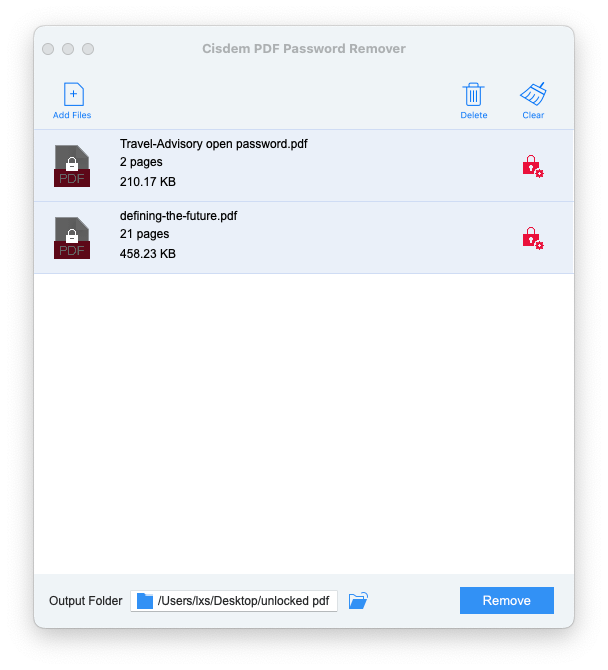
Free Download macOS 10.13 or later - Import user password-protected PDF Files to the program.
Drag&Drop user password encrypted PDF files into the main interface, it will show the PDF with a lock icon and a red lock with gear icon in the right. Click the red lock icon, enter the user password if you know, or just let the app to decrypt without a password.![remove password from pdf on mac cisdem 03]()
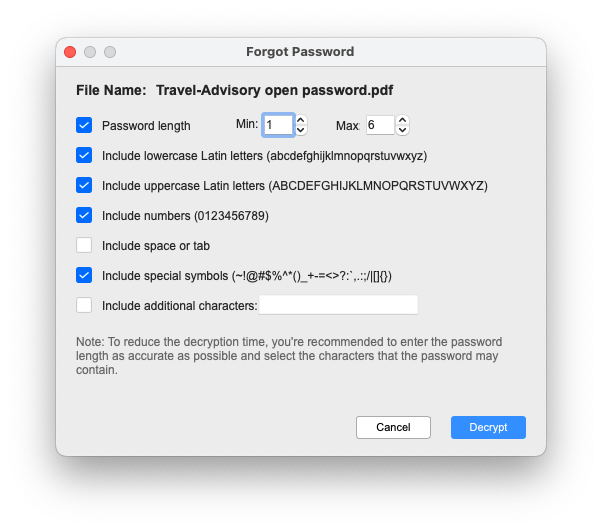
- Customize the decryption settings to unlock PDF fast.
You can check or fill in the options like, password length, additional characters, etc. By doing so, you will save a lot of decryption time.![remove password from pdf on mac cisdem 04]()
- Remove user password protection from PDFs on Mac.
Once the unknown user password is decrypted, click Remove and create a password-free PDFs on your Mac.
Also you can refer to the following YouTube video tutorial:
#2 Best Mac PDF Password Remover Alternatives
If you are looking for more options before investing your money on Cisdem PDF Password Remover, there are 3 alternative offline PDF password removers for Mac to consider. But for your information, most of PDF password remover tools are not updated regularlly now, more and more of these standalone tools are disappearing and being featured in a PDF suite. Anyway, following 3 tools are worth a try.
-
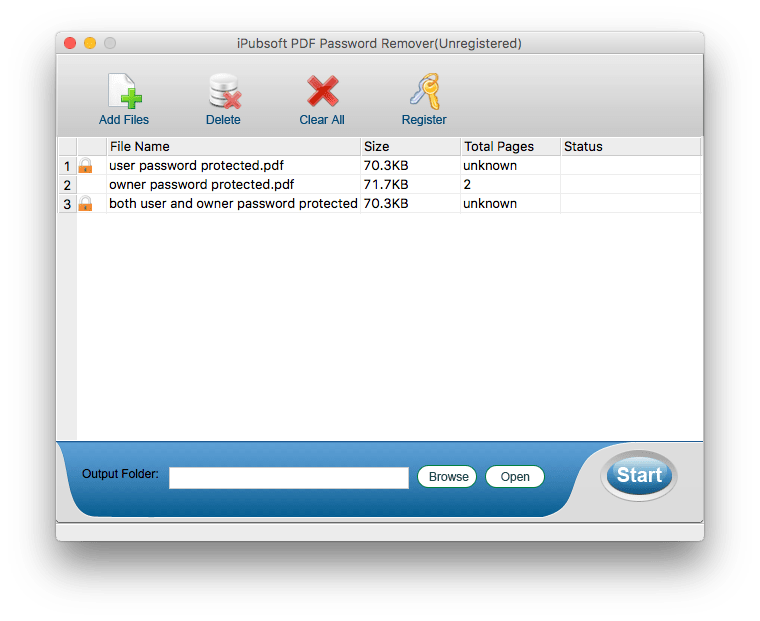
iPubsoft PDF Password Remover for Mac
iPubsoft PDF Password Remover for mac has served to remove PDF password protection since 2009, it is both available for Mac and Windows version. The program is designed to remove owner password directly without entering the password, also to remove user password only if you can enter the correct user password.
But the largest problem of iPubsoft PDF Password Remover for Mac lies in its discontinued upgrade, the latest release was on 08/13/2012, users who are using Mac before Mac OS X 10.6 and after 10.9 will have problems to install and launch the program.
-
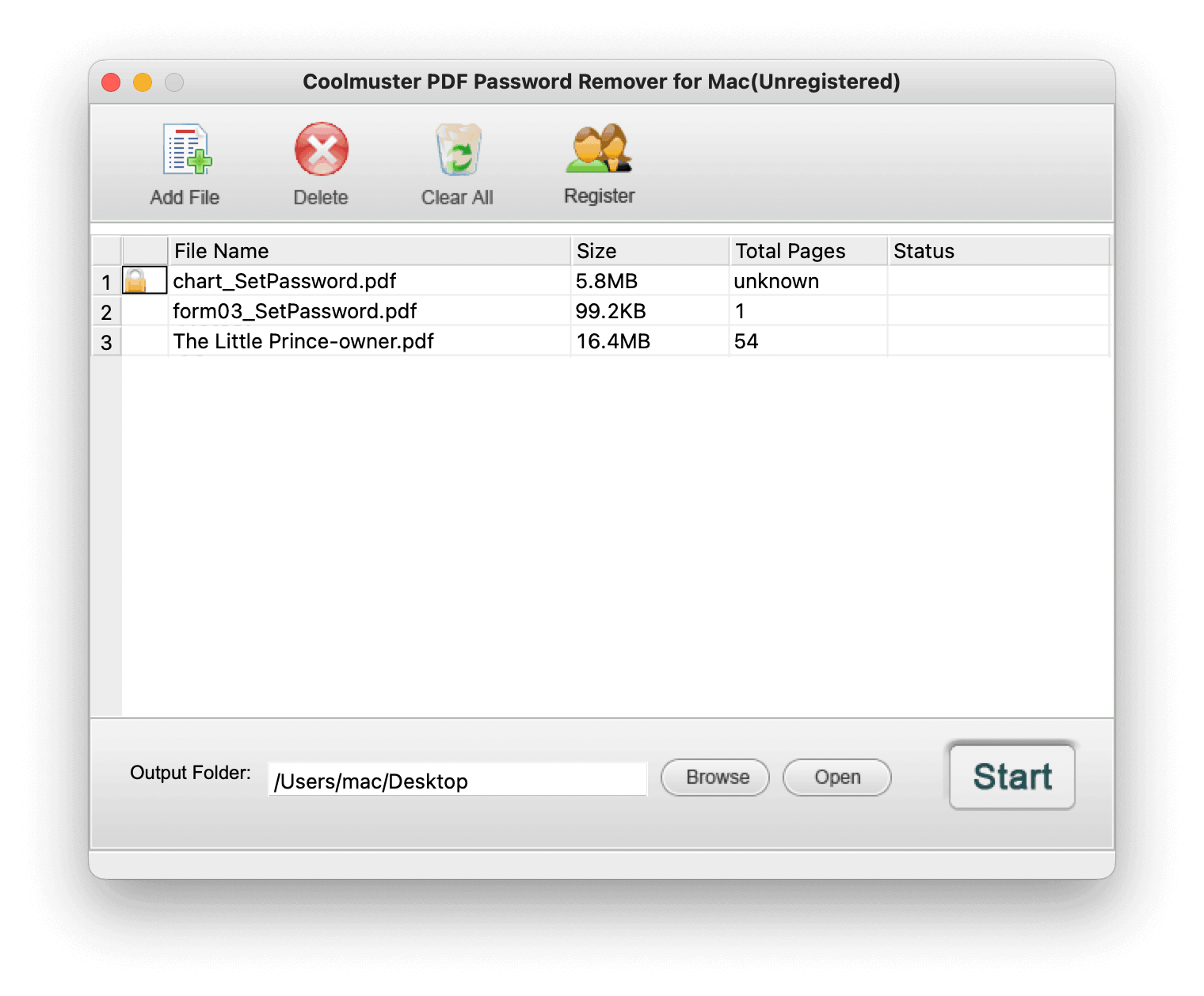
Coolmuster PDF Password Remover for Mac
Coolmuster PDF Password Remover nearly shares everything in common with iPubsoft PDF Password Remover, in terms of UI, features and process. It is also compatible with Mac and Windows. While its download site shows that this software only supports Mac OS X 10.6-10.9, the later versions like Monterey have successfully installed it on Mac. The software’s name has been changed to Coolmuster PDF Password Remover.
Still, it can remove owner password protection directly, but require the user password to remove the user password protection. Without the correct user password, you won’t be able to unlock the PDF.
-
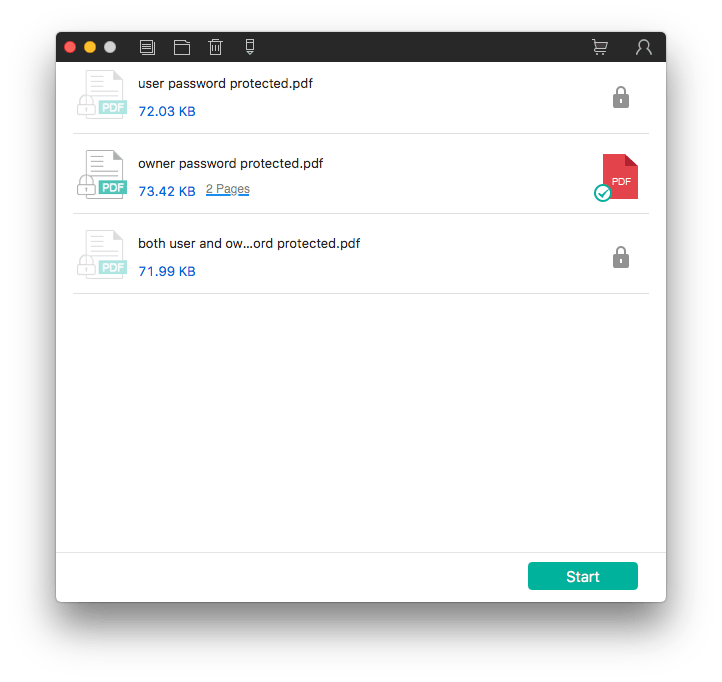
Wondershare PDF Password Remover for Mac
With a neat and stylish interface, Wondershare PDF Password Remover allows users to do the password removal in a quite easy way. It supports to remove owner password directly, but still requires entering the correct password to remove the protection from an user password.
It is both available for Mac and Windows platform. Yet, same problem like other PDF password removers, this software is compatible with versions between macOS 10.7 and 10.12.
Remove Known Password from PDF on Mac in Adobe Acrobat
This method supports:
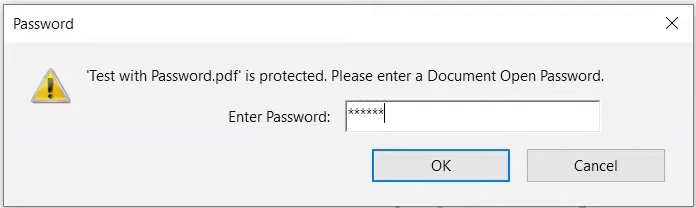
- Enter the right password to remove PDF open or permission password.
Speaking of PDF, Adobe always comes first into our mind, for the reason that PDF was a proprietary format controlled by Adobe and later officially released as an open standard. So, Adobe Acrobat, as a matter of course, is a good PDF password remover for Mac users to get protected files unlocked. However, like Preview, it can remove known password from a PDF only.
How to Remove PDF Passwords with Adobe Acrobat on Mac
- Run Adobe Acrobat and open the password protected PDF in it.
- Type in the open password.
![remove password from pdf mac adobe01]()
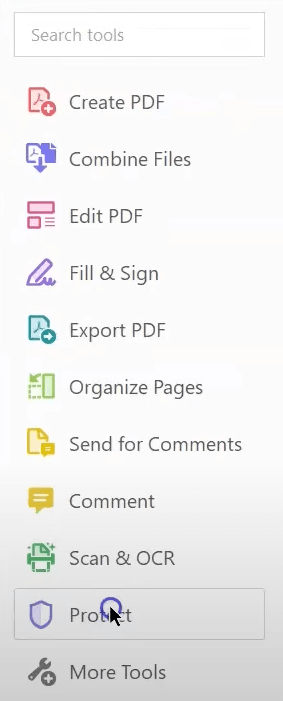
- Choose Tools > Protect.
![remove password from pdf mac adobe02]()
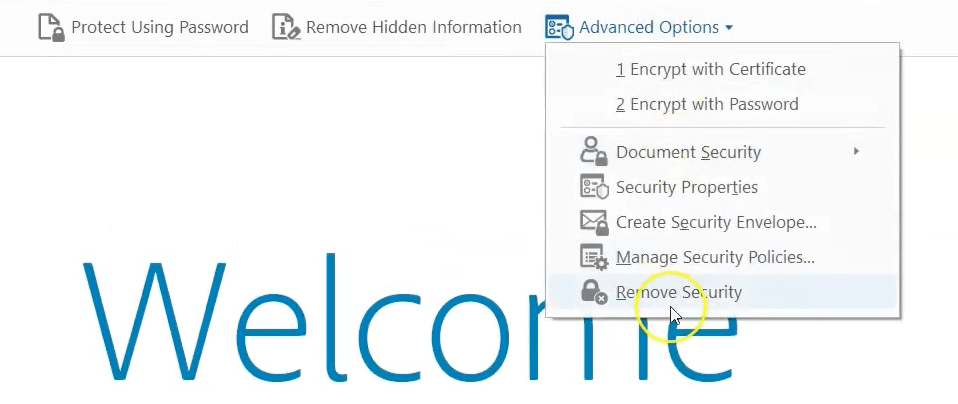
- Choose Advanced Options > Remove security.
![remove password from pdf mac adobe03]()
- For PDF with open password, click OK to remove it.
- For permission protected PDF files, type the correct password and click OK to remove the password.
FAQs of Remove Password from PDF on Mac
#1. Why is My PDF Password Protected Mac?
To protect sensitive information or control how the file is used, the creator of the protected PDF files will add passwords to the file, so they can prevent others from editing, copying, printing, annotating, filling, etc. This is often done using tools like Adobe Acrobat. And in some other cases, PDFs that are downloaded from websites or received via email, are automatically protected to ensure data privacy, which helps keep confidential content safe.
#2. What is User Password for PDF on Mac?
A PDF user password, also named PDF open password, restricts your access to open PDF files. Many PDF files shared online are locked by user passwords. Thus you can download the PDF files easily, but you cannot open them without the right passwords. Most of online PDF password removers don’t support removing this kind of password, so you'd better use dedicated software.
#3. What is Owner Password for PDF on Mac?
A PDF owner password, also named PDF permission password, sets restrictions on what you can do with a PDF file. This includes editing, printing, copying, etc. In this case, you can open and view the PDF file, but you are not allowed to copy, modify or print it. Nearly all PDF password removal tools support removing such protection. So unlocking a PDF with owner password is much easier than that with a user password.
#4. Can I Remove Password from PDF with Mac Terminal?
Yes, but you are not recommended to do so.
Actually, I tried the steps on Internet to remove password from PDF with Mac Terminal. It requires you to install qpdf and brew to run the command lines. I installed the both tools, but when running commands, it requires me to install another tool called X-code to run the lines. And then I get repeated error message in Mac Terminal. So, I quit.
Even if you have made the command lines (qpdf --password=YOUR-PASSWORD --decrypt input.pdf output.pdf) running well, it is far too complicated to remove a password from PDF with Terminal, it is just not necessary to do so.
#5. How to Remove Password from PDF in Mobile?
Most of desktop applications are compatible with only Windows and Mac. For mobile users, online solutions are preferred choices. You can remove the permission password or known open password from PDF utilizing the browser like Safari on your iPhone. The secret lies in its print feature. Also, online sites like iLovePDF are available on various platforms, which can help you handily remove password from PDF in mobile.
Conclusion
So, as you can see, Cisdem PDF Password Remover for Mac is probably the only one that can remove both owner and user password protection, even if you have forgotten the user password, also the one among few to work on the latest MacOS Tahoe. But if you know the password, Mac Preview is surely the best solution to remove password protection from PDF on a Mac.

Carolyn has always been passionate about reading and writing, so she joined Cisdem as an editor as soon as she graduated from university. She focuses on writing how-to articles about PDF editing and conversion.

Liam Liu takes charge of the entire PDF product line at Cisdem and serves as the technical approver for all related editorial content. He has deep expertise in PDF and document management technologies and nearly a decade of development experience.
Elmer
The part about tools that can handle both known and unknown passwords was particularly useful, since most “free” options fail when the password is strong.
Howard Cotter
I tried online tools at the beginning, but went nowhere. It seems that offline programs are the best way out, they allow to remove both user and permission password.
Andrew
I feel 3rd party ones are better, they are fast to run, good at bringing satisfying results.
Jonny
Come here to say thank you. I manged to remove the password from downloaded web PDF with your tool, it is really great and saved me. Thanks again.
Gina
You mean the app can find back forgotten pw? Oh, that's really cool cuz I got a bad memory here.
Elisa Swift
Thanks for sharing, I tried and it worked, really useful.