


How to Record YouTube Audio on Mac, Windows, Android and iPhone
 16.5K
16.5K
 0
0


There are numerous and various sources can be found on YouTube. However, there are times we need to record or extract the audio from a YouTube video for legal use. To guide our users to record YouTube audio easily, here we list following solutions to do YouTube audio recording on different devices, on Mac, on Windows PC, on Android or on iPhone.
Record YouTube Audio on Mac or Windows PC
Though more and more users choose to record YouTube audio by applying a YouTube to Audio Converter, there are still some users using audio recorder software to do this, and most of them are Audacity users.
Audacity is a free audio software to record and edit audios on different operations systems, including Windows, MacOS, Linux. Audacity records audio through a microphone or mixer, it can export the recordings as different formats, also allow users to cut, copy, paste and delete the audio file.
Since Audacity is available for both Mac and Windows PC users, here we introduce the steps to use audacity in the following 2 parts.
Extra Items Needed:
To record the audio, besides Audacity, we need to make sure we have appropriate device or software to input and output the audio. In fact, recording with devices is relatively complicate and there will be noise from the external environment, but recording with software to create virtual audio device can be much easier, which is also the way we are going to share with you in this post.
Part 1. Record YouTube Audio with Audacity
For Mac Users
To record YouTube audio with Audacity on Mac, we need to download and install an extra software named Soundflower, it is an open source designed to create virtual audio output device that can also act as an input. It enables an application to access the soundcard or interact with another application through the soundcard. That’s to say, with Soundflower, you don’t have to connect a Mic input or a speaker output to finish the recording, you need nothings at all.
Now, let's record YouTube audio with Audacity on Mac!
Step 1. Download and install Soundflower & Audacity on your mac;
Step 2. Launch Audacity, tweak the settings as following. Make sure the input and output are set as Soundflower 2ch;
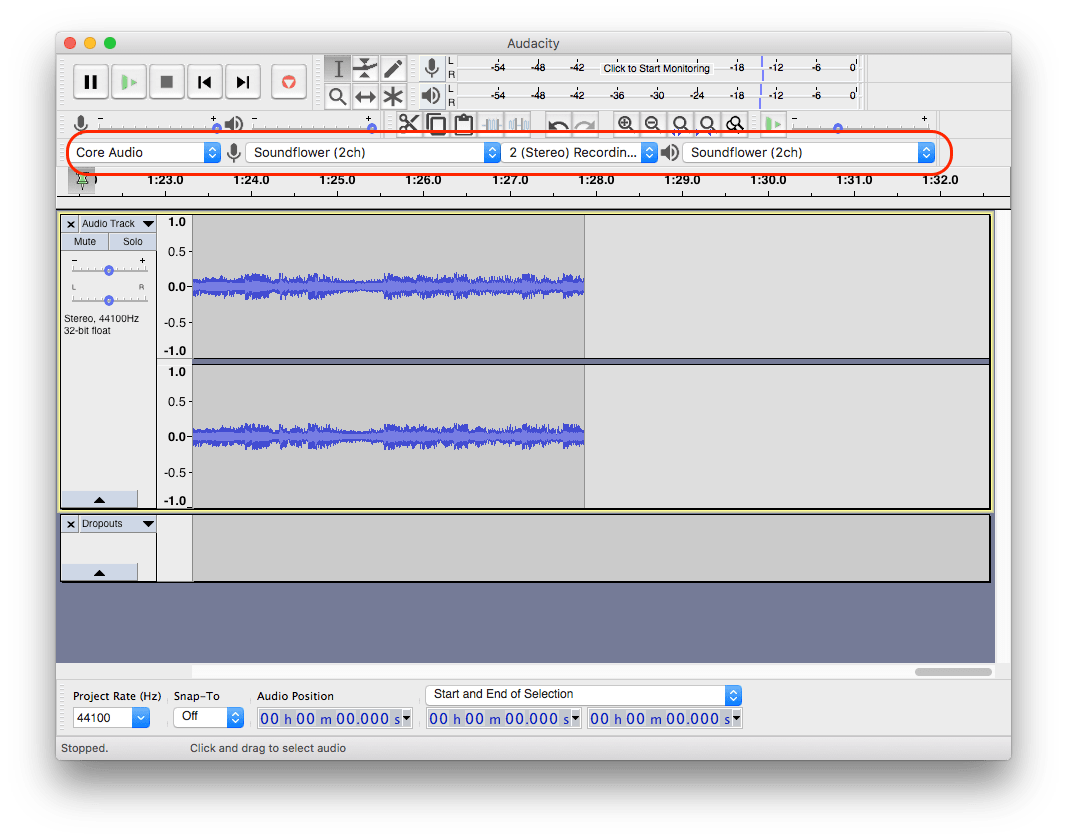
Step 3. Go to YouTube website and open the URL you want to record from;
Step 4. Stop the playing and let the YouTube media load completely;
Step 5. Go back to Audacity, click the red button “Record” to start recording;
Step 6. Once ready, click on the square button “Stop” to pause the recording;
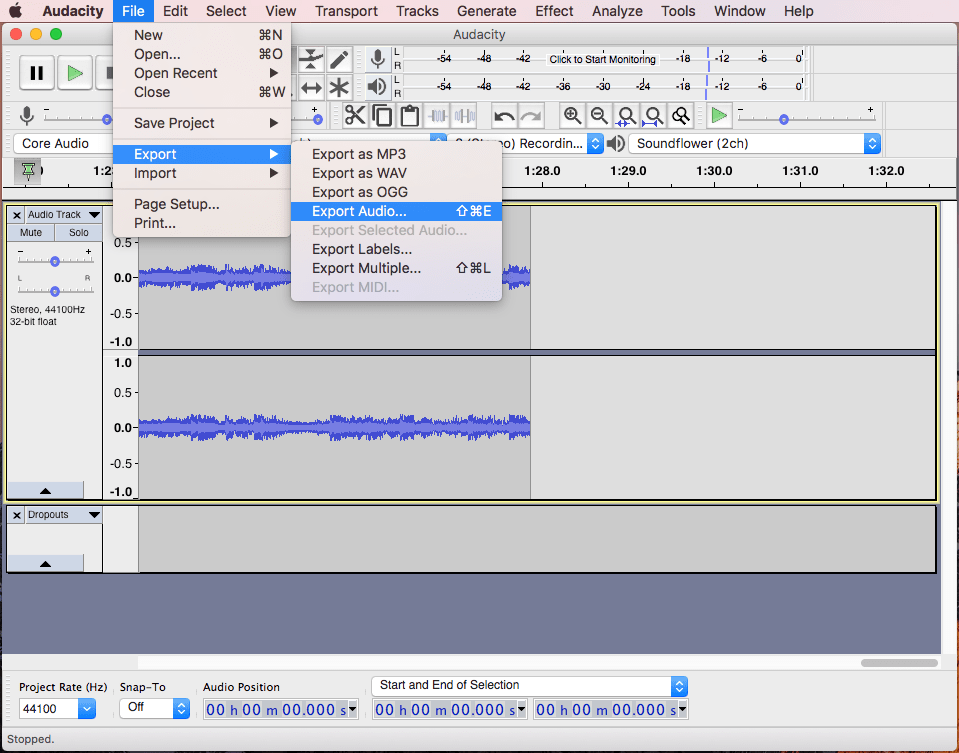
Step 7. Go to File>Export, choose an audio format and rename to save the file;
For Windows Users
Same as the ways to record YouTube audio with Audacity on Mac, here we use auxiliary software that similar to Mac Soundflower---Voicemeeter. It is the program creating virtual audio output device that can also act as an input.
Now, let's record YouTube audio with Audacity on Windows PC!
Step 1. Download and install Voicemeeter & Audacity on your Windows PC;
Step 2. Launch Audacity and tweak the settings as following;
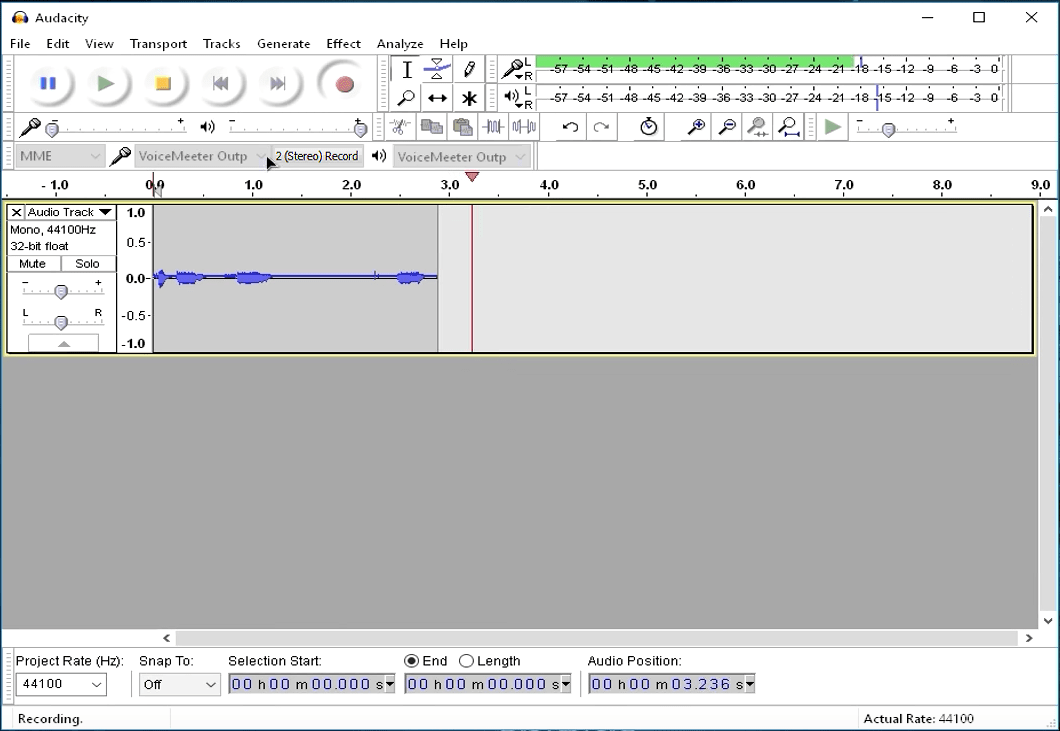
Step 3. Go to YouTube website and open the media;
Step 4. Pause the media, make sure the YouTube media load completely first;
Step 5. Go back to Audacity, click the red button “Record” to start recording;
Step 6. Once ready, click on the yellow button “Stop” to end the recording;
Step 7. Go to File>Export, choose an audio format and rename to save the file;
Part 2. Best Way to Record YouTube Audio on Mac
Now we will use YouTube to Audio Converter, the easiest way to record YouTube audio.
For Mac users, Cisdem VideoPaw is highly recommended. It is known to many mac users as a powerful video tool to edit, convert, download, compress, and record videos. Not limited to YouTube videos, VideoPaw also allows users to get audio from other websites, such as Dailymotion, Vimeo, Flickr, Veoh, etc. It processes videos very fast and can preserve the original quality in both video and audio.
Main Features of Cisdem VideoPaw
- Download YouTube and other online videos, HD included;
- Export YouTube videos to MP3 and other audio formats
- Convert between different video and audio formats
- Support 20+ video formats and 10+ audio formats
- Rip DVD/Blu-ray movies
- Edit videos: crop, rotate, merge, add watermark/subtitles/video effects
- Batch support
- Maintain original quality
Steps to Record YouTube Audio with Cisdem VideoPaw for Mac
Step 1. Download and install Cisdem VideoPaw for Mac.
 Free Download
 Free Download
Step 2. Go to the Video Downloader interface for YouTube Download.
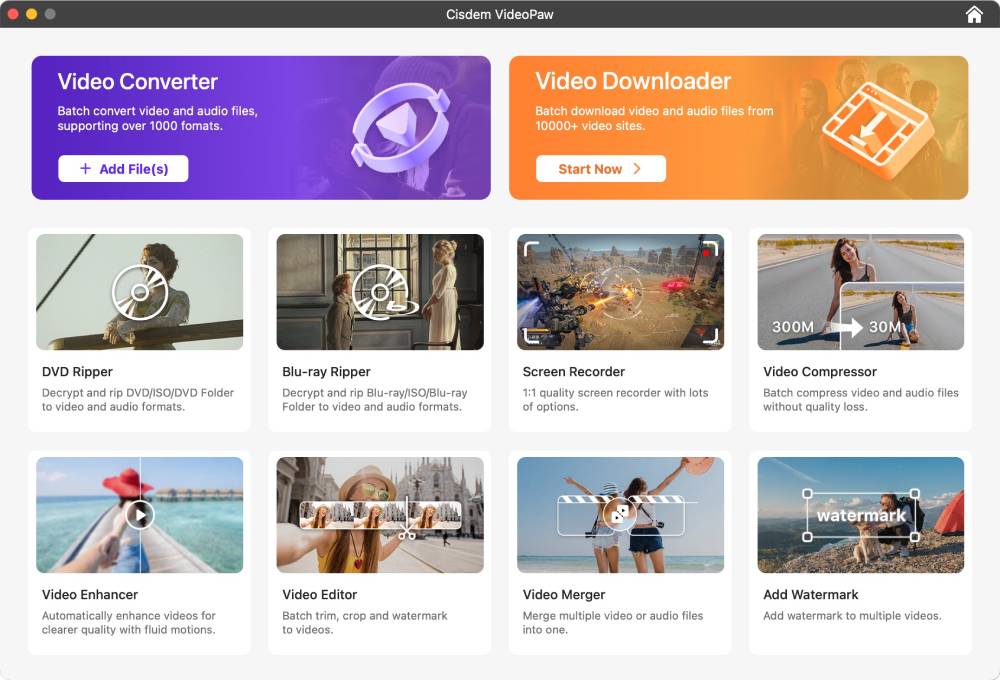
Step 3. Copy and past the YouTube URL for the address field at the bottom of the interface. Parse the video, choose M4A audio format, and download it.
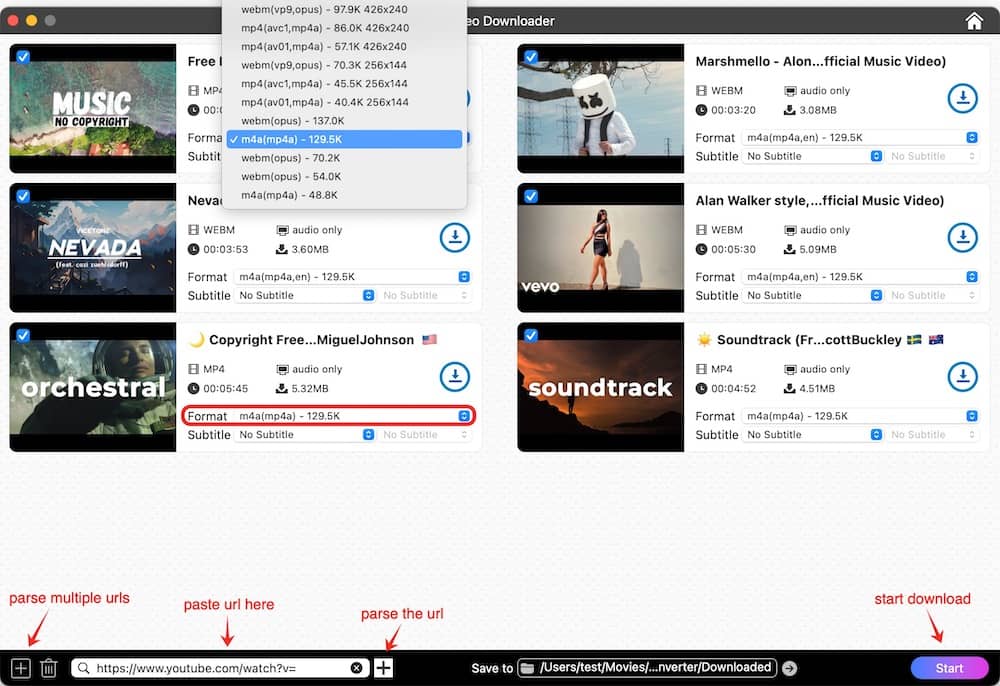
Step 4. Click the “Start” button to export YouTube as audio on mac.
Tip: Convert YouTube audio from M4A to other formats
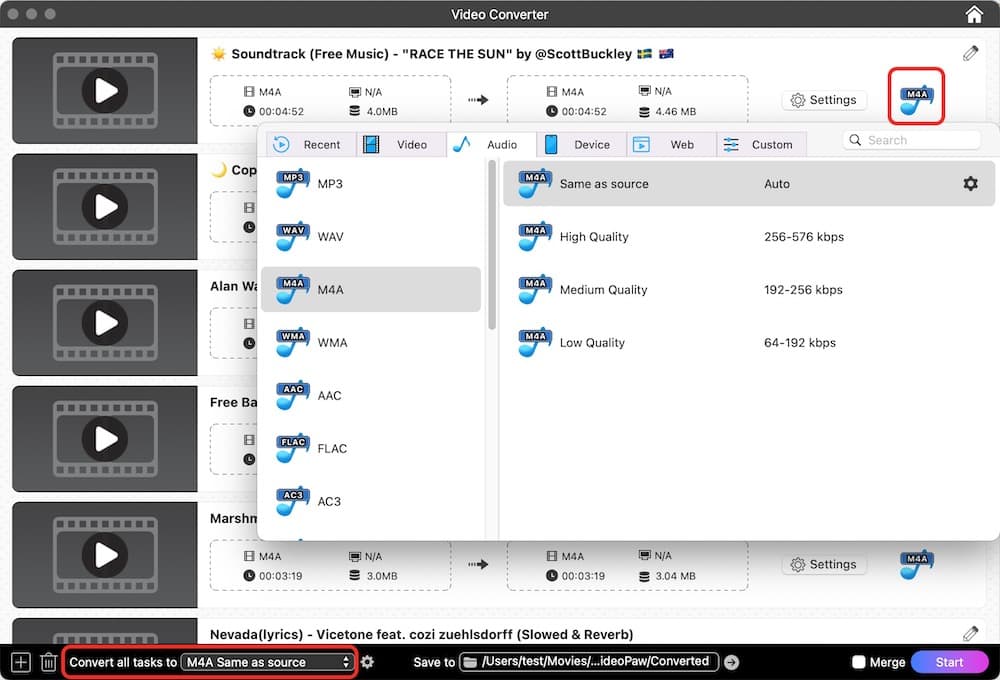
Step 1. Once the download is finished, go to the Video Converter interface.
Step 2. Drag and drop the M4A file into the interface, choose an audio output.
Best Way to Record YouTube Audio on Windows PC
The program we use to record YouTube audio on Windows PC is Any Audio Converter.
Any Audio Converter is a free Windows program to convert video and audio files. Users can extract audios from CDs and different videos, can download YouTube and other online media files to different formats.
Main Features of Any Audio Converter for Windows
- Rip and extract audio from CDs and videos;
- Burn videos to DVD or AVCHD DVD
- Download YouTube and other online videos, export as different formats
- Edit videos: clip, crop, add special effects
- Play videos
Steps to Record YouTube Audio on Windows PC
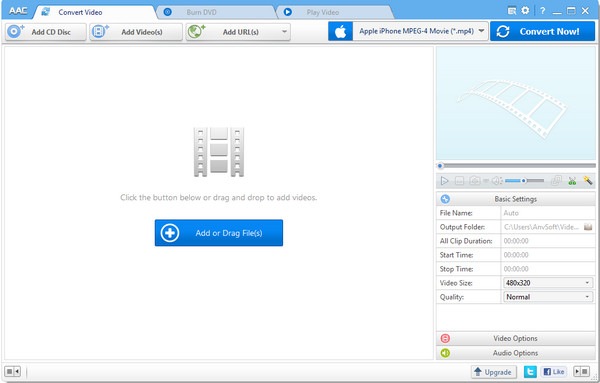
- Download and install Any Audio Converter on your Windows PC;
- Go to the interface “Convert Video” and choose “Add URL”;
![any audio 01]()
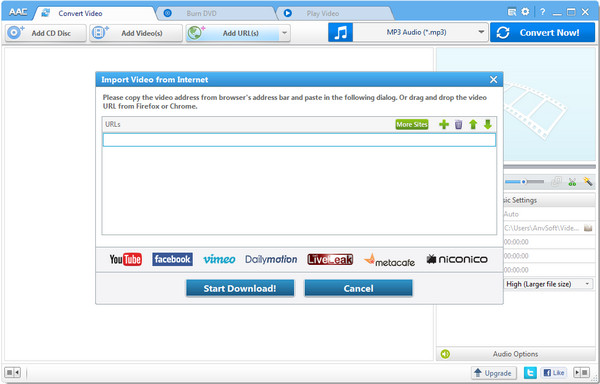
- Go to YouTube website and copy the URL you want to record audio from;
- Go back to the program, click “+” and paste the URL, then click “Start Download”;
![any audio 02]()
- Once downloaded, choose an audio output, then click “Convert”;
Part 3. Capture YouTube Audio Online
For users don’t need to record YouTube audio very often, or they can tolerate audio quality loss, online free tool is worth a try.
listentoyoutube is an online free platform helping users to converting YouTube videos into MP3 format. Comparing with other online free YouTube to MP3 converters, this one brings high successful rate.
Step 1. Go to YouTube website and copy the URL of the YouTube media you want to capture audio from;
Step 2. Go to listentoyoutube website and paste the YouTube URL into the “Go” field;
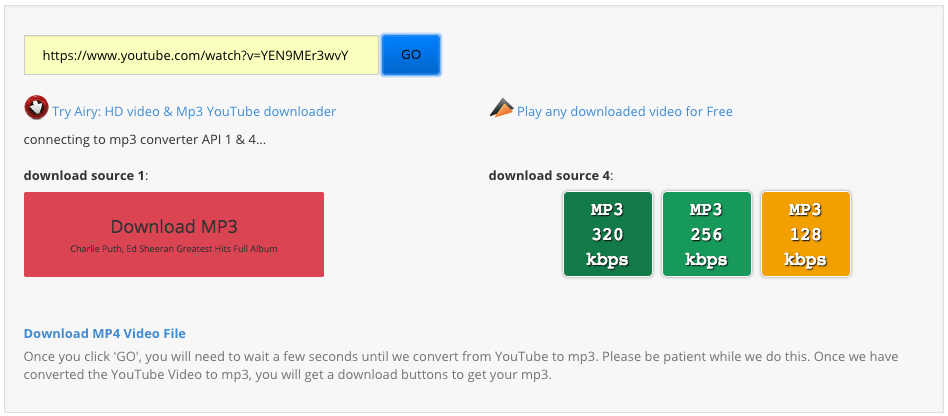
Step 3. Click “Go” to start the conversion;
Step 4. Click the “Download” icon to save the audio file;
Record YouTube Audio on Android
Generally speaking, there are 3 ways to record YouTube audio on Android phone.
Method 1. Record on a computer, then transfer to Android phone
If you want to, you can do the recording on a Mac or Windows PC first, then transfer the audio files into your Android phone. This is particularly useful when you need to record lots of YouTube audio and play on Android.
Method 2. Use Sound/Audio Recorder App
Many Android phones come with a built-in sound or audio app, since the necessary instruments to input (microphone) and output (speaker) the audio are available on all mobile phones. For Android users who don't have a built-in sound or audio app, they will need to download and install such an application in Google Play.
- Go to YouTube App or Website in your web browser, open the YouTube media;
- Pause the media and stop it at 00:00:00, but let it load completely;
- Launch the audio recorder and tap to start recording;
- Go to YouTube media immediately;
- Once the recording finishes, save it;
The greatest disadvantage of using this method is the time gap, since you need to play the media first, then go to audio recorder app and start recording.
Method 3. Use YouTube to MP3 Converter for Android
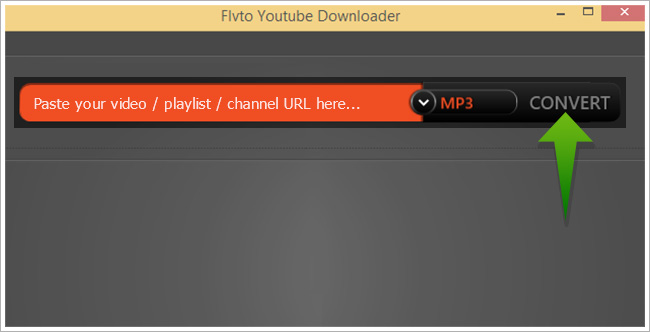
The fact is that there are quite few Android app to convert YouTube to MP3, and for the sake of safety, we recommend using flvto.biz.
- Go to the website or just download the YouTube to MP3 Converter for Android;
- Copy the YouTube media URL;
- Go back to the program and paste the URL to the address filed;
![youtube to mp3 converter]()
- Click “Convert”;
Record YouTube Audio on iPhone
Similar to the ways we use to record YouTube audio on Android, here are 3 solutions to do the job on an iPhone.;
Method 1. Record on a Mac, then sync to iPhone
You can record the audio on a mac using online or professional YouTube to MP3 converters first, then sync these audio files to iPhone by using its own apps, such as iTunes or Airdrop. To learn how to sync between a Mac and an iPhone, you can go to Apple official website for details.
Method 2. Use Sound/Audio Recorder App
There is an audio recorder called Voice Memo on iPhone, users can record YouTube audio with this app directly.
- Go to YouTube App or Website in your web browser, open the YouTube media;
- Pause the media and stop it at 00:00:00, but let it load completely;
- Open Voice Memo and tap the red button to start recording;
- Go to YouTube media immediately and play it;
- Once the recording ends, save the file;
Again, the greatest disadvantage of using this method is the time gap, since you need to play the media first, then go to audio recorder app and start recording.
Method 3. Use YouTube to MP3 Converter for iOS
And for the same reason of safety, we here recommend using Documents by Readdle to record YouTube to MP3 converter.
- Download Documents in App Store and install on your iPhone;
- Open the YouTube media you want to record audio from, copy the URL;
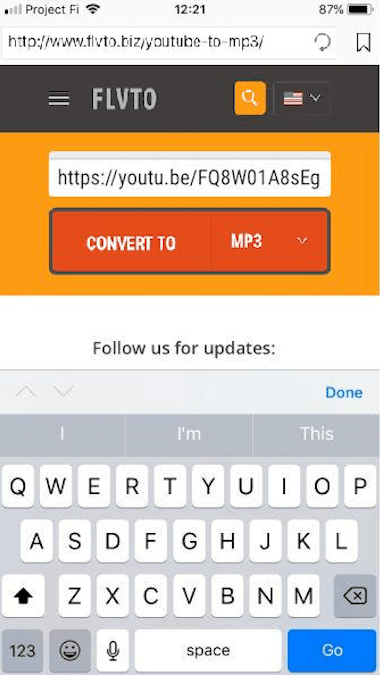
- Open the built-in browser in Documents and paste https://www.flvto.biz to the address filed;
![open youtube iphone]()
- Then paste the YouTube URL to the flvto website and tap “Convert to MP3”;
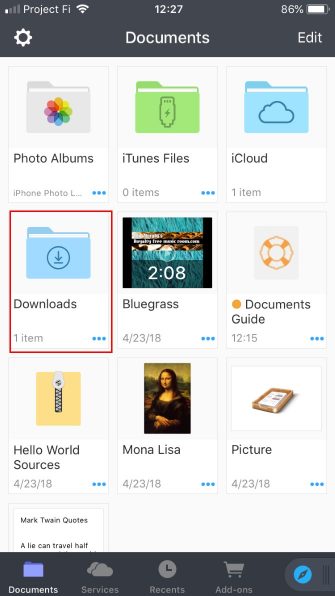
- Once ready, you will be allowed to Download the file and guided to save the file to Docements;
- Go to Download Folder of Documents, you will find the YouTube audio;
![download folder on iphone]()
Conclusion
After trying different way to record YouTube audio on Mac, on Windows PC, or on a Android phone/iPhone, we conclude that the best way to record or capture YouTube audio is using a professional YouTube to MP3 converter, which can be done easily and help to original audio quality.
Copyright Disclaimer
The YouTube audio saved via the methods in this article is for personal and educational use only. Sharing or commercial use is not allowed unless you get permission first. Our website fully respect copyright laws and will act upon any valid removal request.

Emily is a girl who loves to review various multimedia software. She enjoys exploring cutting edge technology and writing how-to guides. Hopefully her articles will help you solve your audio, video, DVD and Blu-ray issues.

Ryan Li is a senior developer at Cisdem. Since joining the company in 2017, he has led the development of Cisdem VideoPaw and now serves as the editorial advisor for all articles related to Video Converter.